
1.2.2. Basic Installation
Caution
If you already installed an older version of the Axivion Suite, you either have to uninstall the old version before the new version is installed, or you have to install it into a different directory. Do not attempt to install a new version over an old one! (If you use the installer, it will offer to remove the old installation automatically.)
Make sure you have read Update and Migration for information on how to migrate to a newer version of the Axivion Suite.
1.2.2.1. Using the Installer
You received the necessary download information (URL, username, password) for the
Axivion Suite from The Qt Company GmbH, a subsidiary of The Qt Group. Download the distribution using the URL. The main
distribution file is named Axivion-<version>-<arch>-<os>.<ext> where
<version> determines the version number, <arch> the CPU architecture, and
<os> the target operating system of the Axivion Suite . The file extension
<ext> will be .exe on Windows®, .dmg on macOS, and .run on
Linux.
Note
Distribution files with the extension .zip and .tar.gz can be
used to extract the Axivion Suite directly, without going through the installer.
The recommended route is to use the installer, as it performs additional setup steps (e.g., start menu entries, license installation) automatically. If you still wish to extract the Axivion Suite directly, please refer to Direct Extraction.
Installer Walkthrough
The main distribution file is a self-extracting archive that will guide you through the installation process. Follow the instructions of the installer. The screenshots below were taken on a Windows® system, but the installer will look virtually identical on all supported platforms (Windows®, GNU/Linux, macOS).
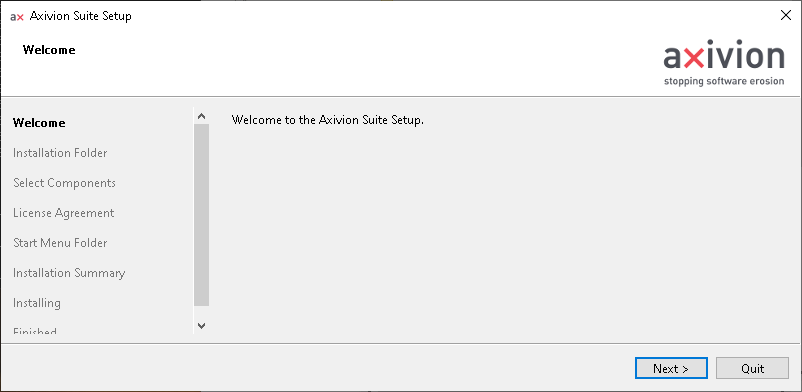
The welcome screen.
Click the Next > button.
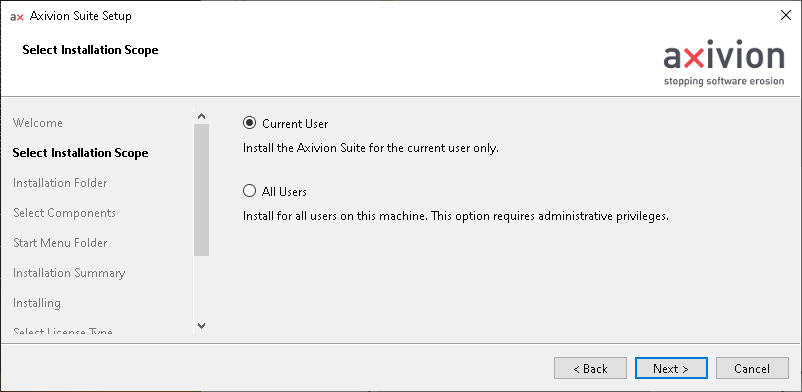
Scope of installation.
Here, you can choose whether you want to install for all users on the machine or just the current user. If you do not currently have administrator privileges, clicking on “All Users” will prompt you for them. An installation of the Axivion Suite for a current user and one for all users can co-exist.
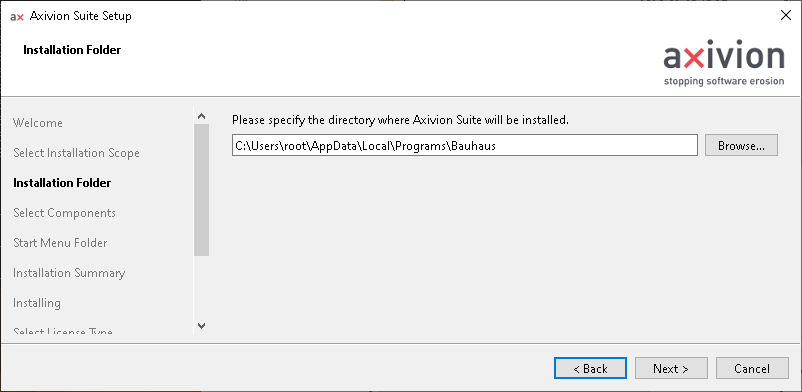
Destination for the Axivion Suite .
Choose the location where the Axivion Suite is to be installed. Depending on the
installation type (current user or all users), a sensible default location is provided.
You may browse to another directory by clicking the Browse... button.
Tip
If the location you have selected contains an existing Axivion Suite installation, you will be asked whether the old installation should be automatically removed. Existing license files will be automatically moved over into the new installation.
If you select “No” (or if automatic uninstallation fails), you will need to handle uninstallation manually, otherwise this location cannot be chosen.
Click Next > to get to the next screen.
From now on, let BAUHAUS denote the location you have chosen.
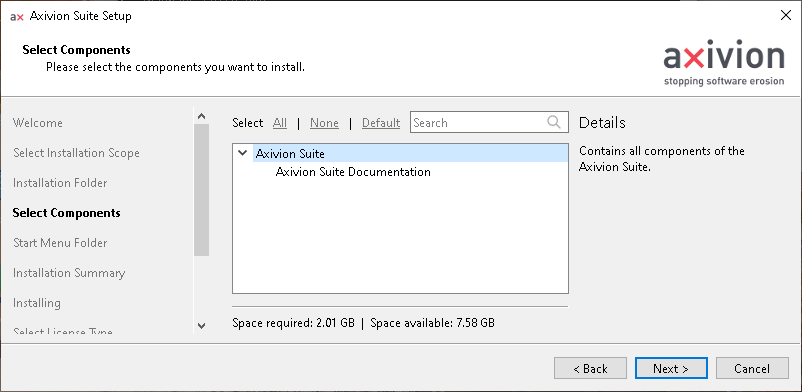
Component overview for the installation.
Here, you are shown an overview of available components. Currently, this is only split up into the Axivion Suite itself and its documentation.
Click Next > to get to the next screen.
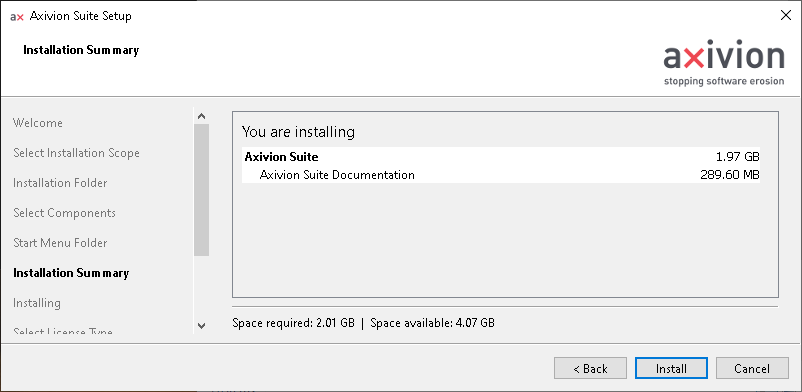
Final installation summary.
You will be shown a final summary of what will be installed and how much space this will take.
Click Install in order to install the Axivion Suite to the chosen destination.
This may take a while.
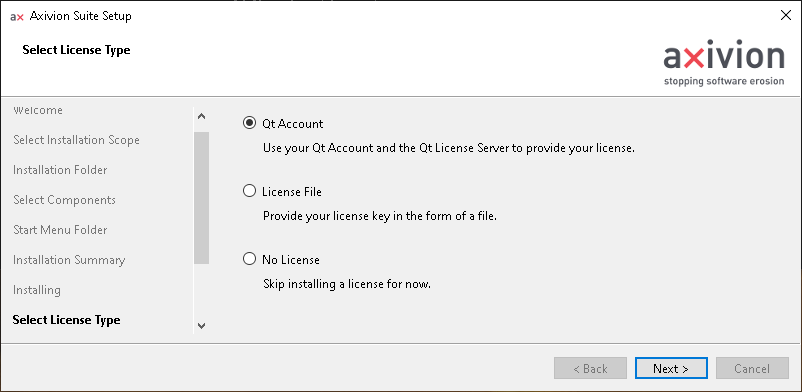
Optionally install the license.
After the installation has completed, you can optionally install the license key. There are two possible ways to do this. The preferred way from 7.12.0 onward is to use your Qt Account in combination with the Qt License Server (QLS), but file license keys were the preferred license mechanism up to 7.11.x. Please check with your Axivion Administrator to find out which license mechanism your company is using. You may also choose to skip installing a license and handle this manually later.
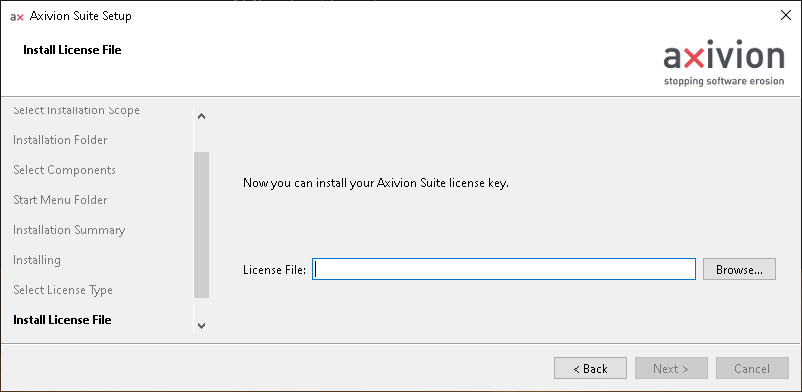
Choose the license file that shall be used for the Axivion Suite.¶ |
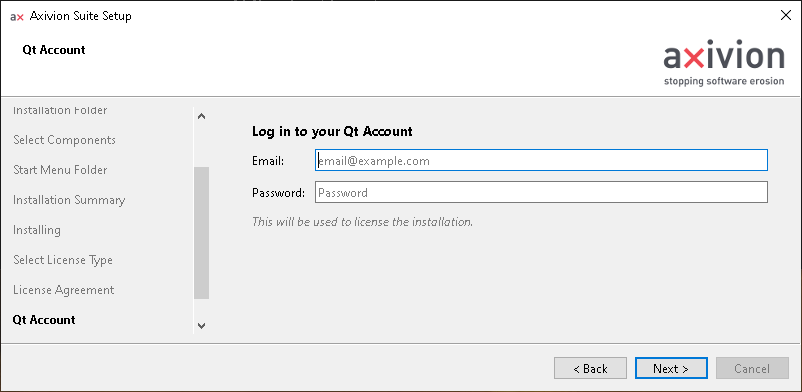
Enter the credentials for the Qt Account that has a valid Axivion Suite license.¶ |
If you chose License File: Use the file chooser to point to your license key file and the installer will place it at the correct location on the hard disk.
If you chose Qt Account: You will first need to agree to the terms and conditions shown on screen. Read through the terms and click the checkboxes if they apply. Then, you can click
Next >to get to the next screen, in which you may enter your Qt Account credentials in order to license the installation.
For a more thorough description of the available license mechanisms, or if you want to skip license handling here and handle it manually, please refer to Licensing.
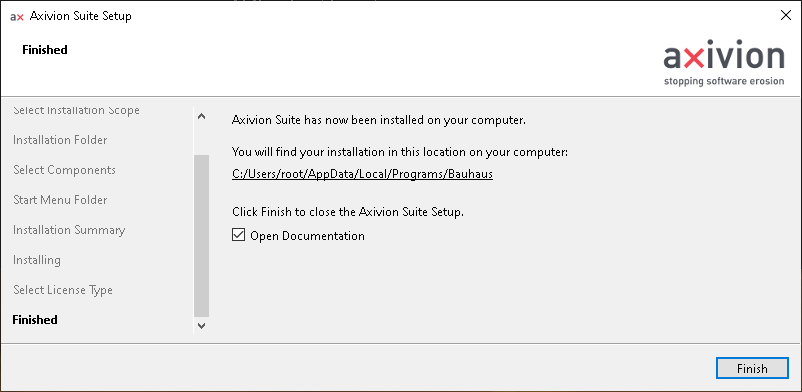
The installation has completed.
The installation has completed. Click Finish to leave the setup wizard.
You may also set a checkmark next to “Open Documentation” to open the Axivion Suite
documentation in your browser after the installer closes.
Command-Line Installation
The installer can be used from the command line on all platforms as well. This can be useful in two situations, for example:
You are in an environment that runs headlessly, that is, without the ability to open graphical user interfaces, and can only run command-line/TUI programs.
You perform the installation automatically (unattended, e.g., via a script) and want to pass the configuration to the installer so it does not have to ask for anything interactively.
Refer to the Qt IFW documentation for a full list of available command-line options (note that Axivion Suite-specific arguments are only covered here).
Note
The command-line installer has the following important differences to the GUI installer:
It cannot remove existing Axivion Suite installations automatically. Remove any existing installation manually first by running (assuming OLDBAUHAUS is the location of your old installation):
OLDBAUHAUS/maintenancetool --confirm-command purge
For security reasons, it will not ask for your Qt Account credentials interactively. If you use this license mechanism, please set the environment variables
QT_ACCOUNT_LOGIN_EMAILandQT_ACCOUNT_LOGIN_PASSWORDto your email and password, respectively.
Headless Installation
For the first use case (i.e., you want to run the installer on the command line,
but are fine with it asking for things interactively), simply run the installer
like this, where BAUHAUS is your desired target location for the installation:
Axivion-<version>-<arch>-<os>.<ext> install --root BAUHAUS
The installer will query you for the same information that is asked for in the
GUI version, with you typing in the answers into your terminal. For example
(typed-in values are prefixed with >):
[4] Install for all users or current user? [all/current]
> current
[21968] How do you want to license your installation? Available options:
* qt: Use your Qt Account and the Qt License Server to provide your license.
* file: Provide your license key in the form of a file.
* none: Skip installing a license for now.
[21968] Select license type [qt/file/none]
> file
[130993] Enter the absolute path to your license key file:
> /tmp/mylicense.key
Unattended Installation
Instead of the installer querying you for each setting as above, you can supply these as arguments. The general syntax for this is
Axivion-<version>-<arch>-<os>.<ext> install --accept-licenses --default-answer --confirm-command --root BAUHAUS Arg1=Val1 Arg2=Val2 [...]
The following arguments can be set:
UserScope: Can either be
currentfor the current user, orallfor all users.- AxivionLicenseType: Can be:
qt: Set up a QLS-based license by logging in with your Qt Account.You’ll need to set the environment variables
QT_ACCOUNT_LOGIN_EMAILandQT_ACCOUNT_LOGIN_PASSWORDto your Qt Account credentials.
file: Copy over a file-based license key.You’ll need to set argument AxivionLicenseFile to the absolute path of your license key file.
none: Don’t set up any license.
For example, on Linux, this could be:
./Axivion-7.12.0-x86_64-gnu_linux.run install --accept-licenses --default-answer --confirm-command --root /tmp/bauhaus UserScope=current AxivionLicenseType=none
1.2.2.2. Direct Extraction
Note
When extracting from the portable .zip or .tar.gz file, you will not see start menu entries,
have to handle license installation yourself, and so on.
You received the necessary download information (URL, username, password) for the
Axivion Suite from The Qt Company GmbH, a subsidiary of The Qt Group. Download the distribution using the URL. The main
distribution file is named Axivion-<version>-<arch>-<os>.<ext> where
<version> determines the version number, <arch> the CPU architecture, and
<os> the target operating system of the Axivion Suite. The file extension
<ext> will be .zip on Windows® and .tar.gz on macOS and GNU/Linux.
Extracting on GNU/Linux or macOS
Extract the contents of the distribution by executing the following command at the shell prompt (can be installed without superuser privileges):
cd INSTALL_BASE
tar xzf Axivion-<version>-<arch>-<os>.tar.gz
A directory bauhaus-suite inside your chosen directory is being created and the
Axivion Suite is being extracted there. In the following let BAUHAUS denote the
complete path of the directory which is created by the extraction of the tar file.
Example:
cd $HOME
tar xzf Axivion-7.12.0-x86_64-gnu_linux.tar.gz
If you choose your home directory as installation directory, then the Axivion Suite
gets installed into $HOME/bauhaus-suite and BAUHAUS denotes
$HOME/bauhaus-suite.
Preparing for first use
In order to complete the installation without the use of the installer,
execute the script setup.sh inside BAUHAUS.
Example (assuming you installed the Axivion Suite in your $HOME directory):
cd $HOME/bauhaus-suite
sh setup.sh
The script will modify the two files BAUHAUS/bauhaus-kshrc and
BAUHAUS/bauhaus-cshrc and symlink dynamic libraries that are not already
installed on your system from contrib/ to lib/ for usage within the
Axivion Suite . No other applications will be affected by this and no superuser
privileges are necessary to execute the setup.sh script.
Extracting on Windows®
Unpack the contents of the distribution at your desired location (e.g., by right-clicking the ZIP file in the Explorer and selecting “Extract All”).
If you want to install the registry keys for file types .ir and .rfg
like the installer does, you may execute the script install_registry_keys.py.
License
A valid license is needed to use Axivion Suite. Please refer to Licensing for instructions on how to setup the correct license mechanisms.
1.2.2.3. Uninstalling
The installer provides a maintenancetool (maintenancetool.exe on Windows®) in the
installation folder that allows you to fully uninstall the Axivion Suite, provided that
you used the guided installer instead of directly extracting the .tar.gz or .zip archive.
Please note that uninstalling the Axivion Suite via the “Installed Apps” page in the Settings may not work
correctly on Windows 11. Instead, you must either uninstall via the “Programs and Features” page in the
Control Panel,
or directly run the maintenancetool.exe in the installation folder.
1.2.2.4. Using the Axivion Suite
On GNU/Linux or macOS
In order to make use of the tools of the Axivion Suite, please source one of the
files BAUHAUS/bauhaus-cshrc or BAUHAUS/bauhaus-kshrc depending
on the shell you use.
On Microsoft Windows®
When using Microsoft Visual Studio C++
For Visual Studio 2010 or later, see the chapter MSBuild Integration.
When using Cygwin
For a Cygwin-based setup, see the Cygwin HOWTO.
File System Caveat
In the default configuration of Microsoft Windows®, files on the filing systems are
case-insensitive, i.e. FILE is the same as File and as file. The
drawback is that you can write inconsistent includes in different source files:
#include "errors.h"
And:
#include "Errors.h"
In those two cases, the same file is included. The Axivion Suite uses Windows® API functions to find out the correct casing of the file and uses that.
Caution
Sometimes, most often on UNIX, the file extension .C (an upper-case C
character) is used as file extension for C++ files. On Windows®, .C cannot
be distinguished from .c anymore, and files ending with .C get
treated as C files and not C++ files. Either use a different file extension like
.cc, .cpp, .cxx or .c++ instead or specify the
command line option -lang-c++ or -lang-c in case of
ambiguity when calling cafeCC.
1.2.2.5. FAQ
Q: Can I run multiple Axivion versions side-by-side on the same machine?
A: Yes. On a new terminal, run the absvars.bat (Windows) or bauhaus-kshrc
(Linux) scripts from the desired release folder. This ensures any Axivion commands on that
terminal use that specific version.
Note: The dashboard is backward compatible with analysis agents (unless otherwise stated in the migration guide). You can run the dashboard with a newer version and perform analysis with an older version. The reverse is not guaranteed.