
풍력 터빈 대시보드
2D 및 3D 그래프가 포함된 풍력 터빈 대시보드.
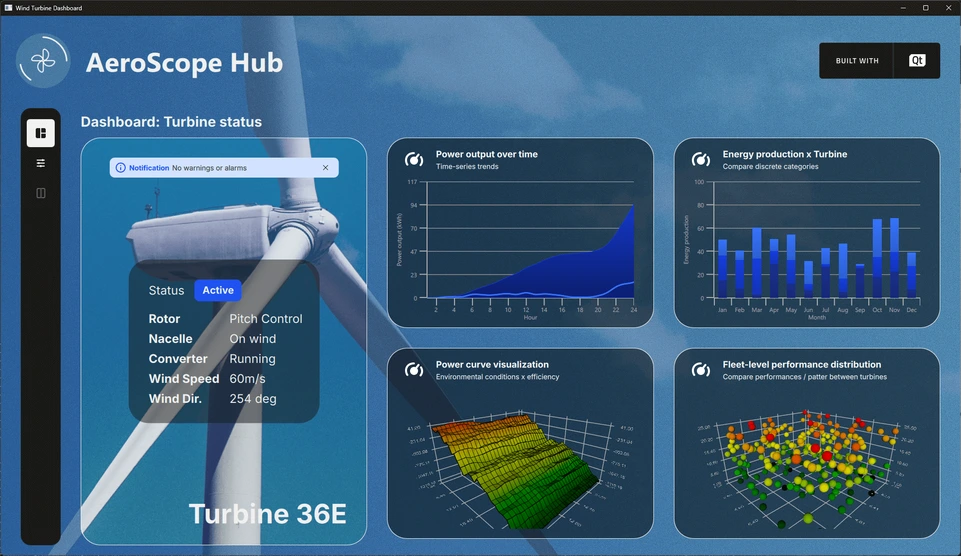
'풍력 터빈 대시보드' 예제는 시뮬레이션된 실제 애플리케이션에서 2D 및 3D 그래프를 모두 사용하는 방법을 보여줍니다.
예제 실행
다음 위치에서 예제를 실행할 수 있습니다.
- Qt Creator
Welcome 모드를 열고 Examples 에서 예제를 선택하십시오. 자세한 내용은 Qt Creator: 튜토리얼: 빌드 및 실행을 참조하십시오.
- Qt Extension for Visual Studio Code
Command Palette 에서 Qt: Open Qt examples 명령을 실행하고 목록에서 예제를 선택하십시오. 자세한 내용은 Qt Extension for Visual Studio Code: 튜토리얼: 빌드 및 실행을 참조하십시오.
애플리케이션 개요
이 예제는 ‘Aerospace Hub’라고 불리는 풍력 터빈 모니터링 대시보드를 보여 주며, 가상의 풍력 터빈 단지에서 생성된 시뮬레이션 데이터를 표시합니다. 다양한 종류의 데이터를 시각화하기 위해 여러 가지 그래프 유형이 사용됩니다. 예를 들어, 스플라인 시계열을 사용하는 2D 그래프는 시간별 발전량을 나타내고, 함께 표시되는 면적 시계열은 동일한 기간 동안의 누적 발전량을 나타냅니다. 여러 데이터 보기를 통해 사용자는 다양한 관점에서 정보를 탐색하고 분석할 수 있습니다.
메인 인터페이스 왼쪽에는 설정 도구 모음이 있습니다. 선택한 모드에 따라 레이아웃에는 상태 창, 작은 그래프로 구성된 대시보드, 주요 대형 그래프 또는 상세 설정 패널이 개별적으로 또는 조합되어 포함될 수 있습니다. 이러한 유연한 설계를 통해 사용자는 보기를 맞춤 설정하고 현재 분석에 가장 관련성이 높은 데이터에 집중할 수 있습니다.
대시보드 보기
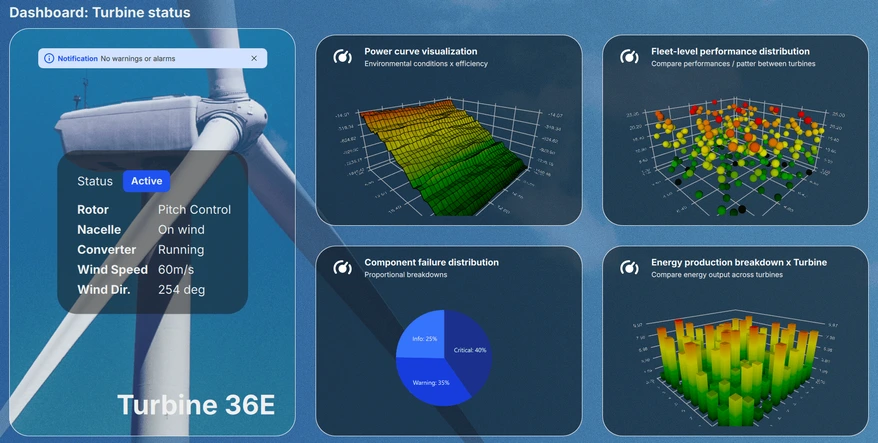
대시보드 보기는 현재 시스템 상태와 함께 다양한 그래프의 축소된 미리보기를 표시하는 스크롤 가능한 창을 제공합니다. 최대 4개의 그래프가 동시에 표시되므로, 사용자는 사용 가능한 6가지 시각화 자료를 편리하게 살펴보고 주요 성과 지표를 한눈에 빠르게 파악할 수 있습니다.
상세 보기
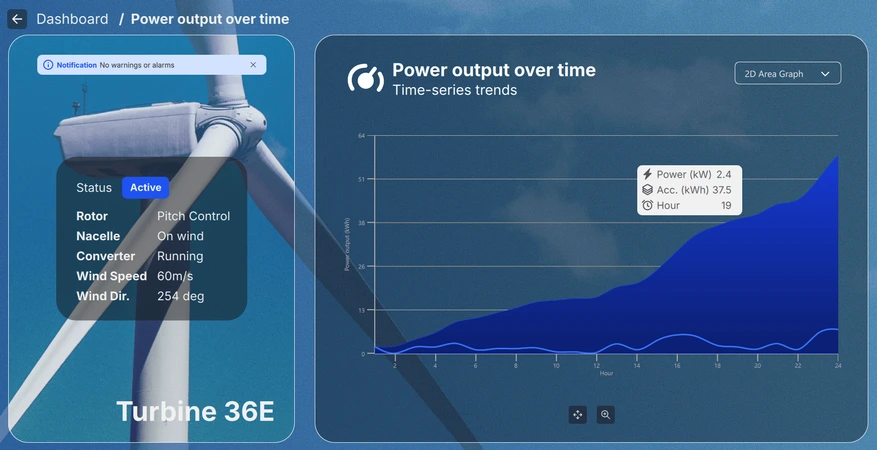
대시보드에서 축소된 그래프를 선택하면 표시되는 상세 보기에서는 사용자가 선택한 시각화 자료를 더 깊이 있게, 더 큰 규모로 살펴볼 수 있습니다. 그래프 유형에 따라 사용자는 화면을 확대/축소하거나 이동, 회전하여 데이터를 대화형으로 탐색할 수 있습니다. 또한, 개별 데이터 포인트 위에 마우스를 올리거나 클릭하여 관심 있는 특정 항목에 대한 더 자세한 정보를 확인할 수 있습니다.
설정 보기
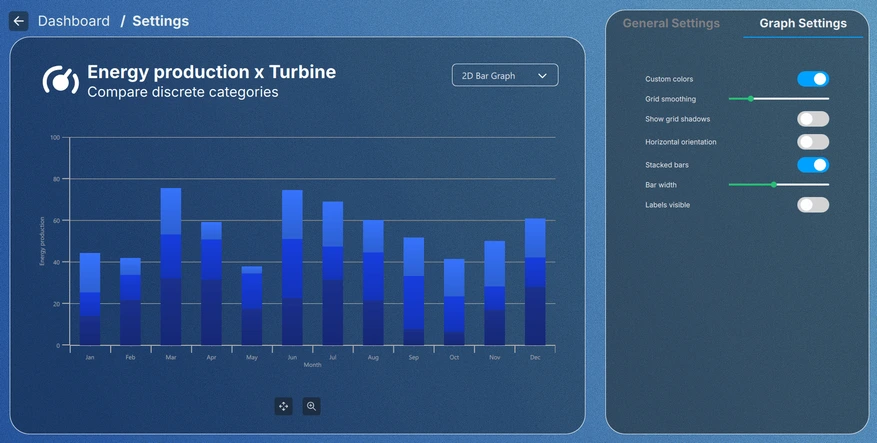
도구 모음이나 축소판 그래프에 있는 설정 버튼을 클릭하면 표시되는 설정 보기에서는 그래프의 시각적 테마를 조정하고 각 그래프 유형에 특화된 설정을 수정할 수 있습니다. 일부 구성은 설정 보기를 종료한 후에도 유지되는 반면, 다른 구성은 현재 보기 내에서만 적용되므로 일시적 또는 영구적인 조정을 유연하게 수행할 수 있습니다.
데이터 시뮬레이션
모든 그래프 데이터는 C++로 구현된 계층적 시뮬레이터 클래스들에 의해 생성됩니다. 기본 클래스인 ` DataSimulator`는 구성 가능한 ` min `에서 ` max ` 범위 내에서 난수 값을 생성합니다. ` order ` 속성은 시퀀스가 ` Ascending`, ` Descending` 또는 ` NotSorted` 중 어느 유형인지 제어하며, ` deviation ` 속성은 각 값이 이전 값과 얼마나 달라질 수 있는지를 제한합니다. live 가 true 로 설정되면, updatePeriod 에서 지정한 간격으로 데이터가 자동으로 업데이트됩니다. 업데이트는 전용 백그라운드 스레드에서 실행되어 실제 데이터 소스를 시뮬레이션합니다.
각 하위 클래스는 특정 시리즈 유형을 대상으로 하는 QML 요소입니다.
LineSimulator— 생성된 값으로 QSplineSeries 을 채웁니다.BarSimulatorQBarSeries — 에 값을 채우며, 속성에 따라 값을 막대 세트별로 그룹화합니다.numberOfCategoryPieSimulator— QPieSeries 에 데이터를 채우며, 생성된 값마다 하나의 슬라이스를 생성합니다.Data3DSimulator— 3D 그래프 유형에서 사용하는SimulatedDataModel(QAbstractListModel)에 데이터를 공급합니다.numberOfRows및numberOfColumns속성은 데이터의 그리드 차원을 정의합니다.
구현 세부 사항
애플리케이션의 모든 요소는 모듈식 방식으로 설계되었습니다. 메인 뷰인 Main.qml 파일은 ApplicationWindow 이며, 이 파일은 각 그래프에 대한 데이터 시뮬레이터를 인스턴스화할 뿐만 아니라 모든 UI 요소를 포함하는 루트 Item 도 인스턴스화합니다.
FontLoader 는 전체 UI에 전역 글꼴을 적용하는 데 사용됩니다.
ApplicationWindow {
    ...

    FontLoader { ... }
    font.family: interFont.name

    // Data simulators
    PieSimulator {
        id: piesim
        ...
    }

    BarSimulator {
        id: barsim
        ...
    }

    LineSimulator {
        id: linesim
        ...
    }

    Data3DSimulator {
        id: barDataSimulator
        ...
    }

    Data3DSimulator {
        id: scatterDataSimulator
        ...
    }

    Data3DSimulator {
        id: surfaceDataSimulator
        ...
    }

    // Root item
    Item {...}
}
루트 항목은 배경 그래픽과 뷰 내 각 UI 요소의 배치를 처리하는 Layout 를 포함합니다:
// Background image
Image {
    anchors.fill: parent
    source: root.state === "ShowSettings" ? "images/settings-bg.png"
                                          : "images/dashboard-bg.png"
    fillMode: Image.PreserveAspectCrop
}

// Everything except background image
ColumnLayout {
    anchors.fill: parent
    ...
대부분의 요소는 Main.qml 파일 자체에서 분리되어 레이아웃에서 사용될 자체 QML 컴포넌트로 옮겨졌으며, 아래 코드 조각에 있는 ToolBarItem 가 그 예입니다:
// Vertical toolbar
ToolBarItem {
    Layout.preferredWidth: GlobalSettings.toolbarwidth
    Layout.fillHeight: true
}

// Everything except vertical toolbar, header, and background image
ColumnLayout {
    id: maincontentview
    Layout.fillWidth: true
    Layout.fillHeight: true
    ...
서로 다른 뷰 간의 전환은 ` states ` 및 ` transitions`을 사용하여 처리됩니다:
states: [
    State {
        name: "ShowDashboard"
    },
    State {
        name: "ShowSettings"
        PropertyChanges {
            maincontent.opacity: 0
            settingscontent.opacity: 1
        }
        PropertyChanges {
            viewtextdesc.text: "/  Settings"
        }
    },
    ...
// Use transitions to bring the selected view to the front
transitions: [
    Transition {
        NumberAnimation {
            properties: "opacity"
            easing.type: Easing.InOutCubic
            duration: 1000
        }
    }
]
대시보드
대시보드는 메인 콘텐츠의 일부로, Layout 계층 구조 내에 위치한 또 다른 RowLayout 입니다:
// Main content
RowLayout {
    id: maincontent
    Layout.fillWidth: true
    Layout.fillHeight: true
    ...
대시보드는 상태 패널과 대시보드 패널로 구성됩니다:
// Status area; turbine image, notification, status texts, and turbine name
StatusPane {
    id: statuspane
    Layout.preferredWidth: GlobalSettings.statusimagewidth
    Layout.fillHeight: true
}

// Scrollable dashboard graph area, shown when in ShowDashboard state
DashboardPane {
    id: dashboardpane
    contentheight: statuspane.height * 1.5
    Layout.preferredWidth: GlobalSettings.dashboardwidth
    Layout.fillHeight: true
}
상태 창
상태 창 또한 더 작은 요소들로 구성되어 있으며, 각 요소는 별도의 QML 컴포넌트로 구현되었습니다:
// Masking the turbine image of the background image
ImageItem {
    anchors.fill: parent
}

// Notification
NotificationItem {
    anchors.top: turbineimage.top
    anchors.horizontalCenter: turbineimage.horizontalCenter
    anchors.topMargin: GlobalSettings.doublespacing
    width: turbineimage.width / 1.25
}

// Status
StatusItem {
    anchors.centerIn: turbineimage
    width: turbineimage.width / 1.5
    height: turbineimage.width / 1.75
}

// Turbine name
Label {
    ...
이들의 구현 방식은 본 주제와 관련이 없으므로 해당 부분은 생략하겠습니다.
대시보드 창
대시보드는 6개의 작은 그래프 미리보기 창을 포함하는 요소입니다. 한 번에 4개만 표시되므로, 스크롤이 가능한 요소 안에 배치해야 합니다. 이 경우, ` Flickable`을 사용하여 ` GridLayout`을 포함하는 방식으로 구현되었습니다:
Flickable {
    property alias contentheight: content.height

    clip: true

    contentHeight: contentheight

    boundsBehavior: Flickable.StopAtBounds
    interactive: true
    visible: opacity > 0.5

    Item {
        id: content
        width: parent.width

        GridLayout {
            id: grid
            columns: 2
    ...
그래프 미리보기들은 그리드 레이아웃(grid layout) 내에 추가되며, 다른 대부분의 요소와 마찬가지로 각각 자체 요소 안에 구현되어 있습니다:
// Graph 1: Power output over time
SmallGraphItem {
    Layout.fillWidth: true
    Layout.fillHeight: true
    state: "Area2D"
    linesimulator: linesim
}

// Graph 2: Energy production x Turbine
SmallGraphItem {
    Layout.fillWidth: true
    Layout.fillHeight: true
    state: "Bar2D"
    barsimulator: barsim
}
...
SmallGraphItem 요소는 모든 종류의 그래프 유형을 포함하는 범용 요소이며, 필요한 유형은 state 형태로 이 요소에 전달됩니다.
SmallGraphItem에는 다음이 포함됩니다:
- 헤더 요소
- 각 그래프 유형의 인스턴스로, opacity 트리거를 사용하여 기본적으로 가시성이 false로 설정됩니다
- 미리보기를 어둡게 하는 사각형
- 미리보기에서 마우스 오버 및 클릭을 처리하기 위한 마우스 영역
Pie2DGraph {
    id: pie2d
    anchors.topMargin: header.height + GlobalSettings.defaultspacing
    anchors.rightMargin: GlobalSettings.defaultspacing
    anchors.fill: parent
    opacity: 0
    piesimulator: smallgraph.piesimulator
}

Bar3DGraph {
    id: bar3d
    anchors.topMargin: header.height + GlobalSettings.defaultspacing
    anchors.bottomMargin: GlobalSettings.defaultspacing
    anchors.fill: parent
    opacity: 0
    cameraZoomLevel: GlobalSettings.defaultzoom
    cameraPreset: GlobalSettings.defaultpreset
}
...
불투명도는 전환 애니메이션에 사용되므로, 미리보기에서는 기본적으로 0으로 설정되어 있습니다. 불투명도가 0.5 이상으로 애니메이션될 때, 미리보기 그래프 자체가 표시되도록 설정됩니다:
Bars3D {
    id: graph
    visible: opacity > 0.5
    ...
세부 정보
'상세 정보(Details)'도 메인 콘텐츠의 일부로, ' Layout ' 계층 구조 내에서 동일한 ' RowLayout '를 사용합니다. 이는 대시보드와 동일한 상태 창과 상세 정보 창으로 구성되어 있습니다:
// Details graph, shown when in correct state
BigGraphItem {
    id: detailspane
    Layout.preferredWidth: GlobalSettings.dashboardwidth
    Layout.fillHeight: true
    state: root.state
    radius: GlobalSettings.defaultradius
    piesimulator: piesim
    barsimulator: barsim
    linesimulator: linesim
    detailsview: true
}
상세 정보 패널( BigGraphItem)은 SmallGraphItem 과 유사하게, 다른 요소들 외에도 각 그래프의 인스턴스를 포함하고 있습니다:
// Graphs
Area2DGraph {
    id: area2dbig
    Layout.fillWidth: true
    Layout.fillHeight: true
    Layout.margins: GlobalSettings.defaultmargin
    opacity: 0
    panStyle: GraphsView.PanStyle.Drag
    zoomStyle: GraphsView.ZoomStyle.Center
    linesimulator: biggraph.linesimulator
    onVisibleChanged: {
        if (visible)
            biggraph.activegraph = area2dbig
    }
}

Bar2DGraph {
    id: bar2dbig
    Layout.fillWidth: true
    Layout.fillHeight: true
    Layout.margins: GlobalSettings.defaultmargin
    opacity: 0
    panStyle: GraphsView.PanStyle.Drag
    zoomStyle: GraphsView.ZoomStyle.Center
    barsimulator: biggraph.barsimulator
    onVisibleChanged: {
        if (visible)
            biggraph.activegraph = bar2dbig
    }
}
...
여기에는 그래프 유형을 선택하는 드롭다운 콤보박스, 그래프 유형에 따라 회전, 이동, 확대/축소 기능을 수행하는 제어 버튼, 그리고 버튼에 대한 툴팁 등이 포함되어 있습니다. SmallGraphItem 과 마찬가지로, 표시되는 그래프 유형은 상태에 따라 결정됩니다.
설정
설정(Settings)은 대시보드(Dashboard) 나 상세 정보(Details) 뷰의 어떤 부분도 사용하지 않기 때문에, 메인 콘텐츠 Layout 밖으로 분리되었습니다:
// Settings
SettingsItem {
    id: settingscontent
    anchors.fill: parent
    ...
설정 뷰에는 그래프를 표시하기 위한 또 다른 BigGraphItem 과, GraphsTheme 속성 또는 선택한 그래프 유형에 특화된 일부 속성을 조정할 수 있는 설정 패널이 포함되어 있습니다.
// Graph detail
BigGraphItem {
    id: settingsgraph
    width: GlobalSettings.settingsgraphwidth
    anchors.top: parent.top
    anchors.bottom: parent.bottom
    anchors.topMargin: GlobalSettings.graphdetailmargin
    radius: GlobalSettings.defaultradius
    opacity: parent.opacity
    piesimulator: settingsitem.piesimulator
    barsimulator: settingsitem.barsimulator
    linesimulator: settingsitem.linesimulator
}

// Settings pane
Loader {
    active: settingsitem.visible
    asynchronous: true
    anchors.left: settingsgraph.right
    anchors.right: parent.right
    anchors.top: parent.top
    anchors.bottom: parent.bottom
    anchors.leftMargin: GlobalSettings.doublespacing

    sourceComponent: Item {
        StackLayout {
            id: settingspane
            anchors.fill: parent
    ...
전역 테마
General Settings 탭의 설정은 애플리케이션 내 모든 그래프에 적용됩니다. 전역 GraphsTheme 는 GlobalSettings.qml 에서 Singleton 로 구현되었습니다:
pragma Singleton
...
QtObject {
    id: global
    ...
// Common graph theme
property var theme: GraphsTheme {
    plotAreaBackgroundVisible: false
    backgroundVisible: false
    colorScheme: GraphsTheme.ColorScheme.Dark
    theme: GraphsTheme.Theme.BlueSeries
    labelTextColor: "#AEAEAE"
    labelBackgroundVisible: true
    labelFont.pointSize: global.fontsize28px
    grid.mainColor: "#AEAEAE"
    grid.mainWidth: 1
    baseGradients: [ global.customgradient ]
}
이 전역 공유 테마는 각 그래프의 테마로 설정됩니다:
theme: GlobalSettings.theme싱글톤인 ` GlobalSettings.qml `은 애플리케이션에서 사용 가능하도록 ` CMakeLists.txt `에서도 싱글톤으로 태그되어야 합니다:
set_source_files_properties(qml/GlobalSettings.qml
    PROPERTIES QT_QML_SINGLETON_TYPE TRUE)
그래프 설정
Graph Settings 탭의 설정은 현재 선택된 그래프에만 적용됩니다. 이러한 설정은 전역 테마를 변경하지 않으며, 활성 그래프의 시리즈에만 적용됩니다.
© 2026 The Qt Company Ltd. Documentation contributions included herein are the copyrights of their respective owners. The documentation provided herein is licensed under the terms of the GNU Free Documentation License version 1.3 as published by the Free Software Foundation. Qt and respective logos are trademarks of The Qt Company Ltd. in Finland and/or other countries worldwide. All other trademarks are property of their respective owners.
