
그래프 인쇄
2D 또는 3D 그래프 출력.
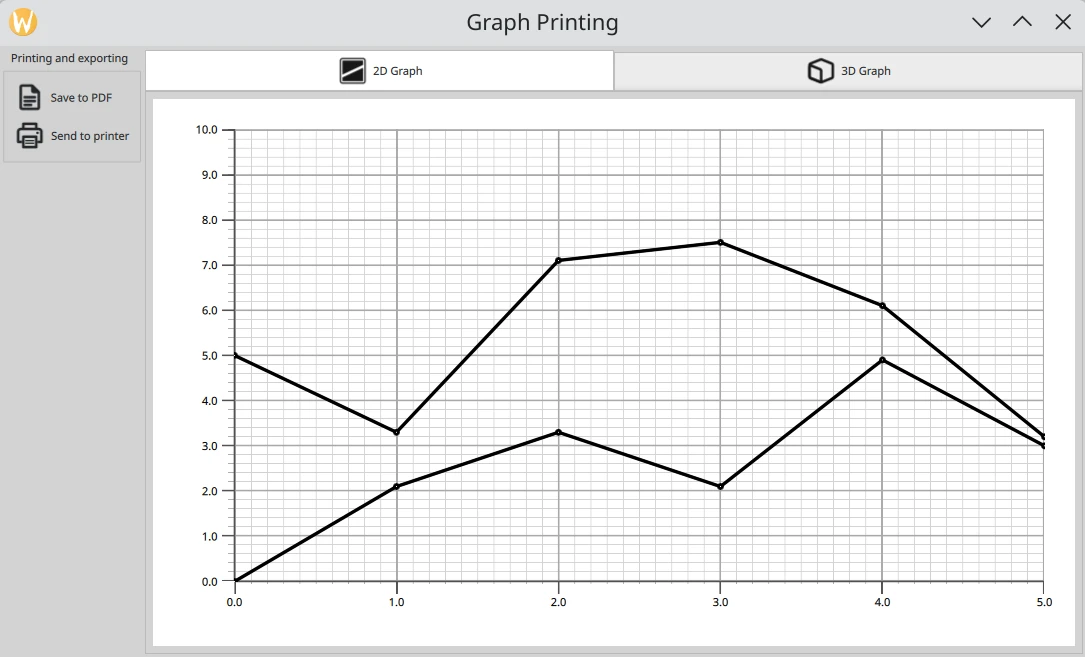
'그래프 인쇄' 예제는 2D 및 3D 그래프를 인쇄하거나 PDF로 내보내는 방법을 보여줍니다.
예제 실행
다음 위치에서 예제를 실행할 수 있습니다.
- Qt Creator
Welcome 모드를 열고 Examples 에서 예제를 선택하십시오. 자세한 내용은 Qt Creator: 튜토리얼: 빌드 및 실행을 참조하십시오.
- Qt Extension for Visual Studio Code
Command Palette 에서 Qt: Open Qt examples 명령을 실행하고 목록에서 예제를 선택합니다. 자세한 내용은 Qt Extension for Visual Studio Code: 튜토리얼: 빌드 및 실행을 참조하십시오.
GraphPrinter 클래스
출력 기능은 GraphPrinter 클래스에 구현되어 있습니다. 이 클래스는 다음과 같은 함수를 제공합니다:
generatePDF함수는 다음과 같이 작동합니다.- 출력 PDF 파일을 설정합니다.
이 함수는 지정된 폴더에 있는 “graph.pdf” 파일을 참조하여 QPdfWriter 객체를 생성합니다. 또한 이 함수는 내보낼 PDF 파일의 옵션( 제목, 해상도, 페이지 크기, 여백)을 지정합니다.
QFile file = QFile(path.toLocalFile()); { QPdfWriter writer(file.fileName()); writer.setResolution(90); writer.setTitle(u"Graph"_s); writer.setPageSize(QPageSize(image.size())); writer.setPageMargins(QMarginsF(0, 0, 0, 0)); writer.newPage(); paintImage(image, &writer); } - 이미지 처리를 설정합니다.
정적 헬퍼 함수인 `
paintImage`는 QML에서 캡처한 이미지를 ` QPaintDevice ` 클래스의 인스턴스에 그립니다:이 함수는 기기를 참조하는 QPainter 객체를 생성합니다.
그래프가 올바르게 출력되도록 하기 위해, 원래의 종횡비 비율을 유지한 채 페인터의 뷰포트 크기로 크기를 조정합니다.
페인터의 렌더링 힌트는 무손실 이미지 렌더링으로 설정됩니다. 그 후, 이 함수는 이미지를 PDF 파일에 그립니다.
static void paintImage(const QImage &image, QPaintDevice *paintDevice)
{
    QPainter painter(paintDevice);
    const QImage finalImage = image.scaled(painter.viewport().size(), Qt::KeepAspectRatio);
    painter.setRenderHint(QPainter::LosslessImageRendering);
    painter.drawImage(finalImage.rect(), finalImage);
}
QPdfWriter 와 QPrinter 는 QPaintDevice 를 상속받기 때문에, 이 헬퍼 함수는 아래에서 설명할
generatePDF함수와print함수에서 호출할 수 있습니다.
이 함수는 내보낸 파일의 전체 경로를 포함하여, 애플리케이션의 메시지 대화 상자에 표시될 상태 메시지를 반환합니다.
- 출력 PDF 파일을 설정합니다.
getPrinters함수는 사용 가능한 프린터 목록을 반환합니다.QStringList GraphPrinter::getPrinters() { return QPrinterInfo::availablePrinterNames(); }print함수는generatePDF함수와 유사하게 작동하지만, QPrinter 인스턴스를 참조하는 QPainter 을 생성합니다:QString GraphPrinter::print(const QImage &image, const QString &printerName) { QPrinterInfo printInfo = QPrinterInfo::printerInfo(printerName); if (printInfo.isNull()) return tr("%1 is not a valid printer").arg(printerName); QPrinter printer(printInfo, QPrinter::HighResolution); printer.setOutputFormat(QPrinter::NativeFormat); paintImage(image, &printer); return tr("Printed to %1").arg(printerName); }이 함수는 애플리케이션의 메시지 대화 상자에 표시될 상태 메시지를 반환합니다.
애플리케이션 설정
애플리케이션 설정 코드 외에도, ` main.cpp ` 파일에는 `GraphPrinter` 클래스의 새 인스턴스를 생성하고 QML 코드에서 이 인스턴스에 접근할 수 있도록 하는 코드가 포함되어 있습니다.
GraphPrinter graphPrinter;
viewer.rootContext()->setContextProperty(u"graphPrinter"_s, &graphPrinter);
레이아웃 및 이미지 캡처 설정
2D 및 3D 그래프는 Stacklayout에 배치됩니다. 사용자는 TabBar 를 사용하여 이를 탐색할 수 있습니다.
TabBar {
    id: tabBar
    anchors.left: parent.left
    anchors.right: parent.right

    TabButton {
        text: "2D Graph"
        implicitHeight: 48
        icon.source: checked ? "flatten_square_fill.svg" : "flatten.svg"
        icon.height: 36
        icon.width: 36
    }

    TabButton {
        text: "3D Graph"
        implicitHeight: 48
        icon.source: checked ? "box_left_fill.svg" : "box_left.svg"
        icon.height: 36
        icon.width: 36
    }
}
Frame {
    id: tabFrame
    anchors.left: parent.left
    anchors.right: parent.right
    anchors.top: tabBar.bottom
    anchors.bottom: parent.bottom

    StackLayout {
        id: stackLayout

        anchors.fill: parent
        currentIndex: tabBar.currentIndex

        Graph2D {
            id: linegraph
        }

        Graph3D {
            id: bargraph
        }
    }
}
FileDialog 컴포넌트는 출력할 PDF 파일을 선택하는 데 사용됩니다. 이 컴포넌트는 애플리케이션 레이아웃에 시각적으로 표시되지는 않지만, 현재 QML 파일에서 해당 API에 접근할 수 있습니다.
FileDialog {
    id: dialog
    currentFolder: StandardPaths.writableLocation(StandardPaths.PicturesLocation)
    nameFilters: ["PDF files (*.pdf)"]
    defaultSuffix: "pdf"

    fileMode: FileDialog.SaveFile
프린터를 선택하기 위한 사용자 정의 인쇄 대화 상자가 생성되며, ‘  ’ 버튼을 누르면 이 대화 상자가 호출됩니다. 이 대화 상자는 사용 가능한 프린터 목록을 가져와 목록 뷰에 표시합니다.
Dialog {
id: printerDialog
anchors.centerIn: parent
contentHeight: printerListView.height
contentWidth: printerListView.width
title: qsTr("Available Printers")
modal: true
onOpened: {
printerModel.clear()
var printers = graphPrinter.getPrinters()
printers.forEach((x, i) => printerModel.append({
"name": x
}))
}
...
contentItem: Rectangle {
id: printerItem
height: printerListView.height
width: printerListView.width
color: mainView.item.theme.plotAreaBackgroundColor
ListView {
id: printerListView
height: 100
width: 200
clip: true
model: printerModel
delegate: printerDelegate
highlight: Rectangle {
color: mainView.item.theme.grid.subColor
}
}
} 버튼을 누르면 PDF 내보내기가 실행됩니다.
PDF 내보내기나 인쇄 중 하나가 실행되면 다음 코드가 실행됩니다:
grabToImage메서드를 사용하여 이미지를 캡처합니다. 현재 그래프는 Stacklayout의 현재 인덱스에 있는 항목입니다.grabToImage매개변수에서 콜백으로GraphPrinter클래스의generatePDF또는print함수를 지정합니다.PDF 내보내기:
onAccepted: {
    mainView.prepareForPrint()

    mainView.item.grabToImage(function (result) {
        message.title = "Save PDF"
        message.text = "PDF saved to " + graphPrinter.generatePDF(
                    dialog.selectedFile, result.image)
        message.open()
    }, mainView.outputsize)
}
인쇄:
onAccepted: {
    var selectedPrinter = printerModel.get(printerListView.currentIndex)
    mainView.prepareForPrint()
    mainView.item.grabToImage(function (result) {
        message.title = "Print"
        message.text = graphPrinter.print(result.image,
                                          selectedPrinter.name)
        message.open()
    }, mainView.outputsize)
}

onClosed: {
    mainView.cleanAfterPrint()
}
크기의 경우, 이 코드는 이미지를 실제 해상도의 4배로 렌더링합니다. 3D 그래프의 경우, 인쇄가 진행되는 동안 해당 항목을 확장해야 합니다:
function prepareForPrint() {
    if (stackLayout.currentIndex === 1) {
        var newsize = Qt.size(bargraph.width * 4, bargraph.height * 4)

        // check that we do not exceed maximum texture size
        if (newsize.width * Screen.devicePixelRatio > graphPrinter.maxTextureSize() ) {
            // scale to 25% under max texture size to be on the safe side; some GPUs seem
            // to glitch when using the abosulute max
            var ratio = (newsize.width * Screen.devicePixelRatio * 1.25)
                    / graphPrinter.maxTextureSize()
            newsize.width /= ratio
            newsize.height /= ratio
        }
        outputsize.width = Math.round(newsize.width)
        outputsize.height = Math.round(newsize.height)

        // resize the bar graph to match the PDF output size
        item.width = outputsize.width
        item.height = outputsize.height
    } else {
        outputsize = Qt.size(linegraph.width * 4, linegraph.height * 4)
    }
}

function cleanAfterPrint() {
    if (stackLayout.currentIndex === 1) {
        // resize the bar graph back to the actual visual size
        item.width = stackLayout.width
        item.height = stackLayout.height
    }
}
© 2026 The Qt Company Ltd. Documentation contributions included herein are the copyrights of their respective owners. The documentation provided herein is licensed under the terms of the GNU Free Documentation License version 1.3 as published by the Free Software Foundation. Qt and respective logos are trademarks of The Qt Company Ltd. in Finland and/or other countries worldwide. All other trademarks are property of their respective owners.
