
Qt Quick 3D - XR 고급 터치
곡면 디스플레이에서의 터치 기능과 3D 모델 터치 조작을 시연합니다.
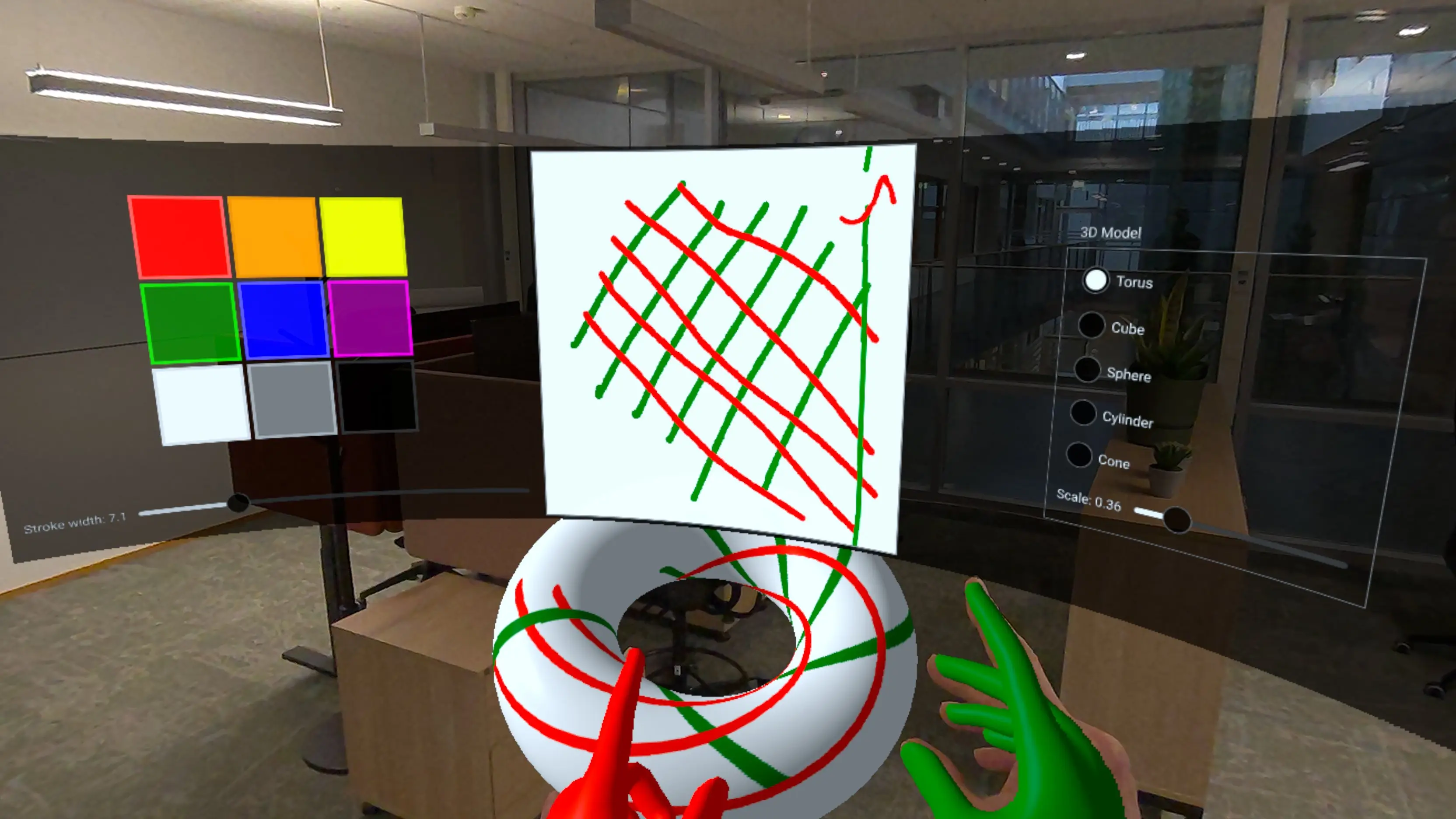
이 예제는 ‘XR Simple Touch’ 예제를 기반으로 하여, ‘ Qt Quick 3D XR’에서 더 고급 터치 상호작용 기법을 보여줍니다:
- 곡면 3D 표면에 렌더링된 2D UI 요소와의 터치 상호작용.
- UV 좌표를 사용한 3D 모델에 대한 직접 터치 처리.
- 핀치 제스처를 사용하여 3D 오브젝트를 잡거나 조작하는 방법.
- 몰입형 디스플레이를 위한 절차적 곡면 메쉬 생성.
- C++을 사용하여 사용자 정의 페인트 가능 텍스처 생성.
소스 항목이 포함된 곡면 디스플레이
이 예제의 주요 기능 중 하나는 곡면 위에 2D 사용자 인터페이스를 표시하는 것입니다. 곡면 평면을 생성하는 사용자 정의 절차적 메쉬 컴포넌트인 ` CurvedMesh`를 생성합니다:
// Copyright (C) 2025 The Qt Company Ltd.
// SPDX-License-Identifier: LicenseRef-Qt-Commercial OR BSD-3-Clause

import QtQuick
import QtQuick3D
import QtQuick3D.Helpers

ProceduralMesh {
        property real partitions: 50
        property real segments: 1
        property real radius: 50.0
        property real height: 50.0
        property real width: 80
        property var meshArrays: generateMesh(partitions , width, height, radius)
        positions: meshArrays.verts
        normals: meshArrays.normals
        uv0s: meshArrays.uvs
        indexes: meshArrays.indices

        function generateMesh(partitions : real, width: real, height: real, radius: real) : var {
            let verts = []
            let normals = []
            let uvs = []
            let indices = []

            // width = angleSpan * radius
            const angleSpan = width / radius

            for (let i = 0; i <= partitions ; ++i) {
                for (let j = 0; j <= 1; ++j) {
                    const u = i / partitions ;
                    const v = j;

                    const x = u - 0.5 // centered
                    const angle = x * angleSpan

                    const posZ = radius - radius * Math.cos(angle)
                    const posY = height * v
                    const posX = radius * Math.sin(angle)

                    verts.push(Qt.vector3d(posX, posY, posZ));

                    let normal = Qt.vector3d(0 - posX, 0, radius - posZ).normalized();
                    normals.push(normal);

                    uvs.push(Qt.vector2d(u, v));
                }
            }

            for (let i = 0; i < partitions ; ++i) {
                let a = (segments + 1) * i;
                let b = (segments + 1) * (i + 1);
                let c = (segments + 1) * (i + 1) + 1;
                let d = (segments + 1) * i + 1;

                // Generate two triangles for each quad in the mesh
                // Adjust order to be counter-clockwise
                indices.push(a, b, d);
                indices.push(b, c, d);
            }
            return { verts: verts, normals: normals, uvs: uvs, indices: indices }
        }
    }
CurvedMesh 는 ProceduralMesh 을 상속받으며, 곡면용 정점, 법선 및 UV 좌표를 생성합니다. 곡률은 표면이 얼마나 휘어지는지를 결정하는 radius 속성으로 제어됩니다. 메시는 partitions 세그먼트로 분할되어 부드러운 곡선을 만듭니다.
그런 다음 이 곡면 지오메트리를 2D 콘텐츠를 렌더링하기 위해 sourceItem 를 사용하는 PrincipledMaterial 를 가진 Model 에 적용합니다:
Model {
    objectName: "curved screen"
    x: 0
    y: -40
    z: -50
    // mesh origin is at bottom of screen; scene origin is at eye height
    geometry: CurvedMesh {
        width: height * 32 / 9
        height: 40
        radius: 80
    }
    visible: true
    pickable: true
    materials: PrincipledMaterial {
        baseColorMap: Texture {
            id: screenTexture
            sourceItem: Rectangle {
                id: uiItem
                width: height * 32 / 9
                height: 500

                property real dim: Math.min(width, height)

                color: "#dd000000"

                ColumnLayout {
                    id: leftItem
                    anchors.top: parent.top
                    anchors.bottom: parent.bottom
                    anchors.left: parent.left
                    anchors.right: centralItem.left
                    anchors.margins: 15
                    spacing: 10

                    GridLayout {
                        rows: 3
                        columns: 3
                        columnSpacing: 5
                        rowSpacing: 5

                        Layout.alignment: Qt.AlignHCenter | Qt.AlignVCenter

                        ColorSwatch {
                            color: "red"
                        }
                        ColorSwatch {
                            color: "orange"
                        }
                        ColorSwatch {
                            color: "yellow"
                        }
                        ColorSwatch {
                            color: "green"
                        }
                        ColorSwatch {
                            color: "blue"
                        }
                        ColorSwatch {
                            color: "purple"
                        }
                        ColorSwatch {
                            color: "white"
                        }
                        ColorSwatch {
                            color: "gray"
                        }
                        ColorSwatch {
                            color: "black"
                        }
                    }
                    RowLayout {
                        Label {
                            text: "Stroke width: " + penWidthSlider.value.toFixed(1)
                        }
                        Slider {
                            id: penWidthSlider
                            Layout.fillWidth: true
                            from: 1
                            to: 30
                            value: 10
                            onValueChanged: painterItem.setPenWidth(value)
                        }
                    }
                }

                Rectangle {
                    id: centralItem
                    width: uiItem.dim - 10
                    height: uiItem.dim - 10

                    anchors.centerIn: parent
                    color: "gray"

                    TextureItem {
                        id: painterItem
                        anchors.fill: parent
                        anchors.margins: 2
                        MultiPointTouchArea {
                            anchors.fill: parent
                            onPressed: (list) => {
                                           for (const pt of list) {
                                               painterItem.setPoint(pt.x, pt.y, pt.pointId, pt.pressed)
                                           }
                                       }
                            onUpdated: (list) => {
                                           for (const pt of list) {
                                               painterItem.setPoint(pt.x, pt.y, pt.pointId, pt.pressed)
                                           }
                                       }
                            onReleased: (list) => {
                                            for (const pt of list) {
                                                painterItem.setPoint(pt.x, pt.y, pt.pointId, pt.pressed)
                                            }
                                        }
                        }
                        Component.onCompleted: {
                            // Let initial colors be the same as the hand colors
                            setColor("green", 1)
                            setColor("red", 2)
                        }
                    }
                }

                Item {
                    id: rightItem
                    anchors.left: centralItem.right
                    anchors.top: parent.top
                    anchors.bottom: parent.bottom
                    anchors.right: parent.right

                    GroupBox {
                        anchors.centerIn: parent
                        title: "3D Model"
                        ColumnLayout {
                            ColumnLayout {
                                id: radioButtons
                                RadioButton {
                                    text: "Torus"
                                    checked: true
                                }
                                RadioButton {
                                    text: "Cube"
                                }
                                RadioButton {
                                    text: "Sphere"
                                }
                                RadioButton {
                                    text: "Cylinder"
                                }
                                RadioButton {
                                    text: "Cone"
                                }
                            }
                            RowLayout {
                                Label {
                                    text: "Scale: " + scaleSlider.value.toFixed(2)
                                }
                                Slider {
                                    id: scaleSlider
                                    Layout.fillWidth: true
                                    from: 0.01
                                    to: 2
                                    value: 0.25
                                }
                            }
                        }
                        ButtonGroup {
                            buttons: radioButtons.children
                            onCheckedButtonChanged: {
                                selectableModel.meshName = checkedButton.text
                            }
                        }
                    }
                }
            }
        }
        emissiveMap: screenTexture
        emissiveFactor: Qt.vector3d(0.8, 0.8, 0.8)
    }
    opacity: 0.99 // enable alpha blending
}
sourceItem 속성에는 색상 견본, 슬라이더, 그리기 캔버스 등 복잡한 UI를 갖춘 표준 Qt Quick 의 Rectangle 가 포함되어 있습니다. 이 2D 콘텐츠는 곡면 3D 표면에 자동으로 투영됩니다. 곡면 표면에서 발생하는 터치 이벤트는 2D 좌표로 다시 매핑되어 해당 Qt Quick 요소로 전달됩니다.
참고: emissiveMap 및 emissiveFactor 속성을 사용하여 화면이 자체 발광하는 것처럼 보이게 하여 다양한 조명 조건에서 가시성을 향상시킵니다. 약간의 투명도(opacity: 0.99)는 알파 블렌딩을 가능하게 합니다.
사용자 정의 페인트 가능한 텍스처
UI의 그리기 캔버스는 QQuickPaintedItem 을 상속하여 3D 머티리얼에서 사용할 수 있는 페인트 가능한 텍스처를 제공하는 사용자 정의 C++ 클래스인 TextureItem 을 사용합니다:
class TextureItem : public QQuickPaintedItem {
    Q_OBJECT
    Q_PROPERTY(const QQuick3DTextureData* textureData READ textureData NOTIFY textureDataChanged FINAL)
    QML_ELEMENT

public:
    TextureItem(QQuickItem *parent = nullptr);

    void paint(QPainter *painter) override;
    const QQuick3DTextureData *textureData() const;

    Q_INVOKABLE void setPoint(float x, float y, int id, bool pressed);
    Q_INVOKABLE void setUv(float u, float v, int id, bool pressed);
    Q_INVOKABLE void clear(const QColor &color);
    Q_INVOKABLE void setColor(const QColor &newColor, int id = 0);
    Q_INVOKABLE void setPenWidth(qreal newPenWidth);
    Q_INVOKABLE void resetPoint(int id);

public slots:
    void updateImage();

signals:
    void textureDataChanged();
    void colorChanged();
    void penWidthChanged();

private:

    struct TouchPointState {
        QColor color = "red";
        qreal penWidth = 10; // unused
        double alpha = 0.5;  // smoothing factor (0..1)
        bool initialized = false;
        QPointF prevFiltered;
        QPointF prevRaw;
        qint64 prevTime = 0; // timestamp in milliseconds

        void reset() {
            initialized = false;
            prevTime = 0;
        }

        QPointF filter(const QPointF &unfiltered, qint64 timestamp) {
            prevRaw = unfiltered;
            if (!initialized) {
                prevFiltered = unfiltered;
                prevTime = timestamp;
                initialized = true;
            } else {
                // Adjust alpha based on time delta
                qint64 dt = timestamp - prevTime;
                double adaptiveAlpha = qMin(1.0, alpha * (dt / 16.0)); // 16ms = ~60fps baseline

                prevFiltered.setX(adaptiveAlpha * unfiltered.x() + (1 - adaptiveAlpha) * prevFiltered.x());
                prevFiltered.setY(adaptiveAlpha * unfiltered.y() + (1 - adaptiveAlpha) * prevFiltered.y());
                prevTime = timestamp;
            }
            return prevFiltered;
        }
    };
TextureItem 는 QPainter 를 사용하여 그릴 수 있는 내부 QImage 를 유지합니다. 그런 다음 이미지 데이터는 머티리얼 텍스처에서 사용할 수 있는 QQuick3DTextureData 로 노출됩니다. 이를 통해 실시간으로 업데이트되는 동적이며 사용자가 수정할 수 있는 텍스처를 생성할 수 있습니다.
핵심 메서드는 setUv() 이며, 이 메서드는 UV 좌표계에서 터치 입력을 처리합니다:
void TextureItem::setUv(float u, float v, int id, bool pressed)
{
    auto &s = state[id];

    bool inRange = u >= 0 && u <= 1 && v >=0 && v <= 1;
    if (!pressed || !inRange) {
        s.reset();
        return;
    }
이 메서드는 다음과 같은 몇 가지 정교한 기능을 구현합니다:
- 지터를 줄이기 위한 적응형 필터링을 통한 시간적 평활화.
- UV 좌표의 감싸기 현상(텍스처 경계를 넘어 그릴 때)을 감지하고 처리합니다.
- 멀티 터치 지원을 위한 터치 지점별 상태 추적.
3D 모델에서의 터치 처리
이 예제는 개선된 XrGadget 컴포넌트를 통해 3D 모델과 직접 터치 상호작용을 보여줍니다. 손이 3D 모델을 터치하면 터치 위치가 UV 좌표로 변환되어 모델로 전달됩니다:
const touchState = view.touchpointState(root.touchId)
const gadget = touchState.model as XrGadget
if (gadget) {
    gadget.handleTouch(touchState.uvPosition, root.touchId, touchState.pressed)
}
XrGadget 컴포넌트는 ` handleTouch ` 함수를 통해 이러한 터치 이벤트를 수신합니다:
onTouched: (uvPosition, touchID, pressed) => {
    if (!isGrabbing)
        painterItem.setUv(uvPosition.x, uvPosition.y, touchID, pressed);
}
사용자가 모델을 잡지 않은 상태에서는 터치 이벤트가 TextureItem 로 전달되며, 이 컴포넌트는 모델의 텍스처 위에 그림을 그립니다. 이를 통해 사용자는 3D 오브젝트의 표면에 직접 그림을 그릴 수 있습니다.
3D 객체 잡기 및 조작
이 예제에서는 핀치 제스처를 사용하여 잡아서 이동하는 기능도 구현합니다:
XrInputAction {
    id: grabAction
    controller: XrInputAction.RightHand
    actionId: [ XrInputAction.IndexFingerPinch ]

    onPressedChanged: {
        if (pressed)
            grabController.startGrab()
    }
}
사용자가 오른손으로 핀치 제스처를 수행하면, 시스템은 손과 선택된 오브젝트 간의 오프셋과 회전 각도를 파악합니다:
XrController {
    id: grabController
    controller: XrController.RightHand
    property vector3d grabOffset
    property quaternion grabRotation

    function startGrab() {
        const scenePos = selectableModel.scenePosition
        const sceneRot = selectableModel.sceneRotation
        grabOffset = scenePos.minus(scenePosition)
        grabRotation = rotation.inverted().times(sceneRot)
    }

    onRotationChanged: {
        if (isGrabbing) {
            let newPos = scenePosition.plus(grabOffset)
            let newRot = sceneRotation.times(grabRotation)

            selectableModel.setPosition(newPos)
            selectableModel.setRotation(newRot)
        }
    }
}
손이 움직이면 오브젝트는 원래의 오프셋과 상대적 회전 각도를 유지한 채 따라갑니다. 이를 통해 공간 내에서 3D 오브젝트의 위치를 자연스럽고 직관적으로 조정할 수 있습니다.
색상 선택 및 멀티 터치
곡면 디스플레이의 색상 팔레트는 멀티 터치 상호 작용을 보여줍니다. 각 손은 색상 견본을 탭하여 독립적으로 색상을 선택할 수 있습니다:
component ColorSwatch: Rectangle {
    implicitWidth: 100
    implicitHeight: 100

    function perceivedBrightness() {
        return 0.2 * color.r + 0.7 * color.g + 0.1 * color.b
    }

    function contrastColor() {
        if (perceivedBrightness() > 0.6)
            return Qt.darker(color, 1.1)

        const h = color.hslHue
        const s = color.hslSaturation
        const l = color.hslLightness + 0.2

        return Qt.hsla(h, s, l, 1.0)
    }

    border.color: contrastColor()
    border.width: csth.pressed ? 8 : 4
    property real penWidth: 5

    TapHandler {
        id: csth
        dragThreshold: 1000
        onTapped: (pt) => {
                      painterItem.setColor(parent.color, pt.id)
                      colorChange(parent.color, pt.id)
                  }
        onLongPressed: {
            painterItem.clear(parent.color)
        }
    }
}
TapHandler 는 서로 다른 터치 포인트( pt.id 로 식별됨)의 탭에 반응하여, 각 손이 고유한 색상을 가질 수 있게 합니다. 색상이 선택되면, colorChange 신호를 통해 해당 터치 ID에 대한 손 색상과 그리기 색상이 모두 업데이트됩니다:
y: xrView.referenceSpace === XrView.ReferenceSpaceLocalFloor ? 130 : 0
onColorChange: (col, id) => {
    if (id === 1)
        rightHand.color = col
    else
        leftHand.color = col
}
이는 서로 다른 터치 지점이 독립적인 상태와 동작을 가질 수 있는 다중 사용자 또는 다중 손 인터페이스를 구축하는 방법을 보여줍니다.
UI 컨트롤 및 모델 사용자 정의
이 예제에는 사용자가 다음을 수행할 수 있는 완전한 제어판이 포함되어 있습니다:
- 다양한 기하학적 기본 도형(토러스, 큐브, 구, 원기둥, 원뿔)을 선택합니다.
- 3D 모델의 크기를 조정할 수 있습니다.
- 그리기용 펜 너비를 변경합니다.
- 색상 견본을 길게 눌러 그리기 캔버스를 지울 수 있습니다.
이러한 컨트롤을 통해 XR 환경에서 2D UI 패러다임과 3D 상호 작용을 결합한 모든 기능을 갖춘 공간 인터페이스를 구축하는 방법을 보여줍니다.
© 2026 The Qt Company Ltd. Documentation contributions included herein are the copyrights of their respective owners. The documentation provided herein is licensed under the terms of the GNU Free Documentation License version 1.3 as published by the Free Software Foundation. Qt and respective logos are trademarks of The Qt Company Ltd. in Finland and/or other countries worldwide. All other trademarks are property of their respective owners.
