
图形打印
打印二维或三维图表。
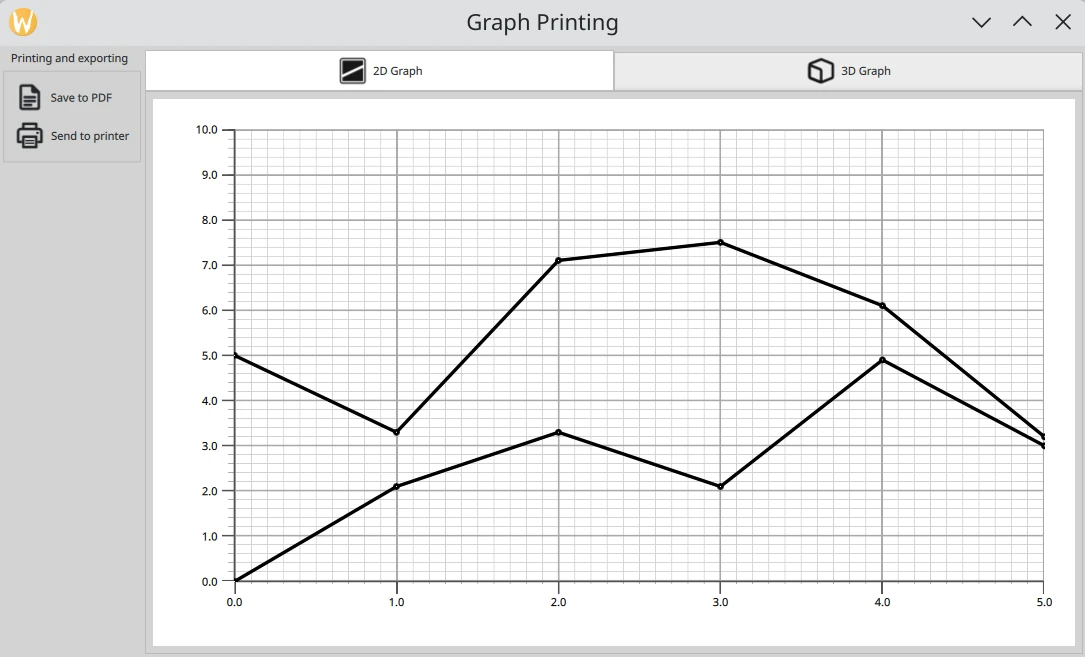
“图形打印”示例演示了如何打印或将二维和三维图形导出为 PDF。
运行示例
您可以通过以下方式运行该示例:
- Qt Creator
打开Welcome 模式,并从Examples 中选择该示例。有关更多信息,请参阅Qt Creator :教程:构建和运行。
- Qt Extension for Visual Studio Code
在Command Palette 中运行Qt: Open Qt examples 命令,并从列表中选择该示例。有关详细信息,请参阅Qt Extension for Visual Studio Code :教程:构建和运行。
GraphPrinter 类
打印功能由GraphPrinter 类实现。该类提供了以下函数:
generatePDF函数,其工作原理如下。- 设置输出 PDF 文件。
该函数通过指定文件夹中的“graph.pdf”文件实例化QPdfWriter 。该函数还指定了导出 PDF 文件的选项:标题、分辨率、页面尺寸和 页边距。
QFile file = QFile(path.toLocalFile()); { QPdfWriter writer(file.fileName()); writer.setResolution(90); writer.setTitle(u"Graph"_s); writer.setPageSize(QPageSize(image.size())); writer.setPageMargins(QMarginsF(0, 0, 0, 0)); writer.newPage(); paintImage(image, &writer); } - 设置图像处理。
静态辅助函数
paintImage将从QML捕获的图像绘制到QPaintDevice 类的实例上:该函数创建了一个指向设备的QPainter 对象。
为确保图形能正确绘制,会将其按原始宽高比缩放至绘图器的视口尺寸。
绘图器的渲染提示被设置为无损图像渲染。随后,该函数将图像绘制到 PDF 文件中。
static void paintImage(const QImage &image, QPaintDevice *paintDevice) { QPainter painter(paintDevice); const QImage finalImage = image.scaled(painter.viewport().size(), Qt::KeepAspectRatio); painter.setRenderHint(QPainter::LosslessImageRendering); painter.drawImage(finalImage.rect(), finalImage); }由于QPdfWriter 和QPrinter 继承了QPaintDevice ,因此可以从下文所述的
generatePDF函数和print函数中调用该辅助函数。
该函数返回一条状态消息,该消息将显示在应用程序的消息对话框中,其中包含导出文件的完整路径。
- 设置输出 PDF 文件。
getPrinters函数返回可用打印机的列表。QStringList GraphPrinter::getPrinters() { return QPrinterInfo::availablePrinterNames(); }print函数的工作方式与generatePDF函数类似,但会创建一个指向QPrinter 实例的QPainter :QString GraphPrinter::print(const QImage &image, const QString &printerName) { QPrinterInfo printInfo = QPrinterInfo::printerInfo(printerName); if (printInfo.isNull()) return tr("%1 is not a valid printer").arg(printerName); QPrinter printer(printInfo, QPrinter::HighResolution); printer.setOutputFormat(QPrinter::NativeFormat); paintImage(image, &printer); return tr("Printed to %1").arg(printerName); }该函数返回一条状态消息,该消息将显示在应用程序的消息对话框中。
应用程序设置
除了应用程序设置代码外,main.cpp 文件还包含用于创建GraphPrinter类新实例的代码,并使其可在QML代码中被调用。
GraphPrinter graphPrinter;
viewer.rootContext()->setContextProperty(u"graphPrinter"_s, &graphPrinter);
设置布局和图像捕获
2D 和 3D 图形在 Stacklayout 中布局。用户可以通过TabBar 进行导航。
TabBar {
    id: tabBar
    anchors.left: parent.left
    anchors.right: parent.right

    TabButton {
        text: "2D Graph"
        implicitHeight: 48
        icon.source: checked ? "flatten_square_fill.svg" : "flatten.svg"
        icon.height: 36
        icon.width: 36
    }

    TabButton {
        text: "3D Graph"
        implicitHeight: 48
        icon.source: checked ? "box_left_fill.svg" : "box_left.svg"
        icon.height: 36
        icon.width: 36
    }
}
Frame {
    id: tabFrame
    anchors.left: parent.left
    anchors.right: parent.right
    anchors.top: tabBar.bottom
    anchors.bottom: parent.bottom

    StackLayout {
        id: stackLayout

        anchors.fill: parent
        currentIndex: tabBar.currentIndex

        Graph2D {
            id: linegraph
        }

        Graph3D {
            id: bargraph
        }
    }
}
FileDialog 组件用于选择要输出的 PDF 文件。该组件在应用程序布局中没有可视化呈现,但可以通过当前 QML 文件访问其 API。
FileDialog {
    id: dialog
    currentFolder: StandardPaths.writableLocation(StandardPaths.PicturesLocation)
    nameFilters: ["PDF files (*.pdf)"]
    defaultSuffix: "pdf"

    fileMode: FileDialog.SaveFile
创建了一个自定义打印对话框用于选择打印机,该对话框由“ ”按钮触发。该对话框会获取可用打印机的列表,并将其显示在列表视图中。
Dialog {
    id: printerDialog
    anchors.centerIn: parent
    contentHeight: printerListView.height
    contentWidth: printerListView.width

    title: qsTr("Available Printers")
    modal: true

    onOpened: {
        printerModel.clear()
        var printers = graphPrinter.getPrinters()
        printers.forEach((x, i) => printerModel.append({
                                                           "name": x
                                                       }))
    }
...
contentItem: Rectangle {
    id: printerItem
    height: printerListView.height
    width: printerListView.width
    color: mainView.item.theme.plotAreaBackgroundColor

    ListView {
        id: printerListView
        height: 100
        width: 200
        clip: true

        model: printerModel
        delegate: printerDelegate
        highlight: Rectangle {
            color: mainView.item.theme.grid.subColor
        }
    }
}
“ ”按钮将触发 PDF 导出。
当触发 PDF 导出或打印操作时,将执行以下代码:
- 使用
grabToImage方法捕获图像。当前图是Stacklayout中当前索引处的项。 - 在 `
grabToImage` 参数中,我们将回调函数指定为 `GraphPrinter` 类中的 `generatePDF` 或 `print` 函数。PDF 导出:
onAccepted: {
    mainView.prepareForPrint()

    mainView.item.grabToImage(function (result) {
        message.title = "Save PDF"
        message.text = "PDF saved to " + graphPrinter.generatePDF(
                    dialog.selectedFile, result.image)
        message.open()
    }, mainView.outputsize)
}
打印:
onAccepted: {
    var selectedPrinter = printerModel.get(printerListView.currentIndex)
    mainView.prepareForPrint()
    mainView.item.grabToImage(function (result) {
        message.title = "Print"
        message.text = graphPrinter.print(result.image,
                                          selectedPrinter.name)
        message.open()
    }, mainView.outputsize)
}

onClosed: {
    mainView.cleanAfterPrint()
}
关于尺寸,该代码会将图像渲染为实际分辨率的4倍。对于3D图表,在打印期间还必须将该项目展开:
function prepareForPrint() {
    if (stackLayout.currentIndex === 1) {
        var newsize = Qt.size(bargraph.width * 4, bargraph.height * 4)

        // check that we do not exceed maximum texture size
        if (newsize.width * Screen.devicePixelRatio > graphPrinter.maxTextureSize() ) {
            // scale to 25% under max texture size to be on the safe side; some GPUs seem
            // to glitch when using the abosulute max
            var ratio = (newsize.width * Screen.devicePixelRatio * 1.25)
                    / graphPrinter.maxTextureSize()
            newsize.width /= ratio
            newsize.height /= ratio
        }
        outputsize.width = Math.round(newsize.width)
        outputsize.height = Math.round(newsize.height)

        // resize the bar graph to match the PDF output size
        item.width = outputsize.width
        item.height = outputsize.height
    } else {
        outputsize = Qt.size(linegraph.width * 4, linegraph.height * 4)
    }
}

function cleanAfterPrint() {
    if (stackLayout.currentIndex === 1) {
        // resize the bar graph back to the actual visual size
        item.width = stackLayout.width
        item.height = stackLayout.height
    }
}
© 2026 The Qt Company Ltd. Documentation contributions included herein are the copyrights of their respective owners. The documentation provided herein is licensed under the terms of the GNU Free Documentation License version 1.3 as published by the Free Software Foundation. Qt and respective logos are trademarks of The Qt Company Ltd. in Finland and/or other countries worldwide. All other trademarks are property of their respective owners.
