
Qt Quick 3D - “快速项目”示例
演示了在“快速 3D”场景中使用Qt Quick 对象的方法。
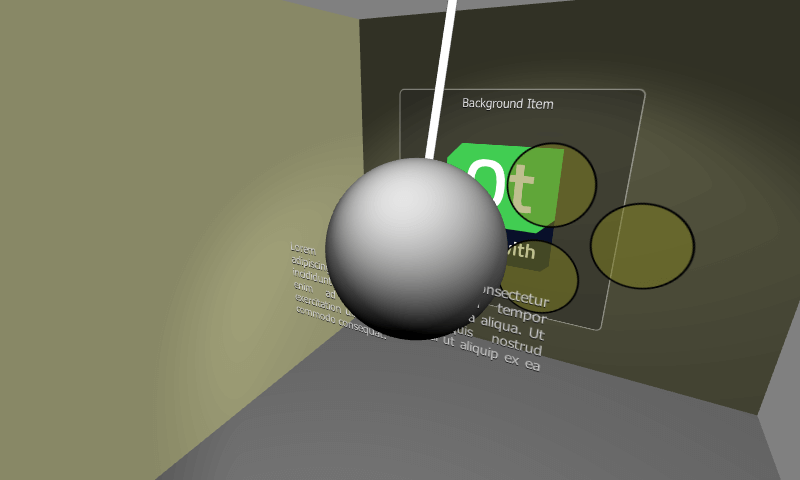
本示例演示了如何在 Quick 3D 场景中使用Qt Quick 的 2D 项目。
Quick 3D 场景中的 Quick Items
Qt Quick 2D“Item”及其所有子项均可添加到Quick 3D场景中。在3D场景中使用Qt Quick 类型时,需注意以下几点:
- 当Item 位于Node 内部时,其左上角会定位在该节点的原点处。这意味着该对象通常需要指定
anchors.centerIn: parent,以确保Node 的原点与Item 的中心点重合。 - 3D 变换由父级Node 继承。如果多个
Item需要应用相同的变换,则可以将这些项在Node 下,通过一个共同的父级Item 进行分组。 - 在 Qt 6.0 中,项目不会接收触摸/鼠标事件(例如通过 `
MouseArea`),因此它们应为非交互式。 - Quick 项不受光照和阴影的影响。
- Clipping 应避免使用,也不应依赖。
与早期的 Qt 版本以及其他 2D-in-3D 嵌入方法不同,将Qt Quick 项作为Qt Quick 3D 节点的子项,并不意味着创建纹理、将 2D 内容渲染到纹理上,然后绘制带纹理的四边形。 相反,Qt 6.0 支持在与 3D 场景相同的渲染通道内渲染 2D 内容。在实际应用中,这可能会带来巨大的性能提升。如果该项目按设计需要使用额外的渲染目标进行渲染,则不适用此规则,例如因为其 `layer.enabled ` 设置为 true,或者因为它是 `ShaderEffectSource`。
测试场景
本示例的关键部分是View3D 元素的场景内容。
我们首先添加距离摄像机最远的一层。该层包含Rectangle 、Text 和Image 元素。为确保该层中的元素定位正确,它们被归入一个共同的父级Item 中。请注意,所有内容都会被裁剪在该根项内部,因此需要适当调整其尺寸。
Node {
    position: Qt.vector3d(0, 100, -120)
    Item {
        width: 400
        height: 400
        anchors.centerIn: parent
        Rectangle {
            anchors.fill: parent
            opacity: 0.4
            color: "#202020"
            radius: 10
            border.width: 2
            border.color: "#f0f0f0"
        }
        Text {
            anchors.top: parent.top
            anchors.topMargin: 10
            anchors.horizontalCenter: parent.horizontalCenter
            font.pixelSize: 20
            color: "#e0e0e0"
            style: Text.Raised
            text: qsTr("Background Item")
        }
        Image {
            anchors.centerIn: parent
            source: "Built_with_Qt_RGB_logo_vertical"
        }
    }
}接下来,Node 及其子项被定位在离摄像机稍近的位置。它包含三个Rectangle 项,这些项同时对x坐标和旋转角度进行动画处理。请注意,动画是在父级Node 上进行的,而QuickItem 的内容保持静态。从性能角度来看,对于更复杂的项,这是一种很好的做法。
Node {
    position: Qt.vector3d(0, 150, 100)
    SequentialAnimation on x {
        loops: Animation.Infinite
        NumberAnimation {
            to: -200
            duration: 1500
            easing.type: Easing.InOutQuad
        }
        NumberAnimation {
            to: 200
            duration: 1500
            easing.type: Easing.InOutQuad
        }
    }
    NumberAnimation on eulerRotation.z {
        loops: Animation.Infinite
        from: 0
        to: 360
        duration: 4000
        easing.type: Easing.InOutBack
    }
    Item {
        width: 400
        height: 400
        anchors.centerIn: parent
        // This allows rendering into offscreen surface and caching it.
        layer.enabled: true
        Rectangle {
            x: 150
            y: 100
            width: 100
            height: 100
            radius: 50
            color: "#80808020"
            border.color: "black"
            border.width: 2
        }
        Rectangle {
            x: 90
            y: 200
            width: 100
            height: 100
            radius: 50
            color: "#80808020"
            border.color: "black"
            border.width: 2
        }
        Rectangle {
            x: 210
            y: 200
            width: 100
            height: 100
            radius: 50
            color: "#80808020"
            border.color: "black"
            border.width: 2
        }
    }
}本示例的第三个项目层包含一个带有不透明度动画的Text 项目。该文本项目会自动居中显示在父级Node 中。
Node {
    position: Qt.vector3d(0, 80, 250)
    Text {
        anchors.centerIn: parent
        width: 300
        wrapMode: Text.WordWrap
        horizontalAlignment: Text.AlignJustify
        font.pixelSize: 14
        color: "#e0e0e0"
        style: Text.Raised
        text: "Lorem ipsum dolor sit amet, consectetur adipiscing elit, sed do eiusmod " +
              "tempor incididunt ut labore et dolore magna aliqua. Ut enim ad minim " +
              "veniam, quis nostrud exercitation ullamco laboris nisi ut aliquip ex ea " +
              "commodo consequat."
        SequentialAnimation on opacity {
            loops: Animation.Infinite
            NumberAnimation {
                to: 0
                duration: 1500
                easing.type: Easing.InOutQuad
            }
            NumberAnimation {
                to: 1
                duration: 1500
                easing.type: Easing.InOutQuad
            }
        }
    }
}
为了直观展示上述“Quick Item”图层的 z 序,我们还将设置一个 3D 拆迁球的模型。该模型会围绕顶部的“Node ”进行旋转动画,从而使球体穿过其他图层。
Node {
    position: Qt.vector3d(0, 800, 0)
    SequentialAnimation on eulerRotation.x {
        loops: Animation.Infinite
        NumberAnimation {
            to: 20
            duration: 3500
            easing.type: Easing.InOutQuad
        }
        NumberAnimation {
            to: -20
            duration: 3500
            easing.type: Easing.InOutQuad
        }
    }
    Model {
        source: "#Cylinder"
        y: -300
        scale: Qt.vector3d(0.1, 6.1, 0.1)
        materials: PrincipledMaterial {
            baseColor: Qt.rgba(0.9, 0.9, 0.9, 1.0)
        }
    }
    Model {
        source: "#Sphere"
        y: -700
        scale: Qt.vector3d(2, 2, 2)
        materials: PrincipledMaterial {
            baseColor: Qt.rgba(0.4, 0.4, 0.4, 1.0)
        }
    }
}另请参阅 Qt Quick 3D 包含 2D 内容的场景。
© 2026 The Qt Company Ltd. Documentation contributions included herein are the copyrights of their respective owners. The documentation provided herein is licensed under the terms of the GNU Free Documentation License version 1.3 as published by the Free Software Foundation. Qt and respective logos are trademarks of The Qt Company Ltd. in Finland and/or other countries worldwide. All other trademarks are property of their respective owners.
