
添加调试器
您可以使用各种调试器,例如 GNU 符号调试器 (GDB)、Microsoft 控制台调试器 (CDB)、QML/JavaScript 调试器,以及低级虚拟机 (LLVM) 项目的调试器 LLDB。
Qt Creator 系统会根据您系统中已发现的调试器,自动为每个套件选择合适的调试器。若要覆盖此选择,请选择“Preferences ” > “Kits ”。
要添加调试器:
- 选择“Preferences ” > “Kits ” > “Debuggers ” > “Add ”。
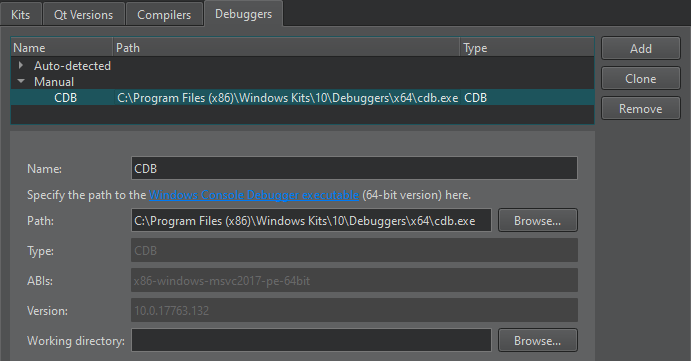
- 在“Name ”字段中,为调试器指定一个描述性名称。
- 在“Path ”字段中,指定调试器二进制文件的路径:
- 对于 CDB(仅限 Windows),请指定 Windows 控制台调试器可执行文件的路径:
cdb.exe。32 位版本只能调试 32 位可执行文件,而 64 位版本既可以调试 64 位可执行文件,也可以调试 32 位可执行文件。有关详细信息,请参阅“Windows 调试工具”。
- 对于 GDB,请指定 GDB 可执行文件的路径。该可执行文件必须在启用 Python 脚本支持的情况下构建。
- 对于 LLDB(实验性功能),请指定 LLDB 可执行文件的路径。
Qt Creator 会尝试识别调试器的类型和版本,并在“Type ”和“Version ”字段中显示相关信息。此外,Qt Creator 会在“ABIs ”字段中显示嵌入式设备上将使用的 ABI 版本。
- 对于 CDB(仅限 Windows),请指定 Windows 控制台调试器可执行文件的路径:
- 在“Working directory ”字段中,指定应用程序进程的工作目录。如果应用程序在本地运行,工作目录默认为构建目录。如果应用程序在设备上远程运行,该值取决于 shell 或设备。通常,您可以将此字段留空。
删除调试器
要删除所选的手动添加的调试器,请选择“Remove ”。当您选择“Apply ”时,该调试器将从列表中消失。在此之前,您可以通过单击“Restore ”来取消删除操作。
Copyright © The Qt Company Ltd. and other contributors. Documentation contributions included herein are the copyrights of their respective owners. The documentation provided herein is licensed under the terms of the GNU Free Documentation License version 1.3 as published by the Free Software Foundation. Qt and respective logos are trademarks of The Qt Company Ltd in Finland and/or other countries worldwide. All other trademarks are property of their respective owners.
