
行为
要为不包含 C++ 或 QML 代码的文本文件(例如 Python 代码文件)设置缩进偏好设置,请选择“Preferences ” > “Text Editor ” > “Behavior ”。
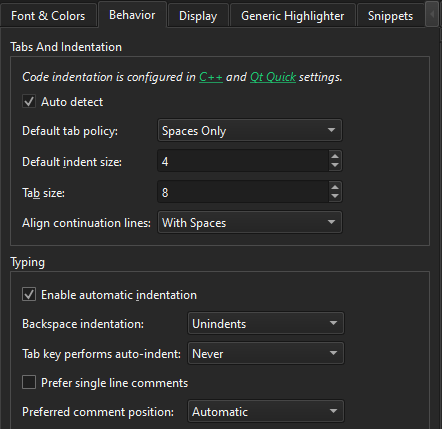
您可以设置如何解释Tab和Backspace键的按键操作,以及如何对齐续行。
设置制表符首选项
您可以在以下级别设置制表符首选项:
- 针对所有 C++ 文件
- 针对所有 QML 文件
- 针对所有其他文本文件
- 针对项目中的 C++ 文件
- 针对项目中的 QML 文件
- 针对项目中的其他文本文件
设置制表符和缩进
您可以在“Tabs and Indentation ”组中设置制表符策略和制表符大小。在“Default Tab policy ”字段中,选择仅使用空格、仅使用制表符,还是混合使用两者进行缩进。
默认情况下,代码编辑器中的制表符长度为 8 个空格,缩进大小为 4 个空格。您可以针对每个项目以及不同类型的文件分别设置制表符长度和缩进大小。
您可以让续行与上一行对齐。在“续行对齐方式”(Align continuation lines )字段中,选择“按逻辑深度对齐”(Not at all )以禁用自动对齐,并将续行缩进至逻辑深度。若始终使用空格进行对齐,请选择“使用空格对齐”(With Spaces )。若遵循“缩进规则”(Tab policy ),请选择“按缩进规则对齐”(With Regular Indent )。
设置输入偏好
输入文本或代码时,系统会根据所选的文本编辑器或代码样式首选项自动进行缩进。要设置输入首选项,请选择“Preferences ” > “Text Editor ” > “Behavior ” > “Typing ”。
下表介绍了您可以设置的输入偏好设置。
| 首选项 | 描述 |
|---|---|
| Enable automatic indentation | 根据文本编辑器或代码样式首选项自动对新行进行缩进。 |
| Backspace indentation | 设置在选择“Backspace ”时缩进减少的幅度:
|
| Tab key performs auto-indent | 设置Tab键何时自动缩进文本:
|
| Prefer single line comments | 当您的高亮定义文件同时包含多行和单行注释的定义时,请选中此选项,以便在将选定内容注释掉时应用单行注释定义。 |
| Preferred comment position | 设置注释选定内容时单行注释的位置:
|
保存时清理空格
若要在每次保存文件时自动清理空格,请选择“Preferences ” > “Text Editor ” > “Behavior ”,然后转至“Cleanups Upon Saving ”。
下表介绍了您可以设置的清理首选项。
| 首选项 | 描述 |
|---|---|
| Clean whitespace | 保存时删除尾部空格。 |
| In entire document | 清理整个文档中的空白,而不仅仅是您更改的部分。当选中“Clean whitespace ”时可用。 |
| Clean indentation | 根据制表符设置修正开头空格。仅在选中“Clean whitespace ”时可用。 |
| Skip clean whitespace for file types | 列出支持通配符的文件模式(用逗号或分号分隔),这些文件的末尾空格不会被删除。默认情况下,*.md, *.MD, Makefile 文件会被跳过。仅在选中“Clean whitespace ”时可用。 |
| Ensure newline at end of file | 始终在文件末尾写入换行符。 |
设置文件编码首选项
要设置创建或保存文件时使用的默认文本编码、字节顺序标记 (BOM) 和行尾样式,请选择“Preferences ” > “Text Editor ” > “Behavior ”,然后转到“File Encodings ”。
下表介绍了您可以设置的文件编码首选项。
| 首选项 | 描述 |
|---|---|
| Default encoding | 选择用于新文件以及无法自动检测编码的文件的文本编码。 |
| UTF-8 BOM | 设置如何处理 UTF-8 字节顺序标记:
UTF-8 BOM 较为罕见,且某些编辑器会对其处理不当,因此通常没有必要添加 BOM。此设置不会影响 UTF-16 和 UTF-32 BOM 的使用。 |
| Default line endings | 选择“Unix (LF) ”或“Windows (CRLF) ”作为新文件的默认行结束符样式。 |
设置鼠标和键盘首选项
要设置文本编辑器中鼠标和键盘的使用偏好,请选择“Preferences ” > “Text Editor ” > “Behavior ”,然后转至“Mouse and Keyboard ”。
下表介绍了您可以设置的鼠标和键盘首选项。
| 偏好设置 | 说明 |
|---|---|
| Hide mouse cursor while typing | 输入时隐藏鼠标光标。在 macOS 上不可用。 |
| Enable mouse navigation | 使用鼠标在编辑器中导航,例如,通过Ctrl+单击(或在 macOS 上按Cmd+单击)访问链接。 |
| Enable scroll wheel zooming | 按住Ctrl 键并滚动鼠标滚轮,可在编辑器中缩放文本。 |
| Enable built-in camel case navigation | 在使用光标导航和选择时,在驼峰式(camelCase)和蛇形式(snake_case)名称中,每次移动一个驼峰或单词部分。 |
| Enable smart selection changing | 使Select Block Up 和Select Block Down 提供更智能的选区功能。 |
| Show help tooltips using keyboard shortcut (Alt) | 按下Alt 键时,以工具提示形式显示上下文相关帮助或类型信息。 |
| Show help tooltips using the mouse | 选择“On Mouseover ”可在鼠标悬停时显示上下文相关帮助或类型信息,或选择“On Shift+Mouseover ”仅在悬停并按住Shift 键时显示。 |
另请参阅 “操作指南:配置编辑器”、“查找首选项”、“缩进文本或代码”、“指定Qt Quick 代码样式”、“配置编辑器”、“C++ 代码样式 ”和“Nim”。
Copyright © The Qt Company Ltd. and other contributors. Documentation contributions included herein are the copyrights of their respective owners. The documentation provided herein is licensed under the terms of the GNU Free Documentation License version 1.3 as published by the Free Software Foundation. Qt and respective logos are trademarks of The Qt Company Ltd in Finland and/or other countries worldwide. All other trademarks are property of their respective owners.
