
在状态之间添加过渡效果
为了使状态之间的切换更加平滑,您可以使用Transitions 来对状态之间的变化进行动画处理。
首先,您需要在“States ”视图中添加状态,并在“Properties ”视图中编辑一些可进行动画处理的属性,例如颜色或数值。例如,您可以对组件位置的变化添加动画效果。
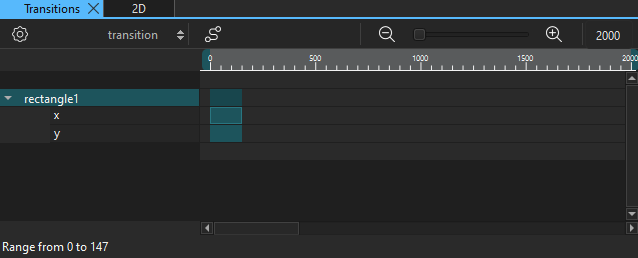
在“Transitions ”中,您可以为每个属性的过渡设置起始帧、结束帧和持续时间。您还可以为每个动画设置缓动曲线,以及整个过渡的最大持续时间。
过渡效果的缩放
在Transitions 中,使用工具栏上的滑块设置缩放级别。点击“ ”和“
”和“ ”按钮,可分别缩小或放大视图。
状态之间的动画过渡
要制作动画过渡:
- 选择“View ” > “Views ” > “Transitions ”。
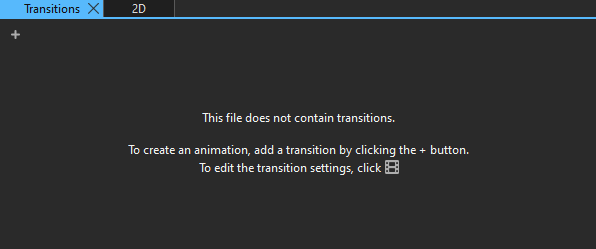
- 选择“
 ”(Add Transition )以添加过渡效果。此功能仅在您已添加至少一个状态,并在该状态中修改了至少一个属性时才有效。
 - 拖动组件或属性名称旁边的蓝色滑块,可设置该属性的动画起始帧和结束帧。拖动其左右边缘可设置动画时长。
- 若要为所选过渡添加缓动曲线,请点击“
 ”(Easing Curve Editor (C) )按钮。
指定过渡设置
要修改过渡效果设置,请在“Transitions ”中选择“ ”(Transition Settings (S) )。
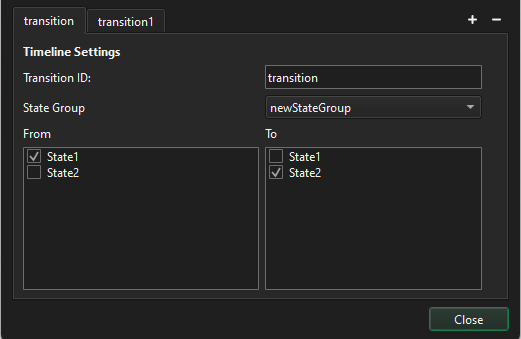
要添加转场效果:
- 选择“ ”(Add Transition )。
- 在“Transition ID ”中,为该过渡输入一个 ID。
- 在“From ”中,选择要从中过渡的状态。
- 在“To ”中,选择要过渡到的状态。
要删除当前的转换,请点击“ ”(Remove Transition )按钮。
若要更改状态组,请从“State Group ”中选择。
另请参阅 《如何:添加动画》、《Qt Quick UI 设计》和《设计Qt Quick UI》。
Copyright © The Qt Company Ltd. and other contributors. Documentation contributions included herein are the copyrights of their respective owners. The documentation provided herein is licensed under the terms of the GNU Free Documentation License version 1.3 as published by the Free Software Foundation. Qt and respective logos are trademarks of The Qt Company Ltd in Finland and/or other countries worldwide. All other trademarks are property of their respective owners.
