
创建按钮
要创建按钮组件:
- 选择“File ” > “New File ” > Qt Quick Files > Qt Quick UI File >Choose ,以创建一个名为
Button.ui.qml(例如)的UI文件。注意: 只有当文件名以大写字母开头时,组件 才会显示在“Components ” > “My Components ”中。
- 选择“Design ”以在“2D ”视图中编辑该文件。
- 在“Navigator ”中,选择“Item ”,并在“Properties ”中设置按钮的宽度(W )和高度(H )。
- 将“Rectangle ”从“Components >Default Components >Basic ”拖动到“Navigator ”中的组件上。这将创建一个嵌套组件,其中“Item”是“Rectangle”的父组件。组件的位置是相对于其父组件确定的。
- 在“Properties ”视图中,修改矩形的外观:
- 在“Color ”字段中,选择按钮颜色。
- 在“Radius ”字段中,设置矩形的半径,使按钮呈现圆角效果。
- 选择“Layout ”,然后选择“
 ”(Fill to Parent )按钮,将矩形锚定到该项上。
- 将“Text ”组件拖动到“Navigator ”中的“Item”上。
- 在“Properties ”视图中,编辑“Text ”组件的属性:
- 在“Text ”字段中,输入“Button”。
您可以在“Text color ”字段中选择文本颜色,并在“Font ”部分中选择字体、大小和样式。
- 在“Alignment ”字段中,选择“center buttons”选项,将文本居中对齐于按钮。
- 选择“Layout ”>“Fill to Parent ”,将文本锚定在整个按钮区域内。
- 在“Text ”字段中,输入“Button”。
- 按Ctrl+S保存按钮。
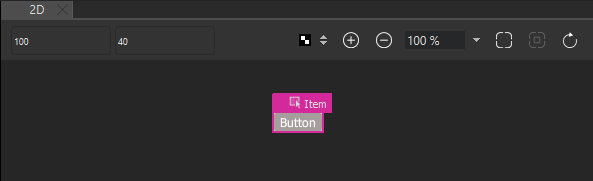
为了发挥作用,必须在项目中创建该按钮组件。 当您在项目中处理其他文件以创建界面屏幕或其他 UI 组件时,该按钮组件会出现在“Components ”>“My Components ”中。您可以使用它来创建按钮实例并修改其属性,例如为每个按钮实例分配有用的 ID、更改其外观以及设置按钮文本等。
若要创建无需使用矢量图形即可实现完美缩放的图形按钮,请使用“BorderImage ”组件。有关详细信息,请参阅《创建可缩放的按钮和边框》。
另请参阅 《操作指南:使用 UI 组件》、《Qt Quick UI 设计》和《设计Qt Quick UI》。
Copyright © The Qt Company Ltd. and other contributors. Documentation contributions included herein are the copyrights of their respective owners. The documentation provided herein is licensed under the terms of the GNU Free Documentation License version 1.3 as published by the Free Software Foundation. Qt and respective logos are trademarks of The Qt Company Ltd in Finland and/or other countries worldwide. All other trademarks are property of their respective owners.
