
グラフの印刷
2Dまたは3Dグラフの印刷。
「グラフの印刷」のサンプルでは、2Dおよび3Dグラフを印刷したり、PDFにエクスポートしたりする方法を示しています。
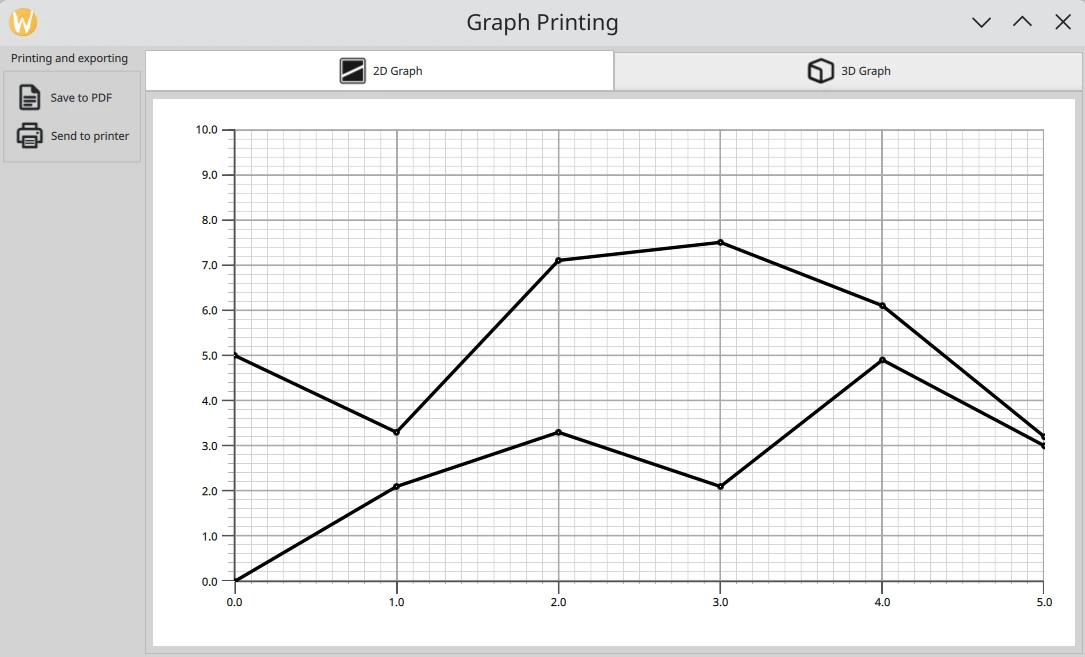
例の起動
このサンプルは、以下の手順で実行できます。
- Qt Creator
Welcome モードを開き、Examples からこのサンプルを選択します。詳細については、Qt Creator の「チュートリアル:ビルドと実行」を参照してください。
- Qt Extension for Visual Studio Code
Command Palette から `Qt: Open Qt examples ` コマンドを実行し、リストからこのサンプルを選択します。詳細については、Qt Extension for Visual Studio Code の「チュートリアル:ビルドと実行」を参照してください。
GraphPrinter クラス
印刷機能は、GraphPrinter クラスに実装されています。このクラスは以下の関数を公開しています:
generatePDF関数。その動作は以下の通りです。- 出力 PDF ファイルの設定を行います。
この関数は、指定されたフォルダ内の「graph.pdf」ファイルを指定してQPdfWriter をインスタンス化します。また、この関数では、エクスポートされるPDFファイルのオプション(タイトル、解像度、ページサイズ、余白)も指定します。
QFile file = QFile(path.toLocalFile()); { QPdfWriter writer(file.fileName()); writer.setResolution(90); writer.setTitle(u"Graph"_s); writer.setPageSize(QPageSize(image.size())); writer.setPageMargins(QMarginsF(0, 0, 0, 0)); writer.newPage(); paintImage(image, &writer); } - 画像処理の設定を行います。
静的ヘルパー関数 `
paintImage` は、QML からキャプチャした画像を `QPaintDevice ` クラスのインスタンスに描画します。この関数は、デバイスを参照するQPainter を作成します。
グラフが正しく描画されるように、元の縦横比を維持したまま、ペインターのビューポートサイズに合わせて拡大縮小されます。
ペインタのレンダリングヒントは、ロスレス画像レンダリングに設定されます。その後、この関数は画像をPDFファイルに描画します。
static void paintImage(const QImage &image, QPaintDevice *paintDevice)
{
    QPainter painter(paintDevice);
    const QImage finalImage = image.scaled(painter.viewport().size(), Qt::KeepAspectRatio);
    painter.setRenderHint(QPainter::LosslessImageRendering);
    painter.drawImage(finalImage.rect(), finalImage);
}
QPdfWriter およびQPrinter はQPaintDevice を継承しているため、このヘルパー関数は、後述する
generatePDF関数およびprint関数から呼び出すことができます。
この関数は、エクスポートされたファイルへのフルパスを含む、アプリケーションのメッセージダイアログに表示されるステータスメッセージを返します。
- 出力 PDF ファイルの設定を行います。
getPrinters関数は、利用可能なプリンタのリストを返します。QStringList GraphPrinter::getPrinters() { return QPrinterInfo::availablePrinterNames(); }print関数は、generatePDF関数と同様に動作しますが、QPrinter インスタンスを参照するQPainter を作成します:QString GraphPrinter::print(const QImage &image, const QString &printerName) { QPrinterInfo printInfo = QPrinterInfo::printerInfo(printerName); if (printInfo.isNull()) return tr("%1 is not a valid printer").arg(printerName); QPrinter printer(printInfo, QPrinter::HighResolution); printer.setOutputFormat(QPrinter::NativeFormat); paintImage(image, &printer); return tr("Printed to %1").arg(printerName); }この関数は、アプリケーションのメッセージダイアログに表示されるステータスメッセージを返します。
アプリケーションの設定
アプリケーションの設定コードに加え、main.cpp ファイルには、GraphPrinter クラスの新しいインスタンスを作成し、QML コードからアクセスできるようにするコードが含まれています。
GraphPrinter graphPrinter;
viewer.rootContext()->setContextProperty(u"graphPrinter"_s, &graphPrinter);
レイアウトと画像キャプチャの設定
2D および 3D グラフは、Stacklayout 内にレイアウトされています。ユーザーは、TabBar を使用してこれを操作できます。
TabBar {
    id: tabBar
    anchors.left: parent.left
    anchors.right: parent.right

    TabButton {
        text: "2D Graph"
        implicitHeight: 48
        icon.source: checked ? "flatten_square_fill.svg" : "flatten.svg"
        icon.height: 36
        icon.width: 36
    }

    TabButton {
        text: "3D Graph"
        implicitHeight: 48
        icon.source: checked ? "box_left_fill.svg" : "box_left.svg"
        icon.height: 36
        icon.width: 36
    }
}
Frame {
    id: tabFrame
    anchors.left: parent.left
    anchors.right: parent.right
    anchors.top: tabBar.bottom
    anchors.bottom: parent.bottom

    StackLayout {
        id: stackLayout

        anchors.fill: parent
        currentIndex: tabBar.currentIndex

        Graph2D {
            id: linegraph
        }

        Graph3D {
            id: bargraph
        }
    }
}
FileDialogコンポーネントは、書き出すPDFファイルを選択するために使用されます。このコンポーネントはアプリケーションのレイアウト上には視覚的に表示されませんが、そのAPIには現在のQMLファイルからアクセス可能です。
FileDialog {
    id: dialog
    currentFolder: StandardPaths.writableLocation(StandardPaths.PicturesLocation)
    nameFilters: ["PDF files (*.pdf)"]
    defaultSuffix: "pdf"

    fileMode: FileDialog.SaveFile
プリンターを選択するためのカスタム印刷ダイアログが作成されており、 ボタンで呼び出されます。このダイアログは、利用可能なプリンターのリストを取得し、リストビューに表示します。
Dialog {
    id: printerDialog
    anchors.centerIn: parent
    contentHeight: printerListView.height
    contentWidth: printerListView.width

    title: qsTr("Available Printers")
    modal: true

    onOpened: {
        printerModel.clear()
        var printers = graphPrinter.getPrinters()
        printers.forEach((x, i) => printerModel.append({
                                                           "name": x
                                                       }))
    }
...
contentItem: Rectangle {
    id: printerItem
    height: printerListView.height
    width: printerListView.width
    color: mainView.item.theme.plotAreaBackgroundColor

    ListView {
        id: printerListView
        height: 100
        width: 200
        clip: true

        model: printerModel
        delegate: printerDelegate
        highlight: Rectangle {
            color: mainView.item.theme.grid.subColor
        }
    }
}
「 」ボタンをクリックすると、PDFエクスポートが実行されます。
PDFエクスポートまたは印刷のいずれかがトリガーされると、次のコードが実行されます:
grabToImageメソッドを使用して画像をキャプチャします。現在のグラフは、Stacklayout の現在のインデックスにあるアイテムです。grabToImageのパラメータでは、GraphPrinterクラス内のgeneratePDFまたはprint関数をコールバックとして指定します。PDF へのエクスポート:
onAccepted: {
    mainView.prepareForPrint()

    mainView.item.grabToImage(function (result) {
        message.title = "Save PDF"
        message.text = "PDF saved to " + graphPrinter.generatePDF(
                    dialog.selectedFile, result.image)
        message.open()
    }, mainView.outputsize)
}
印刷:
onAccepted: {
    var selectedPrinter = printerModel.get(printerListView.currentIndex)
    mainView.prepareForPrint()
    mainView.item.grabToImage(function (result) {
        message.title = "Print"
        message.text = graphPrinter.print(result.image,
                                          selectedPrinter.name)
        message.open()
    }, mainView.outputsize)
}

onClosed: {
    mainView.cleanAfterPrint()
}
サイズについては、このコードにより画像は実際の解像度の4倍で描画されます。3Dグラフの場合、印刷中はアイテムを展開した状態にする必要があります:
function prepareForPrint() {
    if (stackLayout.currentIndex === 1) {
        var newsize = Qt.size(bargraph.width * 4, bargraph.height * 4)

        // check that we do not exceed maximum texture size
        if (newsize.width * Screen.devicePixelRatio > graphPrinter.maxTextureSize() ) {
            // scale to 25% under max texture size to be on the safe side; some GPUs seem
            // to glitch when using the abosulute max
            var ratio = (newsize.width * Screen.devicePixelRatio * 1.25)
                    / graphPrinter.maxTextureSize()
            newsize.width /= ratio
            newsize.height /= ratio
        }
        outputsize.width = Math.round(newsize.width)
        outputsize.height = Math.round(newsize.height)

        // resize the bar graph to match the PDF output size
        item.width = outputsize.width
        item.height = outputsize.height
    } else {
        outputsize = Qt.size(linegraph.width * 4, linegraph.height * 4)
    }
}

function cleanAfterPrint() {
    if (stackLayout.currentIndex === 1) {
        // resize the bar graph back to the actual visual size
        item.width = stackLayout.width
        item.height = stackLayout.height
    }
}
© 2026 The Qt Company Ltd. Documentation contributions included herein are the copyrights of their respective owners. The documentation provided herein is licensed under the terms of the GNU Free Documentation License version 1.3 as published by the Free Software Foundation. Qt and respective logos are trademarks of The Qt Company Ltd. in Finland and/or other countries worldwide. All other trademarks are property of their respective owners.
