
Calqlatr
가로 및 세로 모드 기기에 최적화된 계산기입니다. 사용자 인터페이스에는 Qt Quick 의 커스텀 컴포넌트와 반응형 레이아웃을, 애플리케이션 로직에는 JavaScript를 사용합니다.
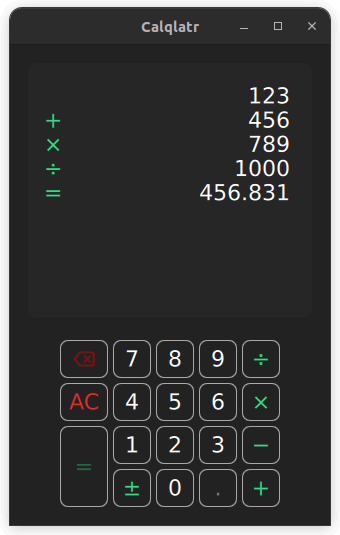
Calqlatr는 사용자 정의 컴포넌트 표시 및 반응형 레이아웃 사용과 같은 다양한 QML 및 Qt Quick 기능을 보여줍니다. 애플리케이션 로직은 자바스크립트로, UI는 QML로 구현되었습니다.
예제 실행
다음 경로에서 예제를 실행할 수 있습니다:
- Qt Creator
Welcome 모드를 열고 Examples 에서 예제를 선택하십시오. 자세한 내용은 Qt Creator 의 ‘튜토리얼: 빌드 및 실행’을 참조하십시오.
- Qt Extension for Visual Studio Code
Command Palette 에서 Qt: Open Qt examples 명령을 실행하고 목록에서 예제를 선택하십시오. 자세한 내용은 Qt Extension for Visual Studio Code: 튜토리얼: 빌드 및 실행을 참조하십시오.
예제를 실행한 후에는 이 애플리케이션을 일반 계산기처럼 사용할 수 있습니다. 휴대폰을 세로 모드에서 가로 모드로 전환하거나, 데스크톱에서는 메인 창의 크기를 조정하여 반응형 레이아웃을 활성화하십시오.
사용자 정의 컴포넌트 사용
Calqlatr 애플리케이션은 사용자 정의 유형을 사용합니다. 이들 중 대부분은 별도의 .qml 파일에 정의되어 있습니다:
Main.qmlcontent/ApplicationState.qmlcontent/BackspaceButton.qmlcontent/CalculatorButton.qmlcontent/Display.qmlcontent/NumberPad.qml
Main.qml 에는 최상위 창과 루트 항목이 포함되어 있습니다. 이 파일은 content 디렉터리에 있는 다른 사용자 정의 타입들을 활용합니다. 예를 들어, NumberPad 타입( content/NumberPad.qml 에서 정의됨)은 Main.qml 에서 계산기의 숫자 패드를 생성하는 데 사용됩니다:
        NumberPad {
            id: numberPad
            Layout.margins: root.margin

            isPortraitMode: root.isPortraitMode
            applicationState: appState
        }
인라인 컴포넌트를 사용하면 .qml 파일 내에서 여러 컴포넌트를 선언할 수 있습니다. 이 예제에서는 NumberPad.qml 파일에서 인라인 컴포넌트를 사용하여 DigitButton 및 OperatorButton 라는 두 개의 컴포넌트를 정의합니다:
    component DigitButton: CalculatorButton {
        onClicked: {
            controller.applicationState.digitPressed(text);
            controller.updateDimmed();
        }
    }

    component OperatorButton: CalculatorButton {
        dimmable: true
        implicitWidth: 48
        textColor: controller.qtGreenColor

        onClicked: {
            controller.applicationState.operatorPressed(text);
            controller.updateDimmed();
        }
    }
두 컴포넌트 모두 CalculatorButton 유형( CalculatorButton.qml 에 정의된 대로)이지만, clicked 신호에 대한 사용자 정의 핸들러를 제공하고 일부 속성의 기본값을 조정합니다. 그런 다음 DigitButton 과 OperatorButton 은 NumberPad.qml 에서 인스턴스화됩니다:
                DigitButton {
                    text: "e"
                    dimmable: true
                    implicitWidth: 48
                }
                OperatorButton { text: "ln" }
사용자 정의 QML 컴포넌트 정의에 대한 자세한 내용은 ‘QML 문서를 통한 객체 유형 정의’를 참고하십시오.
반응형 레이아웃
이 예제에서는 반응형 레이아웃을 통해 세로 모드와 가로 모드 모두에 맞춰 다양한 UI 컴포넌트를 배치합니다. 이는 Main.qml 파일에서 확인할 수 있는데, 이 파일은 세로 모드용 ColumnLayout 와 가로 모드용 RowLayout 를 정의하고 있습니다:
        ColumnLayout {
            id: portraitMode
            anchors.fill: parent
            visible: root.isPortraitMode

            LayoutItemProxy {
                target: calcDisplay
                Layout.minimumHeight: calcDisplay.minHeight
            }
            LayoutItemProxy {
                target: numberPad
                Layout.alignment: Qt.AlignHCenter
            }
        }

        RowLayout {
            id: landscapeMode
            anchors.fill: parent
            visible: !root.isPortraitMode

            LayoutItemProxy {
                target: calcDisplay
            }
            LayoutItemProxy {
                target: numberPad
                Layout.alignment: Qt.AlignVCenter
            }
        }
ColumnLayout 는 애플리케이션의 세로 레이아웃을 나타내고, RowLayout 는 가로 레이아웃을 나타냅니다. visible 속성은 특정 시점에 어떤 레이아웃이 사용될지를 결정합니다. NumberPad 및 Display 컴포넌트의 id 속성은 LayoutItemProxy 타입의 target 속성을 설정하는 데 사용됩니다. 이를 통해 두 레이아웃 모두 동일한 콘텐츠 항목을 사용할 수 있습니다. 또한, LayoutItemProxy 항목 내에서 속성을 target 자체로 전달할 수 있습니다. 예를 들어, NumberPad 가 인스턴스화될 때 두 레이아웃 모두 서로 다른 Layout.alignment 를 필요로 합니다.
반응형 레이아웃은 NumberPad.qml 에서 NumberPad 자체의 세로 및 가로 레이아웃을 정의할 때도 사용됩니다:
        RowLayout {
            spacing: controller.spacing

            GridLayout {
                id: scientificGrid
                columns: 3
                columnSpacing: controller.spacing
                rowSpacing: controller.spacing
                visible: !controller.isPortraitMode

                OperatorButton {
                    text: "x²"
                    Accessible.name: "x squared"
                }
                OperatorButton {
                    text: "⅟x"
                    Accessible.name: "one over x"
                }
                OperatorButton { text: "√" }
                OperatorButton {
                    text: "x³"
                    Accessible.name: "x cubed"
                }
                OperatorButton {
                    text: "sin"
                    Accessible.name: "sine"
                }
                OperatorButton {
                    text: "|x|"
                    Accessible.name: "absolute value"
                }
                OperatorButton { text: "log" }
                OperatorButton {
                    text: "cos"
                    Accessible.name: "cosine"
                }
                DigitButton {
                    text: "e"
                    dimmable: true
                    implicitWidth: 48
                }
                OperatorButton { text: "ln" }
                OperatorButton { text: "tan" }
                DigitButton {
                    text: "π"
                    dimmable: true
                    implicitWidth: 48
                }
            }

            GridLayout {
                id: mainGrid
                columns: 5
                columnSpacing: controller.spacing
                rowSpacing: controller.spacing

                BackspaceButton {
                    onClicked: {
                        controller.applicationState.operatorPressed(this.text);
                        controller.updateDimmed();
                    }
                }

                DigitButton { text: "7" }
                DigitButton { text: "8" }
                DigitButton { text: "9" }
                OperatorButton {
                    text: "÷"
                    implicitWidth: 38
                }

                OperatorButton {
                    text: "AC"
                    textColor: controller.backspaceRedColor
                    accentColor: controller.backspaceRedColor
                }
                DigitButton { text: "4" }
                DigitButton { text: "5" }
                DigitButton { text: "6" }
                OperatorButton {
                    text: "×"
                    implicitWidth: 38
                }

                OperatorButton {
                    text: "="
                    implicitHeight: 81
                    Layout.rowSpan: 2
                }
                DigitButton { text: "1" }
                DigitButton { text: "2" }
                DigitButton { text: "3" }
                OperatorButton {
                    text: "−"
                    implicitWidth: 38
                }

                OperatorButton {
                    text: "±"
                    implicitWidth: 38
                }
                DigitButton { text: "0" }
                DigitButton {
                    text: "."
                    dimmable: true
                }
                OperatorButton {
                    text: "+"
                    implicitWidth: 38
                }
            }
        } // RowLayout
controller.isPortraitMode 에 따라 숫자 패드에는 간단한 계산기(mainGrid)의 버튼만 포함되거나, scientificGrid 를 통해 더 고급 기능도 포함될 수 있습니다.
버튼 텍스트 색상 애니메이션
CalculatorButton.qml 파일에서는 숫자 패드 버튼의 텍스트 색상도 애니메이션 처리됩니다.
        ...
        color: button.getTextColor()
        Behavior on color {
            ColorAnimation {
                duration: 120
                easing.type: Easing.OutElastic
            }
        }
    }
색상 변화는 color 속성에 Behavior 를 정의하여 애니메이션 효과를 줍니다. 버튼이 dimmed = true 로 설정되면 버튼이 더 어둡게 보입니다. 버튼을 누르면 녹색으로 밝아집니다. NumberPad 에 있는 모든 버튼의 dimmed 속성을 동적으로 변경하기 위해, buttonPressed 신호는 NumberPad 의 updateDimmed() 함수를 호출합니다.
    function updateDimmed() {
        for (let i = 0; i < mainGrid.children.length; i++) {
            mainGrid.children[i].dimmed = applicationState.isButtonDisabled(mainGrid.children[i].text);
        }
        for (let j = 0; j < scientificGrid.children.length; j++) {
            scientificGrid.children[j].dimmed = applicationState.isButtonDisabled(
                        scientificGrid.children[j].text);
        }
    }
계산 수행
calculator.js 및 ApplicationState.qml 파일은 계산기의 엔진을 정의합니다. calculator.js 에는 계산기의 논리적 상태와 상태를 변경하는 연산이 포함되어 있습니다. ApplicationState.qml 는 QML 타입을 통해 이 API를 노출합니다.
먼저 ` calculator.js` 파일을 살펴보겠습니다:
let accumulator = 0
let pendingOperator = ""
let lastButton = ""
let digits = ""accumulator, pendingOperator, lastButton, represent 은 계산기의 논리적 상태를 나타냅니다.
function isOperationDisabled(op, display) {
    ...
}
isOperationDisabled() true 는 현재 엔진 및 디스플레이 상태에 따라 연산이 비활성화되어야 하는 경우 를 반환합니다. 그렇지 않은 경우 를 반환합니다. op false
function digitPressed(op, display) {
    ...
}

function operatorPressed(op, display) {
    ...
}
digitPressed() operatorPressed() 함수는 누른 버튼에 따라 엔진 및 디스플레이 상태를 업데이트합니다.
ApplicationState.qml calculator.js 에 정의된 JavaScript 함수들을 더 사용하기 편리한 QML API 형태로 노출하고 있습니다:
import QtQml
import "calculator.js" as CalcEngine
calculator.js 는 CalcEngine 라는 이름으로 임포트됩니다.
QtObject {
    required property Display display

    function operatorPressed(operator) {
        CalcEngine.operatorPressed(operator, display);
    }
    function digitPressed(digit) {
        CalcEngine.digitPressed(digit, display);
    }
    function isButtonDisabled(op) {
        return CalcEngine.isOperationDisabled(op, display);
    }
}
required property 이는 ApplicationState 에서 Display.qml 의 인스턴스가 항상 display 라는 이름으로 사용 가능하도록 보장합니다. display 는 차례로 operatorPressed(), digitPressed() 및 isButtonDisabled() 함수에서 사용됩니다.
소스 파일
Squish GUI 테스트
이 애플리케이션에는 Android용 Qt를 대상으로 하는 Squish GUI 테스트가 포함되어 있습니다. 이 테스트는 Squish for Qt를 사용하여 Python으로 작성되었으며, 애플리케이션의 test 디렉터리에서 찾을 수 있습니다.
Android용 Squish for Qt를 사용할 때는 Qt 내장 훅을 사용하고 adb를 통해 Squish 포트를 전달해야 합니다. dlopen 가 실패하며 "Cannot load library" 오류가 발생하는 경우, CMake 구성에서 QT_USE_TARGET_ANDROID_BUILD_DIR 를 비활성화하거나 Qt Creator 의 Projects->Build Settings->CMake->Current Configuration 에서 해당 항목을 삭제하십시오.
Squish 라이선스가 없는 경우, 무료 체험판을 이용할 수 있습니다.
QML 애플리케이션도 참조하십시오 .
© 2026 The Qt Company Ltd. Documentation contributions included herein are the copyrights of their respective owners. The documentation provided herein is licensed under the terms of the GNU Free Documentation License version 1.3 as published by the Free Software Foundation. Qt and respective logos are trademarks of The Qt Company Ltd. in Finland and/or other countries worldwide. All other trademarks are property of their respective owners.
