
QML 카메라 애플리케이션
이 Qt Quick 기반 애플리케이션은 API를 사용하여 정지 이미지나 동영상을 캡처하는 방법을 보여줍니다.
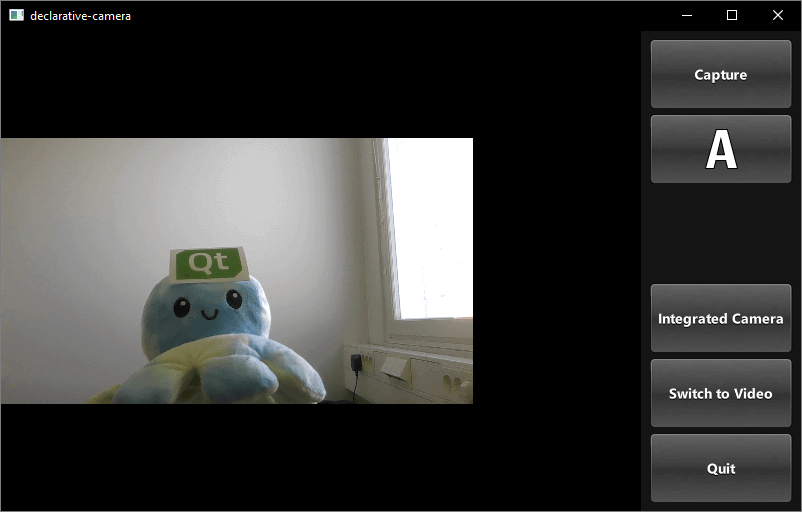
이 예제는 QML을 통해 카메라 기능에 접근하는 방법을 보여줍니다. 또한 설정을 변경하고 이미지나 동영상을 캡처하는 방법을 설명합니다.
예제 실행
다음 경로에서 예제를 실행할 수 있습니다.
- Qt Creator
Welcome 모드를 열고 Examples 에서 예제를 선택하십시오. 자세한 내용은 Qt Creator 의 ‘튜토리얼: 빌드 및 실행’을 참조하십시오.
- Qt Extension for Visual Studio Code
Command Palette 에서 Qt: Open Qt examples 명령을 실행하고 목록에서 예제를 선택하십시오. 자세한 내용은 Qt Extension for Visual Studio Code: 튜토리얼: 빌드 및 실행을 참조하십시오.
애플리케이션 구조
이 예제의 QML 코드 대부분은 사용자 인터페이스를 지원합니다. 요구 사항을 충족하는 사용자 정의 유형은 기존 Qt Quick 컨트롤을 사용하여 구현되었습니다.
화면 방향을 이용한 레이아웃 선택
화면 방향 및 컨트롤 레이아웃 상태 로직은 다음과 같이 별도의 Item( controlLayout )에 캡슐화되어 있습니다:
Item {
    id: controlLayout

    readonly property bool isMobile: Qt.platform.os === "android" || Qt.platform.os === "ios"
    readonly property bool isLandscape: Screen.desktopAvailableWidth >= Screen.desktopAvailableHeight
    property int buttonsWidth: state === "MobilePortrait" ? Screen.desktopAvailableWidth / 3.4 : 114

    states: [
        State {
            name: "MobileLandscape"
            when: controlLayout.isMobile && controlLayout.isLandscape
        },
        State {
            name: "MobilePortrait"
            when: controlLayout.isMobile && !controlLayout.isLandscape
        },
        State {
            name: "Other"
            when: !controlLayout.isMobile
        }
    ]

    onStateChanged: {
        console.log("State: " + controlLayout.state)
    }
}
stillControls 에 표시된 바와 같이, stillControls 및 videoControls 객체는 모두 이 Item의 state 및 buttonsWidth 속성에 바인딩됩니다:
PhotoCaptureControls {
    id: stillControls
    state: controlLayout.state
    anchors.fill: parent
    buttonsWidth: controlLayout.buttonsWidth
    buttonsPanelPortraitHeight: cameraUI.buttonsPanelPortraitHeight
    buttonsPanelWidth: cameraUI.buttonsPanelLandscapeWidth
    captureSession: captureSession
    visible: (cameraUI.state === "PhotoCapture")
    onPreviewSelected: cameraUI.state = "PhotoPreview"
    onVideoModeSelected: cameraUI.state = "VideoCapture"
    previewAvailable: imageCapture.preview.length !== 0
}
디버깅을 지원하기 위해 레이아웃 상태 변경에 대한 메시지가 로그에 기록됩니다.
다음은 세로 레이아웃입니다:
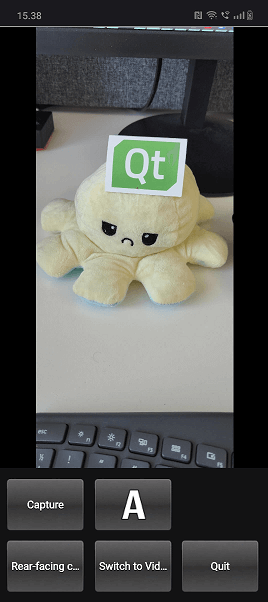
state 속성이 처음에는 PhotoCapture 로 설정되어 있음을 확인할 수 있습니다.
그리고 states 자체는 다음과 같이 정의됩니다:
states: [
    State {
        name: "PhotoCapture"
        StateChangeScript {
            script: {
                camera.start()
            }
        }
    },
    State {
        name: "PhotoPreview"
    },
    State {
        name: "VideoCapture"
        StateChangeScript {
            script: {
                camera.start()
            }
        }
    },
    State {
        name: "VideoPreview"
        StateChangeScript {
            script: {
                camera.stop()
            }
        }
    }
]
캡처용 컨트롤
캡처용 컨트롤은 PhotoCaptureControls.qml 및 VideoCaptureControls.qml에서 구현됩니다. 이 두 파일은 모두 FocusScope 을 기반으로 하며, 이 파일은 컨트롤 버튼에 사용되는 공통 버튼 크기와 여백을 정의한 후 버튼을 선언합니다.
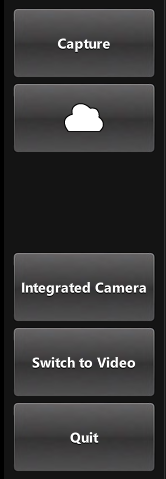
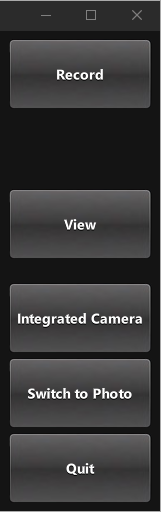
이를 통해 화면 오른쪽에 열이 생성되며, 여기에는 위에서 아래로 순서대로 다음 컨트롤들이 포함됩니다:
Capture또는Record버튼으로, 캡처를 시작합니다.capture properties버튼으로, 현재 선택된 화이트 밸런스 모드의 아이콘을 표시하며, 이 버튼을 누르면 팝업 창을 통해 다음 옵션의 아이콘을 표시합니다:- 플래시 모드(사용 가능한 경우)
- 화이트 밸런스 모드
- 노출 보정
View버튼은 촬영이 완료된 후 작동합니다.- 현재 선택된 촬영 장치를 표시하고, 누르면 팝업 창을 통해 전환 가능한 장치 목록을 제공하는 버튼.
- 현재 활성화된 선택 항목에 따라 대체 캡처 모드(동영상 또는 사진)를 표시하고, 누르면 모드를 전환하는 '
Switch To' 버튼입니다. - 응용 프로그램을 종료하는 ‘
Quit’ 버튼.
이미지 캡처
이를 실행하는 버튼은 CameraButton.qml에 정의되어 있습니다: 그러나 카메라와의 상호작용은 컨트롤 유형에 포함되어 있으므로, PhotoCaptureControls를 살펴보겠습니다:
CameraButton {
    text: "Capture"
    implicitWidth: captureControls.buttonsWidth
    visible: captureControls.captureSession.imageCapture.readyForCapture
    onClicked: captureControls.captureSession.imageCapture.captureToFile("")
}
줌 컨트롤
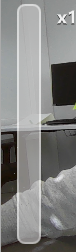
ZoomControl.qml 에서 구현된 ZoomControl 유형은 Item을 기반으로 하며, 줌 수준을 나타내는 막대를 생성합니다. 이 막대는 드래그할 수도 있습니다. 이 컨트롤은 grove 의 위치를 바탕으로 지수 계산 방식을 사용하여 줌 배율을 결정합니다.
이 막대는 initialZoom이 1보다 클 때만 표시됩니다. 이는 현재 활성화된 카메라에 줌 기능이 있음을 의미합니다.
Item {
    id : zoomControl
    property real currentZoom : 1
    property real maximumZoom : 1
    property real minimumZoom : 1
    signal zoomTo(real target)

    visible: zoomControl.maximumZoom > zoomControl.minimumZoom

    MouseArea {
        id : mouseArea
        anchors.fill: parent

        property real initialZoom : 0
        property real initialPos : 0

        onPressed: {
            initialPos = mouseY
            initialZoom = zoomControl.currentZoom
        }

        onPositionChanged: {
            if (pressed) {
                var target = initialZoom * Math.pow(5, (initialPos-mouseY)/zoomControl.height);
                target = Math.max(zoomControl.minimumZoom, Math.min(target, zoomControl.maximumZoom))
                zoomControl.zoomTo(target)
            }
        }
    }

    Item {
        id : bar
        x : 16
        y : parent.height/4
        width : 24
        height : parent.height/2

        Rectangle {
            anchors.fill: parent

            smooth: true
            radius: 8
            border.color: "white"
            border.width: 2
            color: "black"
            opacity: 0.3
        }

        Rectangle {
            id: groove
            x : 0
            y : parent.height * (1.0 - (zoomControl.currentZoom-zoomControl.minimumZoom) / (zoomControl.maximumZoom-zoomControl.minimumZoom))
            width: parent.width
            height: parent.height - y
            smooth: true
            radius: 8
            color: "white"
            opacity: 0.5
        }

        Text {
            id: zoomText
            anchors {
                left: bar.right; leftMargin: 16
            }
            y: Math.min(parent.height - height, Math.max(0, groove.y - height / 2))
            text: "x" + Math.round(zoomControl.currentZoom * 100) / 100
            font.bold: true
            color: "white"
            style: Text.Raised; styleColor: "black"
            opacity: 0.85
            font.pixelSize: 18
        }
    }
}
PhotoCaptureControls.qml 및 VideoCaptureControls.qml에서 zoomTo 신호는 선택된 카메라의 zoomFactor 속성을 계산된 target 값으로 설정하고, ZoomControl 막대를 업데이트합니다.
ZoomControl {
    x : 0
    y : 0
    width : 100
    height: parent.height - (flashControl.visible * flashControl.height) -
            (captureControls.state === "MobilePortrait" ? buttonPaneShadow.height : 0)

    currentZoom: captureControls.camera.zoomFactor
    maximumZoom: captureControls.camera.maximumZoomFactor
    minimumZoom: captureControls.camera.minimumZoomFactor
    onZoomTo: (target) => captureControls.camera.zoomFactor = target
}
플래시 및 손전등 제어
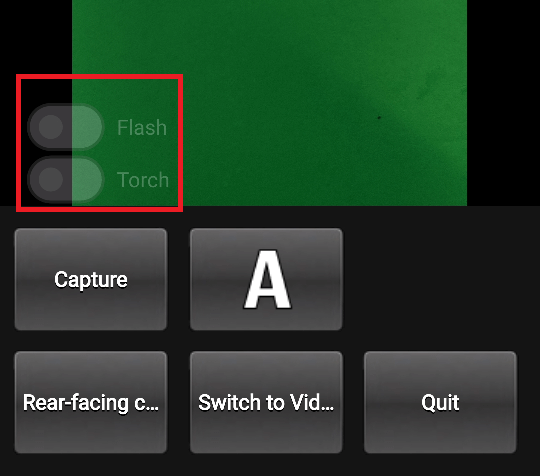
FlashControl.qml 에 정의된 이 기능은 스위치를 통해 플래시 모드 선택 및 손전등 기능을 전환할 수 있게 해줍니다. 줌 제어와 마찬가지로, 스위치는 활성 기기가 이러한 기능을 지원하는 경우에만 미리보기 창 상단에 표시됩니다.
여기서는 해당 기능이 지원되는지 확인합니다:
required property Camera camera

property bool mIsFlashSupported: camera.isFlashModeSupported(Camera.FlashOn)
property bool mIsTorchSupported: camera.isTorchModeSupported(Camera.TorchOn)
여기서는 flashModeControl 스위치를 구현하며, 이 스위치는 카메라 장치를 직접 제어하기도 합니다.
Switch {
    id: flashModeControl
    visible: topItem.mIsFlashSupported
    checked: topItem.camera.flashMode === Camera.FlashOn
    opacity: checked ? 0.75 : 0.25
    text: "Flash"

    contentItem: Text {
        text: flashModeControl.text
        color: "white"
        leftPadding: flashModeControl.indicator.width + flashModeControl.spacing
    }

    onClicked: topItem.camera.flashMode = checked ? Camera.FlashOn : Camera.FlashOff
}
토치 제어 기능도 유사한 방식으로 구현됩니다.
© 2026 The Qt Company Ltd. Documentation contributions included herein are the copyrights of their respective owners. The documentation provided herein is licensed under the terms of the GNU Free Documentation License version 1.3 as published by the Free Software Foundation. Qt and respective logos are trademarks of The Qt Company Ltd. in Finland and/or other countries worldwide. All other trademarks are property of their respective owners.
