
风力涡轮机仪表盘
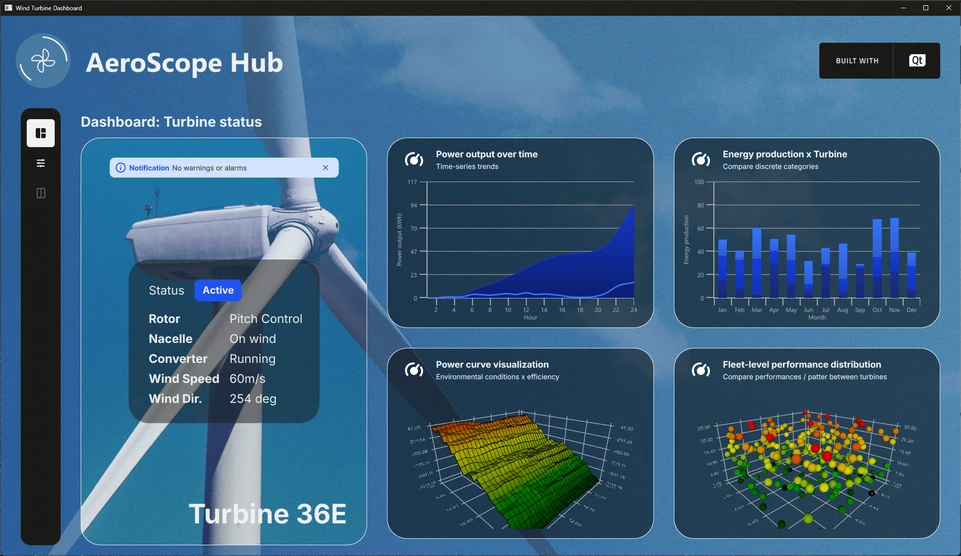
一个包含 2D 和 3D 图表的风力涡轮机仪表盘。
“风力涡轮机仪表盘”示例演示了如何在模拟的实际应用中同时使用 2D 和 3D 图表。
运行示例
您可以通过以下方式运行该示例:
- Qt Creator
打开Welcome 模式,并从Examples 中选择该示例。有关更多信息,请参阅Qt Creator :教程:构建和运行。
- Qt Extension for Visual Studio Code
在“Command Palette ”中运行Qt: Open Qt examples 命令,并从列表中选择该示例。有关更多信息,请参阅Qt Extension for Visual Studio Code :教程:构建和运行。
应用程序概述
该示例演示了一个风力涡轮机监控仪表盘(称为“航空航天中心”),用于显示来自一个假想风力涡轮机场的模拟数据。系统采用了多种图表类型来可视化不同类型的数据。例如,一个带有样条曲线的二维图表展示了每小时的发电量,而配套的面积图则表示同一时段内的累计发电量。 该应用提供多种数据视图,允许用户从不同角度探索和分析信息。
主界面左侧设有设置工具栏。根据所选模式的不同,布局可能包含状态窗格、由多个小型图表组成的仪表盘、主大型图表或详细设置面板——这些元素既可单独显示,也可组合出现。这种灵活的设计使用户能够自定义视图,并专注于当前分析中最相关的数据。
仪表盘视图
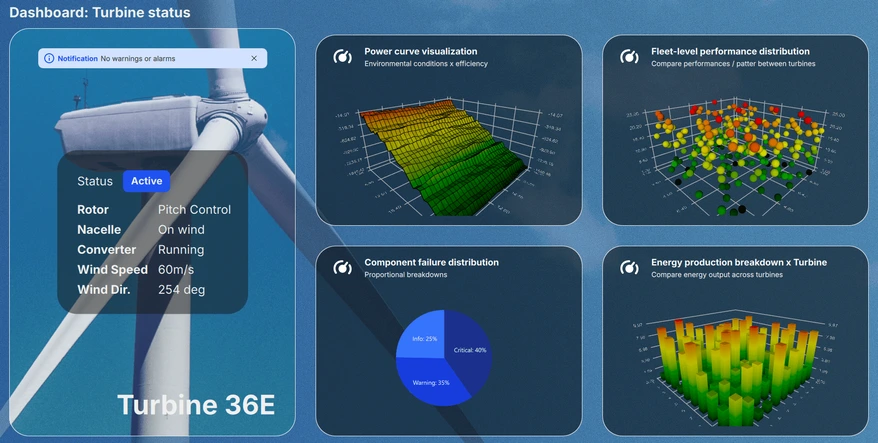
仪表盘视图展示当前系统状态,并配有一个可滚动的窗格,其中显示各种图表的缩略预览。最多可同时显示四个图表,使用户能够方便地浏览所有六个可用的可视化图表,并快速一目了然地评估关键性能指标。
详细视图
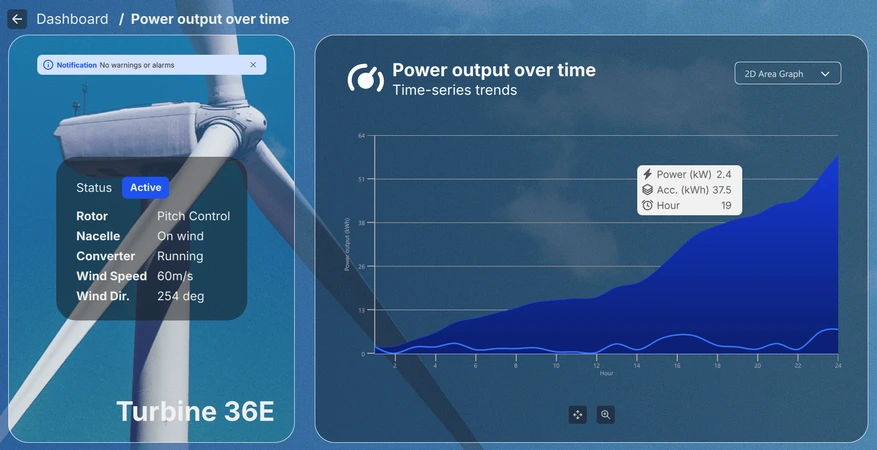
通过从仪表盘中选择一个微型图表即可进入详细视图,用户可以在此更深入、更大范围内查看所选的可视化内容。 根据图表类型,用户可以缩放、平移或旋转视图,以交互方式探索数据。此外,将鼠标悬停或单击单个数据点,即可显示有关特定关注项的更多详细信息。
设置视图
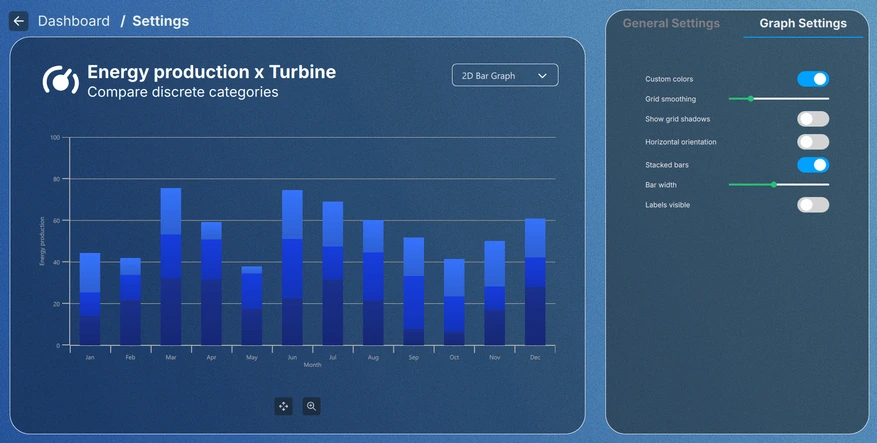
设置视图可通过点击工具栏或微型图表中的设置按钮进入,允许用户调整图表的视觉主题,并修改每种图表类型的特定设置。某些配置在退出设置视图后仍会保留,而其他配置仅在当前视图中生效,从而为临时和永久性调整提供了灵活性。
数据模拟
所有图表数据均由采用 C++ 实现的模拟器类层次结构生成。基类DataSimulator 在可配置的min 至max 范围内生成随机值。order 属性控制序列类型为Ascending 、Descending 还是NotSorted ,而deviation 属性则限制每个值与前一个值之间的最大偏差。 当 `live ` 设置为 `true` 时,数据会按照 `updatePeriod` 指定的间隔自动更新。更新在专用的后台线程中运行,模拟真实的数据源。
每个子类都是一个针对特定系列类型的 QML 元素:
LineSimulator— 将生成的值填充到QSplineSeries 中。BarSimulator— 将生成的值填充到QBarSeries 中,并根据numberOfCategory属性将值分组为条形图集。PieSimulator— 将生成的值填充到QPieSeries 中,为每个生成的值创建一个切片。Data3DSimulator— 向 3D 图表类型所使用的SimulatedDataModel(QAbstractListModel )提供数据。numberOfRows和numberOfColumns属性定义了数据的网格维度。
实现细节
应用程序中的所有内容均采用模块化设计。主视图(即Main.qml 文件)是一个ApplicationWindow ,它会为每个图实例化数据模拟器,并实例化包含所有UI元素的根Item 。
FontLoader 用于为整个用户界面应用全局字体。
ApplicationWindow {
    ...

    FontLoader { ... }
    font.family: interFont.name

    // Data simulators
    PieSimulator {
        id: piesim
        ...
    }

    BarSimulator {
        id: barsim
        ...
    }

    LineSimulator {
        id: linesim
        ...
    }

    Data3DSimulator {
        id: barDataSimulator
        ...
    }

    Data3DSimulator {
        id: scatterDataSimulator
        ...
    }

    Data3DSimulator {
        id: surfaceDataSimulator
        ...
    }

    // Root item
    Item {...}
}根项包含背景图形以及一个Layout ,用于处理视图中每个UI元素的布局:
// Background image
Image {
    anchors.fill: parent
    source: root.state === "ShowSettings" ? "images/settings-bg.png"
                                          : "images/dashboard-bg.png"
    fillMode: Image.PreserveAspectCrop
}

// Everything except background image
ColumnLayout {
    anchors.fill: parent
...大多数元素已从Main.qml 文件中提取出来,分别封装为独立的QML组件以便在布局中使用,例如以下代码片段中的ToolBarItem :
// Vertical toolbar
ToolBarItem {
    Layout.preferredWidth: GlobalSettings.toolbarwidth
    Layout.fillHeight: true
}

// Everything except vertical toolbar, header, and background image
ColumnLayout {
    id: maincontentview
    Layout.fillWidth: true
    Layout.fillHeight: true
...不同视图之间的过渡通过states 和transitions 来处理:
states: [
    State {
        name: "ShowDashboard"
    },
    State {
        name: "ShowSettings"
        PropertyChanges {
            maincontent.opacity: 0
            settingscontent.opacity: 1
        }
        PropertyChanges {
            viewtextdesc.text: "/  Settings"
        }
    },
    ...
// Use transitions to bring the selected view to the front
transitions: [
    Transition {
        NumberAnimation {
            properties: "opacity"
            easing.type: Easing.InOutCubic
            duration: 1000
        }
    }
]
仪表盘
仪表盘是主内容的一部分,是位于Layout 层次结构中的另一个RowLayout :
// Main content
RowLayout {
    id: maincontent
    Layout.fillWidth: true
    Layout.fillHeight: true
    ...
它由状态窗格和仪表盘窗格组成:
// Status area; turbine image, notification, status texts, and turbine name
StatusPane {
    id: statuspane
    Layout.preferredWidth: GlobalSettings.statusimagewidth
    Layout.fillHeight: true
}

// Scrollable dashboard graph area, shown when in ShowDashboard state
DashboardPane {
    id: dashboardpane
    contentheight: statuspane.height * 1.5
    Layout.preferredWidth: GlobalSettings.dashboardwidth
    Layout.fillHeight: true
}
状态窗格
状态窗格同样由较小的元素组成,这些元素通过各自的 QML 组件实现:
// Masking the turbine image of the background image
ImageItem {
    anchors.fill: parent
}

// Notification
NotificationItem {
    anchors.top: turbineimage.top
    anchors.horizontalCenter: turbineimage.horizontalCenter
    anchors.topMargin: GlobalSettings.doublespacing
    width: turbineimage.width / 1.25
}

// Status
StatusItem {
    anchors.centerIn: turbineimage
    width: turbineimage.width / 1.5
    height: turbineimage.width / 1.75
}

// Turbine name
Label {
    ...
这些组件的具体实现与本文无关,因此该部分将予以省略。
仪表盘窗格
仪表盘是容纳六个小型图表预览的元素。由于每次仅显示其中四个,因此必须将其放置在一个可滚动的元素内。在此示例中,使用了Flickable ,其中包含一个GridLayout :
Flickable {
    property alias contentheight: content.height

    clip: true

    contentHeight: contentheight

    boundsBehavior: Flickable.StopAtBounds
    interactive: true
    visible: opacity > 0.5

    Item {
        id: content
        width: parent.width

        GridLayout {
            id: grid
            columns: 2
    ...
图表预览被添加到网格布局中,与大多数其他元素一样,它们也是在各自的元素内部实现的:
// Graph 1: Power output over time
SmallGraphItem {
    Layout.fillWidth: true
    Layout.fillHeight: true
    state: "Area2D"
    linesimulator: linesim
}

// Graph 2: Energy production x Turbine
SmallGraphItem {
    Layout.fillWidth: true
    Layout.fillHeight: true
    state: "Bar2D"
    barsimulator: barsim
}
...
SmallGraphItem 是一个通用元素,内部包含所有不同类型的图表,所需类型通过state 传递给它。
SmallGraphItem包含:
- 一个标题元素
- 每种图表类型的实例,其可见性默认通过不透明度触发器设置为 false
- 一个用于将预览区域变暗的矩形
- 一个鼠标区域,用于处理预览区域的悬停和鼠标点击事件
Pie2DGraph {
    id: pie2d
    anchors.topMargin: header.height + GlobalSettings.defaultspacing
    anchors.rightMargin: GlobalSettings.defaultspacing
    anchors.fill: parent
    opacity: 0
    piesimulator: smallgraph.piesimulator
}

Bar3DGraph {
    id: bar3d
    anchors.topMargin: header.height + GlobalSettings.defaultspacing
    anchors.bottomMargin: GlobalSettings.defaultspacing
    anchors.fill: parent
    opacity: 0
    cameraZoomLevel: GlobalSettings.defaultzoom
    cameraPreset: GlobalSettings.defaultpreset
}
...
不透明度用于过渡动画,因此默认在预览中将其设置为 0。当不透明度动画值超过 0.5 时,预览图表本身会被设为可见:
Bars3D {
    id: graph
    visible: opacity > 0.5
    ...
详细信息
“详细信息”也是主内容的一部分,在Layout 层级结构中使用相同的RowLayout 。它由与仪表盘相同的状态窗格和一个详细信息窗格组成:
// Details graph, shown when in correct state
BigGraphItem {
    id: detailspane
    Layout.preferredWidth: GlobalSettings.dashboardwidth
    Layout.fillHeight: true
    state: root.state
    radius: GlobalSettings.defaultradius
    piesimulator: piesim
    barsimulator: barsim
    linesimulator: linesim
    detailsview: true
}详情窗格(BigGraphItem )与SmallGraphItem 在某种程度上相似,因为它除了包含其他元素外,还容纳了每个图表的实例:
// Graphs
Area2DGraph {
    id: area2dbig
    Layout.fillWidth: true
    Layout.fillHeight: true
    Layout.margins: GlobalSettings.defaultmargin
    opacity: 0
    panStyle: GraphsView.PanStyle.Drag
    zoomStyle: GraphsView.ZoomStyle.Center
    linesimulator: biggraph.linesimulator
    onVisibleChanged: {
        if (visible)
            biggraph.activegraph = area2dbig
    }
}

Bar2DGraph {
    id: bar2dbig
    Layout.fillWidth: true
    Layout.fillHeight: true
    Layout.margins: GlobalSettings.defaultmargin
    opacity: 0
    panStyle: GraphsView.PanStyle.Drag
    zoomStyle: GraphsView.ZoomStyle.Center
    barsimulator: biggraph.barsimulator
    onVisibleChanged: {
        if (visible)
            biggraph.activegraph = bar2dbig
    }
}
...其他元素包括用于选择图表类型的下拉组合框、用于旋转、平移和缩放的控制按钮(具体取决于图表类型),以及按钮的工具提示。与SmallGraphItem 一样,显示的图表类型由状态决定。
设置
由于“设置”未使用“仪表板”或“详细信息”视图的任何组件,因此已被移出主内容Layout 之外:
// Settings
SettingsItem {
    id: settingscontent
    anchors.fill: parent
...“设置”视图包含另一个用于显示图表的BigGraphItem ,以及一个设置面板,用于调整GraphsTheme 的属性或所选图表类型的特定属性。
// Graph detail
BigGraphItem {
    id: settingsgraph
    width: GlobalSettings.settingsgraphwidth
    anchors.top: parent.top
    anchors.bottom: parent.bottom
    anchors.topMargin: GlobalSettings.graphdetailmargin
    radius: GlobalSettings.defaultradius
    opacity: parent.opacity
    piesimulator: settingsitem.piesimulator
    barsimulator: settingsitem.barsimulator
    linesimulator: settingsitem.linesimulator
}

// Settings pane
Loader {
    active: settingsitem.visible
    asynchronous: true
    anchors.left: settingsgraph.right
    anchors.right: parent.right
    anchors.top: parent.top
    anchors.bottom: parent.bottom
    anchors.leftMargin: GlobalSettings.doublespacing

    sourceComponent: Item {
        StackLayout {
            id: settingspane
            anchors.fill: parent
    ...
全局主题
“General Settings ”选项卡上的设置会影响应用程序中的所有图表。已将全局GraphsTheme 作为Singleton 实现,位于GlobalSettings.qml 中:
pragma Singleton
...
QtObject {
    id: global
    ...
// Common graph theme
property var theme: GraphsTheme {
    plotAreaBackgroundVisible: false
    backgroundVisible: false
    colorScheme: GraphsTheme.ColorScheme.Dark
    theme: GraphsTheme.Theme.BlueSeries
    labelTextColor: "#AEAEAE"
    labelBackgroundVisible: true
    labelFont.pointSize: global.fontsize28px
    grid.mainColor: "#AEAEAE"
    grid.mainWidth: 1
    baseGradients: [ global.customgradient ]
}
此全局共享主题会被设置为每个图表的主题:
theme: GlobalSettings.theme作为单例,GlobalSettings.qml 需要在CMakeLists.txt 中也标记为单例,才能在应用程序中使用:
set_source_files_properties(qml/GlobalSettings.qml
    PROPERTIES QT_QML_SINGLETON_TYPE TRUE)
图表设置
“Graph Settings ”选项卡中的设置仅影响当前选中的图。这些设置不会更改全局主题,仅影响活动图中的系列。
© 2026 The Qt Company Ltd. Documentation contributions included herein are the copyrights of their respective owners. The documentation provided herein is licensed under the terms of the GNU Free Documentation License version 1.3 as published by the Free Software Foundation. Qt and respective logos are trademarks of The Qt Company Ltd. in Finland and/or other countries worldwide. All other trademarks are property of their respective owners.
