
Qt Quick 3D - RuntimeLoader 示例
演示了如何在运行时加载资源。
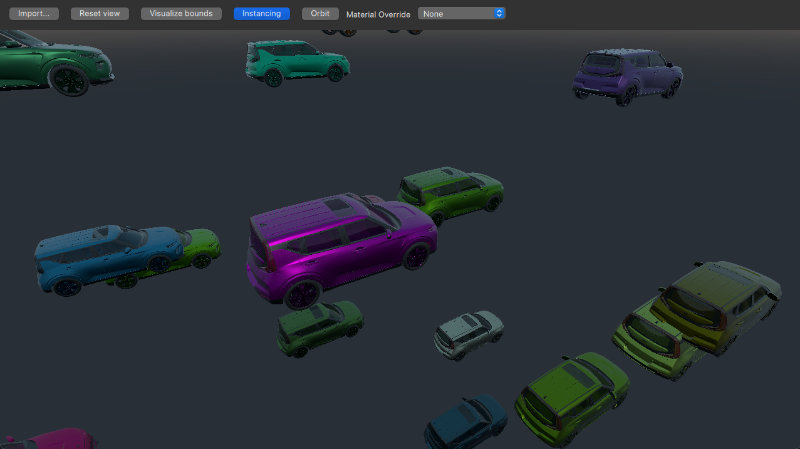
本示例演示了如何使用RuntimeLoader 实现一个简单的资源查看器。
有关如何设置基本场景的说明,请参阅入门示例文档。设置好场景后,即可添加RuntimeLoader 组件:
RuntimeLoader {
    id: importNode
    source: windowRoot.importUrl
    instancing: instancingButton.checked ? instancing : null
    onBoundsChanged: helper.updateBounds(bounds)
}通过设置RuntimeLoader 的source 属性即可加载资源。在此示例中,source 与importUrl 绑定,当用户在文件对话框中选择文件时,该属性将被更新。
假设资源能够成功加载,其内容将作为RuntimeLoader 的importNode 的子节点创建。请注意,RuntimeLoader 是Node 类型,并且由于它也是所加载资源的根节点,因此对importNode 应用的任何变换也会影响其子节点。
错误处理
如果资源加载失败,则RuntimeLoader 的status 属性将被设置为Error 。此时可以查询RuntimeLoader 的errorString 以获取更详细的错误描述。
在此示例中,我们将把错误消息显示在屏幕中央的红色消息框中,如下所示:
Rectangle {
    id: messageBox
    visible: importNode.status !== RuntimeLoader.Success
    color: "red"
    width: parent.width * 0.8
    height: parent.height * 0.8
    anchors.centerIn: parent
    radius: Math.min(width, height) / 10
    opacity: 0.6
    Text {
        anchors.fill: parent
        font.pixelSize: 36
        text: "Status: " + importNode.errorString + "\nPress \"Import...\" to import a model"
        color: "white"
        wrapMode: Text.Wrap
        horizontalAlignment: Text.AlignHCenter
        verticalAlignment: Text.AlignVCenter
    }
}
移动摄像机
为了能够更改摄像机的位置,我们使用来自Helpers 模块的WasdController ,并将其绑定到我们的摄像机上,如下所示:
OrbitCameraController {
    id: orbitController
    origin: orbitCameraNode
    camera: orbitCamera
    enabled: helper.orbitControllerEnabled
}
WasdController {
    id: wasdController
    controlledObject: wasdCamera
    enabled: !helper.orbitControllerEnabled
}除了WasdController 之外,本示例还使用了WheelHandler 和PointerHandler 来缩放和旋转模型。
实例化
RuntimeLoader 项还可以与实例化功能结合使用,如下所示:
RandomInstancing {
    id: instancing
    instanceCount: 30
    position: InstanceRange {
        property alias boundsDiameter: helper.boundsDiameter
        from: Qt.vector3d(-3*boundsDiameter, -3*boundsDiameter, -3*boundsDiameter);
        to: Qt.vector3d(3*boundsDiameter, 3*boundsDiameter, 3*boundsDiameter)
    }
    color: InstanceRange { from: "black"; to: "white" }
}
RuntimeLoader 该组件虽不继承自 Model,但拥有专属的instancing 属性,使我们能够像处理简单模型一样对复杂的导入资源进行实例化。在此示例中,我们使用Helpers 模块中的RandomInstancing 组件,在固定区域内以随机颜色随机定位实例。
材质覆盖
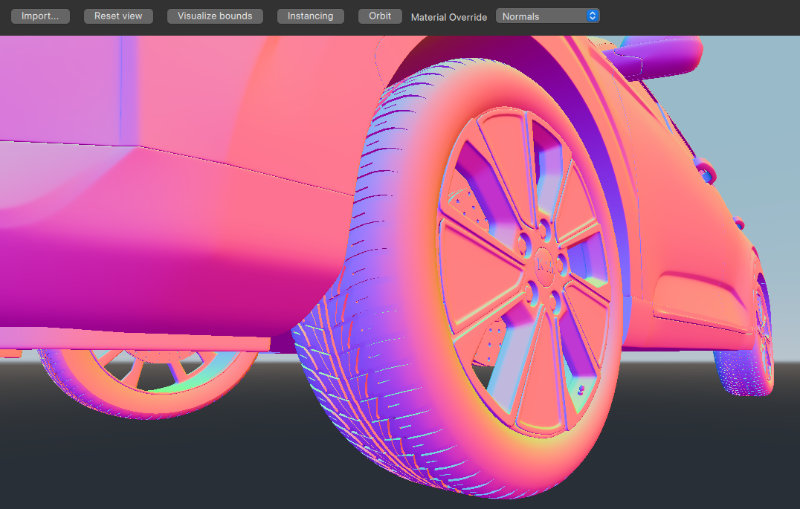
有时在加载资源时,其外观可能与预期不符。materialOverride 属性会改变场景中每个材质的渲染方式,从而显示其对整体渲染的具体贡献。这有助于确定资源中具体哪些地方不正确,以便在必要时调整原始资源。
© 2026 The Qt Company Ltd. Documentation contributions included herein are the copyrights of their respective owners. The documentation provided herein is licensed under the terms of the GNU Free Documentation License version 1.3 as published by the Free Software Foundation. Qt and respective logos are trademarks of The Qt Company Ltd. in Finland and/or other countries worldwide. All other trademarks are property of their respective owners.
