
选择 Squish 被测应用程序
要选择要使用 Squish 进行测试的应用程序,请转至Tools >Squish >Server Settings 。
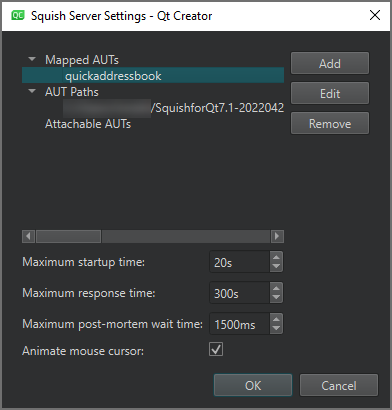
在运行测试套件或测试用例时,Squish Runner 会指示 Squish 服务器启动被测应用程序(AUT)。服务器可以在多台计算机上运行,且每台计算机上的被测应用程序(AUT)可能位于不同的路径上。 因此,您必须将被测应用程序(AUT)映射到其对应的路径,或者在服务器设置中指定要搜索的 AUT 路径。
若要使用运行在另一台计算机上的 Squish 服务器测试已运行的应用程序,请将服务器连接到该应用程序。您一次只能将一台服务器连接到应用程序。测试用例完成后,已连接的应用程序不会关闭。
映射被测应用程序
要指定要运行的被测应用程序(AUT)的路径,请选择“Mapped AUTs ” > “Add ”,然后定位该被测应用程序。
Squish 服务器会检查待运行的 AUT 的名称是否已映射到某个路径,并通过该映射路径启动 AUT。这样,它就无需从所有指定的 AUT 路径中进行搜索。
如果两个不同的可执行文件名称相同,映射 AUT 可防止服务器误执行错误的 AUT,因为服务器会执行其在“AUT Paths ”中找到的第一个匹配的 AUT。
要更改所选 AUT 的路径,请选择“Edit ”(路径映射)。
要删除与所选 AUT 的映射,请选择“Remove ”。
指定 AUT 路径
要指定搜索 AUT 的路径,请选择“AUT Paths ”>“Add ”。
Squish 服务器将从指定的 AUT 路径中搜索要运行的可执行文件,并运行其在任何路径中找到的第一个具有指定名称的文件。
要更改所选的 AUT 路径,请选择“Edit ”。
要删除所选的 AUT 路径,请选择“Remove ”。
添加可附加的 AUT
要指定正在运行的 AUT 的路径,请选择“Attachable AUTs ”>“Add ”。在“Add Attachable AUT ”对话框中,指定与正在运行的应用程序的连接以注册可附加的 AUT。
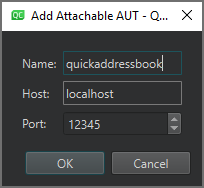
要更改与所选 AUT 的连接,请选择“Edit ”。
要删除与所选 AUT 的连接,请选择“Remove ”。
指定运行测试的设置
要指定测试运行的设置:
- 在“Maximum startup time ”中,设置在抛出错误之前等待被测应用程序(AUT)启动的最长时间。
- 在“Maximum response time ”中,设置在抛出错误前等待被测应用程序(AUT)响应的最长时间。
- 在“Maximum post-mortem wait time ”中,设置主被测应用程序(AUT)退出后的最大等待时间。此设置对于通过启动器应用程序(如 shell 脚本或批处理文件)调用的被测应用程序(AUT)非常有用。
- 选中“Animate mouse cursor ”可让鼠标光标在回放测试时显示动画效果。
另请参阅 “连接到 Squish 服务器”、“创建 Squish 测试套件”、“启用和禁用插件”、“管理 Squish 测试套件和测试用例 ”以及“Squish”。
Copyright © The Qt Company Ltd. and other contributors. Documentation contributions included herein are the copyrights of their respective owners. The documentation provided herein is licensed under the terms of the GNU Free Documentation License version 1.3 as published by the Free Software Foundation. Qt and respective logos are trademarks of The Qt Company Ltd in Finland and/or other countries worldwide. All other trademarks are property of their respective owners.
