
5.6.3. Configuration
5.6.3.1. Connection to Axivion Dashboard Server
The Axivion Visual Studio Plugin is accessing the analysis results through the JSON API of the Axivion Dashboard Server. Therefore, the first step after installing the plugin is to configure the access to the Axivion Dashboard Server.
To access the settings, use Tools > Options > Axivion > Axivion Suite; or
click on the  icon in the
 Axivion Suite
window.
Here, click Add Dashboard and specify the URL of the Axivion Dashboard Server; and the
credentials used to log in to the Axivion Dashboard Server.
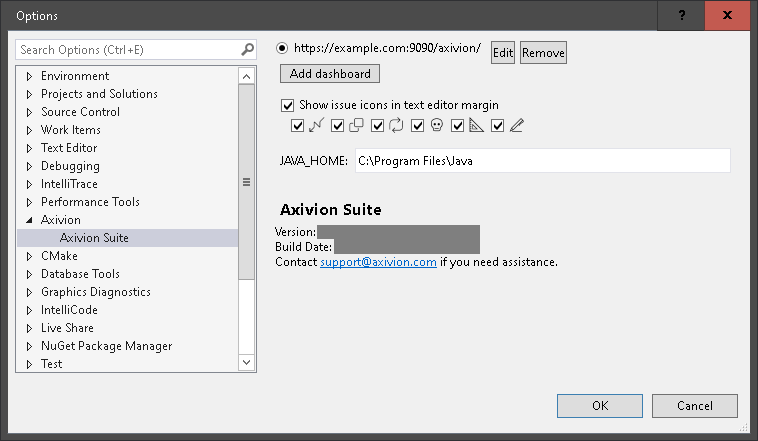
Axivion Visual Studio Plugin options page.
After the Axivion Dashboard Server is configured, open the Axivion Suite window
( View > Other Windows > Axivion Suite). If the dashboard
configuration is correct, you should be able to select an analysis project using the
left-most combobox in the window, and view the list of issues within that project. See
Section Issue List for more details on the
Axivion Suite window.
If the connection to the Axivion Dashboard Server fails, an error message will be displayed in place of the issue list.
The password is stored locally (in the Windows registry) and is encrypted so that it can be only read by the current Windows user account.
The password will be transmitted to the Axivion Dashboard Server. Use HTTPS to prevent the password from being visible while it is being transmitted over the network.
If you are accessing the Axivion Dashboard Server over HTTPS, and the server is using a self-signed certificate, you might receive the error message:
The underlying connection was closed: Could not establish trust relationship for the SSL/TLS secure channel.
The remote certificate is invalid according to the validation procedure.
Visual Studio (and therefore the Axivion Visual Studio Plugin) uses the Windows certificate store. Installing the root certificate of the Dashboard certificate should fix this error.
Note
When there are certificate or TLS connection problems and you need support from Axivion, please send the following information with your support request e-mail:
The error message you are seeing.
The output of the OpenSSL command described in testing the Dashboard certificate configuration.
JAVA_HOME is not empty, subprocesses will be started with
the environment variable JAVA_HOME set to the configured value. This is necessary when
Java is not installed onto your system but just copied to it and the environment
variable JAVA_HOME is not set globally.5.6.3.2. Path Mapping
Issues found by the Axivion Suite analysis will reference files on the build machine where the analysis was performed. On the other hand, the Visual Studio code editor operates on local files on the developer’s machine.
The path mapping in the Axivion Visual Studio Plugin determines mapping between local
paths and analysis projects. This allows the plugin to jump to the corresponding local
file when double-clicking on an issue in the Axivion Suite window.
It also works in the opposite direction: when opening a local file in the Visual Studio
editor, the path mapping is used to determine the corresponding analysis project and
file, and all the issues found in the latest analysis of that file are shown in the
breakpoint margin.
The path mapping configuration is stored in the Visual Studio project files (
*.vcxproj, *.csproj, etc.). Thus, it is usually committed into source
control and shared by all developers working on the project.
Alternatively, path mapping configuration can also be stored in the “Global
configuration” ( %USERPROFILE%\.bauhaus\launcher.config).
Configuration of the Path Mapping
To configure the path mapping, click the 
Path
Mapping
icon in the toolbar of the Axivion Suite window. When
opening an issue for which no mapping is configured, the Axivion Visual Studio Plugin
will prompt you for the corresponding local file, and will then automatically create a
new path mapping entry based on your choice.
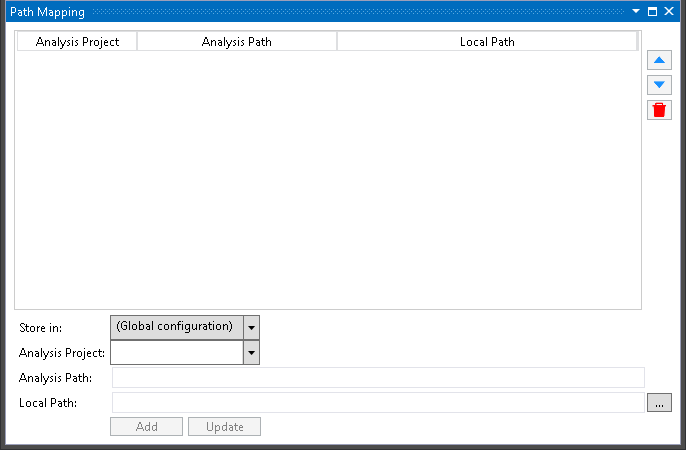
Path Mapping window.
The window shows a list of all mapping entries stored in the currently opened Visual Studio projects. An entry consists of four components:
Store in– the Visual Studio project in which the mapping entry is stored.Analysis Project– the analysis projectAnalysis Path– a relative path describing a directory within the analysis project. (relative to the basepath of the analysis project)Usually this field is left empty, which means that the mapping entry refers to the basepath of the analysis project.Local Path– the local path that corresponds to the specified analysis path. While thePath Mappingwindow displays an absolute path for this field, on disk it is actually stored as a path relative to the Visual Studio project file. This allows committing the path mapping configuration to source control, so that it can be shared between developers.
To create a new entry, fill out the details of the entry, and then click
Add. To modify an entry, first select the entry, then change its details,
and finally click Update. To delete an entry, select the entry and click
the 
Delete icon to the right of the list.
Changes take effect immediately after clicking Add or
Update. However, the change is not stored to disk immediately – as with
other changes in the Visual Studio project file, you need to use File >
Save All to let Visual Studio save the .vcxproj file.
Example Configuration
We will now consider the configuration for an example project with the following directory structure:
C:\project\axivion\ci_config.json
C:\project\library1\library1.vcxproj
C:\project\library1\src\...
C:\project\library2\library2.vcxproj
C:\project\library2\src\...
Within the ci_config.json file, the Project/directory is set to ”
..“. This means that C:\project is the basepath for
the analysis project.
For following configuration example, we will assume that the developers using Visual
Studio have the same project checked out into the local path C:\dev\project. The
easiest way to configure the path mappings in this case is to have a single entry:
Store in: library1
Analysis Project: project
Analysis Path: <empty>
Local path: C:\dev\project
Because the Analysis Path field was left empty, the mapping entry applies
to the whole analysis project. Thus, this entry maps the basepath C:\project on
the machine running the analysis to the local path C:\dev\project on the
developer’s machine.
The Axivion Visual Studio Plugin can make use of a mapping entry as long as at least one
project containing the entry is loaded in Visual Studio. This means the entry is active
for both library1 and library2 even though it is stored only in
library1.vcxproj. There is no harm in duplicate entries, so you can also store
the same mapping entry in library2.vcxproj. This may be helpful when developers
sometimes work with only library2 loaded in Visual Studio.
An alternative option for configuring the path mappings in this case would be to
restrict the entries to subdirectories of the analysis project by setting the
Analysis Path field:
Store in: library 1
Analysis Project: project
Analysis Path: library1
Local path: C:\project\library1

Store in: library 2
Analysis Project: project
Analysis Path: library2
Local path: C:\project\library2
The first of these entries maps C:\project\library1 on the analysis machine to
C:\dev\project\library1 on the developer machine. The second entry does the same
with library2.
These more specific mapping entries are still usable when developers only check out one
of the libraries from source control, and thus do not have the whole
C:\dev\project directory on their local machine.
Note: if you have a number of analysis projects that all need the same path mappings, you can use glob patterns in the configuration of the analysis project name.