
5.6.4. Using the Axivion Visual Studio Plugin
5.6.4.1. Issue List
The Axivion Suite window allows querying new and resolved erosion
issues. The user interface is very similar to that of the
web dashboard.

Axivion Suite window
The elements in the toolbar select which issues to display. From left to right:
Project: Allows you to select the analysis project whose issues are viewed. The combobox lists all projects available on the server, which the current user can access.
Start Local Build: Starts the local build. The results are stored in<home>/.bauhaus/localbuild.
View Local Build Results: Switches between the results of the dashboard (global analysis on CI server) and the results of the local build.Issue Kind: Selects which type of issue to display.
State: The two controls with the arrow symbols allow you to view only added issues, only removed issues, or both. The numbers indicate the number of added/removed issues in the current query result.Start Version: Like the web dashboard, the issue list shows the difference between two versions. Issues that exist in the start version but not in the end version are listed asremoved. Issues that exist in the end version but not in the start version are listed asadded. To see all issues, pickEMPTYasStart Version. This special version does not contain any issues, so the list will display all issues in the chosenEnd Version. When a new analysis is available on the Axivion Dashboard Server, the list of available versions in the plugin might not update immediately. In this case, you can right-click the combobox and selectRefreshto force the plugin to download the current list of versions from the Axivion Dashboard Server.End Version: The end version for which the issues are to be retrieved. In Local Build mode, the start and end version controls are replaced with a dropdown which allows to quickly select the two available versions or their difference:Reference version,Locally changed issues, andAll local issues.User: Specifies the user whose issues are to be shown:ANYBODY: shows all issues; that is, does not filter based on the user;NOBODY: shows only those issues that are not associated with any user,<user_name>: shows all erosion issues associated with the given user name.
As a normal user, you can see only your own user name as well as those of users marked with the public flag (see Section Users).
Filter: Allows one to specify a globbing pattern. Only the issues associated with a file that matches the specified globbing pattern are shown. For example, the path “src/main/io.c” can be matched by*.cas well as*/io.?. If left empty, all files are considered.Named Filter: Allows applying a Named Filter which overrides the currently set filters and column sorting. Named Filter management is possible in the Web UI. If a filter or sorting is changed, the dropdown switches to no selected filter which denotes the “unnamed filter” - meaning that the currently applied filters and sorting are not saved as a Named Filter.Private Names Filters are marked with the suffix
[^].
Show filter help: Opens a browser and shows the filter help.
Path Mapping: Opens the path mapping configuration.
Settings: Opens the settings dialog.
The Axivion Visual Studio Plugin will automatically start a new query when any of the above options are changed.
Filtering
In addition to the file filter, the issue list view also supports filtering individual columns. You can type in the filter text boxes below the column headers apply a filter to the respective column.
A more in-depth explanation on what filter-strings can be entered in the individual
columns is available when you click on the
Show filter help button.

Filtering the issue list.
Viewing Issues
If you open the Visual Studio property window and select an entry in the issue list, the
Visual Studio property window ( View > Property Window) will
show some details for that issue:
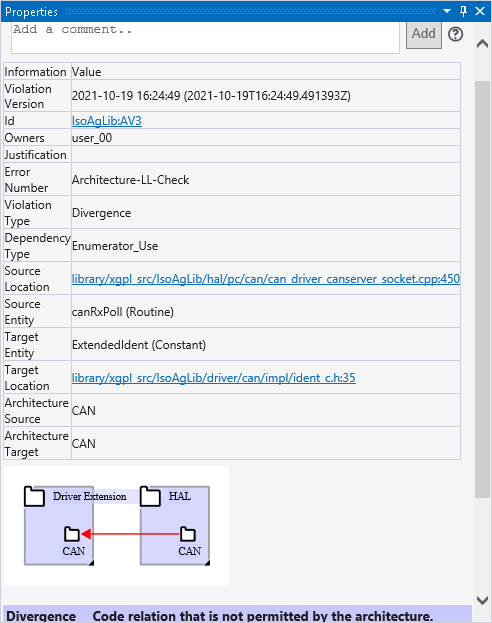
Property Window showing issue details
To open the code for an issue, double-click the entry in the issue list. If the path
mapping is configured correctly, the plugin will open the source file and jump to the
line containing the issue. If the issue has multiple source locations (e.g. clones,
cycles, architecture violations), the plugin will prompt you to select which source
location to open. The side-by-side view of the web dashboard is currently not supported
in the Axivion Visual Studio Plugin. You can also open issues in the web dashboard by
right-clicking an entry in the issue list, and choosing Open Issue in
Dashboard.
Because the analyzed version of the code is not necessarily the same as the local code version, the line numbers of issues may have changed. For example, an issue that was on line 100 during the analysis may now be on line 120 if 20 lines of code were added at the beginning of the file. When opening an issue, the Axivion Visual Studio Plugin will download the analyzed version of the file, and compute the new location of the issue using the diff between the analyzed file and the current editor contents.
5.6.4.2. Code Editor
If the path mapping is configured correctly, opening a code file in the Visual Studio editor will display the issues found by the last analysis in the breakpoint margin.
You can select an issue to view it in the Visual Studio property window; or right-click to view it in the web dashboard. For issues with multiple source locations, double-click the issue to open a different source location in the editor.
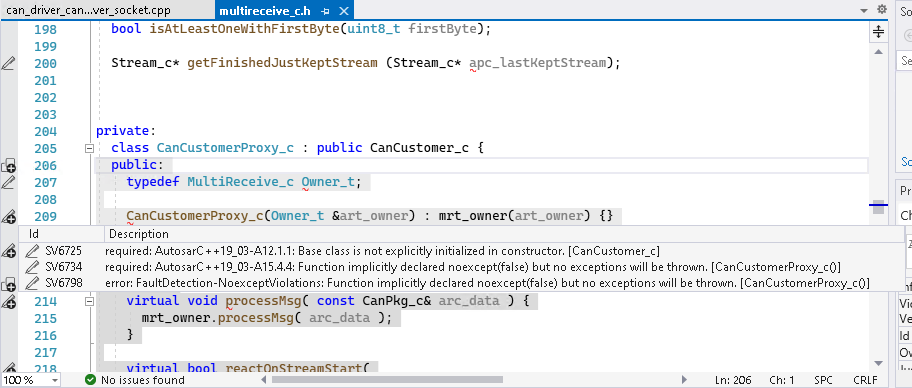
Issues in code editor
Caution
When a new analysis has been performed, you may have to close and re-open the file to refresh the issue markers.
5.6.4.3. Local Analyses
Local analyses allow analysing code locally, before it is committed to version control. This requires the Axivion Suite to be installed locally (in addition to the Axivion Visual Studio Plugin).
Complete Project
We call a complete analysis of the whole project “Local Build”. This is documented in part Starting Local Build from within the IDE Plugins.
Single Compilation Unit
A single compilation unit can be analyzed for style violations using the
Axivion Single-File Analysis command in the context menu in the
Solution Explorer.
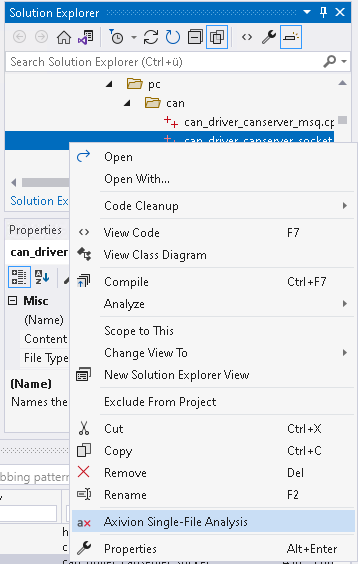
Single-File Analysis command
Note that this single-file analysis does not use the project configuration. Instead,
the Axivion Visual Studio Plugin directly invokes cafeCC using compiler options
from the .vcxproj file, and then directly invokes axivion_analysis.
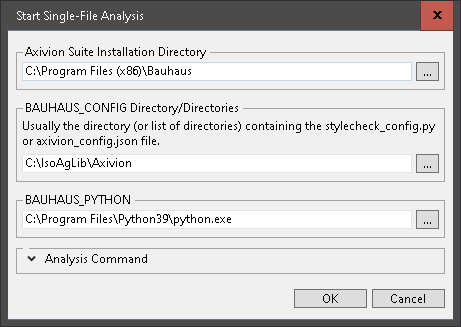
Single-File Analysis configuration
Normally, all that needs to be configured is the installation directory of the Axivion Suite, and the directory/directories with the Axivion Suite configuration for the project.
The Axivion Visual Studio Plugin guesses the used analyzer tool (stylecheck or
axivion_analysis) based on the version of the Axivion Suite and
the given Axivion Suite configuration.
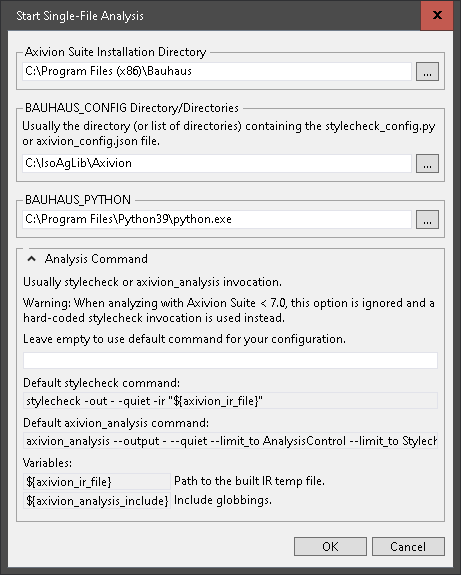
Single-File Analysis configuration with custom analysis Command
In more advanced situations, the analysis command can be configured manually. Note that the IR is built before the analysis command is invoked. So the IR building step is not part of the analysis command.
The results will be shown in Visual Studio’s Output window. While the
single-file analysis is running, the toolbar of the Output window offers an
additional button 
Cancel local analysis.
single-file analysis is only available for stylechecks. Even then, some rules require knowledge of the whole system in order to produce accurate results. When running on a single compilation unit, some rules will produce less accurate results, and a few are even disabled completely (e.g. “Declare functions that do not need external linkage as static”).
The single-file analysis creates markers for the found issues. These markers are shown additionally to the markers from the Axivion Dashboard Server or the Local Build. The single file analysis markers are cleared when a new single-file analysis runs. That means that the single-file analysis markers of all files with the same name as the selected .c/.cpp file (ignoring the extension) are deleted prior to creating the markers for the current analysis run.
Caution
To show markers for the single-file analysis, the Axivion Visual Studio Plugin and the Axivion Suite used to analyze the file must be at least of version 6.9.0.