
5.6.2. Installation
The Axivion Visual Studio Plugin is distributed in three Visual Studio package files:
Axivion.VisualStudioPlugin-VS2017.vsix– for Visual Studio 2017 and 2019.Axivion.VisualStudioPlugin-VS2022.vsix– for Visual Studio 2022 and 2026.
You can download both files from the Axivion Dashboard Server. Alternatively, you can also find both
files in the directory doc\VSPlugin in the Axivion Suite installation folder.
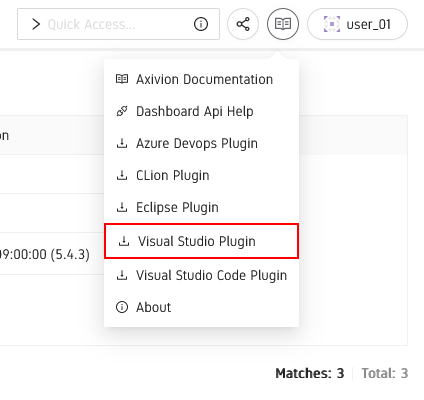
Visual Studio Plugin Download
Caution
The download option is visible only when browsing the dashboard using Windows.
To view analysis results from the Axivion Dashboard Server, the Axivion Visual Studio Plugin does not require the Axivion Suite to be installed. Some functions (the local analyses) need the Axivion Suite .
Double-clicking Axivion.VisualStudioPlugin.vsix will open the Microsoft “VSIX
Installer”:
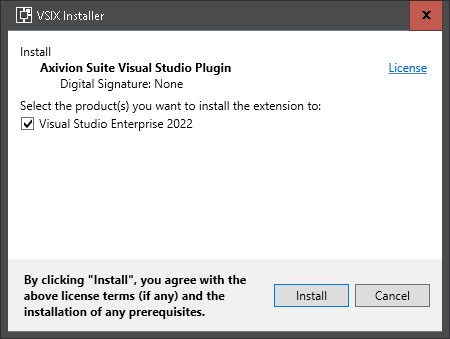
Microsoft “VSIX Installer”.
Here, select the Visual Studio version(s) you want to install the Axivion Visual Studio Plugin into.
Caution
The installation does not require administrator permissions, and installs the plugin for the current user account only.
After the Axivion Visual Studio Plugin has been installed, restart Visual Studio. You
should then see an entry Axivion Suite in the View >
Other Windows menu in Visual Studio.
To see which which version of the Axivion Visual Studio Plugin is installed, use
Tools > Extensions and Updates to open the Visual Studio extension
manager. You can also disable or uninstall the plugin from this window.
To upgrade the plugin to a newer version, simply install the .vsix of the new
version. The previously installed version will be overwritten; it is not necessary to
uninstall the old version prior to an upgrade.