
風力タービンのダッシュボード
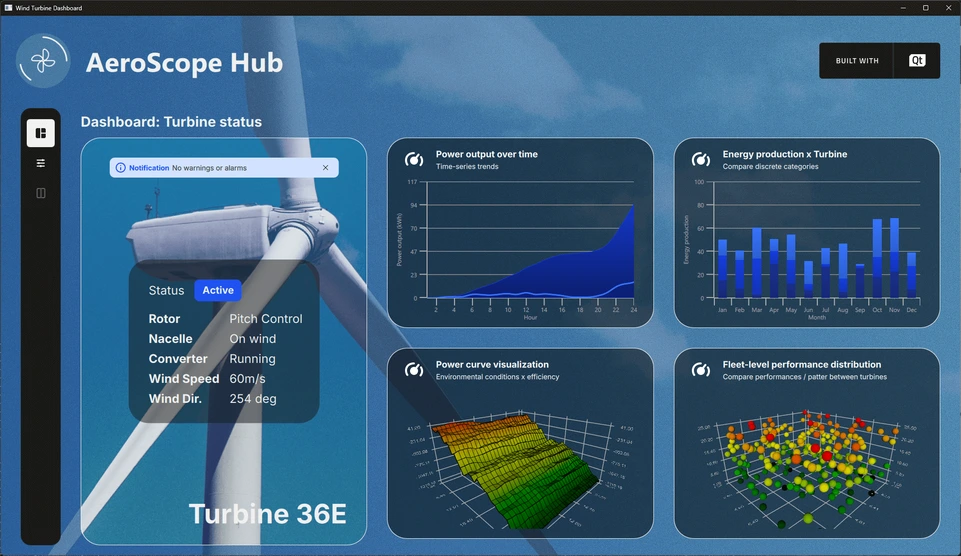
2Dおよび3Dグラフを備えた風力タービンダッシュボード。
「風力タービン・ダッシュボード」のサンプルでは、実際のアプリケーションをシミュレートした環境で、2Dグラフと3Dグラフの両方を活用する方法を示しています。
例の動作
このサンプルは、以下の手順で実行できます。
- Qt Creator
Welcome モードを開き、Examples からこのサンプルを選択します。詳細については、Qt Creator の「チュートリアル:ビルドと実行」を参照してください。
- Qt Extension for Visual Studio Code
Command Palette から `Qt: Open Qt examples ` コマンドを実行し、リストからこのサンプルを選択します。詳細については、Qt Extension for Visual Studio Code の「チュートリアル: ビルドと実行」を参照してください。
アプリケーションの概要
このサンプルでは、「Aerospace Hub」と呼ばれる風力タービン監視ダッシュボードを紹介しています。このダッシュボードには、架空の風力タービン群からのシミュレーションデータが表示されます。さまざまな種類のデータを可視化するために、多種多様なグラフタイプが採用されています。たとえば、スプライン系列を用いた 2 次元グラフでは 1 時間ごとの発電量が示され、併せて表示される面積系列では、同じ期間の累積発電量が表されています。 複数のデータビューが用意されており、ユーザーはさまざまな視点から情報を探索・分析することができます。
メインインターフェースの左側には設定ツールバーがあります。選択したモードに応じて、レイアウトにはステータスパネル、小さなグラフで構成されるダッシュボード、メインの大きなグラフ、または詳細設定パネルが、個別に、あるいは組み合わせて表示されます。この柔軟な設計により、ユーザーはビューをカスタマイズし、その時点の分析に最も関連性の高いデータに焦点を当てることができます。
ダッシュボードビュー
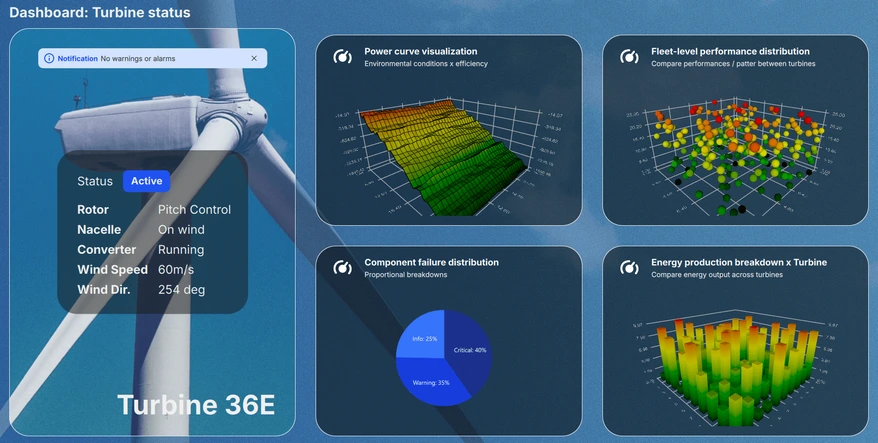
ダッシュボードビューでは、現在のシステムステータスとともに、各種グラフのミニチュアプレビューを表示するスクロール可能なペインが表示されます。最大4つのグラフが同時に表示されるため、利用者は利用可能な6つの視覚化すべてを便利に閲覧し、主要なパフォーマンス指標を一目で素早く把握することができます。
詳細ビュー
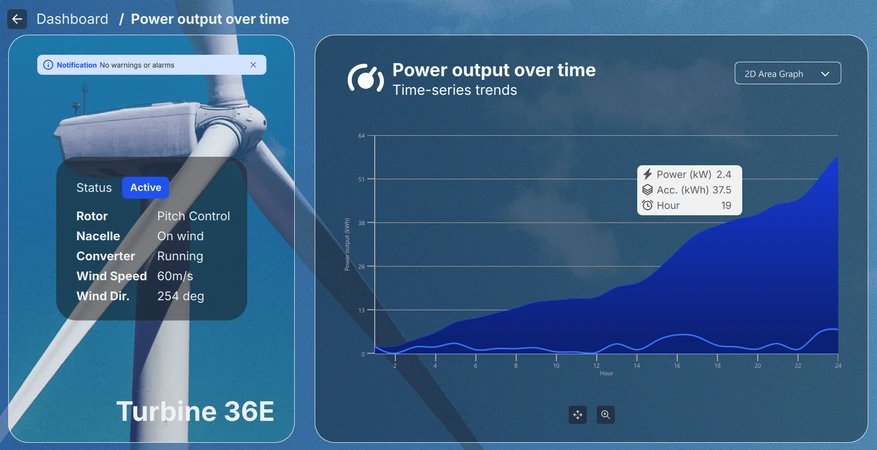
ダッシュボードからミニチュアグラフを選択することでアクセスできる詳細ビューでは、選択した可視化データをより詳細に、かつ拡大表示して確認できます。 グラフの種類に応じて、ユーザーはズーム、パン、回転などの操作を行い、インタラクティブにデータを探索できます。さらに、個々のデータポイントにカーソルを合わせたりクリックしたりすることで、関心のある特定の項目に関する詳細情報を表示できます。
設定ビュー
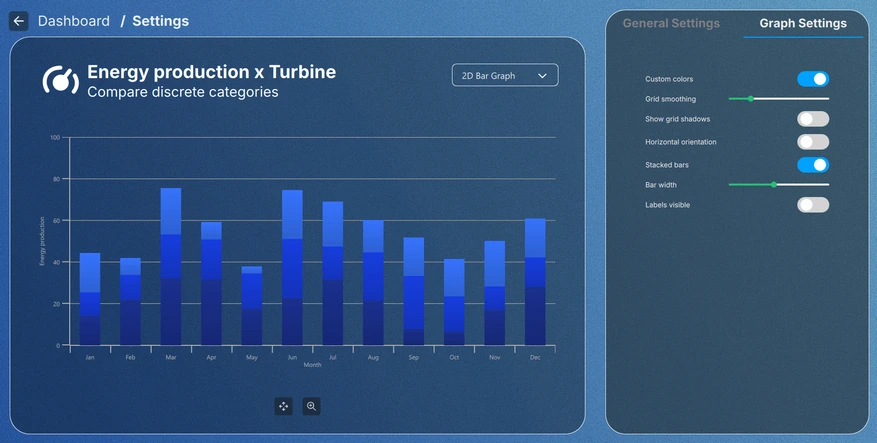
ツールバーまたはミニグラフ内の設定ボタンをクリックすると表示される設定ビューでは、グラフの視覚的なテーマを調整したり、各グラフタイプ固有の設定を変更したりできます。設定ビューを終了しても一部の構成は維持されますが、その他の設定は現在のビュー内でのみ適用されるため、一時的な調整と恒久的な調整の両方に柔軟に対応できます。
データシミュレーション
すべてのグラフデータは、C++で実装されたシミュレータクラスの階層構造によって生成されます。基底クラスであるDataSimulator は、設定可能なmin からmax の範囲内で乱数を生成します。order プロパティは、シーケンスがAscending 、Descending 、またはNotSorted のいずれになるかを制御し、deviation プロパティは、各値が前の値からどれだけずれるかを制限します。live がtrue に設定されている場合、updatePeriod で指定された間隔でデータが自動的に更新されます。更新処理は専用のバックグラウンドスレッドで実行され、実際のデータソースをシミュレートします。
各サブクラスは、特定のシリーズ型を対象とするQML要素です。
LineSimulator— 生成された値でQSplineSeries を埋めます。BarSimulator— `QBarSeries` にデータを格納し、`numberOfCategory` プロパティに従って値をバーセットごとにグループ化します。PieSimulator— 生成された値ごとに1つのスライスを作成して、QPieSeries にデータを設定します。Data3DSimulator— 3Dグラフタイプで使用されるSimulatedDataModel(QAbstractListModel )にデータを供給します。numberOfRowsおよびnumberOfColumnsプロパティは、データのグリッド寸法を定義します。
実装の詳細
アプリケーション内のすべてはモジュール方式で設計されています。メインビューであるMain.qml ファイルはApplicationWindow であり、各グラフのデータシミュレータと、すべてのUI要素を保持するルートItem をインスタンス化します。
FontLoader は、UI全体にグローバルなフォントを適用するために使用されます。
ApplicationWindow {
    ...

    FontLoader { ... }
    font.family: interFont.name

    // Data simulators
    PieSimulator {
        id: piesim
        ...
    }

    BarSimulator {
        id: barsim
        ...
    }

    LineSimulator {
        id: linesim
        ...
    }

    Data3DSimulator {
        id: barDataSimulator
        ...
    }

    Data3DSimulator {
        id: scatterDataSimulator
        ...
    }

    Data3DSimulator {
        id: surfaceDataSimulator
        ...
    }

    // Root item
    Item {...}
}ルートアイテムには、背景グラフィックと、ビュー内での各UI要素の配置を処理するLayout が含まれています:
// Background image
Image {
    anchors.fill: parent
    source: root.state === "ShowSettings" ? "images/settings-bg.png"
                                          : "images/dashboard-bg.png"
    fillMode: Image.PreserveAspectCrop
}

// Everything except background image
ColumnLayout {
    anchors.fill: parent
...ほとんどの要素は、Main.qml ファイル自体から取り出され、以下のスニペットにあるToolBarItem のように、レイアウトで使用される独自のQMLコンポーネントとして実装されています:
// Vertical toolbar
ToolBarItem {
    Layout.preferredWidth: GlobalSettings.toolbarwidth
    Layout.fillHeight: true
}

// Everything except vertical toolbar, header, and background image
ColumnLayout {
    id: maincontentview
    Layout.fillWidth: true
    Layout.fillHeight: true
...異なるビュー間の遷移は、states およびtransitions を使用して処理されます:
states: [
    State {
        name: "ShowDashboard"
    },
    State {
        name: "ShowSettings"
        PropertyChanges {
            maincontent.opacity: 0
            settingscontent.opacity: 1
        }
        PropertyChanges {
            viewtextdesc.text: "/  Settings"
        }
    },
    ...
// Use transitions to bring the selected view to the front
transitions: [
    Transition {
        NumberAnimation {
            properties: "opacity"
            easing.type: Easing.InOutCubic
            duration: 1000
        }
    }
]
ダッシュボード
ダッシュボードはメインコンテンツの一部であり、Layout 階層内のもう1つのRowLayout です:
// Main content
RowLayout {
    id: maincontent
    Layout.fillWidth: true
    Layout.fillHeight: true
    ...
ステータス・ペインとダッシュボード・ペインで構成されています:
// Status area; turbine image, notification, status texts, and turbine name
StatusPane {
    id: statuspane
    Layout.preferredWidth: GlobalSettings.statusimagewidth
    Layout.fillHeight: true
}

// Scrollable dashboard graph area, shown when in ShowDashboard state
DashboardPane {
    id: dashboardpane
    contentheight: statuspane.height * 1.5
    Layout.preferredWidth: GlobalSettings.dashboardwidth
    Layout.fillHeight: true
}
ステータス・ペイン
ステータス・ペインも、それぞれ独自の QML コンポーネントとして実装された、より小さな要素で構成されています:
// Masking the turbine image of the background image
ImageItem {
    anchors.fill: parent
}

// Notification
NotificationItem {
    anchors.top: turbineimage.top
    anchors.horizontalCenter: turbineimage.horizontalCenter
    anchors.topMargin: GlobalSettings.doublespacing
    width: turbineimage.width / 1.25
}

// Status
StatusItem {
    anchors.centerIn: turbineimage
    width: turbineimage.width / 1.5
    height: turbineimage.width / 1.75
}

// Turbine name
Label {
    ...
これらの実装の詳細は本稿の趣旨とは関係がないため、その部分は省略します。
ダッシュボード・ペイン
ダッシュボードは、6つの小さなグラフプレビューを格納する要素です。一度に表示されるのはそのうち4つだけであるため、スクロール可能な要素の中に配置する必要があります。この場合は、Flickable を使用しており、その中にGridLayout が格納されています:
Flickable {
    property alias contentheight: content.height

    clip: true

    contentHeight: contentheight

    boundsBehavior: Flickable.StopAtBounds
    interactive: true
    visible: opacity > 0.5

    Item {
        id: content
        width: parent.width

        GridLayout {
            id: grid
            columns: 2
    ...
グラフのプレビューはグリッドレイアウト内に配置されており、他のほとんどの要素と同様に、それぞれ独自の要素内に実装されています:
// Graph 1: Power output over time
SmallGraphItem {
    Layout.fillWidth: true
    Layout.fillHeight: true
    state: "Area2D"
    linesimulator: linesim
}

// Graph 2: Energy production x Turbine
SmallGraphItem {
    Layout.fillWidth: true
    Layout.fillHeight: true
    state: "Bar2D"
    barsimulator: barsim
}
...
SmallGraphItem 要素は汎用的なものであり、その内部にはあらゆる種類のグラフが格納されており、必要なタイプはstate として指定されます。
SmallGraphItemには以下が含まれます:
- ヘッダー要素
- 各グラフタイプのインスタンス(デフォルトでは不透明度トリガーを使用して可視性が false に設定されています)
- プレビューを暗くするための矩形
- プレビュー上のホバーやマウスクリックを処理するためのマウスエリア
Pie2DGraph {
    id: pie2d
    anchors.topMargin: header.height + GlobalSettings.defaultspacing
    anchors.rightMargin: GlobalSettings.defaultspacing
    anchors.fill: parent
    opacity: 0
    piesimulator: smallgraph.piesimulator
}

Bar3DGraph {
    id: bar3d
    anchors.topMargin: header.height + GlobalSettings.defaultspacing
    anchors.bottomMargin: GlobalSettings.defaultspacing
    anchors.fill: parent
    opacity: 0
    cameraZoomLevel: GlobalSettings.defaultzoom
    cameraPreset: GlobalSettings.defaultpreset
}
...
不透明度はトランジションアニメーションに使用されるため、プレビューではデフォルトで 0 に設定されています。不透明度が 0.5 以上にアニメーションされると、プレビューグラフ自体が可視状態になります:
Bars3D {
    id: graph
    visible: opacity > 0.5
    ...
詳細
「詳細」もメインコンテンツの一部であり、「Layout 」階層内の同じ「RowLayout 」を使用しています。これは、ダッシュボードと同じステータスペインと、詳細ペインで構成されています:
// Details graph, shown when in correct state
BigGraphItem {
    id: detailspane
    Layout.preferredWidth: GlobalSettings.dashboardwidth
    Layout.fillHeight: true
    state: root.state
    radius: GlobalSettings.defaultradius
    piesimulator: piesim
    barsimulator: barsim
    linesimulator: linesim
    detailsview: true
}詳細ペイン(BigGraphItem )は、SmallGraphItem と同様に、他の要素に加えて各グラフのインスタンスも保持している点で似ています:
// Graphs
Area2DGraph {
    id: area2dbig
    Layout.fillWidth: true
    Layout.fillHeight: true
    Layout.margins: GlobalSettings.defaultmargin
    opacity: 0
    panStyle: GraphsView.PanStyle.Drag
    zoomStyle: GraphsView.ZoomStyle.Center
    linesimulator: biggraph.linesimulator
    onVisibleChanged: {
        if (visible)
            biggraph.activegraph = area2dbig
    }
}

Bar2DGraph {
    id: bar2dbig
    Layout.fillWidth: true
    Layout.fillHeight: true
    Layout.margins: GlobalSettings.defaultmargin
    opacity: 0
    panStyle: GraphsView.PanStyle.Drag
    zoomStyle: GraphsView.ZoomStyle.Center
    barsimulator: biggraph.barsimulator
    onVisibleChanged: {
        if (visible)
            biggraph.activegraph = bar2dbig
    }
}
...その他の要素としては、グラフの種類を選択するためのドロップダウンコンボボックス、グラフの種類に応じた回転・パン・ズーム用のコントロールボタン、およびボタン用のツールチップが含まれます。『SmallGraphItem 』と同様に、表示されるグラフの種類は状態に基づいて決定されます。
設定
設定は、ダッシュボードビューや詳細ビューのいかなる部分も使用していないため、メインコンテンツのLayout の外に配置されています:
// Settings
SettingsItem {
    id: settingscontent
    anchors.fill: parent
...「設定」ビューには、グラフを表示するための別のBigGraphItem と、GraphsTheme のプロパティ、または選択されたグラフの種類に固有のプロパティを調整するための設定ペインが含まれています。
// Graph detail
BigGraphItem {
    id: settingsgraph
    width: GlobalSettings.settingsgraphwidth
    anchors.top: parent.top
    anchors.bottom: parent.bottom
    anchors.topMargin: GlobalSettings.graphdetailmargin
    radius: GlobalSettings.defaultradius
    opacity: parent.opacity
    piesimulator: settingsitem.piesimulator
    barsimulator: settingsitem.barsimulator
    linesimulator: settingsitem.linesimulator
}

// Settings pane
Loader {
    active: settingsitem.visible
    asynchronous: true
    anchors.left: settingsgraph.right
    anchors.right: parent.right
    anchors.top: parent.top
    anchors.bottom: parent.bottom
    anchors.leftMargin: GlobalSettings.doublespacing

    sourceComponent: Item {
        StackLayout {
            id: settingspane
            anchors.fill: parent
    ...
グローバルテーマ
「General Settings 」タブの設定は、アプリケーション内のすべてのグラフに影響します。グローバルなGraphsTheme は、GlobalSettings.qml 内のSingleton として実装されています:
pragma Singleton
...
QtObject {
    id: global
    ...
// Common graph theme
property var theme: GraphsTheme {
    plotAreaBackgroundVisible: false
    backgroundVisible: false
    colorScheme: GraphsTheme.ColorScheme.Dark
    theme: GraphsTheme.Theme.BlueSeries
    labelTextColor: "#AEAEAE"
    labelBackgroundVisible: true
    labelFont.pointSize: global.fontsize28px
    grid.mainColor: "#AEAEAE"
    grid.mainWidth: 1
    baseGradients: [ global.customgradient ]
}
このグローバルな共有テーマは、各グラフのテーマとして設定されます:
theme: GlobalSettings.themeシングルトンとして、GlobalSettings.qml をアプリケーション内で利用可能にするには、CMakeLists.txt 内でもシングルトンとしてタグ付けする必要があります:
set_source_files_properties(qml/GlobalSettings.qml
    PROPERTIES QT_QML_SINGLETON_TYPE TRUE)
グラフの設定
「Graph Settings 」タブの設定は、現在選択されているグラフにのみ影響します。これらの設定はグローバルテーマを変更するものではなく、アクティブなグラフ内の系列にのみ適用されます。
© 2026 The Qt Company Ltd. Documentation contributions included herein are the copyrights of their respective owners. The documentation provided herein is licensed under the terms of the GNU Free Documentation License version 1.3 as published by the Free Software Foundation. Qt and respective logos are trademarks of The Qt Company Ltd. in Finland and/or other countries worldwide. All other trademarks are property of their respective owners.
