
간단한 산점도
QML 애플리케이션에서 Scatter3D 사용하기.
'간단한 산점도'에서는 Scatter3D 와 QML을 사용하여 간단한 산점도 시각화를 만드는 방법을 보여줍니다.
그래프와 상호 작용하는 방법에 대한 지침은 이 페이지를 참조하십시오.
직접 새로운 Qt Quick 애플리케이션을 만드는 방법에 대한 지침은 Qt Creator 도움말을 참조하십시오.
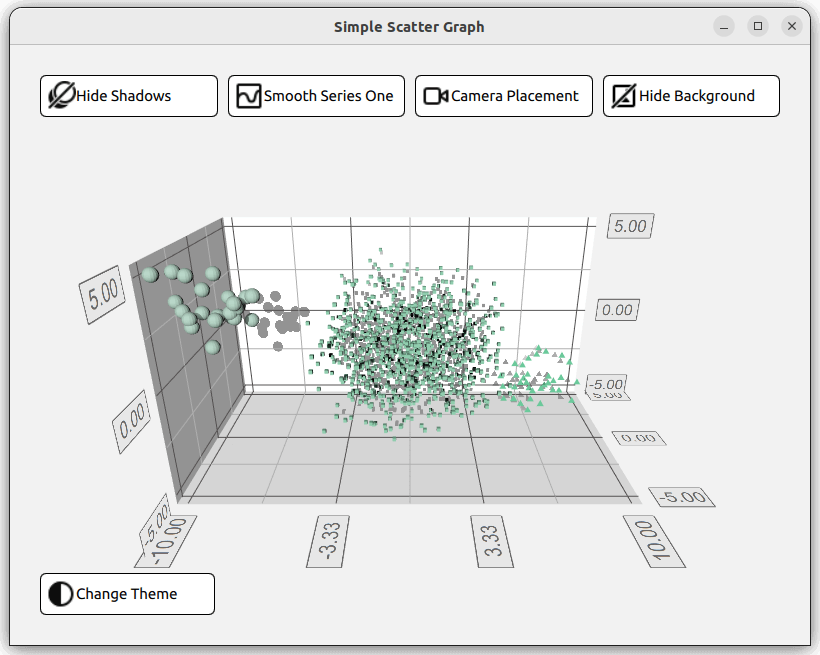
예제 실행
다음에서 예제를 실행할 수 있습니다.
- Qt Creator
Welcome 모드를 열고 Examples 에서 예제를 선택하십시오. 자세한 내용은 Qt Creator: 튜토리얼: 빌드 및 실행을 참조하십시오.
- Qt Extension for Visual Studio Code
Command Palette 에서 Qt: Open Qt examples 명령을 실행하고 목록에서 예제를 선택하십시오. 자세한 내용은 Qt Extension for Visual Studio Code: 튜토리얼: 빌드 및 실행을 참조하십시오.
레이아웃 설정
QML 코드를 본격적으로 다루기 전에, ` main.cpp `이 애플리케이션을 설정합니다. ` main.qml ` 파일은 리소스(qrc:)에서 읽어옵니다.
viewer.setSource(QUrl("qrc:/qml/scatter/main.qml"));이 ` main.qml ` 파일은 애플리케이션 QML 코드의 시작점입니다. 먼저, 필요한 모든 QML 모듈을 임포트합니다:
import QtQuick
import QtQuick.Controls
import QtQuick.Layouts
import QtGraphs
그런 다음, 그래프의 데이터를 담을 Data 항목을 생성합니다.
Data {
    id: seriesData
}
다음으로, 그래프에 사용할 두 가지 테마, 즉 Qt Green 테마와 Qt Neon Green 테마를 정의하는 두 개의 GraphsTheme 항목을 생성합니다.
GraphsTheme {
    id: themeQt
    theme: GraphsTheme.Theme.QtGreen
    labelFont.pointSize: 40
}

GraphsTheme {
    id: themeQtNeonGreen
    theme: GraphsTheme.Theme.QtGreenNeon
    colorScheme: GraphsTheme.ColorScheme.Dark
}
이 애플리케이션의 레이아웃은 그래프의 다양한 시각적 옵션을 켜고 끄는 다섯 개의 버튼과, 물론 그래프 자체로 구성됩니다. 이를 구성하는 방법은 여러 가지가 있는데, 한 가지 방법은 네 개의 버튼( Graph)과 다섯 번째 버튼을 포함하는 GridLayout 를 만들고, 이 모든 요소를 ColumnLayout 내에 배치하는 것입니다.
ColumnLayout {
    id: mainLayout
    anchors.fill: parent
    anchors.margins: margin
    spacing: spacing
이 ` GridLayout `은 반응형입니다. 즉, 사용되는 열의 수는 애플리케이션 창의 너비에 따라 달라집니다. 이는 ` columns ` 속성에 삼항 연산자를 할당하여, 창 너비에 따라 1, 2 또는 4로 평가되도록 함으로써 구현됩니다.
GridLayout {
    Layout.fillWidth: true
    rowSpacing: spacing
    columnSpacing: spacing

    columns: mainView.width < mainView.buttonMinWidth * 2 + mainView.spacing + mainView.margin * 2 // width of 2 buttons
             ? 1
             : (mainView.width < mainView.buttonMinWidth * 4 + mainView.spacing * 3 + mainView.margin * 2 // width of 4 buttons
                ? 2
                : 4)
이 GridLayout 에서는 네 개의 RoundButton가 인스턴스화됩니다. 하나는 그림자 표시/숨기기, 하나는 메쉬 스무딩, 하나는 카메라 위치, 그리고 마지막으로 그래프 배경 변경을 위한 것입니다. 모든 버튼은 동일한 구조를 따릅니다. 모든 버튼에 대해 이 구조를 새로 정의하는 대신, 사용자 정의 컴포넌트를 만들 수 있습니다.
component CustomButton : RoundButton {
    id: buttonRoot
CustomButtom 는 RoundButton 타입을 상속받되, 몇 가지 기능을 추가합니다. Layout.minimumWidth, Layout.FillWidth, radius, background 와 같은 속성이 설정됩니다. 이 속성들은 버튼의 스타일과 레이아웃을 정의합니다.
property alias source: iconImage.source

Layout.minimumWidth: buttonMinWidth
Layout.fillWidth: true

radius: mainView.radius

background: Rectangle {
    radius: mainView.radius
    color: "white"
    border.color: "black"
}
반면 contentItem 는 버튼의 내용을 정의하며, 이 경우 아이콘과 텍스트를 포함하는 Row 유형입니다. 아이콘은 ` Image ` 유형을 사용하여 가져오고, ` source ` 속성을 설정하여 표시합니다. 텍스트는 ` Label ` 유형을 사용하여 생성되며, ` text ` 속성을 통해 설정됩니다. 사용자 정의 컴포넌트 상단에서 이 두 속성에 대한 별칭 두 개가 생성되며, 이를 통해 ` CustomButton ` 인스턴스가 생성될 때 해당 속성을 설정할 수 있습니다.
contentItem: Row {
    id: content
    Image {
        id: iconImage
    }
    Label {
        text: buttonRoot.text
        horizontalAlignment: Text.AlignLeft
        anchors.verticalCenter: parent.verticalCenter
    }
}
GridLayout 에서는 네 개의 CustomButton가 생성됩니다. 아이콘 이미지와 텍스트를 위한 두 개의 별칭, 그리고 신호 onClicked 등 세 가지 속성을 설정해야 합니다.
CustomButton {
    id: shadowButton
    text: graph.shadowQuality === Graphs3D.ShadowQuality.None ?
              qsTr("Show Shadows") : qsTr("Hide Shadows")
    source: graph.shadowQuality === Graphs3D.ShadowQuality.None ?
                "qrc:/images/shadow.svg" : "qrc:/images/shadow_hide.svg"
    onClicked: {
        graph.shadowQuality = graph.shadowQuality === Graphs3D.ShadowQuality.None ?
                    Graphs3D.ShadowQuality.High :
                    Graphs3D.ShadowQuality.None
    }
}
예를 들어, 그림자 버튼은 그림자를 켜고 끄는 토글 기능을 수행하도록 ‘ onClicked ’의 ‘sign’ 속성을 설정합니다.
그래프 설정
레이아웃의 다음 요소는 Graph 입니다. 이 요소는 별도의 QML 파일인 Graph.qml 에 정의되어 있으며, 다음과 같이 인스턴스화됩니다:
Graph {
    id: graph
    Layout.fillWidth: true
    Layout.fillHeight: true
}
Graph.qml 파일의 구현을 살펴보면, 그래프는 Scatter3D 타입이며, Item 타입 내에 중첩되어 있습니다.
Scatter3D {
    id: scatterGraph
데이터 세트를 정의하기 전에 일부 축 속성을 구성합니다.
axisX.segmentCount: 3
axisX.subSegmentCount: 2
axisX.labelFormat: "%.2f"
axisZ.segmentCount: 2
axisZ.subSegmentCount: 2
axisZ.labelFormat: "%.2f"
axisY.segmentCount: 2
axisY.subSegmentCount: 2
axisY.labelFormat: "%.2f"
데이터 설정
이 그래프는 Data.qml 에 제시된 데이터를 나타내는 세 개의 데이터 세트를 보여줍니다. 데이터 세트는 ListModel 타입으로 저장되며
ListModel {
    id: dataModel
    ListElement{ xPos: -10.0; yPos: 5.0; zPos: -5.0 }
    ...
    ListElement{ xPos: -7.54 ; yPos: 2.8 ; zPos: -3.68 }
}

ListModel {
    id: dataModelTwo
    ListElement{ xPos: 2.25 ; yPos: 1.36 ; zPos: -1.3 }
    ...
    ListElement{ xPos: -3.4 ; yPos: 0.6 ; zPos: 0.9 }
}

ListModel {
    id: dataModelThree
    ListElement{ xPos: 8.0; yPos: -2.0; zPos: 4.0 }
    ...
    ListElement{ xPos: 5.66 ; yPos: -4.98 ; zPos: 3.72 }
}
로 저장되어 있으며, property aliases를 통해 다른 파일들에 노출됩니다
property alias model: dataModel
property alias modelTwo: dataModelTwo
property alias modelThree: dataModelThree
이러한 별칭을 사용하기 전에, ItemModelScatterDataProxy 항목을 포함하는 Scatter3DSeries 유형을 생성하십시오.
Scatter3DSeries {
    id: scatterSeries
    itemLabelFormat: "Series 1: X:@xLabel Y:@yLabel Z:@zLabel"

    ItemModelScatterDataProxy {
        itemModel: seriesData.model
        xPosRole: "xPos"
        yPosRole: "yPos"
        zPosRole: "zPos"
    }
}
이 데이터 프록시는 itemModel 속성을 사용하여 Data.qml 에 있는 데이터 세트를 참조합니다. 위에서 언급한 별칭은 main.qml, seriesData 에서 인스턴스화된 Data 유형의 id 를 통해 액세스할 수 있습니다.
itemModel: seriesData.model나머지 두 데이터셋에 대해서도 이 과정을 반복합니다.
Scatter3DSeries {
    id: scatterSeriesTwo
    ...
ItemModelScatterDataProxy {
    itemModel: seriesData.modelTwo
    ...
    }
}
Scatter3DSeries {
    id: scatterSeriesThree
    ...
ItemModelScatterDataProxy {
    itemModel: seriesData.modelThree
    ...
    }
}
좋습니다. 이제 산점도가 세 데이터셋을 가리키고 있습니다.
이제 남은 작업은 나머지 버튼인 ‘ theme button ’을 ‘ ColumnLayout ’에 추가하는 것뿐입니다. 이 버튼의 유일한 차이점은 레이아웃의 왼쪽에 배치된다는 점입니다. 이는 Layout.alignment 속성을 Qt.AlignLeft 로, Layout.fillWidth 속성을 false 로 정의하여 설정합니다.
CustomButton {
    id: themeButton
    Layout.alignment: Qt.AlignLeft
    Layout.fillWidth: false
예제 내용
© 2026 The Qt Company Ltd. Documentation contributions included herein are the copyrights of their respective owners. The documentation provided herein is licensed under the terms of the GNU Free Documentation License version 1.3 as published by the Free Software Foundation. Qt and respective logos are trademarks of The Qt Company Ltd. in Finland and/or other countries worldwide. All other trademarks are property of their respective owners.
