
Qt Quick 3D - XR 高级触控
演示了在曲面显示屏上的触控操作以及3D模型的触控处理。
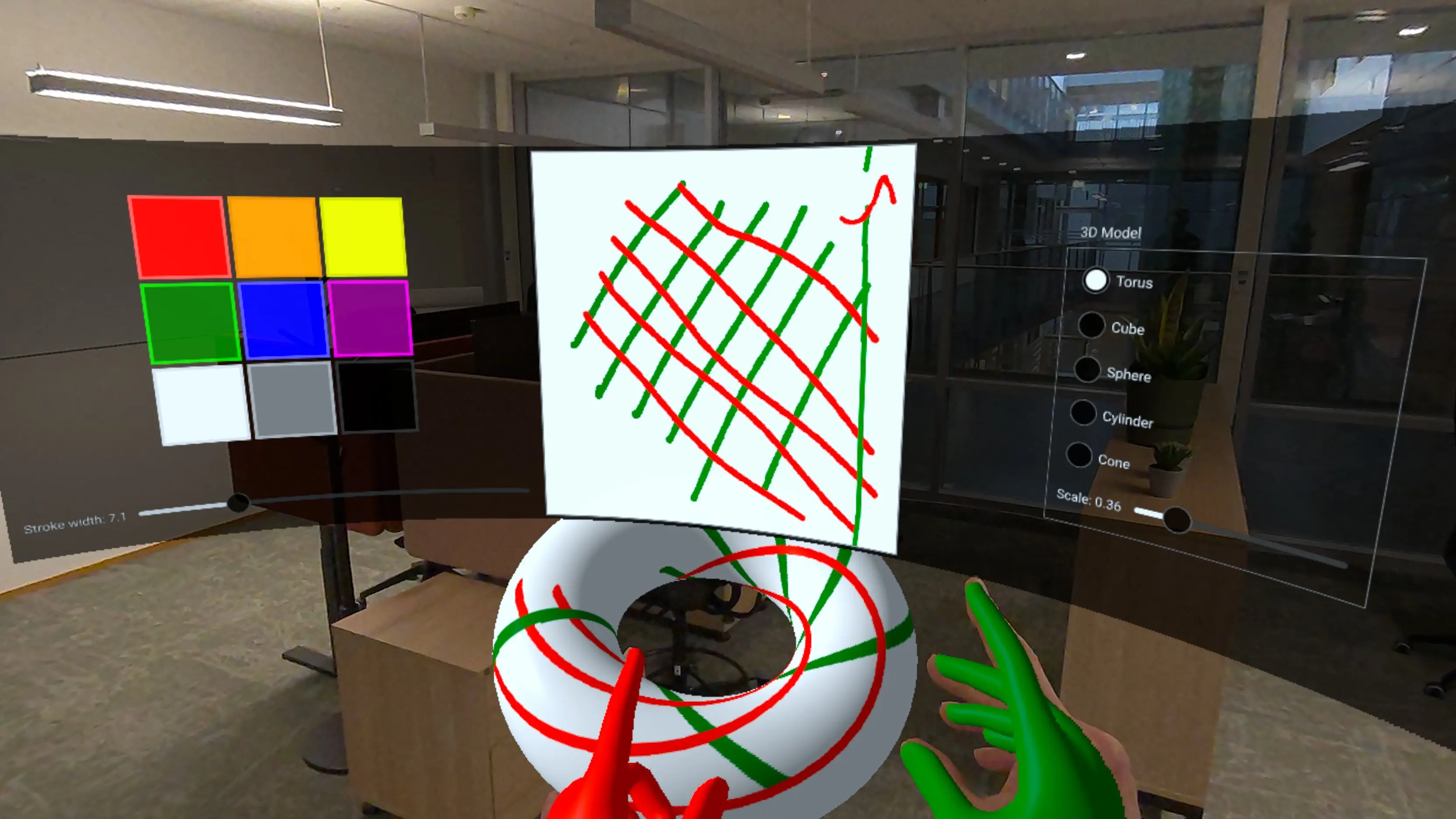
本示例在“XR 简单触控示例”的基础上,演示了Qt Quick 3D XR中更高级的触控交互技术:
- 与渲染在曲面3D表面上的2D UI元素进行触摸交互。
- 使用 UV 坐标直接处理 3D 模型的触控交互。
- 使用捏合手势抓取和操作3D对象。
- 为沉浸式显示器创建程序化曲面网格。
- 使用 C++ 构建可自定义绘制的纹理。
带源项的曲面显示
本示例的一个关键特性是在曲面显示2D用户界面。我们创建了一个自定义的程序化网格组件CurvedMesh ,用于生成曲面:
// Copyright (C) 2025 The Qt Company Ltd.
// SPDX-License-Identifier: LicenseRef-Qt-Commercial OR BSD-3-Clause

import QtQuick
import QtQuick3D
import QtQuick3D.Helpers

ProceduralMesh {
        property real partitions: 50
        property real segments: 1
        property real radius: 50.0
        property real height: 50.0
        property real width: 80
        property var meshArrays: generateMesh(partitions , width, height, radius)
        positions: meshArrays.verts
        normals: meshArrays.normals
        uv0s: meshArrays.uvs
        indexes: meshArrays.indices

        function generateMesh(partitions : real, width: real, height: real, radius: real) : var {
            let verts = []
            let normals = []
            let uvs = []
            let indices = []

            // width = angleSpan * radius
            const angleSpan = width / radius

            for (let i = 0; i <= partitions ; ++i) {
                for (let j = 0; j <= 1; ++j) {
                    const u = i / partitions ;
                    const v = j;

                    const x = u - 0.5 // centered
                    const angle = x * angleSpan

                    const posZ = radius - radius * Math.cos(angle)
                    const posY = height * v
                    const posX = radius * Math.sin(angle)

                    verts.push(Qt.vector3d(posX, posY, posZ));

                    let normal = Qt.vector3d(0 - posX, 0, radius - posZ).normalized();
                    normals.push(normal);

                    uvs.push(Qt.vector2d(u, v));
                }
            }

            for (let i = 0; i < partitions ; ++i) {
                let a = (segments + 1) * i;
                let b = (segments + 1) * (i + 1);
                let c = (segments + 1) * (i + 1) + 1;
                let d = (segments + 1) * i + 1;

                // Generate two triangles for each quad in the mesh
                // Adjust order to be counter-clockwise
                indices.push(a, b, d);
                indices.push(b, c, d);
            }
            return { verts: verts, normals: normals, uvs: uvs, indices: indices }
        }
    }
CurvedMesh 继承自ProceduralMesh ,并为曲面生成顶点、法线和 UV 坐标。曲率由radius 属性控制,该属性决定了曲面的弯曲程度。网格被划分为partitions 个分段,以生成平滑的曲线。
随后,我们将该曲面几何体应用到一个Model 上,该 的PrincipledMaterial 使用sourceItem 来渲染2D内容:
Model {
    objectName: "curved screen"
    x: 0
    y: -40
    z: -50
    // mesh origin is at bottom of screen; scene origin is at eye height
    geometry: CurvedMesh {
        width: height * 32 / 9
        height: 40
        radius: 80
    }
    visible: true
    pickable: true
    materials: PrincipledMaterial {
        baseColorMap: Texture {
            id: screenTexture
            sourceItem: Rectangle {
                id: uiItem
                width: height * 32 / 9
                height: 500

                property real dim: Math.min(width, height)

                color: "#dd000000"

                ColumnLayout {
                    id: leftItem
                    anchors.top: parent.top
                    anchors.bottom: parent.bottom
                    anchors.left: parent.left
                    anchors.right: centralItem.left
                    anchors.margins: 15
                    spacing: 10

                    GridLayout {
                        rows: 3
                        columns: 3
                        columnSpacing: 5
                        rowSpacing: 5

                        Layout.alignment: Qt.AlignHCenter | Qt.AlignVCenter

                        ColorSwatch {
                            color: "red"
                        }
                        ColorSwatch {
                            color: "orange"
                        }
                        ColorSwatch {
                            color: "yellow"
                        }
                        ColorSwatch {
                            color: "green"
                        }
                        ColorSwatch {
                            color: "blue"
                        }
                        ColorSwatch {
                            color: "purple"
                        }
                        ColorSwatch {
                            color: "white"
                        }
                        ColorSwatch {
                            color: "gray"
                        }
                        ColorSwatch {
                            color: "black"
                        }
                    }
                    RowLayout {
                        Label {
                            text: "Stroke width: " + penWidthSlider.value.toFixed(1)
                        }
                        Slider {
                            id: penWidthSlider
                            Layout.fillWidth: true
                            from: 1
                            to: 30
                            value: 10
                            onValueChanged: painterItem.setPenWidth(value)
                        }
                    }
                }

                Rectangle {
                    id: centralItem
                    width: uiItem.dim - 10
                    height: uiItem.dim - 10

                    anchors.centerIn: parent
                    color: "gray"

                    TextureItem {
                        id: painterItem
                        anchors.fill: parent
                        anchors.margins: 2
                        MultiPointTouchArea {
                            anchors.fill: parent
                            onPressed: (list) => {
                                           for (const pt of list) {
                                               painterItem.setPoint(pt.x, pt.y, pt.pointId, pt.pressed)
                                           }
                                       }
                            onUpdated: (list) => {
                                           for (const pt of list) {
                                               painterItem.setPoint(pt.x, pt.y, pt.pointId, pt.pressed)
                                           }
                                       }
                            onReleased: (list) => {
                                            for (const pt of list) {
                                                painterItem.setPoint(pt.x, pt.y, pt.pointId, pt.pressed)
                                            }
                                        }
                        }
                        Component.onCompleted: {
                            // Let initial colors be the same as the hand colors
                            setColor("green", 1)
                            setColor("red", 2)
                        }
                    }
                }

                Item {
                    id: rightItem
                    anchors.left: centralItem.right
                    anchors.top: parent.top
                    anchors.bottom: parent.bottom
                    anchors.right: parent.right

                    GroupBox {
                        anchors.centerIn: parent
                        title: "3D Model"
                        ColumnLayout {
                            ColumnLayout {
                                id: radioButtons
                                RadioButton {
                                    text: "Torus"
                                    checked: true
                                }
                                RadioButton {
                                    text: "Cube"
                                }
                                RadioButton {
                                    text: "Sphere"
                                }
                                RadioButton {
                                    text: "Cylinder"
                                }
                                RadioButton {
                                    text: "Cone"
                                }
                            }
                            RowLayout {
                                Label {
                                    text: "Scale: " + scaleSlider.value.toFixed(2)
                                }
                                Slider {
                                    id: scaleSlider
                                    Layout.fillWidth: true
                                    from: 0.01
                                    to: 2
                                    value: 0.25
                                }
                            }
                        }
                        ButtonGroup {
                            buttons: radioButtons.children
                            onCheckedButtonChanged: {
                                selectableModel.meshName = checkedButton.text
                            }
                        }
                    }
                }
            }
        }
        emissiveMap: screenTexture
        emissiveFactor: Qt.vector3d(0.8, 0.8, 0.8)
    }
    opacity: 0.99 // enable alpha blending
}
sourceItem 属性包含一个标准的Qt Quick Rectangle ,其界面包含颜色样本、滑块和绘图画布等复杂元素。该 2D 内容会自动投影到曲面 3D 表面上。曲面上的触摸事件会被映射回 2D 坐标,并传递给相应的Qt Quick 元素。
注意:使用 emissiveMap 和emissiveFactor 可 使屏幕呈现自发光效果,从而在不同光照条件下提升可视性。轻微的透明度(不透明度:0.99)支持alpha混合。
可自定义绘制的纹理
UI 中的绘图画布使用了一个自定义的 C++ 类TextureItem ,该类继承自QQuickPaintedItem ,以提供可在 3D 材质中使用的可绘制纹理:
class TextureItem : public QQuickPaintedItem {
    Q_OBJECT
    Q_PROPERTY(const QQuick3DTextureData* textureData READ textureData NOTIFY textureDataChanged FINAL)
    QML_ELEMENT

public:
    TextureItem(QQuickItem *parent = nullptr);

    void paint(QPainter *painter) override;
    const QQuick3DTextureData *textureData() const;

    Q_INVOKABLE void setPoint(float x, float y, int id, bool pressed);
    Q_INVOKABLE void setUv(float u, float v, int id, bool pressed);
    Q_INVOKABLE void clear(const QColor &color);
    Q_INVOKABLE void setColor(const QColor &newColor, int id = 0);
    Q_INVOKABLE void setPenWidth(qreal newPenWidth);
    Q_INVOKABLE void resetPoint(int id);

public slots:
    void updateImage();

signals:
    void textureDataChanged();
    void colorChanged();
    void penWidthChanged();

private:

    struct TouchPointState {
        QColor color = "red";
        qreal penWidth = 10; // unused
        double alpha = 0.5;  // smoothing factor (0..1)
        bool initialized = false;
        QPointF prevFiltered;
        QPointF prevRaw;
        qint64 prevTime = 0; // timestamp in milliseconds

        void reset() {
            initialized = false;
            prevTime = 0;
        }

        QPointF filter(const QPointF &unfiltered, qint64 timestamp) {
            prevRaw = unfiltered;
            if (!initialized) {
                prevFiltered = unfiltered;
                prevTime = timestamp;
                initialized = true;
            } else {
                // Adjust alpha based on time delta
                qint64 dt = timestamp - prevTime;
                double adaptiveAlpha = qMin(1.0, alpha * (dt / 16.0)); // 16ms = ~60fps baseline

                prevFiltered.setX(adaptiveAlpha * unfiltered.x() + (1 - adaptiveAlpha) * prevFiltered.x());
                prevFiltered.setY(adaptiveAlpha * unfiltered.y() + (1 - adaptiveAlpha) * prevFiltered.y());
                prevTime = timestamp;
            }
            return prevFiltered;
        }
    };
TextureItem 维护着一个内部的QImage ,可通过QPainter 对其进行绘制。随后,图像数据以QQuick3DTextureData 的形式对外暴露,可在材质纹理中使用。这使我们能够创建动态的、可由用户修改且实时更新的纹理。
关键方法是setUv() ,它负责处理UV坐标系中的触摸输入:
void TextureItem::setUv(float u, float v, int id, bool pressed)
{
    auto &s = state[id];

    bool inRange = u >= 0 && u <= 1 && v >=0 && v <= 1;
    if (!pressed || !inRange) {
        s.reset();
        return;
    }
该方法实现了以下若干复杂功能:
- 采用自适应滤波进行时间平滑,以减少抖动。
- 检测并处理 UV 坐标的折返(当绘制内容跨越纹理边界时)。
- 针对每个触点进行状态追踪,以支持多点触控。
3D 模型上的触摸处理
该示例演示了通过增强型XrGadget 组件与3D模型进行直接触控交互。当手触碰3D模型时,触控位置会被转换为UV坐标并转发至模型:
const touchState = view.touchpointState(root.touchId)
const gadget = touchState.model as XrGadget
if (gadget) {
    gadget.handleTouch(touchState.uvPosition, root.touchId, touchState.pressed)
}
XrGadget 组件通过其handleTouch 函数接收这些触摸事件:
onTouched: (uvPosition, touchID, pressed) => {
    if (!isGrabbing)
        painterItem.setUv(uvPosition.x, uvPosition.y, touchID, pressed);
}当用户未抓取模型时,触摸事件会被转发至TextureItem ,该组件会在模型的纹理上进行绘制。这使用户能够直接在3D对象的表面上进行绘制。
抓取和操作 3D 对象
该示例还通过捏合手势实现了抓取和移动功能:
XrInputAction {
    id: grabAction
    controller: XrInputAction.RightHand
    actionId: [ XrInputAction.IndexFingerPinch ]

    onPressedChanged: {
        if (pressed)
            grabController.startGrab()
    }
}
当用户用右手执行捏合手势时,系统会捕获手部与所选对象之间的偏移量和旋转角度:
XrController {
    id: grabController
    controller: XrController.RightHand
    property vector3d grabOffset
    property quaternion grabRotation

    function startGrab() {
        const scenePos = selectableModel.scenePosition
        const sceneRot = selectableModel.sceneRotation
        grabOffset = scenePos.minus(scenePosition)
        grabRotation = rotation.inverted().times(sceneRot)
    }

    onRotationChanged: {
        if (isGrabbing) {
            let newPos = scenePosition.plus(grabOffset)
            let newRot = sceneRotation.times(grabRotation)

            selectableModel.setPosition(newPos)
            selectableModel.setRotation(newRot)
        }
    }
}
随着手部移动,对象会跟随移动,同时保持原始的偏移量和相对旋转角度。这为在空间中定位 3D 对象提供了一种自然且直观的方式。
颜色选择与多点触控
曲面显示屏上的调色板展示了多点触控交互。每只手都可以通过轻点色块独立选择颜色:
component ColorSwatch: Rectangle {
    implicitWidth: 100
    implicitHeight: 100

    function perceivedBrightness() {
        return 0.2 * color.r + 0.7 * color.g + 0.1 * color.b
    }

    function contrastColor() {
        if (perceivedBrightness() > 0.6)
            return Qt.darker(color, 1.1)

        const h = color.hslHue
        const s = color.hslSaturation
        const l = color.hslLightness + 0.2

        return Qt.hsla(h, s, l, 1.0)
    }

    border.color: contrastColor()
    border.width: csth.pressed ? 8 : 4
    property real penWidth: 5

    TapHandler {
        id: csth
        dragThreshold: 1000
        onTapped: (pt) => {
                      painterItem.setColor(parent.color, pt.id)
                      colorChange(parent.color, pt.id)
                  }
        onLongPressed: {
            painterItem.clear(parent.color)
        }
    }
}
TapHandler 会响应来自不同触点(由pt.id 标识)的点击,从而使每只手都能拥有自己的颜色。当选定一种颜色时,系统会通过colorChange 信号同时更新该触点ID对应的手部颜色和绘图颜色:
y: xrView.referenceSpace === XrView.ReferenceSpaceLocalFloor ? 130 : 0
onColorChange: (col, id) => {
    if (id === 1)
        rightHand.color = col
    else
        leftHand.color = col
}
这演示了如何构建多用户或多手界面,其中不同的触点可以拥有独立的状态和行为。
UI 控件和模型自定义
该示例包含一个完整的控制面板,允许用户:
- 选择不同的几何基元(环面、立方体、球体、圆柱体和圆锥体)。
- 调整 3D 模型的缩放比例。
- 更改绘图的笔宽。
- 长按颜色样本清空绘图画布。
这些控件展示了如何在 XR 环境中构建功能齐全的空间界面,将 2D UI 范式与 3D 交互相结合。
© 2026 The Qt Company Ltd. Documentation contributions included herein are the copyrights of their respective owners. The documentation provided herein is licensed under the terms of the GNU Free Documentation License version 1.3 as published by the Free Software Foundation. Qt and respective logos are trademarks of The Qt Company Ltd. in Finland and/or other countries worldwide. All other trademarks are property of their respective owners.
