
5.3.3. General Configuration
Some configuration options affect the whole plugin or at least several features.
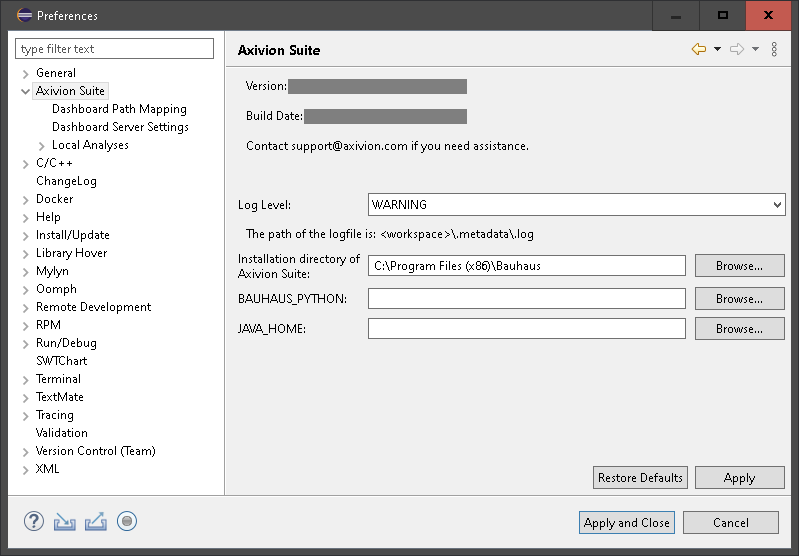
Axivion Eclipse Plugin general configuration page.
The Log Level controls how much information is logged. The recommended
setting is WARNING. The level DEBUG should only be used temporarily to investigate a problem.
The Installation directory is needed to start other processes for the
local analyses (e.g. Local Build and CDT Integration).
With the option JAVA_HOME, the Java used for Java subprocesses of
the Axivion Eclipse Plugin is determined. This is useful if the automatic Java detection
fails.
Leaving this option empty means that the environment variable
JAVA_HOME will not be changed for subprocesses.
The Axivion Eclipse Plugin does not reflect the JVM used by Eclipse. The JVM used
by Eclipse might not be appropriate for Java subprocesses — e.g. when a
32 bit Eclipse is used.
5.3.3.1. Import/Export of Preferences
The Axivion Eclipse Plugin preferences can be imported and exported with assistants provided by Eclipse:
File > Import.../ Export... >
General > Preferences
This will import/export the preferences except the path mapping. Also, the project-specific properties are not included.
5.3.3.2. Storage Location of Configuration
- Preferences (global settings)
<eclipse workspace>/.metadata/.plugins/org.eclipse.core.runtime/.settings/com.axivion.aclipse.plugin.prefs - Dashboard Passwords (encrypted)
$HOME/.eclipse/org.eclipse.equinox.security/secure_storageSee the secure storage section for a way to change this location. - Path Mapping (global)
$HOME/.bauhaus/launcher.config - Path Mapping (workspace local)
<eclipse workspace>/.metadata/.plugins/com.axivion.aclipse.plugin/launcher.config - Properties (project specific settings)
<project location>/.settings/com.axivion.aclipse.plugin.prefs
Note
Window - Preferences - General -
Security - Secure Storagetab
Password- groupMaster password providerstab
Advanced