
5.4.5. Using the Axivion CLion Plugin
The Axivion CLion Plugin ships with several windows and commends that extend the functionality of CLion.
The Axivion CLion Plugin offers two CLion windows:
Issues View, which lists the issues available for a selected analysis project;Issue Properties, which gives details on a currently selected issue in theIssuesview.
These windows can be opened by using the Find Action
(Navigate > Search Everywhere or using the shortcut Ctrl+Shift+A)
and typing Issues View or Issue Properties. Alternatively you can open
these windows using View > Tool Windows > Issues View and
View > Tool Windows > Issue Properties.
5.4.5.1. Issue View
The Issues View window allows querying new and resolved erosion issues.
The user interface is very similar to the web dashboard described in section
Issue Table and Issue Deltas.
To open the Issues View, please open the Find Action
dialog and type Issues View.
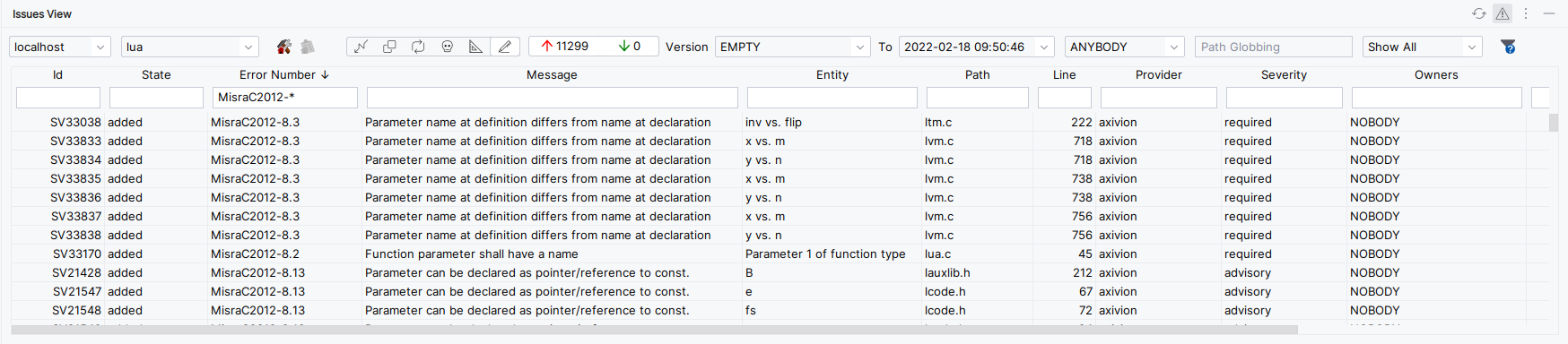
Issues View window
The elements in the toolbar select which issues to display. From left to right:
Dashboard selection: The dashboard selection dropdown allows to quickly change between several dashboards. It is displayed only when more than one dashboard is configured.Project: Allows you to select the analysis project whose issues are viewed. The combobox lists all projects available on the server, which the current user can access.
Start Local Build: Starts the local build. The results are stored in<home>/.bauhaus/localbuild.
View Local Build Results: Switches between the results of the dashboard (global analysis on CI server) and the results of the local build.Issue Kind: Selects which type of issue to display.
State: The two controls with the arrow symbols allow you to view only added issues, only removed issues, or both. The numbers indicate the number of added/removed issues in the current query result.Start Version: Like the web dashboard, the issue list shows the difference between two versions. Issues that exist in the start version but not in the end version are listed asremoved. Issues that exist in the end version but not in the start version are listed asadded. To see all issues, pickEMPTYasStart Version. This special version does not contain any issues, so the list will display all issues in the chosenEnd Version. When a new analysis is available on the Axivion Dashboard Server, the list of available versions in the plugin might not update immediately. In this case, selectRefreshat the top-right corner of the window to force the plugin to download the current list of versions from the Axivion Dashboard Server.End Version: The end version for which the issues are to be retrieved. In Local Build mode, the start and end version controls are replaced with a dropdown which allows to quickly select the two available versions or their difference:Reference version,Locally changed issues, andAll local issues.User: Specifies the user whose issues are to be shown:ANYBODY: shows all issues; that is, does not filter based on the user;NOBODY: shows only those issues that are not associated with any user,<user_name>: shows all erosion issues associated with the given user name.
As a normal user, you can see only your own user name as well as those of users marked with the public flag (see Section Users).
Filter: Allows one to specify a globbing pattern. Only the issues associated with a file that matches the specified globbing pattern are shown. For example, the path “src/main/io.c” can be matched by*.cas well as*/io.?. If left empty, all files are considered.Named Filter: Allows applying a Named Filter which overrides the currently set filters and column sorting. Named Filter management is possible in the Web UI. If a filter or sorting is changed, the dropdown switches to the last entry in the list[modified]which denotes the “unnamed filter” - meaning that the currently applied filters and sorting are not saved as a Named Filter.Private Names Filters are marked with the suffix
[^].
Show filter help: Opens a browser and shows the filter help.
The Axivion CLion Plugin will automatically start a new query when any of the above options are changed.
Filtering
In addition to the file filter, the issue list view also supports filtering individual columns. You can type in the filter text boxes below the column headers to apply a filter to the respective column.
A more in-depth explanation on what filter-strings can be entered in the individual
columns is available when you click on the
Show filter help button.
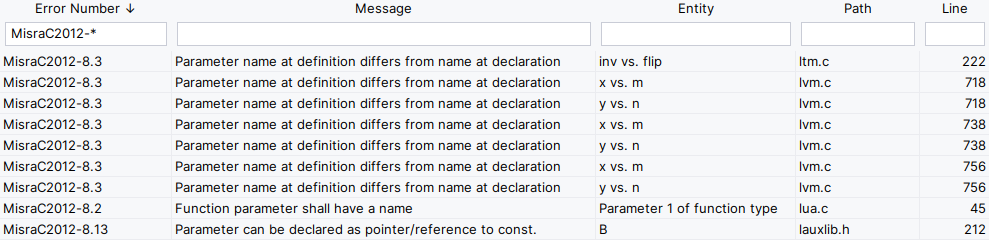
Filtering the issue list.
Viewing Issues
Caution
CLion 2022.2+ on Windows needs the ide.browser.jcef.gpu.disable=true property defined in Help | Edit Custom Properties for the Issue Properties to work properly.
Setting this property requires an IDE restart. This is a known limitation of the embedded browser in Jetbrains IDEs.
If you want to view some more details for an issue selected in the
Issues View, you can open the Issue Properties
using the command Axivion: Show Issue Properties.
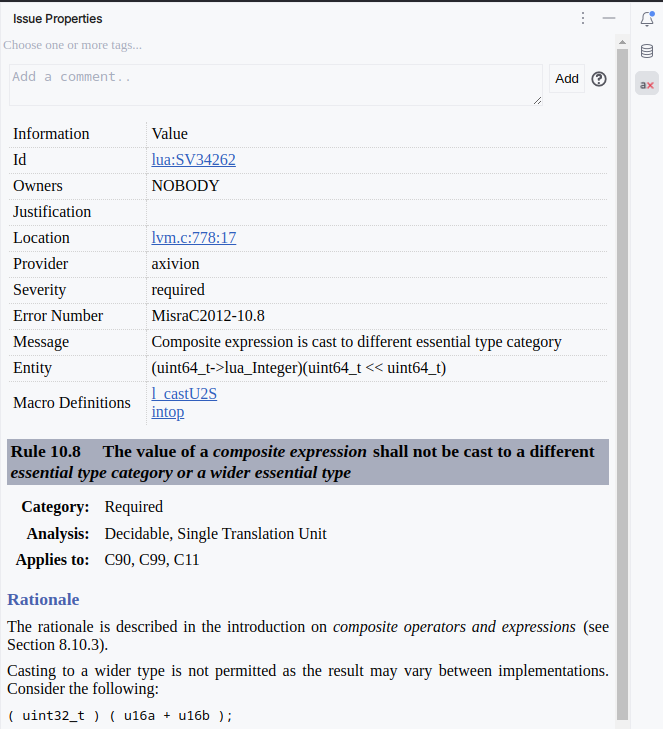
Issue Properties showing issue details
To open the code for an issue, double-click the entry in the issue list. If the path mapping is configured correctly, the plugin will open the source file and jump to the line containing the issue.
Because the analyzed version of the code is not necessarily the same as the local code version, the line numbers of issues may have changed. For example, an issue that was on line 100 during the analysis may now be on line 120 if 20 lines of code were added at the beginning of the file. When opening an issue, the Axivion CLion Plugin will download the analyzed version of the file, and compute the new location of the issue using the diff between the analyzed file and the current editor contents.
5.4.5.2. Code Editor
If the path mapping is configured correctly, opening a code file in the CLion
editor will display the issues found by the last analysis as gutter icons in the breakpoint area,
as a clickable Problem element which navigates to the Issue Properties
and in the Diagnostic (underlined code entity).
This is enabled by default and can be toggled using the command Axivion: Toggle Editor Markers.
Furthermore, issues are added to clion’s problem view.
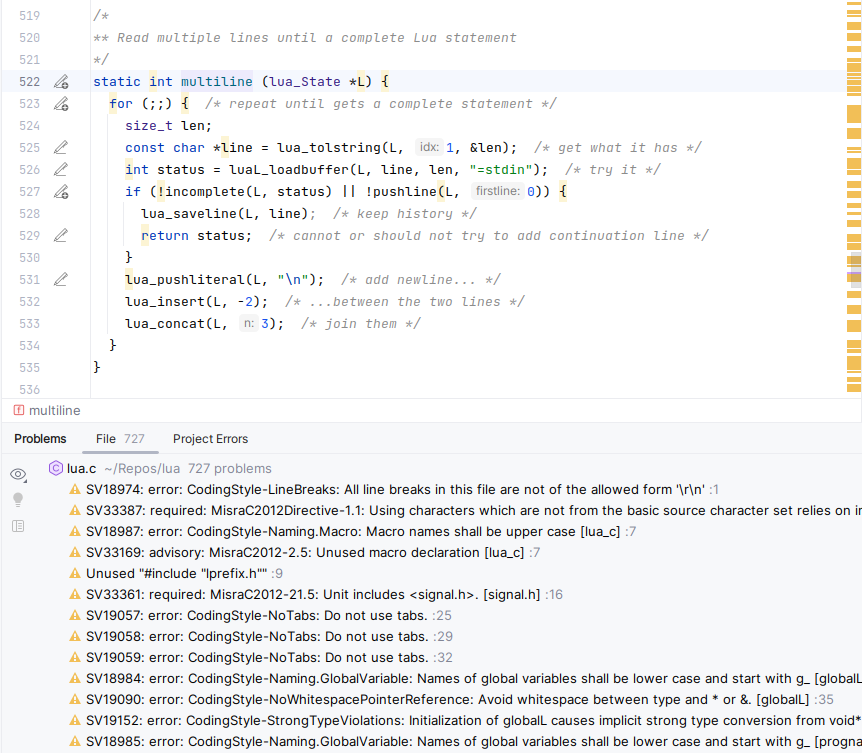
CLion editor with markers and problems view.
Caution
When a new analysis has been performed, you may have to close and re-open the file to refresh the issue markers.
5.4.6. Local Analyses
Local analyses are analyses which can be run on the development machine. They can be used to analyze code changes before they are committed.
Currently, the following local analyses are supported:
Local Build (Local Build Run Configurations)
CMake Integration (Single File Analysis Run Configurations)
5.4.6.1. Common Configuration
In order to run the analyses, the Axivion Suite tools have to be configured.
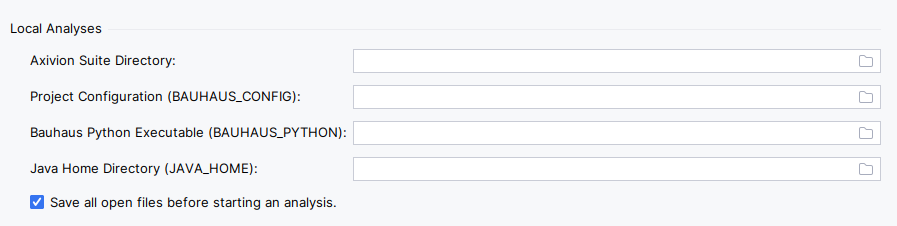
Common settings of local analyses.
The option Axivion Suite Directory is used to determine the location of the Axivion Suite tools.
If not set, the tools are used from the PATH variable.
When the Axivion CLion Plugin starts the Axivion Suite tools, they have to be able to find their
configuration. This is done by the environment variable BAUHAUS_CONFIG. When
the tools are started, the Axivion CLion Plugin sets this variable accordingly to the Axivion Suite
used for the analysis. With the option Bauhaus Config Directory, the
configuration directory can be set. The default value is the value of the variable
BAUHAUS_CONFIG in the environment of the CLion process. The BAUHAUS_CONFIG
defined here is not used for the Local Build, where this information is contained
in the startscript.
With the option Java Home Directory, the Java used for Java subprocesses of the Axivion CLion Plugin is determined.
This is useful if the automatic Java detection fails.
Leaving this option empty means that the environment variable JAVA_HOME will not be changed for subprocesses.
The analyses use the current source code on disk. So unsaved changes are not taken into
account. The option Save all open files before starting an analysis triggers CLion
to save all open files with changes before the selected analysis is started.
5.4.6.2. Run Configurations
Axivion local analyses make use of run configurations to configure and run these analyses.
Make sure to read https://www.jetbrains.com/help/idea/run-debug-configuration.html to learn more about run configurations.
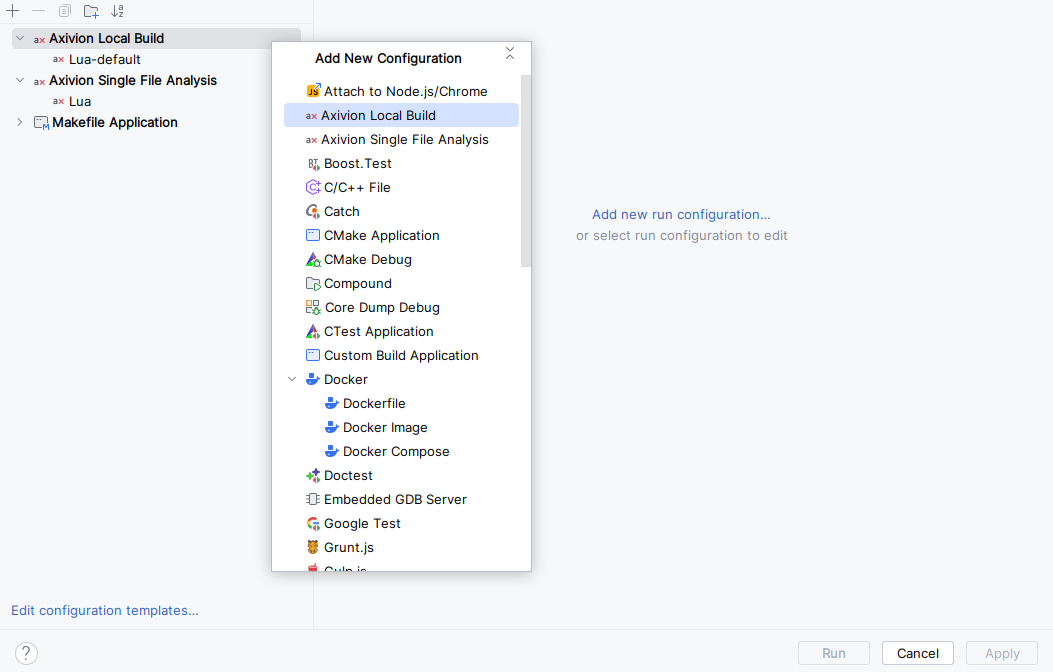
Run configurations dialog.
5.4.6.3. Local Build Run Configurations
Please see the general documentation about starting local builds via an Axivion Plugin (Local Build).
When clicking the Start Local Build button, a run configuration dialog is created for the current
selected project. Here you have the options to set the build command, the build type and the Axivion Suite Directory.
Notice, the name of the run config must be identical to a project name of the selected Axivion Dashboard Server.
The special name * can be used for a run configuration which is able to run for any project
currently selected in the Issues View.
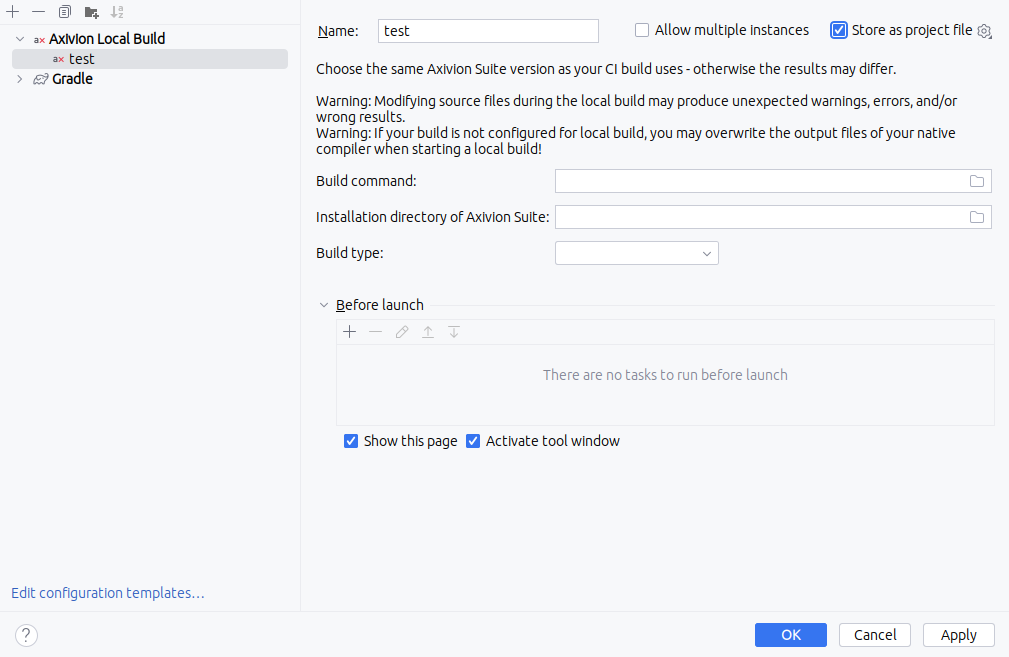
Axivion Local Build Run Configuration
With the checkbox Store as project file the run configuration can be saved to a CLion
run configuration XML file and shared via version control systems.
Note, when selecting an absolute path as local build command inside your project, the IDE will
automatically replace the project prefix with $PROJECT_DIR$ when saving the configuration.
This way you can freely share run configurations inside your VCS.
5.4.6.4. Single File Analysis Run Configurations
The CMake Integration allows quick checks of single files and folders.
The command is preconfigured to use the build_compile_commands tool of the Axivion Suite.
It uses the compile_commands.json to figure out compiler flags.
A compile_commands.json file can be generated by specifying -DCMAKE_EXPORT_COMPILE_COMMANDS=1` when calling CMake or when using set(CMAKE_EXPORT_COMPILE_COMMANDS Yes) inside your CMake conguration files.
If you are using the CMakeIntegration option (axivion_config), then you can set export_compile_commands=true in order to automatically have the compile_commands.json available.
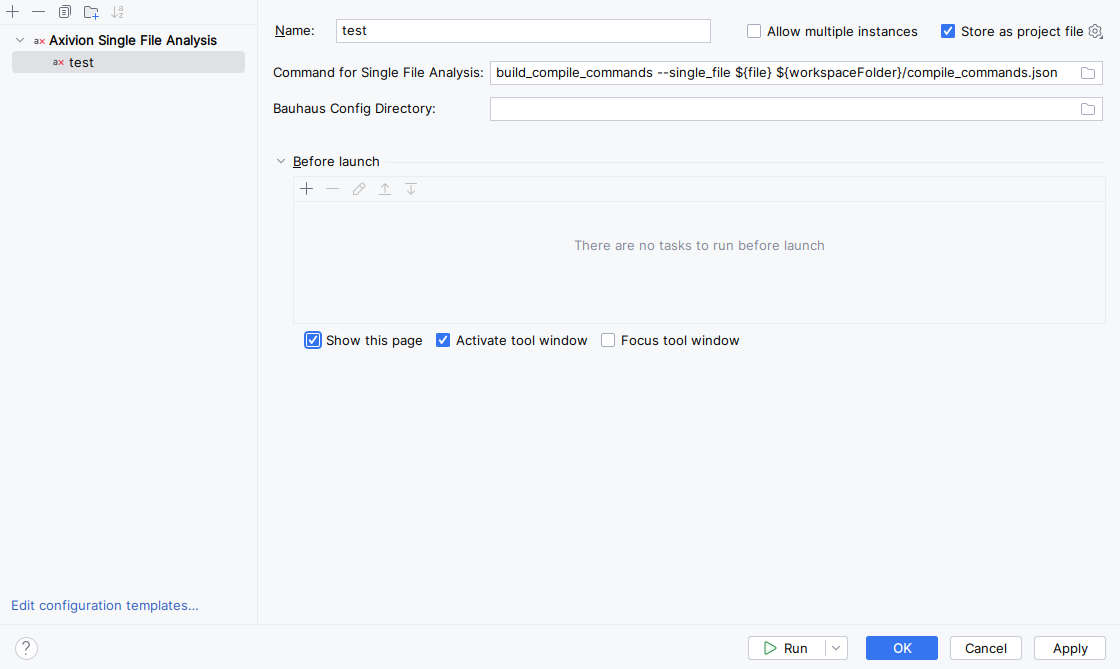
Single File Analysis run configuration.
If required, the Command for Single File Analysis can be used to execute arbitrary scripts to build and analyze a single unit.
Special variables are supported to access different paths and properties of the analyzed file/folder.
${file} - the current opened file
${fileWorkspaceFolder} - the current opened file's workspace folder
${relativeFile} - the current opened file relative to workspaceFolder
${relativeFileDirname} - the current opened file's dirname relative to workspaceFolder
${fileBasename} - the current opened file's basename
${fileBasenameNoExtension} - the current opened file's basename with no file extension
${fileDirname} - the current opened file's dirname
${fileExtname} - the current opened file's extension
The Bauhaus Config Directory field sets the BAUHAUS_CONFIG variable
or overrides its value from the workspace Axivion settings.
With the checkbox Store as project file the run configuration can be saved to a CLion
run configuration XML file and shared via a version control system.
A run configuration can be executed from the top run toolbar, from the context menu of an editor or a context menu from the project explorer.
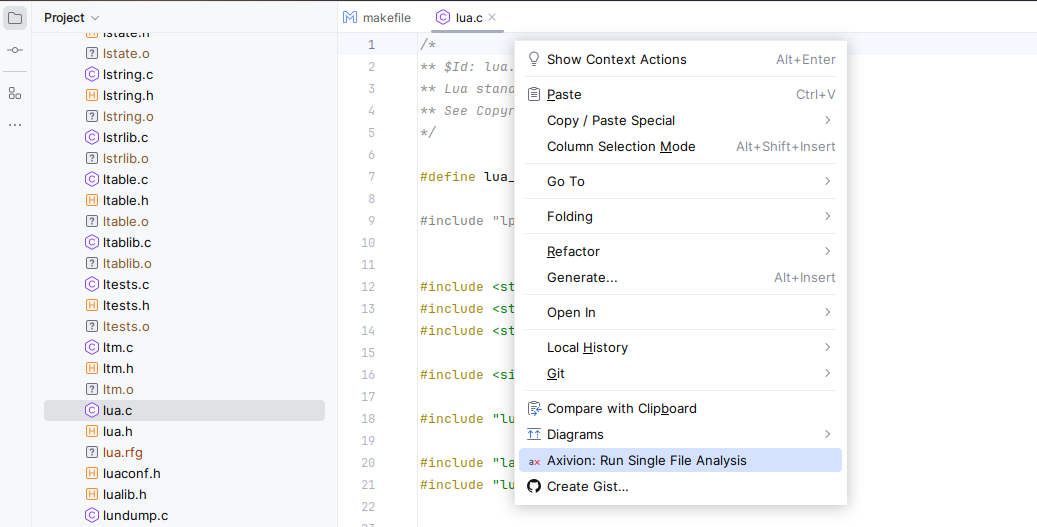
Single File Analysis from context menu.
For reference on using the build_compile_commands tool, please also see Local Analyses with CMake and Eclipse.
Caution
When analyzing files or folders, please be aware that you will not be able to run MISRA system checks on such a “module” because you only analyze part of the system.