Tutorial: Your first design
Build a small screen with a frame, a card, a circle, and a title. You use the drawing tools, the property panel, alignment, and the Layers panel.
You need a new project. On the Welcome page, click New Project. Clate creates a project called Untitled with one empty page.
1. Draw the screen
- Press
Fand drag on the canvas to draw a frame. The frame is your screen. - In the property editor, open Layout and set W to 480 and H to 320.
- In Fill, click the color swatch. In the color picker, type
1E1712in the Hex field. - A new frame has a thin black outline. In Stroke, set Width to 0 to remove it.
2. Add a card
- Press
R. Drag a rectangle inside the frame. - In Position, set X to 24 and Y to 24. In Layout, set W to 432 and H to 140.
- In Appearance, set Corner Radius to 24.
- In Fill, set the color to
2A2018. In Stroke, set Width to 0.
3. Add a circle
- In the tool palette, open the shape flyout and choose Ellipse. Click inside the frame below the card.
- Set W and H to 64, X to 48, and Y to 200.
- Set the fill color to
E66B00and the stroke Width to 0.
4. Add a title
- Press
Tand click in the frame to the right of the circle. - In Typography, type
Hello Clatein the text field, set the size to 28, and the Weight to 600. - In Layout, set W to 260 and H to 40, and in Position, set X to 140 and Y to 216.
- In Fill, set the text color to
F5F6F7.
5. Name your layers
In the Layers panel, click the arrow next to the frame to show the objects inside it. Right-click each row, choose Rename, and give it a name that says what it is: Screen for the frame, Card, Dot and Title. Good names make longer projects much easier to work with. See Pages and layers.
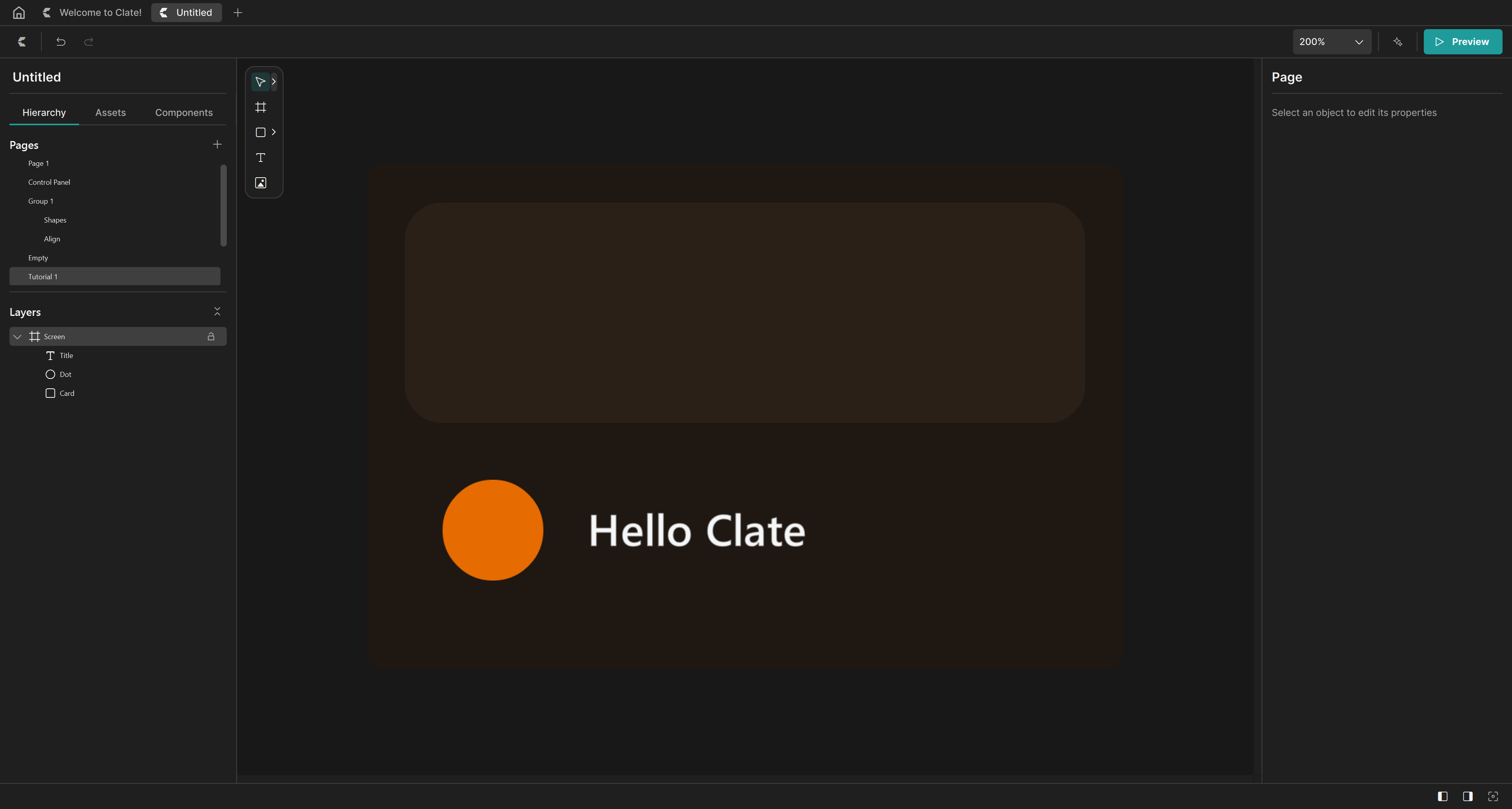
6. Line things up
- In the Layers panel, click Dot, then hold
Ctrland click Title. - In the Position section, click Align vertical center in the Alignment row (the fifth of the seven alignment buttons). The circle and the title now share the same center line.
See Aligning and distributing.
7. Look at the result
- Choose Zoom to Fit from the zoom field to see the whole screen.
- Select the frame and click Preview in the toolbar to see it running.
- Press
Ctrl+Za few times to see how every change can be undone, thenCtrl+Yto redo it.
8. Export
Open the main menu (the Clate button in the toolbar), choose Export to QML..., pick an empty folder, and Clate writes your screen as QML. See Export to QML.
What you learned
- Draw with the tools, then fine-tune in the property editor.
- Frames contain objects, and each object has its own settings.
- Use the Layers panel to select, rename, and organize objects.
- Clate saves everything automatically, and you can undo any change.
Next, try the control panel tutorial to build a more polished design.