AI Assistant and MCP
Describe what you want in your own words and let an AI work on your open project. Use the built-in assistant, or connect any AI tool that supports MCP.
AI in Clate is part of the workspace, not an add-on. Every change an AI makes is a step in the undo history, and the same design tools are open to any AI that supports MCP. See AI Native.
The built-in assistant
A chat panel inside Clate that reads and changes your design.
The AI Assistant
What the assistant does, what you need, and how to open it.
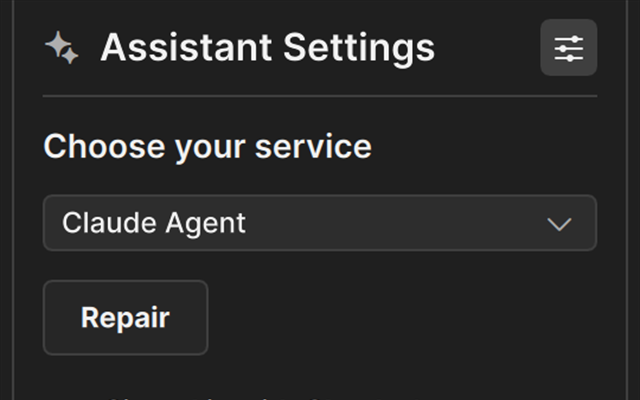
Set up the assistant
Install Claude Agent and sign in with your own account.
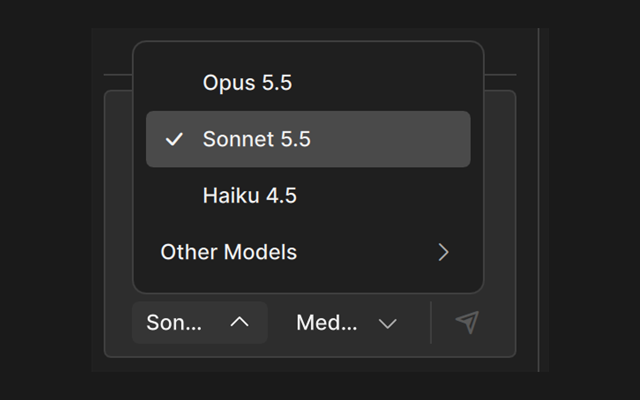
Using the assistant
Chat, review the changes on the canvas, choose a model, and start over.
What to ask the assistant
Examples and tips for requests that work well.
Privacy and your data
What Clate sends to the provider, and what stays on your computer.
Troubleshooting the assistant
What the messages in the chat mean and what to do.
MCP and other AI tools
Clate's MCP server lets any AI tool that supports MCP read and edit your open project.
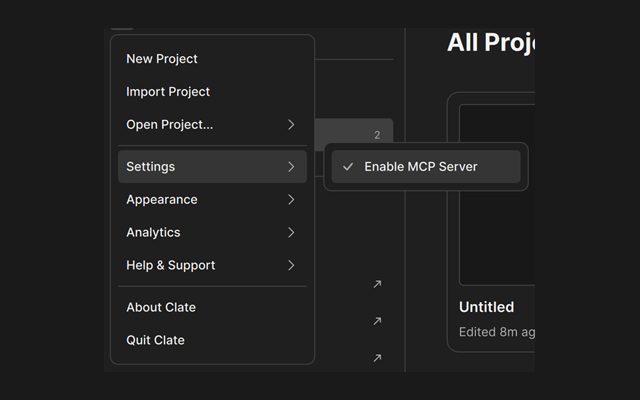
The MCP server
What the server is, how to turn it on or off, and which port it uses.
Connect an AI tool
How an AI tool and its model work with Clate, and how to add Clate to your tool.
What an AI can do in Clate
What the design tools can create, change, and read, and where the limits are.
The MCP tool reference
Every tool of the MCP server, with its parameters and results.