Pages and layers
The Hierarchy tab of the Hierarchy panel lists the pages of your project and the layers of the active page. Use it to switch pages, select objects, rename them, and change their stacking order.
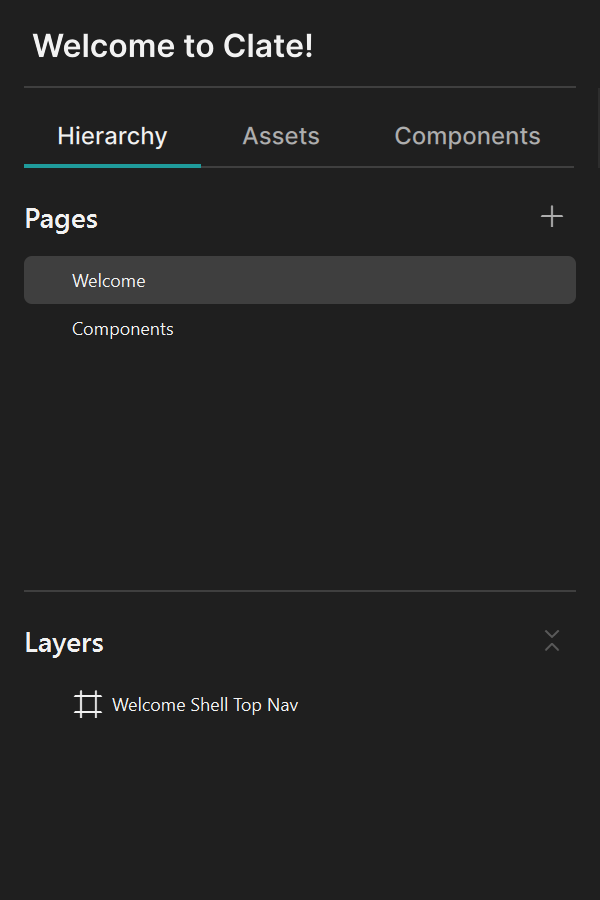
The Hierarchy tab
The Hierarchy panel is the sidebar on the left. Its Hierarchy tab has two panels:
- Pages at the top, with a + button to add a page.
- Layers below it, showing the objects of the active page. The button next to the title collapses the tree and keeps the path to your selection open.
You can drag the divider between the two lists to give one of them more room.
Pages
A project can have any number of pages. A page is a surface for one screen or one idea. Click a page to make it the active page. The canvas and the Layers panel then show that page.
| Task | How |
|---|---|
| Add a page | Click +. The new page is added at the end, named Page 1, Page 2 and so on, becomes the active page, and its name opens for editing. |
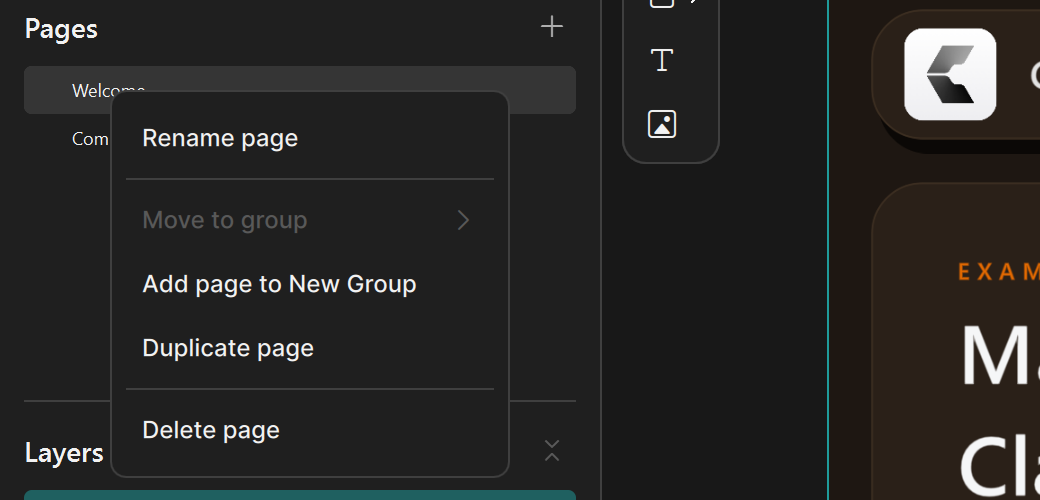
| Rename a page | Right-click the page and choose Rename page, then type the new name. |
| Duplicate a page | Right-click the page and choose Duplicate page. The copy appears right after the original with the next free name and contains copies of all objects. |
| Delete a page | Right-click the page and choose Delete page. |
You cannot delete the last page of a project. Deleting a page does not ask for confirmation; press
Ctrl + Z to undo.
Page groups
Groups collect pages in the list. Groups can only contain pages; groups cannot contain other groups.
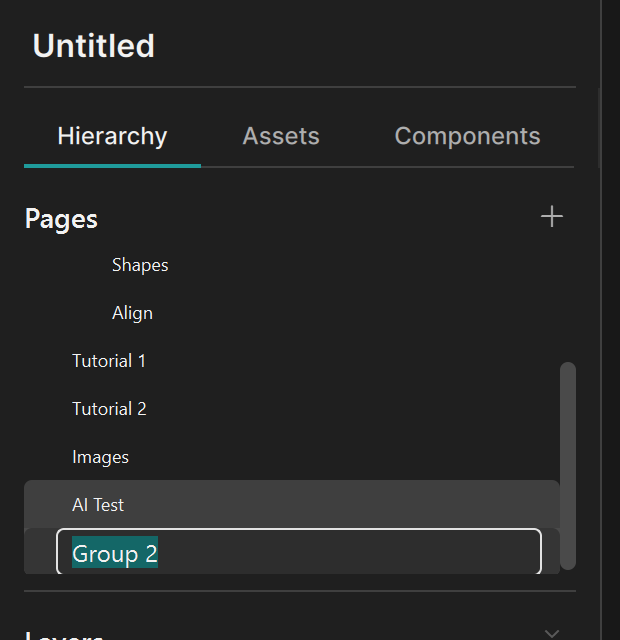
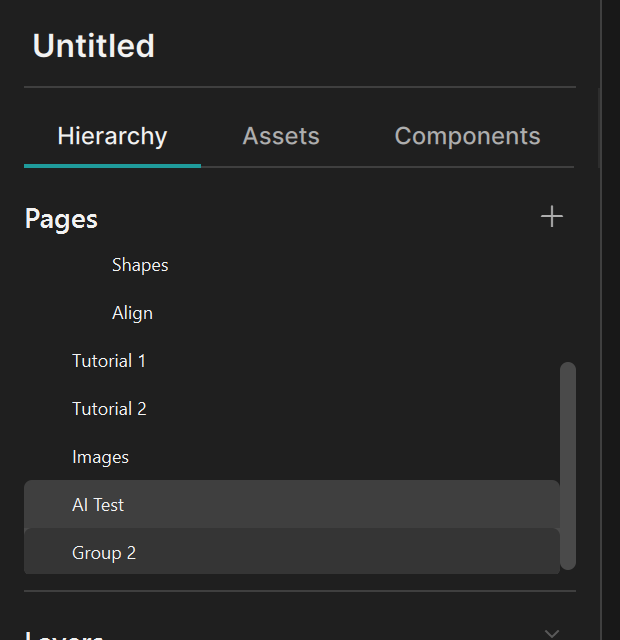
- Right-click a page and choose Add page to New Group to create a group. The group is called Group 1, Group 2 and so on, contains the page, and its name opens for editing.
- Right-click a page and choose Move to group to move it into a group that already exists.
- Drag pages onto a group to put them in it, and drag them out between the pages at the top level to take them out of the group.
- Right-click a group and choose Rename group to rename it.
Deleting a group also deletes the pages in it.
Layers
The Layers panel shows the objects on the active page as a tree. The topmost entry is in front.
- Each row has an icon for the type of object: frame, rectangle, ellipse, polygon, star, text, or image.
- Click an object to select it. Hold
CtrlorShiftto select several. The list and the canvas share one selection. - Click the arrow next to a frame to show or hide the objects inside it.
Rename a layer
Right-click the layer and choose Rename, type the new name, and press Enter. Names are free text. Use
names that describe the role of the object, for example Top Bar or Slider Knob; they help you find
things in a long list.
Change the stacking order
Drag a layer to a new place in the list:
- Drop it on the top or bottom edge of another row to place it above or below that row.
- Drop it on the middle of a frame row to move it into that frame. Shapes, text, and images cannot contain other objects.
- To move an object out of a frame to the top level of the page, drop it above or below a row that is at the top level.
You can drag several selected rows at once. They keep their order. Objects keep their position on the canvas when you move them between frames.
Right-click a layer for more commands:
| Command | What it does |
|---|---|
| Rename | Edits the name of the layer. |
| Copy and Paste | Copy the selected objects with everything inside them, and paste them. If you selected one frame, the objects are pasted into it. Otherwise they are pasted on the page, in front. |
| Move to page | Moves the selected layers to the end of another page. The submenu lists all other pages. |
| Bring to Front | Moves the selected objects in front of everything else on the page. |
| Send to Back | Moves the selected objects behind everything else on the page. |
| Delete | Deletes the selected objects. |
Bring to Front and Send to Back work on the whole page. An object that is inside a frame moves out of the frame to the top level of the page. To change the order inside a frame, drag the layer in the list.
Delete a layer
Select the objects and press Delete, or right-click and choose Delete. Clate does not ask for
confirmation; press Ctrl + Z to undo. If other parts of the project still use the object, Clate shows the
message Item in Use and keeps the object.