Aligning and distributing
Select several objects and use the alignment buttons in the property editor to line them up or space them evenly.
Where to find it
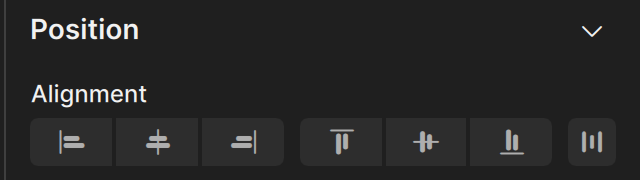
Select several objects, then open the Position section of the property editor. At the top of the section is the Alignment row with seven buttons: six alignment buttons and one distribute button.
The alignment buttons need at least two selected objects. The distribute button needs at least three. With fewer objects they are dimmed.
Align
The six buttons align the selected objects horizontally (left, center, right) or vertically (top, middle, bottom).
Clate aligns objects to the selection as a whole, not to the page or the frame. Clate takes the outer edges of all selected objects together and uses them as the reference:
| Button | Result |
|---|---|
| Align left | Every selected object moves so that its left edge is on the left edge of the selection. |
| Align horizontal center | Every selected object is centered on the horizontal center of the selection. |
| Align right | Every selected object moves so that its right edge is on the right edge of the selection. |
| Align top | Every selected object moves so that its top edge is on the top edge of the selection. |
| Align vertical center | Every selected object is centered on the vertical center of the selection. |
| Align bottom | Every selected object moves so that its bottom edge is on the bottom edge of the selection. |
The order in which you select the objects does not matter, and no object stays in place as a reference.
Clate aligns only objects that are in the same place in the structure as the first selected object. When you select objects from different frames, the objects from the other frames stay where they are. Selecting objects that are all inside the same frame is the normal case.
Distribute spacing
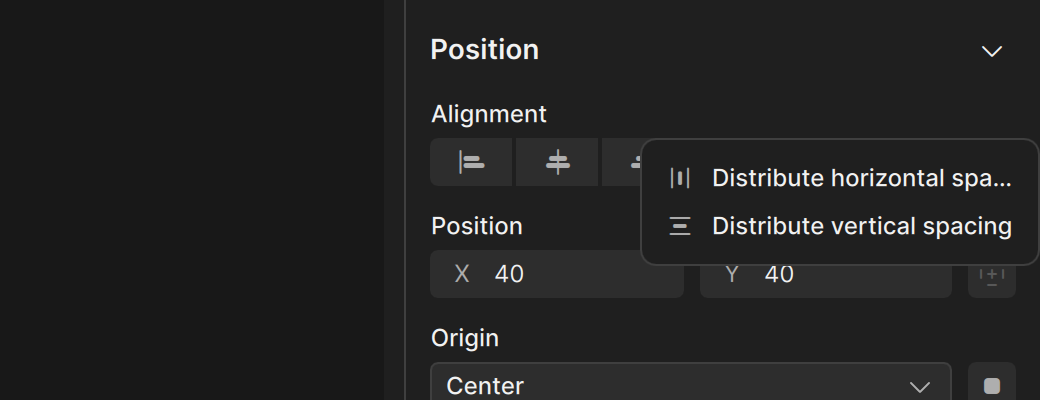
Select at least three objects, then click the distribute button at the end of the row. A menu opens:
- Distribute horizontal spacing
- Distribute vertical spacing
The objects at the two ends of the selection stay where they are. Clate puts the other objects in between so that the gaps between neighbors are equal. Only the horizontal position changes for horizontal spacing, and only the vertical position changes for vertical spacing.
Distribute spaces the gaps, not the centers. If your objects have different sizes, the gaps are equal and the centers are not.
Undo
Each click is one step in the undo history. Press Ctrl + Z to undo an alignment.