
QML 오실로스코프
이 예제는 Qt Charts QML API를 사용하여 엄격한 성능 요구 사항을 충족하는 애플리케이션을 구현하는 방법을 보여줍니다.
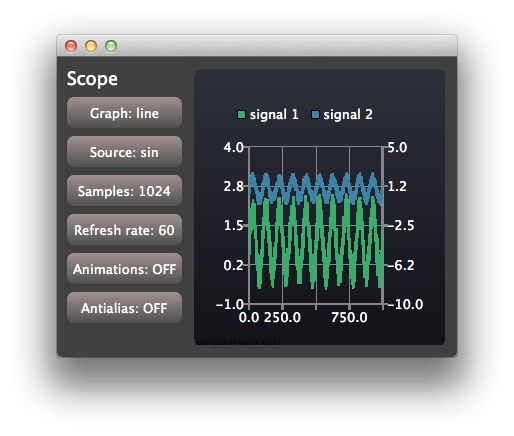
이 오실로스코프 애플리케이션은 Qt Charts QML API를 사용하여 엄격한 성능 요구 사항이 있는 애플리케이션을 구현하는 방법을 보여줍니다. 이 애플리케이션은 구성 가능한 특성을 가진 생성된 데이터를 사용하여 간단한 오실로스코프 사용자 인터페이스를 모방합니다.
애플리케이션 출력 콘솔에 표시되는 실제 렌더링 속도에 대한 정보를 확인하려면, 실행 환경 설정에서 QSG_RENDER_TIMING = 1로 설정하면 됩니다. 이를 위해 Qt Creator 에서 ‘프로젝트(Projects)’ > ‘실행(Run)’ > ‘실행 환경(Run environment)’으로 이동한 후 ‘추가(Add)’를 선택하십시오. 그런 다음 예제 애플리케이션의 다양한 구성 옵션을 실험해 보며, 사용 중인 환경에서 최상의 성능을 제공하는 구성을 찾아볼 수 있습니다.
예제 실행
다음 경로에서 예제를 실행할 수 있습니다.
- Qt Creator
Welcome 모드를 열고 Examples 에서 예제를 선택하십시오. 자세한 내용은 Qt Creator: 튜토리얼: 빌드 및 실행을 참조하십시오.
- Qt Extension for Visual Studio Code
Command Palette 에서 Qt: Open Qt examples 명령을 실행하고 목록에서 예제를 선택하십시오. 자세한 내용은 Qt Extension for Visual Studio Code: 튜토리얼: 빌드 및 실행을 참조하십시오.
뷰 생성
애플리케이션 창은 제어 뷰와 범위 뷰가 공유합니다:
Item {
    id: main
    width: 600
    height: 400

    ControlPanel {
        id: controlPanel
        anchors.top: parent.top
        anchors.topMargin: 10
        anchors.bottom: parent.bottom
        anchors.left: parent.left
        anchors.leftMargin: 10
    ...
    ScopeView {
        id: scopeView
        anchors.top: parent.top
        anchors.bottom: parent.bottom
        anchors.right: parent.right
        anchors.left: controlPanel.right
        height: main.height
    }
ControlView는 구성에 사용되는 버튼을 구현합니다. ScopeView는 ChartView를 사용하여 두 개의 선형 시리즈가 포함된 차트를 표시합니다:
ChartView {
    id: chartView

    property bool openGL: openGLSupported

    animationOptions: ChartView.NoAnimation
    theme: ChartView.ChartThemeDark

    onOpenGLChanged: {
        if (openGLSupported) {
            var series1 = series("signal 1")
            if (series1)
                series1.useOpenGL = openGL;
            var series2 = series("signal 2")
            if (series2)
                series2.useOpenGL = openGL;
        }
    }

    ValueAxis {
        id: axisY1
        min: -1
        max: 4
    }

    ValueAxis {
        id: axisY2
        min: -10
        max: 5
    }

    ValueAxis {
        id: axisX
        min: 0
        max: 1024
    }

    LineSeries {
        id: lineSeries1
        name: "signal 1"
        axisX: axisX
        axisY: axisY1
        useOpenGL: chartView.openGL
    }
    LineSeries {
        id: lineSeries2
        name: "signal 2"
        axisX: axisX
        axisYRight: axisY2
        useOpenGL: chartView.openGL
    }
    ...
선형 시리즈의 데이터는 Qt Qml 타이머를 통해 업데이트됩니다. 실제 애플리케이션에서는 Qt C++ 코드의 신호를 통해 업데이트가 트리거될 수 있습니다.
Timer {
    id: refreshTimer
    interval: 1 / 60 * 1000 // 60 Hz
    running: true
    repeat: true
    onTriggered: {
        dataSource.update(chartView.series(0));
        dataSource.update(chartView.series(1));
    }
}
오실로스코프에서는 신호 소스를 시각화하는 데 사용되는 시리즈의 유형을 전환할 수도 있습니다. 이는 시리즈를 동적으로 소멸시키고 생성함으로써 구현됩니다:
function changeSeriesType(type) {
    chartView.removeAllSeries();

    // Create two new series of the correct type. Axis x is the same for both of the series,
    // but the series have their own y-axes to make it possible to control the y-offset
    // of the "signal sources".
    var series1
    var series2
    if (type === "line") {
        series1 = chartView.createSeries(ChartView.SeriesTypeLine, "signal 1",
                                         axisX, axisY1);
        series1.useOpenGL = chartView.openGL

        series2 = chartView.createSeries(ChartView.SeriesTypeLine, "signal 2",
                                         axisX, axisY2);
        series2.useOpenGL = chartView.openGL
    } else {
        series1 = chartView.createSeries(ChartView.SeriesTypeScatter, "signal 1",
                                         axisX, axisY1);
        series1.markerSize = 2;
        series1.borderColor = "transparent";
        series1.useOpenGL = chartView.openGL

        series2 = chartView.createSeries(ChartView.SeriesTypeScatter, "signal 2",
                                         axisX, axisY2);
        series2.markerSize = 2;
        series2.borderColor = "transparent";
        series2.useOpenGL = chartView.openGL
    }
}

function createAxis(min, max) {
    // The following creates a ValueAxis object that can be then set as a x or y axis for a series
    return Qt.createQmlObject("import QtQuick 2.0; import QtCharts 2.0; ValueAxis { min: "
                              + min + "; max: " + max + " }", chartView);
}© 2026 The Qt Company Ltd. Documentation contributions included herein are the copyrights of their respective owners. The documentation provided herein is licensed under the terms of the GNU Free Documentation License version 1.3 as published by the Free Software Foundation. Qt and respective logos are trademarks of The Qt Company Ltd. in Finland and/or other countries worldwide. All other trademarks are property of their respective owners.
