
QML 심화 튜토리얼 1 - 게임 캔버스 및 블록 생성
애플리케이션 화면 만들기
첫 번째 단계는 애플리케이션에 기본 QML 항목을 생성하는 것입니다.
우선, 다음과 같은 메인 화면을 가진 ‘Same Game’ 애플리케이션을 생성합니다.
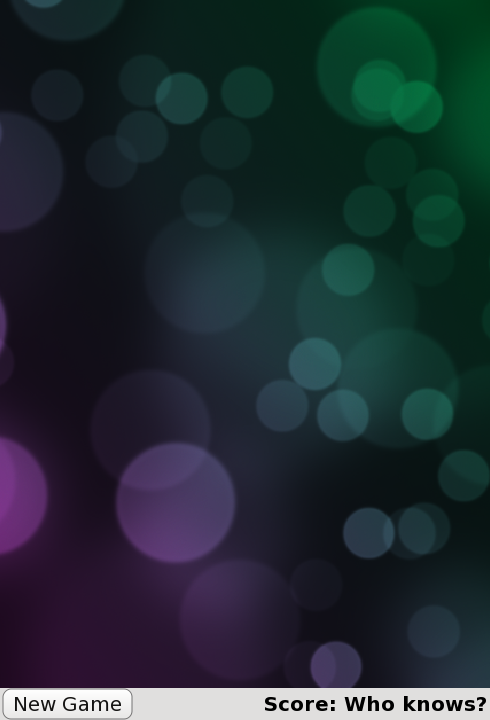
이는 다음과 같은 형식의 메인 애플리케이션 파일( samegame.qml)로 정의됩니다:
import QtQuick

Rectangle {
    id: screen

    width: 490; height: 720

    SystemPalette { id: activePalette }

    Item {
        width: parent.width
        anchors { top: parent.top; bottom: toolBar.top }

        Image {
            id: background
            anchors.fill: parent
            source: "pics/background.jpg"
            fillMode: Image.PreserveAspectCrop
        }
    }

    Rectangle {
        id: toolBar
        width: parent.width; height: 30
        color: activePalette.window
        anchors.bottom: screen.bottom

        Button {
            anchors { left: parent.left; verticalCenter: parent.verticalCenter }
            text: "New Game"
            onClicked: console.log("This doesn't do anything yet...")
        }

        Text {
            id: score
            anchors { right: parent.right; verticalCenter: parent.verticalCenter }
            text: "Score: Who knows?"
        }
    }
}
이렇게 하면 블록을 위한 메인 캔버스, “New Game” 버튼 및 점수 표시창이 포함된 기본적인 게임 창이 생성됩니다.
여기서 낯설게 느껴질 수 있는 항목 중 하나는 SystemPalette 항목입니다. 이 항목은 Qt 시스템 팔레트에 대한 액세스를 제공하며, 버튼에 더 네이티브한 모양과 느낌을 부여하는 데 사용됩니다.
Item, Button, Text 유형의 앵커가 가독성을 높이기 위해 그룹(점) 표기법으로 설정되어 있다는 점에 유의하십시오.
Button 및 Block 컴포넌트 추가
위 코드의 Button 항목은 Button.qml 라는 별도의 컴포넌트 파일에서 정의됩니다. 작동하는 버튼을 만들기 위해, Rectangle 내부에서 QML 유형인 Text 와 MouseArea 를 사용합니다. 다음은 Button.qml 코드입니다:
import QtQuick

Rectangle {
    id: container

    property string text: "Button"

    signal clicked

    width: buttonLabel.width + 20; height: buttonLabel.height + 5
    border { width: 1; color: Qt.darker(activePalette.button) }
    antialiasing: true
    radius: 8

    // color the button with a gradient
    gradient: Gradient {
        GradientStop {
            position: 0.0
            color: {
                if (mouseArea.pressed)
                    return activePalette.dark
                else
                    return activePalette.light
            }
        }
        GradientStop { position: 1.0; color: activePalette.button }
    }

    MouseArea {
        id: mouseArea
        anchors.fill: parent
        onClicked: container.clicked();
    }

    Text {
        id: buttonLabel
        anchors.centerIn: container
        color: activePalette.buttonText
        text: container.text
    }
}
이는 기본적으로 텍스트를 포함하고 클릭할 수 있는 사각형을 정의합니다. MouseArea 에는 onClicked() 핸들러가 있으며, 이 핸들러는 영역이 클릭될 때 container 의 clicked() 신호를 발생시키도록 구현되어 있습니다.
'Same Game'에서는 게임이 시작되면 화면이 작은 블록들로 채워집니다. 각 블록은 단순히 이미지를 포함하는 항목입니다. 블록 코드는 별도의 Block.qml 파일에 정의되어 있습니다:
import QtQuick

Item {
    id: block

    Image {
        id: img
        anchors.fill: parent
        source: "pics/redStone.png"
    }
}
현재로서는 블록이 아무런 동작도 하지 않으며, 단순히 이미지일 뿐입니다. 튜토리얼이 진행됨에 따라 블록에 애니메이션을 적용하고 동작을 부여하게 될 것입니다. 아직 블록을 생성하는 코드는 추가하지 않았으며, 다음 장에서 이를 다룰 예정입니다.
anchors.fill: parent 를 사용하여 이미지의 크기를 상위 Item의 크기와 동일하게 설정했습니다. 즉, 튜토리얼 후반부에서 블록 항목을 동적으로 생성하고 크기를 조정할 때, 이미지가 자동으로 올바른 크기로 조정됩니다.
Image 타입의 source 속성에 사용된 상대 경로에 주목하세요. 이 경로는 Image 타입이 포함된 파일의 위치를 기준으로 합니다. 또는 Image 소스를 절대 파일 경로나 이미지가 포함된 URL로 설정할 수도 있습니다.
지금까지의 코드는 이미 익숙하실 것입니다. 시작하기 위해 몇 가지 기본 타입을 생성했습니다. 다음으로, 게임 캔버스에 몇 가지 블록을 배치해 보겠습니다.
© 2026 The Qt Company Ltd. Documentation contributions included herein are the copyrights of their respective owners. The documentation provided herein is licensed under the terms of the GNU Free Documentation License version 1.3 as published by the Free Software Foundation. Qt and respective logos are trademarks of The Qt Company Ltd. in Finland and/or other countries worldwide. All other trademarks are property of their respective owners.
