
자습서: C++ 디버깅
이 튜토리얼에서는 TextFinder 예제를 통해 Debug 모드에서 Qt C++ 애플리케이션을 디버깅하는 방법을 설명합니다.
TextFinder는 텍스트 파일을 QString 로 읽어온 다음, ` QTextEdit`를 통해 이를 표시합니다. TextFinder 클래스를 확인하고 저장된 데이터를 보려면:
textfinder.cpp에서 커서 위치를 변경하여 중단점을 설정할 줄의 줄 번호와 창 테두리 사이를 클릭합니다.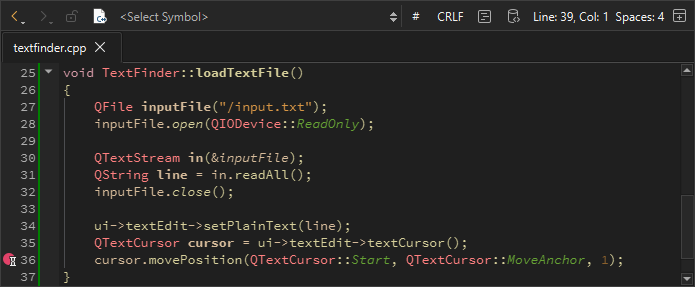
- Debug > Start Debugging > Start Debugging of Startup Project 로 이동하거나 F5 키를 누릅니다.
- 중단점에 대한 정보를 보려면 ‘ Breakpoints ’ 보기로 이동하십시오.

- 중단점을 제거하려면 중단점을 마우스 오른쪽 버튼으로 클릭하고 ' Delete Breakpoint'를 선택하십시오.
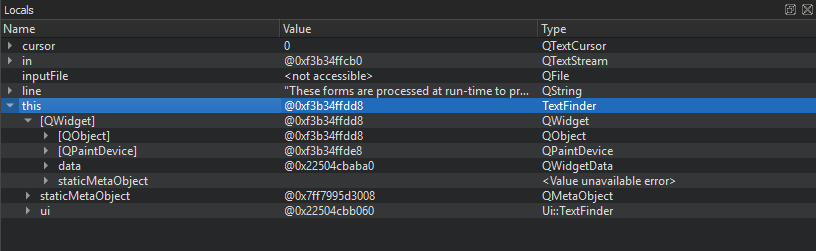
- TextFinder 클래스의 기본 클래스와 데이터 멤버를 보려면 ' Locals ' 보기로 이동하십시오.
on_findButton_clicked() 함수를 수정하여 커서가 문서 끝 부분에 도달하면 문서 시작 부분으로 돌아가서 검색을 계속하도록 하십시오. 다음 코드 스니펫을 추가하십시오.
void TextFinder::on_findButton_clicked()
{
    QString searchString = ui->lineEdit->text();

    QTextDocument *document = ui->textEdit->document();
    QTextCursor cursor = ui->textEdit->textCursor();
    cursor = document->find(searchString, cursor,
        QTextDocument::FindWholeWords);
    ui->textEdit->setTextCursor(cursor);

    bool found = cursor.isNull();

    if (!found && previouslyFound) {
        int ret = QMessageBox::question(this, tr("End of Document"),
        tr("I have reached the end of the document. Would you like "
        "me to start searching from the beginning of the document?"),
        QMessageBox::Yes | QMessageBox::No, QMessageBox::Yes);

        if (ret == QMessageBox::Yes) {
            cursor = document->find(searchString,
                QTextDocument::FindWholeWords);
            ui->textEdit->setTextCursor(cursor);
        } else
            return;
    }
    previouslyFound = found;
}
그러나 위 코드를 컴파일하여 실행하면 논리 오류로 인해 애플리케이션이 제대로 작동하지 않습니다. 이 논리 오류를 찾으려면 다음 버튼을 사용하여 코드를 단계별로 실행해 보십시오:  (Stop Debugger),
  (Step Over),
  (Step Into),
  (Step Out).
또한 튜토리얼: Qt Widgets 애플리케이션, 디버깅 및 디버거를참조하십시오 .
Copyright © The Qt Company Ltd. and other contributors. Documentation contributions included herein are the copyrights of their respective owners. The documentation provided herein is licensed under the terms of the GNU Free Documentation License version 1.3 as published by the Free Software Foundation. Qt and respective logos are trademarks of The Qt Company Ltd in Finland and/or other countries worldwide. All other trademarks are property of their respective owners.
