
사진 표면
터치 기기용 QML 앱으로, 폴더 내의 콘텐츠에 접근하기 위해 ` FolderListModel `와 함께 `Repeater`를 사용하고, 불러온 콘텐츠에서 핀치 제스처를 처리하기 위해 ` PinchHandler `를 사용합니다.
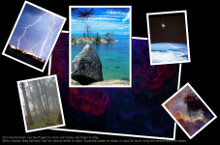
Photo Surface는 Repeater 을 FolderListModel 및 FolderDialog 와 함께 사용하여 사용자가 선택한 폴더의 이미지에 접근하는 방법을 보여줍니다. 또한 이 예제는 Qt Quick 입력 핸들러를 사용하여 동일한 항목 내에서 드래그, 회전 및 핀치 확대/축소 기능을 처리하는 방법도 보여줍니다.
모든 앱 코드는 하나의 QML 파일( photosurface.qml)에 포함되어 있습니다. 인라인 JavaScript 코드는 사진 표면에 이미지를 배치하고, 회전하며, 크기를 조정합니다.
예제 실행
다음 경로에서 예제를 실행할 수 있습니다.
- Qt Creator
Welcome 모드를 열고 Examples 에서 예제를 선택합니다. 자세한 내용은 Qt Creator: 튜토리얼: 빌드 및 실행을 참조하십시오.
- Qt Extension for Visual Studio Code
Command Palette 에서 Qt: Open Qt examples 명령을 실행하고 목록에서 예제를 선택합니다. 자세한 내용은 Qt Extension for Visual Studio Code: 튜토리얼: 빌드 및 실행을 참조하십시오.
메인 창 만들기
Photo Surface 앱의 메인 창을 만들려면 루트 항목으로 Window QML 유형을 사용하십시오. 이 유형은 다음 Qt Quick 그래픽 유형과 함께 사용할 수 있도록 창을 자동으로 구성합니다:
Window {
    id: root
    visible: true
    width: 1024; height: 600
    color: "black"
    title: Application.displayName + " : " + folderModel.folder
    property real defaultSize: 200
    property real surfaceViewportRatio: 1.5
    property var imageNameFilters: ["*.png", "*.jpg", "*.gif"] // overridden in main.cpp
폴더 내용에 액세스하기
Repeater QML 타입을 FolderListModel 와 함께 사용하여 폴더에 있는 GIF, JPG, PNG 이미지를 표시합니다(단, main.cpp에서 지원되는 이미지 유형 목록이 확장될 수 있음):
        Repeater {
            model: FolderListModel {
                id: folderModel
                objectName: "folderModel"
                showDirs: false
                nameFilters: root.imageNameFilters
            }
FolderListModel 타입을 임포트합니다:
import Qt.labs.folderlistmodelFolderDialog를 사용하면 사용자가 이미지가 포함된 폴더를 선택할 수 있습니다:
    FolderDialog {
        id: folderDialog
        title: qsTr("Choose a folder with some images")
        onAccepted: folderModel.folder = selectedFolder
    }
FolderDialog 타입을 사용하려면 다음 임포트 문장을 추가합니다:
import QtQuick.DialogsfolderDialog.open() 함수는 명령줄 인수로 폴더 경로가 지정되지 않은 경우, 초기 슬라이드 쇼가 끝나면 파일 대화 상자를 엽니다:
        Component.onDestruction: {
            folderIcon.visible = true
            const lastArg = Application.arguments.slice(-1)[0]
            const standardPicturesLocations = StandardPaths.standardLocations(StandardPaths.PicturesLocation)
            const hasValidPicturesLocation = standardPicturesLocations.length > 0
            if (hasValidPicturesLocation)
                folderDialog.currentFolder = standardPicturesLocations[0]
            if (/.*hotosurface.*|--+/.test(lastArg)) {
                if (hasValidPicturesLocation)
                    folderModel.folder = standardPicturesLocations[0]
                else
                    folderDialog.open()
            }
사용자는 폴더 대화 상자 아이콘을 클릭하여 열 수도 있습니다. 여기서는 Image QML 타입이 아이콘을 표시합니다. Image 타입 내부에서, onTapped 신호 핸들러가 지정된 TapHandler 가 folderDialog.open() 함수를 호출합니다:
    Image {
        id: folderIcon
        visible: false
        anchors.top: parent.top
        anchors.left: parent.left
        anchors.margins: 10
        source: "resources/folder.png"

        TapHandler { onTapped: folderDialog.open() }

        HoverHandler { id: folderMouse }

        ToolTip.visible: folderMouse.hovered
        ToolTip.text: qsTr(`Open an image directory (${openShortcut.nativeText})`)
        ToolTip.delay: 1000

        Shortcut {
            id: openShortcut
            sequence: StandardKey.Open
            onActivated: folderDialog.open()
        }
    }
Photo 서피스에서 이미지 표시하기
Rectangle 는 Repeater 의 델리게이트로 사용되어, FolderListModel 가 선택한 폴더에서 찾은 각 이미지에 대한 프레임을 제공합니다. JavaScript의 Math() 메서드는 프레임을 사진 표면에 무작위로 배치하고, 무작위 각도로 회전시키며, 이미지의 크기를 조정합니다. 테두리 색상은 상호작용 상태를 나타냅니다:
            delegate: Rectangle {
                id: photoFrame
                required property date fileModified
                required property string fileName
                required property url fileUrl
                objectName: "frame-" + fileName
                width: image.width * (1 + 0.10 * image.height / image.width)
                height: image.height * 1.10
                scale: root.defaultSize / Math.max(image.sourceSize.width, image.sourceSize.height)
                border.color: pinchHandler.active || dragHandler.active ? "darkturquoise"
                                                                        : mouse.hovered ? "darkseagreen"
                                                                                        : "saddlebrown"
                border.width: 3 / scale
                antialiasing: true
                Component.onCompleted: {
                    x = Math.random() * root.width - width / 2
                    y = Math.random() * root.height - height / 2
                    rotation = Math.random() * 13 - 6
                }

                Image {
                    id: image
                    anchors.centerIn: parent
                    fillMode: Image.PreserveAspectFit
                    source: photoFrame.fileUrl
                    antialiasing: true
                }
드래그 및 핀치 제스처, 마우스 처리
각 사진 프레임 내의 ` DragHandler ` 및 ` PinchHandler `는 드래그, 핀치 확대/축소 및 회전 기능을 처리합니다:
                PinchHandler {
                    id: pinchHandler
                    minimumRotation: -360
                    maximumRotation: 360
                    minimumScale: 0.1
                    maximumScale: 10
                    grabPermissions: PointerHandler.CanTakeOverFromAnything // and never gonna give it up
                    onActiveChanged: if (active) photoFrame.z = ++flick.highestZ
                }

                DragHandler {
                    id: dragHandler
                    onActiveChanged: {
                        if (active)
                            photoFrame.z = ++flick.highestZ
                        else
                            anim.restart(centroid.velocity)
                    }
                }
PinchHandler 가 Rectangle 내부에 선언되어 있으므로, PinchHandler.target 속성이 암시적으로 설정되어 핀치 제스처로 Rectangle을 조작할 수 있습니다. 회전 속성은 프레임을 모든 각도로 회전할 수 있음을 지정하고, 크기 조정 속성은 프레임을 0.1 와 10 사이에서 크기를 조정할 수 있음을 지정합니다. 핀치 제스처는 터치스크린이나 멀티터치 터치패드에서 모두 동일하게 잘 작동합니다. 프레임을 변환하면 프레임의 내용( Image)도 함께 변환됩니다.
DragHandler.target 속성도 암시적으로 설정되어 있으므로, 터치스크린이나 터치패드에서는 한 손가락으로, 마우스를 사용할 때는 마우스로 사진을 드래그할 수 있습니다. DragHandler 의 onActiveChanged 신호 핸들러에서, 선택된 사진 프레임은 z 속성의 값을 증가시켜 최상위로 올라옵니다(이때 공유 속성인 highestZ 은 지금까지 사용된 최대 z 값을 저장합니다). 드래그가 끝나면 애니메이션이 시작되어 잠시 동안 같은 방향으로 움직임을 유지하다가 속도가 서서히 느려지며 정지합니다. 사진을 표면의 가장자리를 넘어 '휙' 하고 밀어내면, 표면이 확장되어 사진의 새로운 위치를 수용합니다. ScrollView 를 통해 표면의 다양한 부분을 둘러볼 수 있으며, 이 에는 Repeater와 그 안에 채워진 모든 사진 프레임이 포함되어 있습니다.
두 손가락을 사용해 DragHandler를 통해 두 장의 사진을 드래그할 수 있고, 두 손가락으로 한 장의 사진 PinchHandler 을 핀치할 수도 있으며, 사진 모음은 서로 겹쳐 쌓이는 경향이 있으므로, PinchHandler 가 우선권을 갖도록 grabPermissions 를 조정해야 합니다. 즉, 핀치 제스처가 시작되면 DragHandler가 터치 지점을 다시 잡지 못하도록 해야 합니다.
터치 장치가 없는 컴퓨터에서 예제의 상호작용성을 높이려면, 위의 border.color에 의존하는 HoverHandler 와 두 개의 WheelHandlers 를 추가하십시오. 하나는 Ctrl 키를 누른 상태에서 마우스 휠을 사용하여 마우스 커서 주변으로 사진을 회전할 수 있게 해주고, 다른 하나는 Shift 키를 누른 상태에서 마우스 휠을 사용하여 커서 위치의 확대/축소를 할 수 있게 해줍니다. 이 두 가지 기능 모두 위의 ` DragHandler `와 동일한 방식으로 사진을 들어 올립니다:
                HoverHandler { id: mouse }

                WheelHandler {
                    acceptedModifiers: Qt.ControlModifier
                    property: "rotation"
                    onActiveChanged: if (active) photoFrame.z = ++flick.highestZ
                }

                WheelHandler {
                    acceptedModifiers: Qt.ShiftModifier
                    property: "scale"
                    onActiveChanged: if (active) photoFrame.z = ++flick.highestZ
                }
소스 파일
QML 애플리케이션 및 Qt Quick 예제와 튜토리얼도참조하십시오 .
© 2026 The Qt Company Ltd. Documentation contributions included herein are the copyrights of their respective owners. The documentation provided herein is licensed under the terms of the GNU Free Documentation License version 1.3 as published by the Free Software Foundation. Qt and respective logos are trademarks of The Qt Company Ltd. in Finland and/or other countries worldwide. All other trademarks are property of their respective owners.
