
Qt Quick 데모 - RSS 뉴스
XmlListModel 및 XmlListModelRole 사용자 정의 QML 타입을 사용하여 XML 데이터를 다운로드하고, ListModel 및 ListElement 를 사용하여 카테고리 목록을 생성하며, ListView 를 사용하여 데이터를 표시하는 QML RSS 뉴스 리더입니다.
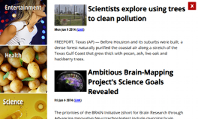
RSS 뉴스는 다음과 같은 Qt Quick 기능을 보여줍니다:
- 사용자 정의 QML 유형 사용.
- 데이터를 표현하기 위한 리스트 모델 및 리스트 요소 사용.
- XML 목록 모델을 사용하여 XML 데이터를 다운로드합니다.
- 리스트 뷰를 사용하여 데이터를 표시합니다.
- Component 타입을 사용하여 뉴스 항목 리스트 뷰의 푸터를 생성합니다.
- Image 타입을 사용하여 앱을 종료하는 버튼을 생성하기.
예제 실행
다음 위치에서 예제를 실행할 수 있습니다.
- Qt Creator
Welcome 모드를 열고 Examples 에서 예제를 선택합니다. 자세한 내용은 Qt Creator 의 '튜토리얼: 빌드 및 실행'을 참조하십시오.
- Qt Extension for Visual Studio Code
Command Palette 에서 Qt: Open Qt examples 명령을 실행하고 목록에서 예제를 선택합니다. 자세한 내용은 Qt Extension for Visual Studio Code: 튜토리얼: 빌드 및 실행을 참조하십시오.
사용자 정의 유형 사용
RSS 뉴스 앱에서는 각각 별도의 .qml 파일에 정의된 다음 사용자 정의 유형을 사용합니다:
BusyIndicator.qmlCategoryDelegate.qmlNewsDelegate.qmlRssFeeds.qmlScrollBar.qml
메인 창 만들기
Main.qml 에서 사용자 정의 속성이 포함된 Rectangle 유형을 사용하여 앱의 메인 창을 만듭니다:
Rectangle {
    id: window

    width: 800
    height: 480

    property string currentFeed: rssFeeds.get(0).feed
    property bool loading: feedModel.status === XmlListModel.Loading
    property bool isPortrait: Screen.primaryOrientation === Qt.PortraitOrientation
나중에 XML 데이터를 불러오고 화면 방향에 따라 레이아웃을 조정할 때 이 사용자 정의 속성을 사용할 것입니다.
카테고리 목록 만들기
Main.qml 에서는 RssFeeds.qml 에서 정의한 RssFeeds 사용자 정의 타입을 사용하여 피드 카테고리 목록을 생성합니다:
RssFeeds { id: rssFeeds }RssFeeds.qml 에서는 ListElement 타입을 가진 ListModel 타입을 사용하여, 목록 요소가 피드 카테고리를 나타내는 카테고리 목록을 생성합니다:
ListModel {
    ListElement { name: "Top Stories"; feed: "news.yahoo.com/rss/topstories"; image: "images/TopStories.jpg" }
    ListElement { name: "World"; feed: "news.yahoo.com/rss/world"; image: "images/World.jpg" }
    ListElement { name: "Europe"; feed: "news.yahoo.com/rss/europe"; image: "images/Europe.jpg" }
    ListElement { name: "Asia"; feed: "news.yahoo.com/rss/asia"; image: "images/Asia.jpg" }
    ListElement { name: "U.S. National"; feed: "news.yahoo.com/rss/us"; image: "images/USNational.jpg"  }
    ListElement { name: "Politics"; feed: "news.yahoo.com/rss/politics"; image: "images/Politics.jpg" }
    ListElement { name: "Business"; feed: "news.yahoo.com/rss/business"; image: "images/Business.jpg" }
    ListElement { name: "Technology"; feed: "news.yahoo.com/rss/tech"; image: "images/Technology.jpg" }
    ListElement { name: "Entertainment"; feed: "news.yahoo.com/rss/entertainment"; image: "images/Entertainment.jpg" }
    ListElement { name: "Health"; feed: "news.yahoo.com/rss/health"; image: "images/Health.jpg" }
    ListElement { name: "Science"; feed: "news.yahoo.com/rss/science"; image: "images/Science.jpg" }
    ListElement { name: "Sports"; feed: "news.yahoo.com/rss/sports"; image: "images/Sports.jpg" }
}
List 요소는 속성 대신 역할 정의 모음을 포함한다는 점을 제외하면 다른 QML 유형과 마찬가지로 정의됩니다. 역할은 데이터에 접근하는 방법을 정의할 뿐만 아니라 데이터 자체도 포함합니다.
각 리스트 요소에 대해, ` name ` 역할을 사용하여 카테고리 이름을 지정하고, ` feed ` 역할을 사용하여 데이터를 불러올 URL을 지정하며, ` image ` 역할을 사용하여 카테고리 이미지를 표시합니다.
Main.qml 에서는 ListView 유형을 사용하여 카테고리 목록을 표시합니다:
    ListView {
        id: categories
        property int itemWidth: 190

        width: window.isPortrait ? parent.width : itemWidth
        height: window.isPortrait ? itemWidth : parent.height
        orientation: window.isPortrait ? ListView.Horizontal : ListView.Vertical
        anchors.top: parent.top
        model: rssFeeds
        delegate: CategoryDelegate {
            itemSize: categories.itemWidth
            isLoading: window.loading
            onClicked: function () {
                if (window.currentFeed == feed)
                    feedModel.reload()
                else
                    window.currentFeed = feed

            }
        }
세로 방향에서는 창 상단에 카테고리 목록을 가로로 배치하고, 가로 방향에서는 왼쪽에 세로로 배치하기 위해 orientation 속성을 사용합니다. 방향에 따라 목록의 너비 또는 높이를 고정 값(itemWidth)에 바인딩합니다.
anchors.top 속성을 사용하여 두 방향 모두에서 목록 보기를 화면 상단에 배치합니다.
model 속성을 사용하여 rssFeeds 모델에서 XML 데이터를 불러오고, CategoryDelegate 를 델리게이트로 지정하여 목록의 각 항목을 인스턴스화합니다.
목록 요소 생성
CategoryDelegate.qml 에서 사용자 정의 속성이 포함된 Rectangle 타입을 사용하여 목록 요소를 생성합니다:
Rectangle {
    id: delegate

    required property real itemSize
    required property string name
    required property string feed
    required property string image
    required property int index
    required property bool isLoading

    property bool selected: ListView.isCurrentItem
required 을 사용하여 모델에서 기대하는 속성을 선언합니다.
selected 속성을 ListView.isCurrentItem 부착 속성으로 설정하여, delegate 가 현재 항목일 때 selected 가 true 가 되도록 지정합니다.
Image 유형의 source 속성을 사용하여, rssFeeds 목록 모델에서 image 역할에 의해 목록 요소에 지정된 이미지를 델리게이트 중앙에 정렬하여 표시합니다:
    Image {
        anchors.centerIn: parent
        source: delegate.image
    }
Text 유형을 사용하여 목록 요소에 제목을 추가합니다:
    Text {
        id: titleText

        anchors {
            left: parent.left; leftMargin: 20
            right: parent.right; rightMargin: 20
            top: parent.top; topMargin: 20
        }

        font { pixelSize: 18; bold: true }
        text: delegate.name
        color: delegate.selected ? "#ffffff" : "#ebebdd"
        scale: delegate.selected ? 1.15 : 1.0
        Behavior on color { ColorAnimation { duration: 150 } }
        Behavior on scale { PropertyAnimation { duration: 300 } }
anchors 속성을 사용하여 제목이 목록 요소 상단에 20픽셀 여백을 두고 배치되도록 합니다. font 속성을 사용하여 글꼴 크기와 텍스트 서식을 조정합니다.
목록 항목이 현재 선택된 항목일 때 텍스트를 더 밝게 표시하고 크기를 약간 늘리기 위해 ` color ` 및 ` scale ` 속성을 사용합니다. 해당 속성에 ` Behavior `을 적용하여 목록 항목의 선택 및 선택 해제를 애니메이션으로 표현합니다.
사용자가 카테고리 목록 요소를 탭할 때 XML 데이터를 다운로드하기 위해 ` MouseArea ` 유형을 사용합니다:
    MouseArea {
        anchors.fill: delegate
        onClicked: {
            delegate.ListView.view.currentIndex = delegate.index
            delegate.clicked()
        }
    }
anchors.fill 속성을 delegate 로 설정하여 사용자가 목록 요소 내의 아무 곳이나 탭할 수 있도록 합니다.
clicked 이벤트 발생 시 카테고리 목록의 XML 데이터를 로드하기 위해, ListView 부착 속성의 currentIndex 을 설정하고 onClicked 에서 clicked signal()을 발신합니다.
XML 데이터 다운로드
Main.qml 에서는 XmlListModel 타입을 ListView 요소의 데이터 소스로 사용하여 선택된 카테고리의 뉴스 항목을 표시합니다:
    XmlListModel {
        id: feedModel

        source: "https://" + window.currentFeed
        query: "/rss/channel/item"
source 속성과 window.currentFeed 사용자 정의 속성을 사용하여 선택한 카테고리의 뉴스 항목을 가져옵니다.
query 속성은 XmlListModel 가 XML 문서 내의 각 <item> 에 대해 모델 항목을 생성하도록 지정합니다.
XmlListModelRole 유형을 사용하여 모델 항목 속성을 지정합니다. 각 모델 항목에는 XML 문서 내의 해당 <item> 값과 일치하는 title, content, link 및 pubDate 속성이 있습니다.
        XmlListModelRole { name: "title"; elementName: "title"; attributeName: ""}
        XmlListModelRole { name: "content"; elementName: "content"; attributeName: "url" }
        XmlListModelRole { name: "link"; elementName: "link"; attributeName: "" }
        XmlListModelRole { name: "pubDate"; elementName: "pubDate"; attributeName: "" }
    }
데이터를 표시하기 위해 ListView 유형에서 feedModel 모델을 사용합니다:
    ListView {
        id: list

        anchors.left: window.isPortrait ? window.left : categories.right
        anchors.right: closeButton.left
        anchors.top: window.isPortrait ? categories.bottom : window.top
        anchors.bottom: window.bottom
        anchors.leftMargin: 30
        anchors.rightMargin: 4
        clip: window.isPortrait
        model: feedModel
        footer: footerText
        delegate: NewsDelegate {}
    }
세로 방향에서는 카테고리 목록 아래에, 가로 방향에서는 그 오른쪽에 뉴스 항목을 나열하기 위해, isPortrait 사용자 정의 속성을 사용하여 세로 방향에서는 뉴스 항목 목록의 상단을 window 의 왼쪽과 categories 의 하단에, 가로 방향에서는 categories 의 오른쪽과 window 의 하단에 고정합니다.
anchors.bottom 속성을 사용하여 두 방향 모두에서 목록 보기의 하단을 창 하단에 고정합니다.
세로 방향에서는 뉴스 항목이 다른 항목 위로 스크롤될 때 그래픽 오류가 발생하지 않도록, 뉴스 항목의 렌더링을 리스트 뷰의 경계 사각형으로 잘라냅니다. 가로 방향에서는 리스트가 수직으로 화면 전체를 차지하므로 이 작업이 필요하지 않습니다.
model 속성을 사용하여 feedModel 모델에서 XML 데이터를 불러오고, NewsDelegate 를 델리게이트로 사용하여 목록의 각 항목을 인스턴스화합니다.
NewsDelegate.qml 에서는 Column 타입을 사용하여 XML 데이터의 레이아웃을 구성합니다:
Column {
    id: delegate

    required property string title
    required property string content
    required property string link
    required property string pubDate

    width: delegate.ListView.view.width
    spacing: 8
컬럼 내부에서는 Row 와 또 다른 컬럼을 사용하여 이미지와 제목 텍스트의 위치를 지정합니다:
    Row {
        width: parent.width
        spacing: 8

        Column {
            Item {
                width: 4
                height: titleText.font.pixelSize / 4
            }

            Image {
                id: titleImage
                source: delegate.content
                width: Math.min(delegate.width / 2, sourceSize.width)
                fillMode: Image.PreserveAspectFit
            }
        }

        Text {
            id: titleText

            text: delegate.title.replace(/'/g, "'")
            width: delegate.width - titleImage.width
            wrapMode: Text.WordWrap
            font.pixelSize: 26
            font.bold: true
        }
    }
timeSinceEvent() JavaScript 함수를 사용하여 항목이 게시된 지 얼마나 지났는지에 대한 텍스트 표현을 생성합니다:
    Text {
        width: delegate.width
        font.pixelSize: 12
        textFormat: Text.RichText
        font.italic: true
        text: delegate.timeSinceEvent(delegate.pubDate) + " (<a href=\"" + delegate.link + "\">Link</a>)"
        onLinkActivated: function(link) {
            Qt.openUrlExternally(link)
        }
    }
사용자가 링크를 선택하면 onLinkActivated 신호 핸들러를 사용하여 외부 브라우저에서 해당 URL을 엽니다.
사용자에게 피드백 제공
CategoryDelegate.qml 에서는 XML 데이터가 로드되는 동안 활동 상태를 표시하기 위해 BusyIndicator 사용자 정의 유형을 사용합니다:
    BusyIndicator {
        scale: 0.8
        visible: delegate.ListView.isCurrentItem && delegate.isLoading
        anchors.centerIn: parent
    }
scale 속성을 사용하여 표시기 크기를 0.8 로 줄입니다. visible 속성을 delegate 목록 보기의 isCurrentItem 부착 속성과 메인 창의 loading 속성에 바인딩하여, 카테고리 목록 항목이 현재 항목이고 XML 데이터가 로드 중인 경우 표시기 이미지를 표시합니다.
BusyIndicator.qml 에서 BusyIndicator 타입을 정의합니다. Image 타입을 사용하여 이미지를 표시하고, rotation 속성에 NumberAnimation 를 적용하여 이미지를 무한 루프로 회전시킵니다:
Image {
    id: container

    source: "images/busy.png";

    NumberAnimation on rotation {
        running: container.visible
        from: 0; to: 360;
        loops: Animation.Infinite;
        duration: 1200
    }
}
앱에서는 BusyIndicator 타입을 Qt Quick Controls 모듈의 xml-ph-0000@deepl.internal 타입을 사용할 수도 있습니다.
스크롤바 만들기
Main.qml 에서는 자체 정의한 ` ScrollBar ` 타입을 사용하여 카테고리 및 뉴스 항목 목록 보기에서 스크롤 막대를 생성합니다. 여러분의 앱에서도 ` ` 모듈의 ` ScrollView ` 타입을 사용할 수 있습니다. Qt Quick Controls 모듈의 xml-ph-0002@deepl.internal 타입을 사용할 수 있습니다.
먼저, 카테고리 목록 보기에서 스크롤 막대를 생성합니다. orientation 속성을 isPortrait 속성과 Qt::Orientation 열거형 타입의 Horizontal 값에 바인딩하여 세로 방향에서 가로 스크롤 막대를 표시하고, Vertical 값에 바인딩하여 가로 방향에서 세로 스크롤 막대를 표시합니다:
    ScrollBar {
        id: listScrollBar

        orientation: window.isPortrait ? Qt.Horizontal : Qt.Vertical
        height: window.isPortrait ? 8 : categories.height;
        width: window.isPortrait ? categories.width : 8
        scrollArea: categories;
        anchors.right: categories.right
    }
categories 목록 보기와 마찬가지로, isPortrait 속성을 기준으로 스크롤 바의 너비와 높이를 조정합니다.
scrollArea 속성을 사용하여 categories 목록 보기에서 스크롤 막대를 표시합니다.
anchors.right 속성을 사용하여 스크롤 바를 카테고리 목록의 오른쪽에 고정합니다.
    ScrollBar {
        scrollArea: list
        width: 8
        anchors.right: window.right
        anchors.top: window.isPortrait ? categories.bottom : window.top
        anchors.bottom: window.bottom
    }
둘째, 뉴스 항목 목록 보기에서 또 다른 스크롤 막대를 만듭니다. 화면 방향에 관계없이 보기의 오른쪽에 세로 스크롤 막대가 나타나도록 하려면, ` width ` 속성을 ` 8 `로 설정하고 ` anchors.right ` 속성을 ` window.right ` 속성에 바인딩하면 됩니다. anchors.top 속성을 사용하여 세로 방향에서는 스크롤바 상단을 카테고리 목록의 맨 아래에, 가로 방향에서는 뉴스 항목 목록의 맨 위에 고정합니다. 또한 anchors.bottom 속성을 사용하여 두 방향 모두에서 스크롤바 하단을 목록 뷰의 맨 아래에 고정합니다.
ScrollBar.qml 에서 ` ScrollBar ` 타입을 정의합니다. 사용자 정의 속성을 가진 ` Item ` 타입을 사용하여 스크롤 바용 컨테이너를 생성합니다:
BorderImage 타입을 사용하여 position() 함수를 통해 계산한 x 및 y 위치에 스크롤 바 썸을 표시합니다:
    BorderImage {
        source: "images/scrollbar.png"
        border { left: 1; right: 1; top: 1; bottom: 1 }
        x: container.orientation == Qt.Vertical ? 2 : container.position()
        y: container.orientation == Qt.Vertical ? container.position() : 2
        width: container.orientation == Qt.Vertical ? container.width - 4 : container.size()
        height: container.orientation == Qt.Vertical ? container.size() : container.height - 4
    }
size 함수를 사용하여 화면 방향에 따라 썸의 너비와 높이를 계산합니다.
사용자가 스크롤 영역을 이동할 때 스크롤 바가 표시되도록 하기 위해 ` states `를 사용합니다:
    states: State {
        name: "visible"
        when: container.orientation == Qt.Vertical ?
                  container.scrollArea.movingVertically :
                  container.scrollArea.movingHorizontally
        PropertyChanges { container { opacity: 1.0 } }
    }
상태가 ` "visible" `에서 기본 상태로 변경될 때 ` opacity ` 속성에 ` NumberAnimation `을 적용하기 위해 ` transitions `을 사용합니다:
    transitions: Transition {
        from: "visible"; to: ""
        NumberAnimation { properties: "opacity"; duration: 600 }
    }
}
푸터 생성
Main.qml 에서 Rectangle 유형을 가진 Component 유형을 사용하여 뉴스 목록 보기의 푸터를 생성합니다:
pragma ComponentBehavior: Bound

import QtQuick
import QtQuick.Window
import QtQml.XmlListModel

Rectangle {
    id: window

    width: 800
    height: 480

    property string currentFeed: rssFeeds.get(0).feed
    property bool loading: feedModel.status === XmlListModel.Loading
    property bool isPortrait: Screen.primaryOrientation === Qt.PortraitOrientation

    onLoadingChanged: {
        if (feedModel.status == XmlListModel.Ready)
            list.positionViewAtBeginning()
    }

    RssFeeds { id: rssFeeds }

    XmlListModel {
        id: feedModel

        source: "https://" + window.currentFeed
        query: "/rss/channel/item"

        XmlListModelRole { name: "title"; elementName: "title"; attributeName: ""}
뉴스 항목이 표시되지 않을 때 두 요소가 정렬되도록, 푸터의 ` width `을 컴포넌트의 너비에, ` height `을 닫기 버튼의 높이에 바인딩합니다.
버튼 생성
Main.qml 에서 Image 유형을 사용하여 사용자가 탭하면 앱을 닫을 수 있는 간단한 푸시 버튼을 만듭니다:
        XmlListModelRole { name: "content"; elementName: "content"; attributeName: "url" }
        XmlListModelRole { name: "link"; elementName: "link"; attributeName: "" }
        XmlListModelRole { name: "pubDate"; elementName: "pubDate"; attributeName: "" }
    }

    ListView {
        id: categories
        property int itemWidth: 190

        width: window.isPortrait ? parent.width : itemWidth
        height: window.isPortrait ? itemWidth : parent.height
        orientation: window.isPortrait ? ListView.Horizontal : ListView.Vertical
        anchors.top: parent.top
        model: rssFeeds
        delegate: CategoryDelegate {
            itemSize: categories.itemWidth
            isLoading: window.loading
            onClicked: function () {
                if (window.currentFeed == feed)
                    feedModel.reload()
                else
                    window.currentFeed = feed

            }
        }
        spacing: 3
    }

    ScrollBar {
        id: listScrollBar

        orientation: window.isPortrait ? Qt.Horizontal : Qt.Vertical
        height: window.isPortrait ? 8 : categories.height;
        width: window.isPortrait ? categories.width : 8
        scrollArea: categories;
        anchors.right: categories.right
    }

    ListView {
        id: list

        anchors.left: window.isPortrait ? window.left : categories.right
        anchors.right: closeButton.left
        anchors.top: window.isPortrait ? categories.bottom : window.top
        anchors.bottom: window.bottom
        anchors.leftMargin: 30
        anchors.rightMargin: 4
        clip: window.isPortrait
        model: feedModel
        footer: footerText
        delegate: NewsDelegate {}
    }

    ScrollBar {
        scrollArea: list
        width: 8
        anchors.right: window.right
        anchors.top: window.isPortrait ? categories.bottom : window.top
        anchors.bottom: window.bottom
    }

    Component {
        id: footerText

        Rectangle {
            width: parent.width
            height: closeButton.height
            color: "lightgray"

            Text {
                text: "RSS Feed from Yahoo News"
                anchors.centerIn: parent
                font.pixelSize: 14
            }
        }
    }

    Image {
        id: closeButton
        source: "content/images/btn_close.png"
        scale: 0.8
        anchors.top: parent.top
        anchors.right: parent.right
        anchors.margins: 4
        opacity: (window.isPortrait && categories.moving) ? 0.2 : 1.0
        Behavior on opacity {
            NumberAnimation { duration: 300; easing.type: Easing.OutSine }
        }

        MouseArea {
            anchors.fill: parent
            onClicked: {
                Qt.quit()
            }
        }
    }
anchors 를 사용하여 닫기 버튼을 뉴스 목록 보기의 오른쪽 상단 모서리에 4픽셀 여백을 두고 배치합니다. 세로 모드에서 닫기 버튼이 카테고리 목록과 겹치기 때문에, 사용자가 카테고리 목록을 스크롤할 때 버튼이 거의 완전히 투명해지도록 opacity 속성에 애니메이션을 적용합니다.
사용자가 닫기 버튼을 선택할 때 MouseArea 내에서 onClicked 신호 핸들러를 사용하여 quit() 함수를 호출합니다.
QML 애플리케이션항목도 참조하십시오 .
© 2026 The Qt Company Ltd. Documentation contributions included herein are the copyrights of their respective owners. The documentation provided herein is licensed under the terms of the GNU Free Documentation License version 1.3 as published by the Free Software Foundation. Qt and respective logos are trademarks of The Qt Company Ltd. in Finland and/or other countries worldwide. All other trademarks are property of their respective owners.
