
Qt Quick 3D - 볼륨 렌더링 예시
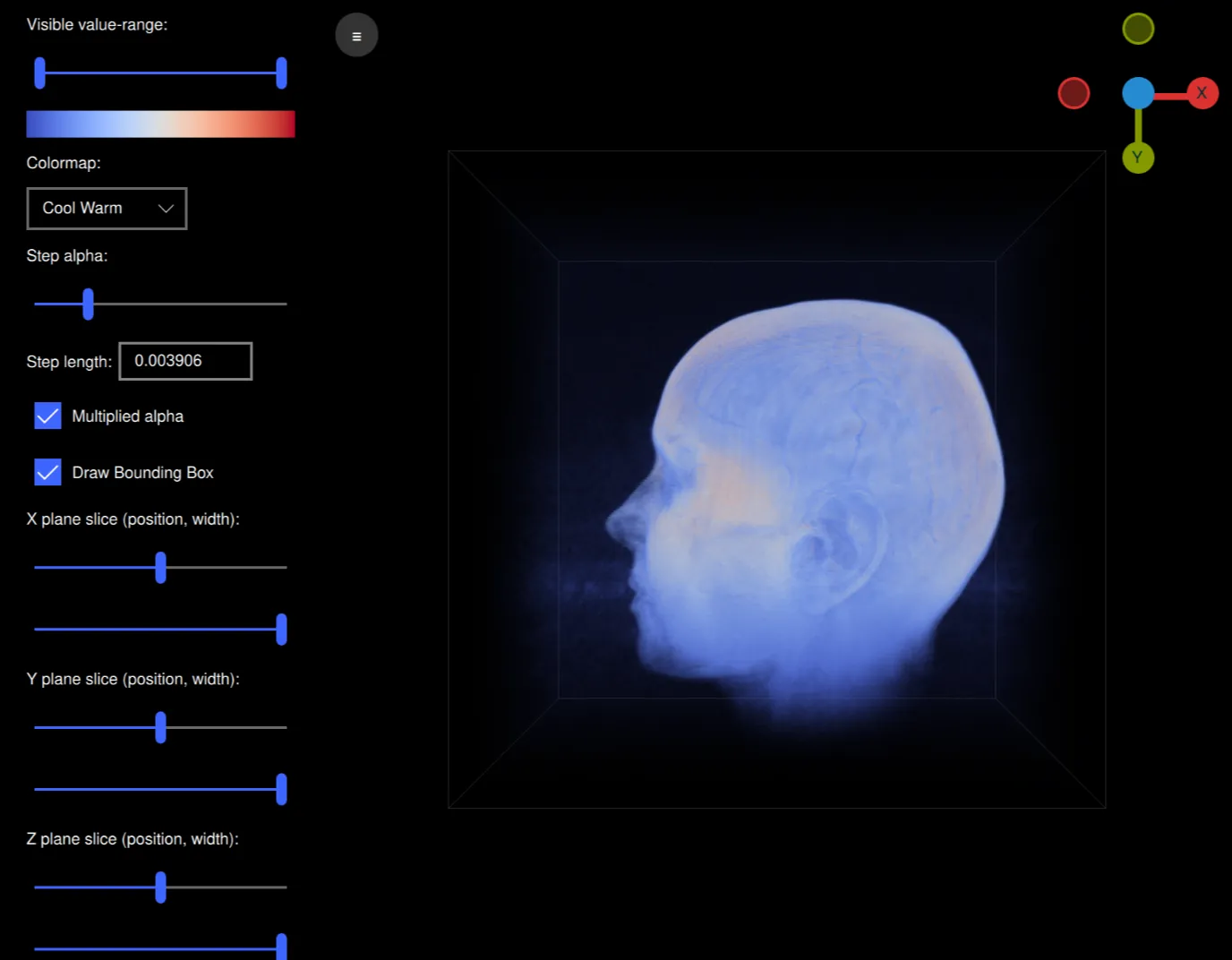
Qt Quick 3D 에서 볼륨 렌더링을 수행하는 방법을 보여줍니다.
소개
이 예제는 ‘볼륨 레이 캐스팅(Volume ray casting)’이라는 기법을 사용하여 사용자 정의 셰이더와 3D 볼륨 텍스처를 통해 볼륨 렌더링을 수행하는 방법을 보여줍니다. 이 예제는 원시 볼륨 파일을 읽어 들여 렌더링하는 동시에, 사용되는 컬러맵, 알파 및 슬라이스 평면과 같은 다양한 렌더링 설정을 대화형으로 수정할 수 있는 애플리케이션입니다. 이 애플리케이션은 https://klacansky.com/open-scivis-datasets/에 호스팅된 볼륨과 원활하게 연동되도록 설계되었으며, 올바른 치수와 배율을 자동으로 설정합니다.
구현
이 애플리케이션은 QML을 사용하며, 볼륨을 포함하는 ` View3D `와 설정을 포함하는 ` ScrollView `를 가진 ` ApplicationWindow `입니다. 볼륨을 렌더링하기 위해 ` View3D ` 객체 내에 중앙에 큐브 모델 하나만 있는 장면을 생성합니다.
Model {
    id: cubeModel
    source: "#Cube"
    visible: true
    materials: CustomMaterial {
        shadingMode: CustomMaterial.Unshaded
        vertexShader: "alpha_blending.vert"
        fragmentShader: "alpha_blending.frag"

        property TextureInput volume: TextureInput {
            texture: Texture {
                textureData: VolumeTextureData {
                    id: volumeTextureData
                    source: "file:///default_colormap"
                    dataType: dataTypeComboBox.currentText ? dataTypeComboBox.currentText : "uint8"
                    width: parseInt(dataWidth.text)
                    height: parseInt(dataHeight.text)
                    depth: parseInt(dataDepth.text)
                }
                minFilter: Texture.Nearest
                mipFilter: Texture.None
                magFilter: Texture.Nearest
                tilingModeHorizontal: Texture.ClampToEdge
                tilingModeVertical: Texture.ClampToEdge
                //tilingModeDepth: Texture.ClampToEdge // Qt 6.7
            }
        }

        property TextureInput colormap: TextureInput {
            enabled: true
            texture: Texture {
                id: colormapTexture
                tilingModeHorizontal: Texture.ClampToEdge
                source: window.getColormapSource(colormapCombo.currentIndex)
            }
        }
        property real stepLength: Math.max(0.0001, parseFloat(
                                               stepLengthText.text,
                                               1 / cubeModel.maxSide))
        property real minSide: 1 / cubeModel.minSide
        property real stepAlpha: stepAlphaSlider.value
        property bool multipliedAlpha: multipliedAlphaBox.checked

        property real tMin: tSlider.first.value
        property real tMax: tSlider.second.value
        property vector3d sliceMin: window.sliceSliderMin(
                                        xSliceSlider.value,
                                        xSliceWidthSlider.value,
                                        ySliceSlider.value,
                                        ySliceWidthSlider.value,
                                        zSliceSlider.value,
                                        zSliceWidthSlider.value)
        property vector3d sliceMax: window.sliceSliderMax(
                                        xSliceSlider.value,
                                        xSliceWidthSlider.value,
                                        ySliceSlider.value,
                                        ySliceWidthSlider.value,
                                        zSliceSlider.value,
                                        zSliceWidthSlider.value)

        sourceBlend: CustomMaterial.SrcAlpha
        destinationBlend: CustomMaterial.OneMinusSrcAlpha
    }
    property real maxSide: Math.max(parseInt(dataWidth.text),
                                    parseInt(dataHeight.text),
                                    parseInt(dataDepth.text))
    property real minSide: Math.min(parseInt(dataWidth.text),
                                    parseInt(dataHeight.text),
                                    parseInt(dataDepth.text))
    scale: Qt.vector3d(parseFloat(scaleWidth.text),
                       parseFloat(scaleHeight.text),
                       parseFloat(scaleDepth.text))

    Model {
        visible: drawBoundingBox.checked
        geometry: LineBoxGeometry {}
        materials: PrincipledMaterial {
            baseColor: "#323232"
            lighting: PrincipledMaterial.NoLighting
        }
        receivesShadows: false
        castsShadows: false
    }

    Model {
        visible: drawBoundingBox.checked
        geometry: LineBoxGeometry {}
        materials: PrincipledMaterial {
            baseColor: "#323232"
            lighting: PrincipledMaterial.NoLighting
        }
        receivesShadows: false
        castsShadows: false
        position: window.sliceBoxPosition(xSliceSlider.value,
                                   ySliceSlider.value,
                                   zSliceSlider.value,
                                   xSliceWidthSlider.value,
                                   ySliceWidthSlider.value,
                                   zSliceWidthSlider.value)
        scale: Qt.vector3d(xSliceWidthSlider.value,
                           ySliceWidthSlider.value,
                           zSliceWidthSlider.value)
    }
}
이 큐브는 볼륨용 3D 텍스처와 컬러맵용 이미지 텍스처를 사용하는 사용자 정의 셰이더를 적용하고 있습니다. 또한 전이 함수, 슬라이스 평면 등을 위한 다양한 속성이 있습니다. 볼륨 텍스처의 textureData는 VolumeTextureData 라는 사용자 정의 QML 유형이며, volumetexturedata.cpp 및 volumetexturedata.h 에서 정의되어 있습니다.
property TextureInput volume: TextureInput {
    texture: Texture {
        textureData: VolumeTextureData {
            id: volumeTextureData
            source: "file:///default_colormap"
            dataType: dataTypeComboBox.currentText ? dataTypeComboBox.currentText : "uint8"
            width: parseInt(dataWidth.text)
            height: parseInt(dataHeight.text)
            depth: parseInt(dataDepth.text)
        }
        minFilter: Texture.Nearest
        mipFilter: Texture.None
        magFilter: Texture.Nearest
        tilingModeHorizontal: Texture.ClampToEdge
        tilingModeVertical: Texture.ClampToEdge
        //tilingModeDepth: Texture.ClampToEdge // Qt 6.7
    }
}
여기에는 원시 볼륨 파일을 어떻게 해석할지 정의하는 source, dataType, width, height 및 depth 옵션이 포함되어 있습니다. 또한 VolumeTextureData 에는 볼륨을 비동기적으로 로드하는 loadAsync 함수가 포함되어 있습니다. 이 함수는 loadSucceeded 또는 loadFailed 신호를 전송합니다.
이 큐브 모델에는 LineBoxGeometry 를 포함하는 두 개의 모델도 포함되어 있습니다. 이들은 볼륨의 바운딩 박스와 슬라이스 평면을 나타내는 상자입니다.
Model {
    visible: drawBoundingBox.checked
    geometry: LineBoxGeometry {}
    materials: PrincipledMaterial {
        baseColor: "#323232"
        lighting: PrincipledMaterial.NoLighting
    }
    receivesShadows: false
    castsShadows: false
}

Model {
    visible: drawBoundingBox.checked
    geometry: LineBoxGeometry {}
    materials: PrincipledMaterial {
        baseColor: "#323232"
        lighting: PrincipledMaterial.NoLighting
    }
    receivesShadows: false
    castsShadows: false
    position: window.sliceBoxPosition(xSliceSlider.value,
                               ySliceSlider.value,
                               zSliceSlider.value,
                               xSliceWidthSlider.value,
                               ySliceWidthSlider.value,
                               zSliceWidthSlider.value)
    scale: Qt.vector3d(xSliceWidthSlider.value,
                       ySliceWidthSlider.value,
                       zSliceWidthSlider.value)
}
이제 셰이더를 살펴보겠습니다. 버텍스 셰이더는 매우 간단하며, 위치의 MVP 투영을 제외하고는 모델 공간에서 카메라에서 모델로 향하는 광선의 방향을 계산합니다:
void MAIN()
{
    POSITION = MODELVIEWPROJECTION_MATRIX * vec4(VERTEX, 1.0);
    ray_direction_model = VERTEX - (inverse(MODEL_MATRIX) * vec4(CAMERA_POSITION, 1.0)).xyz;
}
프래그먼트 셰이더는 슬라이스 평면을 고려하여 레이 마칭(ray-marching) 레이가 모델 공간에서 어디서 시작할지 계산하는 것으로 시작합니다. while 루프는 레이를 따라 단계별로 이동하며, 균등한 간격으로 복셀을 샘플링하고, 컬러맵에서 복셀 값에 해당하는 색상과 불투명도를 적용합니다.
void MAIN()
{
    FRAGCOLOR = vec4(0);

    // The camera position (eye) in model space
    const vec3 ray_origin_model = (inverse(MODEL_MATRIX) * vec4(CAMERA_POSITION, 1)).xyz;

    // Get the ray intersection with the sliced box
    float t_0, t_1;
    const vec3 top_sliced = vec3(100)*sliceMax - vec3(50);
    const vec3 bottom_sliced = vec3(100)*sliceMin - vec3(50);
    if (!ray_box_intersection(ray_origin_model, ray_direction_model, bottom_sliced, top_sliced, t_0, t_1))
        return; // No ray intersection with sliced box, nothing to render

    // Get the start/end points of the ray in original box
    const vec3 top = vec3(50, 50, 50);
    const vec3 bottom = vec3(-50, -50, -50);
    const vec3 ray_start = (ray_origin_model + ray_direction_model * t_0 - bottom) / (top - bottom);
    const vec3 ray_stop =  (ray_origin_model + ray_direction_model * t_1 - bottom) / (top - bottom);

    vec3 ray = ray_stop - ray_start;
    float ray_length = length(ray);
    vec3 step_vector = stepLength * ray / ray_length;

    vec3 position = ray_start;

    // Ray march until reaching the end of the volume, or color saturation
    while (ray_length > 0) {
        ray_length -= stepLength;
        position += step_vector;

        float val = textureLod(volume, position, 0).r;
        if (val == 0 || val < tMin || val > tMax)
            continue;

        const float alpha = multipliedAlpha ? val * stepAlpha : stepAlpha;
        vec4 val_color = vec4(textureLod(colormap, vec2(val, 0.5), 0).rgb, alpha);
        // Opacity correction
        val_color.a = 1.0 - pow(max(0.0, 1.0 - val_color.a), 1.0);
        FRAGCOLOR.rgb += (1.0 - FRAGCOLOR.a) * val_color.a * val_color.rgb;
        FRAGCOLOR.a += (1.0 - FRAGCOLOR.a) * val_color.a;
        if (FRAGCOLOR.a >= 0.95)
            break;
    }
}
시야를 제어하기 위해 아크볼 컨트롤러를 구현한 ‘ArcballController’라는 사용자 정의 아이템을 추가하여 모델을 자유롭게 회전하고 카메라를 확대/축소할 수 있게 합니다.
ArcballController {
    id: arcballController
    camera: cameraNode
    controlledObject: cubeModel

    function jumpToAxis(axis) {
        cameraRotation.from = arcballController.controlledObject.rotation
        cameraRotation.to = originGizmo.quaternionForAxis(
                    axis, arcballController.controlledObject.rotation)
        cameraRotation.duration = 200
        cameraRotation.start()
    }

    function jumpToRotation(qRotation) {
        cameraRotation.from = arcballController.controlledObject.rotation
        cameraRotation.to = qRotation
        cameraRotation.duration = 200
        cameraRotation.start()
    }

    QuaternionAnimation {
        id: cameraRotation
        target: arcballController.controlledObject
        property: "rotation"
        type: QuaternionAnimation.Slerp
        running: false
        loops: 1
    }
}
또한, 회전된 모델의 방향을 표시하는 작은 기즈모인 ‘OriginGizmo’라는 또 다른 사용자 정의 아이템이 있습니다.
OriginGizmo {
    id: originGizmo
    anchors.top: parent.top
    anchors.right: parent.right
    anchors.margins: 10
    width: 120
    height: 120
    targetNode: cubeModel

    onAxisClicked: axis => {
                       arcballController.jumpToAxis(axis)
                   }
}
모든 설정을 제어하기 위해 왼쪽에는 다양한 UI 요소가 포함된 ‘ ScrollView ’가 있습니다:
ScrollView {
    id: settingsPane
    height: parent.height
    property bool hidden: false

    function toggleHide() {
        if (settingsPane.hidden) {
            settingsPaneAnimation.from = settingsPane.x
            settingsPaneAnimation.to = 0
        } else {
            settingsPaneAnimation.from = settingsPane.x
            settingsPaneAnimation.to = -settingsPane.width
        }
        settingsPane.hidden = !settingsPane.hidden
        settingsPaneAnimation.running = true
    }

    NumberAnimation on x {
        id: settingsPaneAnimation
        running: false
        from: view.width
        to: view.width
        duration: 100
    }

    Column {
        topPadding: 10
        bottomPadding: 10
        leftPadding: 20
        rightPadding: 20

        spacing: 10

        Label {
            text: qsTr("Visible value-range:")
        }

        RangeSlider {
            id: tSlider
            from: 0
            to: 1
            first.value: 0
            second.value: 1
        }

        Image {
            width: tSlider.width
            height: 20
            source: window.getColormapSource(colormapCombo.currentIndex)
        }

        Label {
            text: qsTr("Colormap:")
        }

        ComboBox {
            id: colormapCombo
            model: [qsTr("Cool Warm"), qsTr("Plasma"), qsTr("Viridis"), qsTr("Rainbow"), qsTr("Gnuplot")]
        }

        Label {
            text: qsTr("Step alpha:")
        }

        Slider {
            id: stepAlphaSlider
            from: 0
            value: 0.2
            to: 1
        }

        Grid {
            horizontalItemAlignment: Grid.AlignHCenter
            verticalItemAlignment: Grid.AlignVCenter
            spacing: 5
            Label {
                text: qsTr("Step length:")
            }

            TextField {
                id: stepLengthText
                text: "0.00391" // ~1/256
                width: 100
            }
        }

        CheckBox {
            id: multipliedAlphaBox
            text: qsTr("Multiplied alpha")
            checked: true
        }

        CheckBox {
            id: drawBoundingBox
            text: qsTr("Draw Bounding Box")
            checked: true
        }

        CheckBox {
            id: autoRotateCheckbox
            text: qsTr("Auto-rotate model")
            checked: false
        }

        // X plane
        Label {
            text: qsTr("X plane slice (position, width):")
        }

        Slider {
            id: xSliceSlider
            from: 0
            to: 1
            value: 0.5
        }

        Slider {
            id: xSliceWidthSlider
            from: 0
            value: 1
            to: 1
        }

        // Y plane
        Label {
            text: qsTr("Y plane slice (position, width):")
        }

        Slider {
            id: ySliceSlider
            from: 0
            to: 1
            value: 0.5
        }

        Slider {
            id: ySliceWidthSlider
            from: 0
            value: 1
            to: 1
        }

        // Z plane
        Label {
            text: qsTr("Z plane slice (position, width):")
        }

        Slider {
            id: zSliceSlider
            from: 0
            to: 1
            value: 0.5
        }

        Slider {
            id: zSliceWidthSlider
            from: 0
            value: 1
            to: 1
        }

        // Dimensions
        Label {
            text: qsTr("Dimensions (width, height, depth):")
        }

        Row {
            spacing: 5
            TextField {
                id: dataWidth
                text: "256"
                validator: IntValidator {
                    bottom: 1
                    top: 2048
                }
            }
            TextField {
                id: dataHeight
                text: "256"
                validator: IntValidator {
                    bottom: 1
                    top: 2048
                }
            }
            TextField {
                id: dataDepth
                text: "256"
                validator: IntValidator {
                    bottom: 1
                    top: 2048
                }
            }
        }

        Label {
            text: qsTr("Scale (x, y, z):")
        }

        Row {
            spacing: 5
            TextField {
                id: scaleWidth
                text: "1"
                validator: DoubleValidator {
                    bottom: 0.001
                    top: 1000
                    decimals: 4
                }
            }
            TextField {
                id: scaleHeight
                text: "1"
                validator: DoubleValidator {
                    bottom: 0.001
                    top: 1000
                    decimals: 4
                }
            }
            TextField {
                id: scaleDepth
                text: "1"
                validator: DoubleValidator {
                    bottom: 0.001
                    top: 1000
                    decimals: 4
                }
            }
        }

        Label {
            text: qsTr("Data type:")
        }

        ComboBox {
            id: dataTypeComboBox
            model: ["uint8", "uint16", "int16", "float32", "float64"]
        }

        Label {
            text: qsTr("Load Built-in Volume:")
        }

        Row {
            spacing: 5

            Button {
                text: qsTr("Helix")
                onClicked: {
                    volumeTextureData.loadAsync("file:///default_helix",
                                                256, 256, 256, "uint8")
                    spinner.running = true
                }
            }

            Button {
                text: qsTr("Box")
                onClicked: {
                    volumeTextureData.loadAsync("file:///default_box", 256,
                                                256, 256, "uint8")
                    spinner.running = true
                }
            }

            Button {
                text: qsTr("Colormap")
                onClicked: {
                    volumeTextureData.loadAsync("file:///default_colormap",
                                                256, 256, 256, "uint8")
                    spinner.running = true
                }
            }
        }

        Button {
            text: qsTr("Load Volume...")
            onClicked: fileDialog.open()
        }
    }
}
이 모든 구성 요소가 함께 작동함으로써, 이 애플리케이션은 볼륨을 렌더링하고 상호작용적으로 제어할 수 있습니다. 이 예제에서 렌더링할 수 있는 볼륨의 크기와 성능은 사용자의 GPU 사양에 따라 제한된다는 점에 유의하십시오.
© 2026 The Qt Company Ltd. Documentation contributions included herein are the copyrights of their respective owners. The documentation provided herein is licensed under the terms of the GNU Free Documentation License version 1.3 as published by the Free Software Foundation. Qt and respective logos are trademarks of The Qt Company Ltd. in Finland and/or other countries worldwide. All other trademarks are property of their respective owners.
