
터미널 열기
Terminal 보기를 열려면:
- ' View ' > ' Output'로 이동한 다음, ' Terminal'를 선택합니다.
- Terminal 출력 보기를 선택합니다.
- Alt+5 (macOS에서는 Cmd+5 )를 누릅니다.
- Projects > Run Settings 에서 해당 애플리케이션의 Run in Terminal 을 선택한 다음, 애플리케이션을 실행합니다.
- Projects > Build Settings > Build Environment 에서 Open Terminal 버튼을 선택합니다.
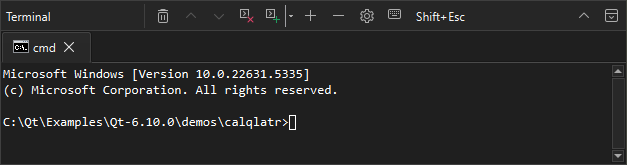
터미널에서 출력 결과 확인
- 터미널에서 단어를 선택하려면 해당 단어를 두 번 클릭하십시오.
- 줄 전체를 선택하려면 해당 줄을 세 번 클릭하십시오.
- 모든 텍스트를 선택하려면 컨텍스트 메뉴에서 ' Select All '를 선택하거나 Ctrl+A를 누르십시오.
- 브라우저에서 링크를 열거나, 편집기에서 파일을 열거나, 프로젝트 뷰에서 폴더를 열려면 해당 항목 위에 마우스를 올려놓고 Ctrl 키를 누르십시오.
- 출력 내용을 검색하려면 Ctrl+F를 선택하십시오.
터미널에서 ' Qt Creator ' 명령 실행
터미널에서 qtc 명령줄 옵션을 사용하려면 다음을 입력하세요:
qtc [option] [filename[:line_number[:column_number]]]
옵션을 보려면 다음을 입력하십시오:
qtc -helpQt Creator 변수 삽입
Qt Creator 변수의 확장된 값을 터미널에 삽입하려면 ‘ Insert Macro Variable ’ 목록에서 해당 변수를 선택하십시오.
키보드 단축키 환경 설정 지정
터미널 환경 설정이나 로케이터를 열거나 Qt Creator 를 종료하는 단축키를 제외하고, 대부분의 Qt Creator 키보드 단축키는 터미널에서 비활성화되어 있습니다. 터미널에서 Qt Creator 키보드 단축키가 간섭하지 않도록 하려면, ‘ Qt Creator 단축키가 우선 적용됩니다." src="images/keyboardlock.png" title="Qt Creator 단축키가 우선 적용됩니다."/> ’을 선택하십시오.
터미널을 종료하는 대신 터미널에 Esc 키를 전송하려면 ‘ Shift+Esc ’를 선택하십시오. 이를 기본 동작으로 설정하려면 ‘ Preferences > Terminal > Block shortcuts in terminal ’로 이동하십시오.
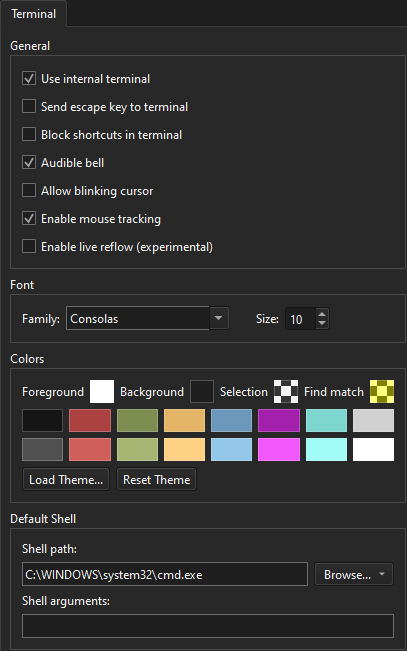
별도의 창에서 터미널 실행
터미널을 별도의 창에서 열려면 Preferences > Terminal 로 이동하여 Use internal terminal 의 체크를 해제하십시오.
Linux 및 macOS에서 시스템 터미널 사용
Linux 및 macOS에서는 Preferences > Environment > System 을 선택하여 터미널이 열리도록 설정할 수 있습니다.
‘ Qt Creator 변수 사용’, ‘출력 보기’, ‘명령줄 옵션’ 및 ‘키보드 단축키’항목도 참조하십시오 .
Copyright © The Qt Company Ltd. and other contributors. Documentation contributions included herein are the copyrights of their respective owners. The documentation provided herein is licensed under the terms of the GNU Free Documentation License version 1.3 as published by the Free Software Foundation. Qt and respective logos are trademarks of The Qt Company Ltd in Finland and/or other countries worldwide. All other trademarks are property of their respective owners.
