
8.2.8. Project Branching
A common use case is the analysis of VCS branches in a separate Dashboard project.
Important
A Dashboard project stores a single, linear history of analyzed versions—one timeline. New analysis results are therefore added sequentially: only one analysis run can add a new version to a given project at a time. Running several CI pipelines against the same Dashboard project in parallel (a potential mistake when setting up pull-/merge-request analysis) is not supported: the concurrent runs collide and only one of them will succeed.
Consequently, every line of development you want to analyze—whether a long-living branch or a short-lived pull/merge request—needs its own timeline. The section below summarizes the available options.
In software development a typical way of doing modifications is creating an exact copy of some state of the source code and then work on that, while other developers may be working on other copies of the source code. This way, no one interferes with the copies of the others and every copy has a well-defined purpose. Eventually, the changes of such a copy compared to its original are integrated back into some main or master copy.
Version Control Systems like Git assist with the maintenance and sharing of these copies
and also with the process of integrating the changes that were done on such
a copy. They have established the terms Branch for such copies and the term
Merge for when the changes of such a copy are reintegrated into the main copy
or branch.
Around these basic principles, several workflows have emerged, the most basic being
that of so-called feature branches as illustrated
here. These feature branches can live for quite some
time before they are merged back and then finally deleted.
Sometimes such branches are never merged back and continue to evolve on their own.
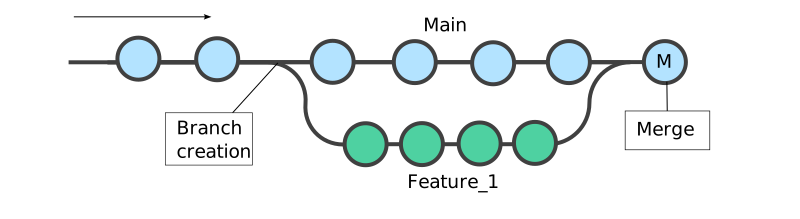
An Axivion Dashboard project
only tracks one VCS Branch, however it may be desirable to set up an additional
axivion_ci / Dashboard project corresponding to a Branch that starts out with a copy
of the original project, as the erosion findings are the same when the source code is
the same.
Over time, both the Main and the Branch project evolve differently regarding
erosion findings.
On the Branch project, one is typically only interested in findings introduced by
code changes on the corresponding VCS branch. It also would be nice, to somehow see
the relation between the Main and the Branch project and also to somehow be able
to copy annotations that were created on issues of
the branch project back to the corresponding issues on the main project after merging.
All of this is possible using tools and API we provide but it needs to be integrated into your automation system. Here you can see the basic steps and when they happen.
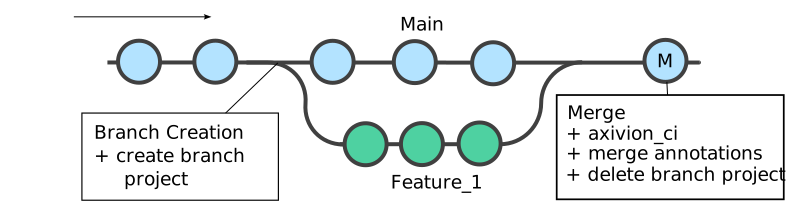
Note
Before reading ahead you should be aware that calling Dashboard APIs from an automation server requires storing credentials in it, so you should make sure to have read the section on axivion_ci authentication.
8.2.8.1. Choosing an Approach
Depending on whether you want the results to live in the Axivion Dashboard Server, and on whether the line of development is long-living or short-lived, pick one of the following:
Branch off an existing Dashboard project. Create a new project that starts from a copy of an existing project’s state, so that its findings are shown in relation to that origin. This is the approach detailed in the remainder of this howto. It is a good fit for long-living branches as well as for pull/merge requests for which you want the delta to be visible in the Axivion Dashboard Server. How you branch depends on the project’s database_mode: for
managed_uploadprojects, use the Dashboard Python API (see the example below); forshared_databaseprojects, copy the artifacts to a new name and register them in the Axivion Dashboard Server (see the example below).Create a new, empty Dashboard project on the fly. Run the analysis under a new, unique Project.name; the first analysis of that project becomes the baseline. Use this when you do not need any relation to an existing project.
Do not use the Dashboard at all. For pull/merge requests, the most lightweight option is to skip the Dashboard timeline entirely and publish the findings of the code change directly to the pull/merge request using annotate_pr.
Note
It helps to distinguish two use cases:
Branch analysis is the long-living counterpart to your main-branch analysis: a branch that exists for some time (e.g., analyzed nightly) and is eventually merged back. Use option 1 or 2, with one Dashboard project per branch.
Pull-/merge-request analysis is short-lived. Either use option 1 with one Dashboard project per pull/merge request or use the Dashboard-less option 3.
In either case, never let two pipelines analyze into the same project at the same time.
8.2.8.2. Branch Creation
Ideally, right after the VCS branch is created (but also at some later point in time), you have to create the Dashboard branch project. If your analysis configuration is under version control, that may very well be branched already. However, it may also contain the Project.name in a hard-coded way. This value must match the Dashboard project name, and thus hard-coding that name is even dangerous, as we usually want a copied configuration to correspond with a different Dashboard project and using the same project name for two different branches will actually result in both branches appending their analysis results to the same database.
You thus may want to configure Project.name
dynamically e.g. by setting it to MyProject-$(env:AXIVION_BRANCH_NAME) so your
automation system can somehow derive that value from the VCS branch and supply it when
invoking axivion_ci
(see Git Branch and Commit Hash).
Note
See here for some thoughts on choosing a good project naming scheme and here for some inspiration on how to derive some environment variable values from git.
Caution
In case of /Results/Dashboard/database_mode=shared_database you also need to ensure the uniqueness of the path names of all the enabled artifacts. Relevant config options for this are
The names of the IR file and the RFG file as well of the Annotation Database (.dbx) (created by the Dashboard) are automatically aligned to the Database filename.
Once you have taken care that your analysis project name and artifacts are unique,
it is time to branch the Dashboard project.
The way of doing this is fundamentally different depending on whether you have
/Results/Dashboard/database_mode set to
managed_upload or shared_database.
8.2.8.3. Merging of Issue Annotations
When new changes to the main branch are integrated into your long-living feature branch you will likely want to also have the new issue annotations of the main branch in the annotation database of your feature branch. Likewise, when the end of life of your feature branch is reached and you want it integrated back into your main branch you will also want to merge the annotations unique to your feature branch back to main.
This can be achieved using the tool merge_issue_annotations and the process is the same regardless of what database_mode you use.
merge_issue_annotations¶merge_issue_annotations --url https://your-dashboard/axivion \
--source_project prj_src --target_project prj_tgt
Note, that prj-src and prj-tgt need to be chosen in accordance with the
annotation copy direction, i.e. when integrating new changes from the main branch into
the feature branch, source is the main project and target the feature project and
when integrating a feature branch into the main branch it is the other way round.
In order for the script to work properly, you need to set
the environment variable AXIVION_USERNAME to the login name of
a (technical) Dashboard User
with at least the following permissions:
Log inViewView AnnotationsLow-Level Issue Annotation Control
All the permissions except for Log In are project specific, i.e. the technical user
can be limited to a certain project namespace, e.g. Team1-*.
The environment variable AXIVION_PASSWORD must be set to an ApiToken of type
General Purpose or Continuous Integration belonging to the user denoted by
AXIVION_USERNAME. Providing the password in the environment variable is also
possible but not recommended.
Caution
The Continuous Integration Token Type is only usable for this if your
Dashboard Server is running on at least 7.8.0. If it isn’t you’ll have to resort
to the General Purpose Token.
8.2.8.4. Branch Deletion
Once your feature branch is merged back into main and not needed any more, you likely want to delete the corresponding Dashboard project.
This may also be a good time to trigger the (final) invocation of merge_issue_annotations in order to sync your issue annotations. If you want to do that, you need to await one analysis run on the main branch (after the feature branch was integrated) and only then can do the last issue annotations sync and only afterwards delete the branch project.
Same as with creating the branch project, the procedure for removing it differs fundamentally, depending on which database_mode you use.
Branch Project Deletion with database_mode=managed_upload
Caution
Requires your Dashboard Server to be on at least 7.8.0.
With database_mode set to
managed_upload, deleting the branch project
merely consists of calling the delete API endpoint:
# Copyright (C) 2025 Axivion GmbH
# Copyright (C) 2025 The Qt Company GmbH, a subsidiary of The Qt Group
# https://www.qt.io


import os

from axivion.dashboard import ApiToken, Dashboard, Project

prj_feature = os.environ['FEATURE_PROJECT_NAME']

with Dashboard('https://dashboard.example', auth=ApiToken(os.environ['TOKEN'])) as d:
    Project(d, prj_feature).delete()
8.2.8.5. Automated Cleanup of Branch Projects
The general idea of automated project cleanup is to periodically (every 24h) delete Dashboard projects (including their artifacts !) that are related to a non-existing VCS branch.
Note
Automated cleanup is currently limited to projects using the Git Version Control
System and also requires that the branch option of the VCSIntegration Git
can be reflected from workspace (i.e., is not in detached head state) or has to be
manually set (see Git Branch and Commit Hash).
Note
This option may be dangerous if you want to merge back issue annotations before branch project deletion as it might be hard to ensure the four steps: VCS merge, axivion_ci (on main), merge_issue_annotations, and VCS branch deletion happen in exactly that order.
On the General Settings page of the Dashboard Server, you can enable the automated cleanup using the following options:
Trashing Projects
The Dashboard periodically (every 24h) scans for projects for which at least one of their
VCS branches does not exist anymore and trashes them. This means that the projects are
not permanently erased immediately but only removed from the Dashboard and marked for deletion.
This is done by renaming the files associated to that project with a .trash suffix.
Trash Active Projects– Active projects are installed ones. Both managed_upload and shared_database projects can be active.Trash Inactive Projects– Inactive projects are those that are not installed. Only shared_database projects can be inactive.
Deleting trashed Projects
The Dashboard periodically (every 24h) scans for projects that are marked for deletion
(i.e., have the .trash suffix in their filename) and deletes them from disk.
Delete *.trash files from shared_database projects– This will only delete shared_database projects that are marked for deletion.Delete *.trash files from managed_upload projects– This will only delete managed_upload projects that are marked for deletion.
Caution
Files deleted this way cannot be restored.