
5.1.4.8. Issue Annotations
The Issue Annotations feature allows for annotating issues and thus creating
customized review and issue handling workflows. Issue annotations are mainly Tags
and Comments that can be attached to issues after the analysis is completed.
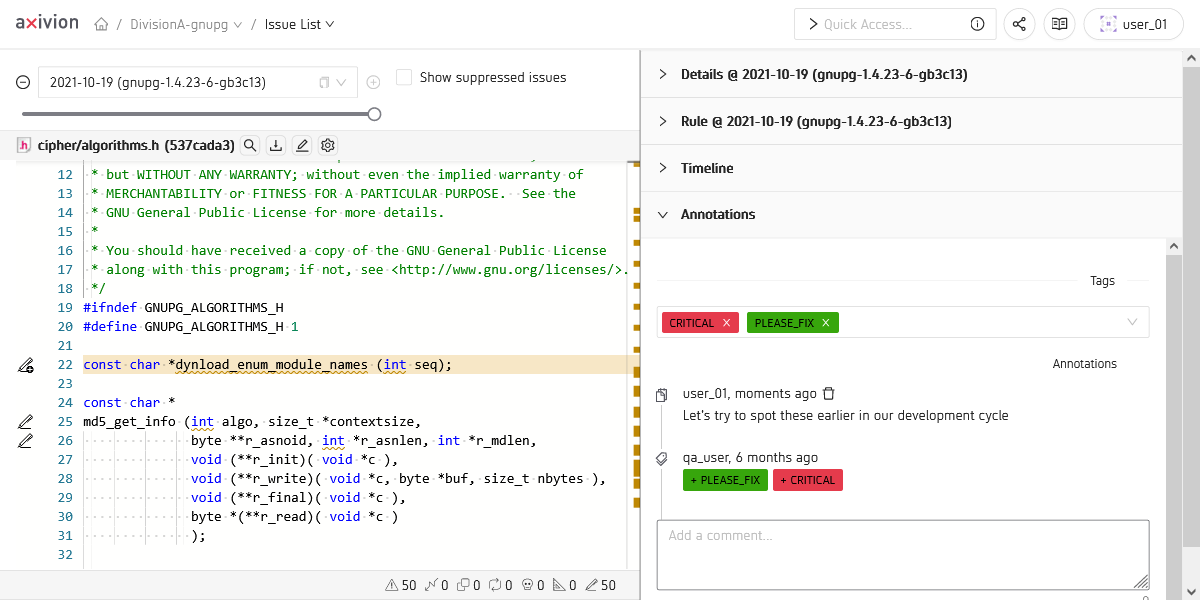
The Issue View showing annotations
In the Issue View sidebar there is an
annotations panel that can be used to associate plain text Comments and
more importantly Tags with issues. These Tags can later be used as a filter
criterion in the Issue Table.
Note
In order to see issue annotations the corresponding project-specific
permission is required. In order to also be able to change Tags or write
Comments another project-specific permission is required.
There are 2 more related permissions, one that allows to create new tags and also
gives access to the
Tag Management and another that
allows to delete the Comments of other users.
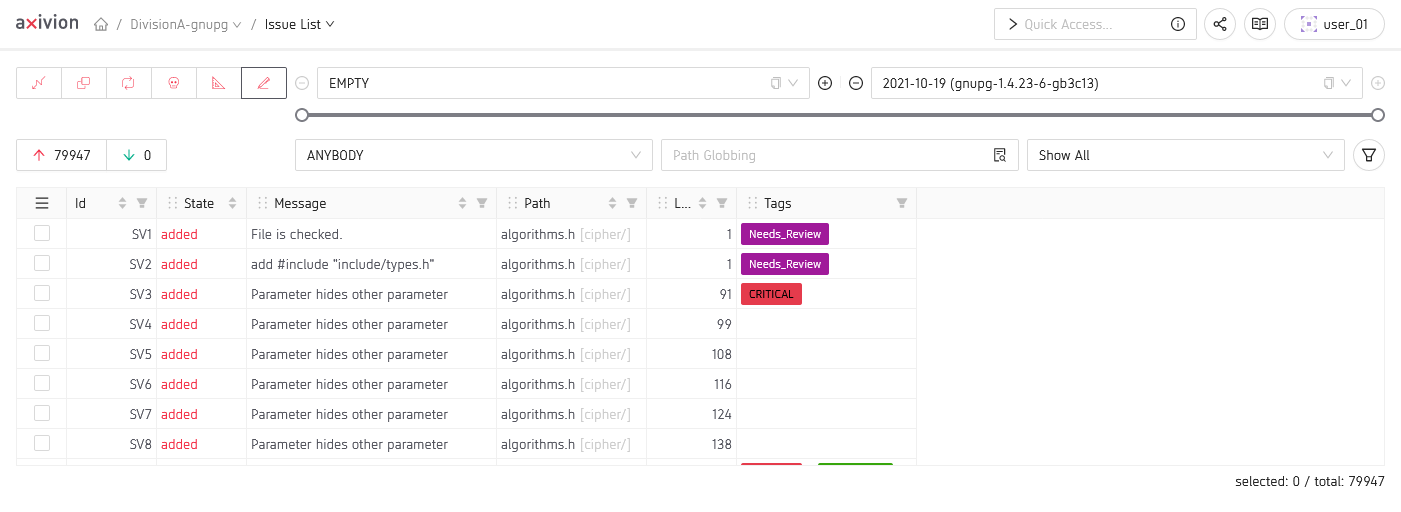
The Issue Table showing some tagged issues
Beside filtering by an issue Tag or a combination of multiple Tags, in
the Issue Table it is also possible to select
multiple issues and add or remove one or more tags to or from all of them at once
using the leftmost column and the hamburger menu in its header.
Caution
It is possible for issue annotations to get lost in case of analysis configuration errors, as the logic that connects found issues with previously found ones cannot know, whether an issue was not found because of configuration changes or whether it was actually resolved. In case of accidental configuration changes it is thus sometimes better to delete bad analysis versions.
Manage Issue Tags
On the Tag Management page you can configure the Issue Tags available for a project if you have the corresponding permission for a project. Besides creating and deleting you can also rename tags, change their color and add a description.
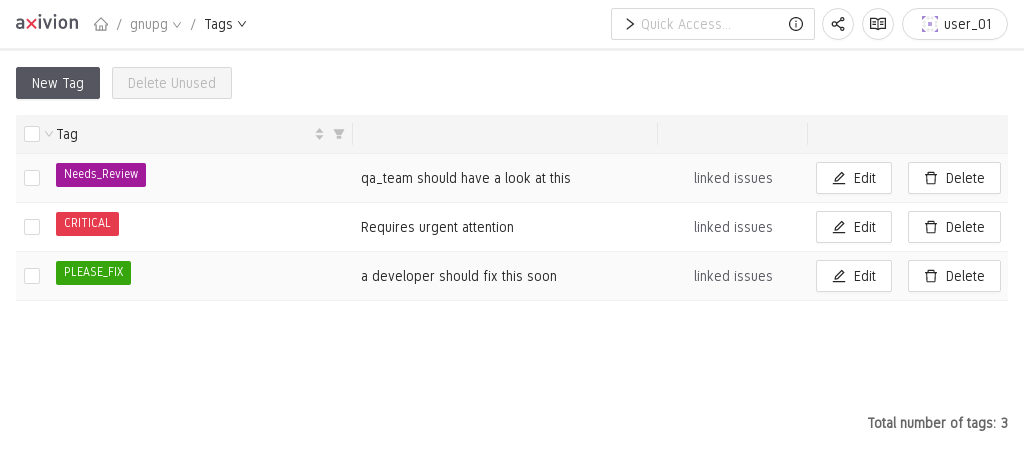
The Tag Management Page of a Project
There also is a button linked issues for every tag that allows you to jump
to the Issue Table filtered by occurrences of the
tag in the most recent version. Note, that this issue list will not necessarily show
you all tagged issues, as there may be issues with the tag that aren’t active in the
most recent version any more.
Additionally, it is possible to automatically delete unused tags, i.e.
tags that aren’t attached to any issue in the project, via the Delete Unused button.
Linking with JIRA Issues
If configured, there also exists a special annotation type that allows linking Dashboard and JIRA issues in a two way manner, i.e. the Dashboard issue will link to the JIRA issue and vice versa.
Depending on how the JIRA integration was
configured by the Dashboard
Administrator, it may be necessary for a Dashboard user to create a
JIRA Access Token before it is possible to create such links.
This JIRA Access Token will be stored with the Dashboard configuration and is only
usable by the Dashboard User that created it. The Dashboard User Interface will
guide users through that process.
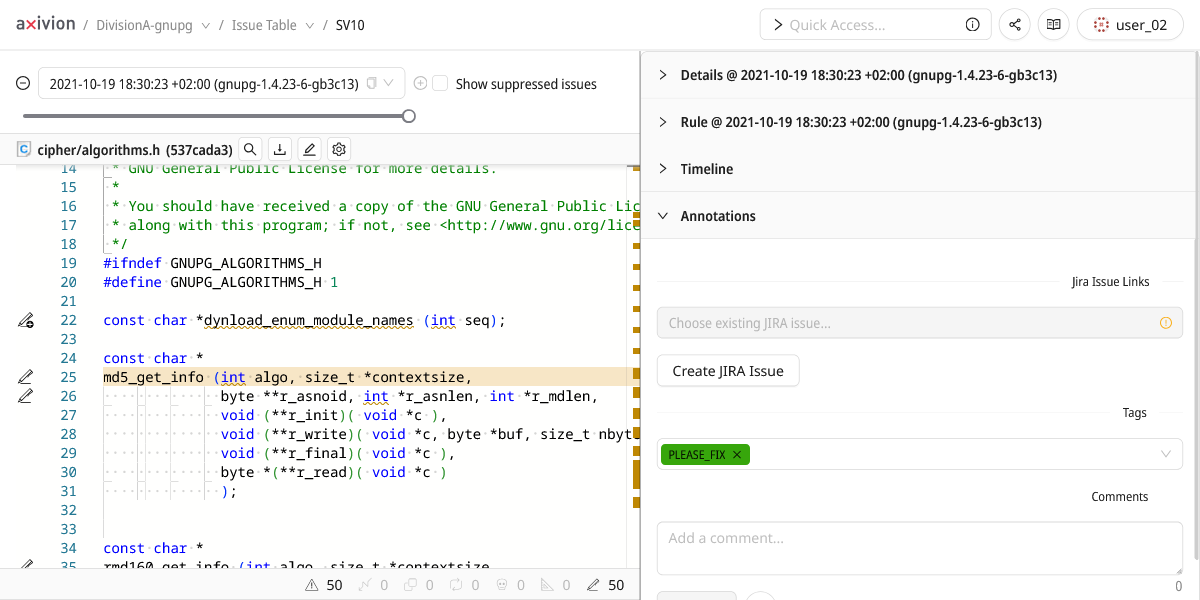
The Issue Annotations Panel with active JIRA integration
Once set up, the Issue Annotations panel can be used to link with existing
JIRA issues and it also provides a shortcut to simplify the creation of new JIRA issues
from an existing Dashboard issue. After creation, new JIRA issues still need to be
linked manually.
Disabling Issue Annotations
Administrators can disable the Issue Annotations feature per project and also configure whether newly added projects shall have the feature enabled initially.
With the feature disabled, the corresponding Tags columns will disappear from
the Issue Table and the Annotations Panel will disappear
from the Issue View.