
1.3.5. Dashboard Authentication Configuration
The Dashboard has three main methods for defining who is allowed to use it. These methods can be combined, and each has its own advantages and limitations.
- They are:
Furthermore, there is the option of allowing access without providing credentials, as well as proxy authentication — both of which can be considered features of the Internal User Database.
Anonymous authentication is the pre-configured and only possible way in evaluation mode.
1.3.5.1. Internal User Database
The Dashboard can do authentication completely standalone and without any external
source of authentication via its configuration database stored in the file
dashboard2.db, located in the Dashboard configuration directory.
It features a graphical
user management
that allows administrators to create and delete users and groups as well as to assign
permissions to them.
Both LDAP / Active Directory and OAuth2 / OpenID Connect (OIDC) based Single Sign-On (SSO) are integrated with it. That being said, the LDAP / Active Directory integration can be seen more as an extension augmenting users in the internal database with additional properties, while the OAuth2 / OpenID Connect (OIDC) based Single Sign-On (SSO) provided users are rather separate from the internal users and integration is mostly limited to assigning permissions.
Anonymous Authentication
Authentication-less access requires a designated user stored in the internal user database. All unauthenticated requests will then be treated as if they had been authenticated for that user.
This option is configured via the dashboard2/AuthenticationMethods/DefaultUser option
in the dashboard2.config file; it is still possible to explicitly authenticate
as a different user, though.
Proxy Authentication
Proxy authentication refers to integrating with the authentication system of an HTTP server that forwards all requests to the Dashboard HTTP server. Authentication in this case is done by the proxy, while permission and user properties are still read from the internal user database and, optionally, the LDAP / ActiveDirecotry chain.
<Node Key="AuthenticationMethods">
    <Binding Key="TrustedUserHttpHeader" Value="REMOTE_USER"/>
</Node>
Proxy authentication is configured via the
dashboard2/AuthenticationMethods/TrustedUserHttpHeader option
in file: dashboard2.config. This option specifies a HTTP header variable that
must be
set by the HTTP proxy to the Dashboard login name and is trusted as already
authenticated by the Dashboard.
Users can still fall back to the internal user database in order to, e.g., authenticate as a Dashboard admin user—given the proxy doesn’t prevent this.
Caution
When using this option you must ensure that untrusted users can only access the Dashboard via this tunnel and that the proxy always sets the configured HTTP header. Otherwise, users can forge that HTTP header and authenticate as any user they want.
Caution
Note that the Dashboard provided Application Tokens will very likely not work when using this approach.
1.3.5.2. LDAP / Active Directory
This authentication source is very tightly integrated with the Internal User Database, meaning that attributes and group memberships found in an LDAP directory are merely used to “augment” properties of an internal user that is transparently created in the internal user database upon first authentication.
Furthermore, when validating password-based credentials, the first password being checked is the one in the internal user database and if that already matches, the password check by the LDAP authenticator(s) will be omitted. However, additional attributes will still be queried from the configured LDAP authenticator(s).
LDAP authenticators are configured entirely via the dashboard2.config
configuration file located in the Dashboard configuration folder. Its structure
looks like this:
dashboard2.config.¶ <Node Key="AuthenticationMethods">
<Node Key="Enabled">
<Binding Key="1" Value="External1"/>
<Binding Key="2" Value="External2"/>
...
</Node>
<Node Key="Available">
<Node Key="External1">
<Binding Key="Type" Value="ActiveDirectory"/>
...
</Node>
<Node Key="External2">
<Binding Key="Type" Value="Ldap"/>
...
</Node>
...
</Node>
</Node>
Consider the two Nodes “Available” and “Enabled”. In the “Available” configuration, details of the different authenticators must be provided, whereas in “Enabled” the order of the LDAP authentication chain is defined. Authenticators defined in “Available” but not referred to in “Enabled” will not be active, but can still be tested on the general settings page.
Currently there are two concrete LDAP authenticator types available:
- LDAP
This is the generic one that requires a lot of configuration options but is flexibly configurable to integrate with most LDAP protocol compatible server implementations out there.
- ActiveDirectory
This authenticator is based on the LDAP one, but requires much less configuration options. Those that it has are similar to the ones of the LDAP authenticator, but in the best case all you need to do is to enable it and be done. It is basically preconfigured for straight-forward usage with an Active Directory server and also leverages the fact that your Windows User Account is already authenticated with the Active Directory Server when the machine is joined into a domain. This authenticator is only available on Windows.
Caution
Be sure that your Dashboard uses secure communication when talking to an LDAP compatible server so passwords are not transmitted in clear text, see Securing Communication with other Services.
These authenticators are able to look up full names and e-mail addresses of users, as well as membership in a configurable set of LDAP groups, i.e., those LDAP groups that are granted any permission in the Dashboard. Full Name and E-Mail address can be overridden locally in the user management.
The “chain” defined by the “Enabled” node can have any number of different authenticators. If it doesn’t contain any, no LDAP/Active Directory will be used. If it contains multiple configurations, then the first one where the user to look up is found is the decisive one.
Caution
LDAP/ActiveDirectory users are not automatically deleted from the internal user database when they are deleted from the LDAP/ActiveDirectory server. To prevent these users from being usable in the Dashboard (via internal password or Dashboard provided Application Tokens) after deletion from your LDAP/ActiveDirectory server you have to make sure that the Login permission is only granted to these users via an LDAP group membership.
Authenticator testing
In order to assist you with the configuration of your LDAP authenticators the
dashboard has some buttons to Test User Authentication,
Search Users, Search Groups and to Query known
Users, see The authenticator test section of the global settings page on the
general settings page. You will need to
examine the output shown after triggering the individual buttons in order to verify your
authenticator configuration actually does what you expect it to do. There may be
warnings giving you valuable hints on how to improve your configuration.
These buttons also give you assistance in trusting the server certificate if necessary.
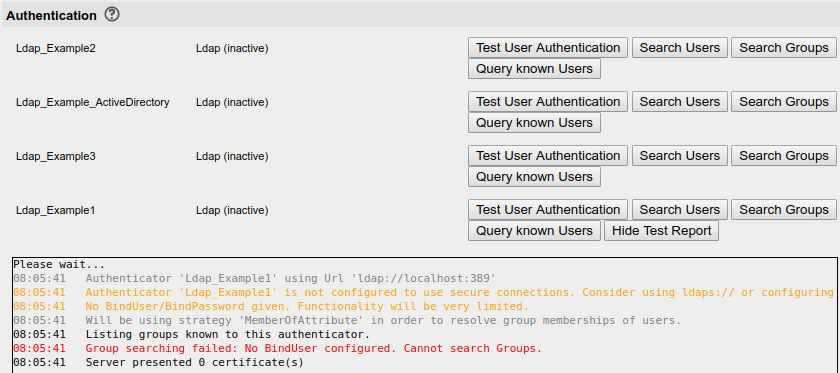
The authenticator test section of the global settings page
- Test User Authentication
basically does the same that happens on the dashboard login and may provide insight in case a user cannot log in to the dashboard.
- Search Users
is what happens, when the dashboard searches for users, i.e. when you search external users while typing.
- Search Groups
is what happens, when the dashboard searches for groups, i.e. when you search external groups while typing.
- Query known Users
is what happens in user-management or when sending notification mails.
LDAP Configuration Options
The generic LDAP authenticator is able to read and authenticate Dashboard Users from LDAP servers via the LDAP protocol. It has quite some configuration options and its configuration tends to be difficult and requires some expertise in the structure of your company’s LDAP directory. If you are in a Windows domain environment and your Dashboard is running on a Windows machine joined into the domain we recommend using the ActiveDirectory authenticator instead as it is easier to configure.
<Node Key="Available">
<Node Key="Ldap_Example">
<Binding Key="Type" Value="Ldap"/>
<Node Key="Properties">
<Binding Key="Url" Value="ldap://localhost:389"/>
<Binding Key="StartTls" Value="true"/>
<Binding Key="BindUser"
Value="cn=admin,ou=users,dc=example,dc=com"/>
<Binding Key="BindPassword" Value="secret"/>
<Binding Key="UserSearchBase" Value="CN=Users,DC=Example,DC=Com"/>
<Binding Key="UserSearchFilter"
Value="(&(sAMAccountName={0})(objectClass=user))"/>
<Binding Key="UserIdAttribute" Value="sAMAccountName"/>
<Binding Key="GroupSearchBase" Value="CN=Users,DC=Example,DC=Com"/>
<Binding Key="GroupSearchFilter"
Value="(&(sAMAccountName={0})(objectClass=group))"/>
<Binding Key="GroupIdAttribute" Value="sAMAccountName"/>
<Binding Key="MembershipResolutionStrategy"
Value="MemberOfAttribute"/>
<Binding Key="MemberOfAttribute" Value="memberOf"/>
</Node>
</Node>
</Node>
For a complete list of available options see the commented out example in the
file dashboard2.config, see Section Initial Configuration.
- Communication Encryption
In order to encrypt communication between the dashboard and your LDAP or Active Directory Server you can specify your Url to begin with “ldaps” instead of “ldap” and adjust the TCP port or set the “StartTls” Binding to “true”. Of course your LDAP server must support this kind of connection and you might need to make your dashboard server trust the LDAP server certificate. Also, please note that “StartTls” can only be used together with “ldap” and not “ldaps”.
- BindUser
In most configurations you will need a
BindUserand aBindPasswordthat the dashboard can use to authenticate itself with the directory and query user information.- User discovery
User discovery is done via LDAP Searches. Therefore, you need to configure
UserSearchBase, i.e., a distinguished name where the LDAP Searches shall start from,UserSearchFilter, i.e., the LDAP Filter used for the search, andUserIdAttribute, the attribute determining the login name. As an alternative, user discovery can be done using the configuration keyUserGroup, which accepts a list of LDAP users and LDAP groups that all will be reported as members of one single Dashboard group. In this case, users will not be looked up via LDAP searches but rather via traversal of the LDAP using themember-Attribute (configurable viaMemberAttribute).- Group resolution
Group resolution can be configured via
MembershipResolutionStrategy. Here you can choose between the strategiesGroupFilter,MemberOfAttribute, andUserGroup. Alternatively, simply disable group resolution completely and assign a default group membership to all users via the value:None. Each strategy has additional configuration options that need to be configured in order to work properly, see thedashboard2.configtemplate file.
ActiveDirectory Configuration Options
The ADSI (Active Directory Service Interfaces) authenticator is the recommended authenticator in Windows domain environments. It requires the OS user running the Dashboard being a domain user.
<Node Key="Available">
  <Node Key="Adsi_Example">
    <Binding Key="Type" Value="Adsi"/>
    <Node Key="Properties">
      <Binding Key="UseSsl" Value="True"/>
      <Binding Key="UserSearchBase" Value="CN=Users,DC=Example,DC=Com"/>
      <Binding Key="GroupSearchBase" Value="CN=Users,DC=Example,DC=Com"/>
    </Node>
  </Node>
</Node>
For a complete list of available options see the commented out example in
file: dashboard2.config, (cf. Section Initial Configuration).
The option UseSsl ensures that communication with Active Directory
happens in a secure way as provided by the underlying Windows API.
Other configuration options are similar to the generic LDAP Authenticator. But most things should work out-of-the-box, i.e., you should be able to search users and groups while typing from within the Dashboard.
1.3.5.3. OAuth2 / OpenID Connect (OIDC) based Single Sign-On (SSO)
This feature is documented in Section OIDC setup.