
5.1.2.9. OAuth2 / OpenID Connect (OIDC) based Single Sign-On (SSO)
Instead of entrusting the dashboard server with your users’ SSO credentials (to pass them on to an LDAP/ActiveDirectory server), you may prefer to use an OIDC based Authentication Provider to check those credentials and forward the authentication to the dashboard.
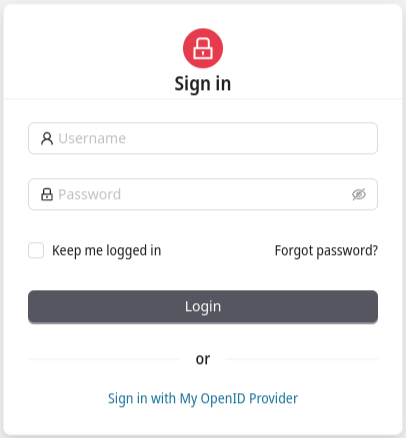
Login Mask with OIDC enabled
Note
Using OIDC is possible since 7.8.0, currently with the limitations listed below. Apart from those we consider the feature stable and safe for daily use. Mixed use of regular password authentication users and OIDC authenticated users is possible.
Once the feature is configured, the Login Mask
will show an alternative way to log in, that redirects users to your Authentication
Provider. The label text My OIDC Provider comes from the Provider Name field of
the OIDC Provider configuration.
Note, that the value for the Provider Name field must be chosen carefully, because
it is not possible to change it later on for security reasons.
That value will also be part of the Redirect
URI, that you need to configure within your OIDC Provider. The URI will be of the
following form:
https://your-dashboard.example.com/api/oauth2/{providerName}/authenticate
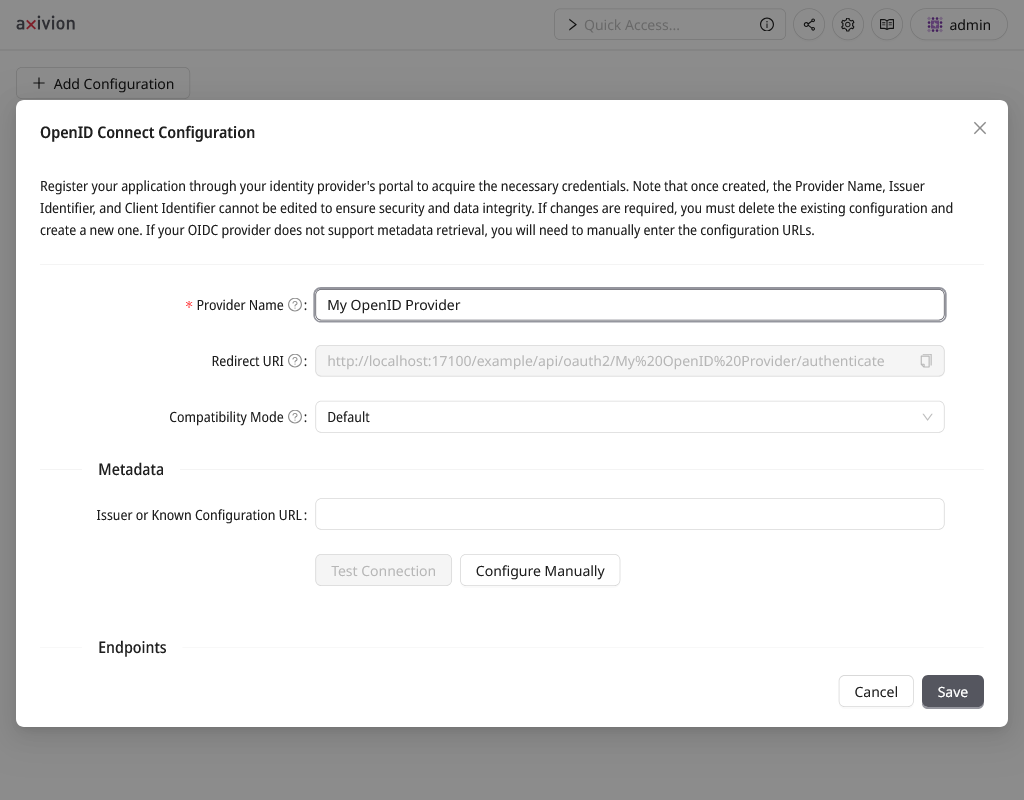
OIDC configuration mask
This mask can be reached via the Add Configuration button on the
Single Sign-On / OIDC page and guides you
through the steps of the OIDC configuration.
Note, the Known Configuration URL is defined as <Issuer URL>/.well-known/openid-configuration in the OpenID Connect specification.
After you have filled in the initial configuration and pressed the Test Connection button, the dashboard will try to autodetect the remaining configuration
options and will give you the possibility to alter them before saving and activating
the configuration. Those options are explained in the UI itself.
Typically you only need to adjust the Groups Claim Name and the Compatibility Mode.
The Default compatibility is meant for providers which require to manually configure
claims like name, groups and send refresh tokens out of the box.
Switch to profile+offline_access compatibility if your provider prefers these scopes for configuration.
The groups claim is crucial for being able to assign permissions to authenticated OIDC users.
Caution
OIDC users and groups are associated with a provider configuration, so deleting a provider configuration will also delete the associated users and groups from the Dashboard.
Groups and Permissions Configuration
The Groups Claim Name is the name of the user property requested from the OIDC
Provider, that is expected to contain the names of the groups the authenticated user
is a member of. Here you most likely will have to tweak the configuration of your
OIDC provider in order to send something useful, because sending group memberships
or roles of a user is not standardized and OpenID Provider (OP) implementations do this
differently by default. In general, the dashboard requires a list of simple group or
role names, e.g. the information that the authenticated user is a member of the groups
developers and team_1. Those group names must be configured in the OP to
arrive at the dashboard as those plain group names and not via some OP internal group
ID (using those is possible as well, however those IDs typically do not carry any
intrinsic meaning).
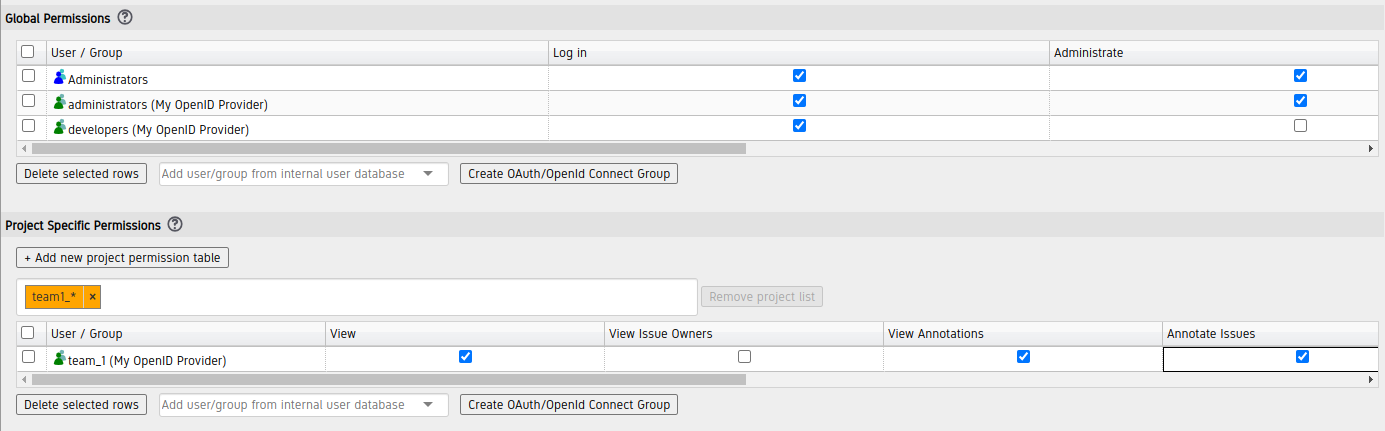
Adding an OIDC group for assigning it permissions
In the example, on the
dashboard permissions configuration
page you would then typically assign the OIDC group developers with the
permission to Log In and the group team_1 with the permission to view the
results of the projects owned by Team 1. Note, that the button to add OIDC groups on
the permissions page only appears once you have successfully configured your OpenID
Provider. Also be aware that the group names must exactly match with the OP provided
group names (case-sensitive).
It is difficult to know whether the OP is configured properly regarding the
sending of group information. In order to get some insight into what is arriving at
the dashboard you can configure
logging to the DEBUG level
(requires a restart) and inspect the messages logged when someone tries to log in.
The relevant log messages would look similar to these:
2024-05-17 11:18:51 +02:00 DEBUG: Fetched and validated OAuth2/OIDC tokens using
    issuer 'My OpenID Provider' with 'AuthorizationCodeGrant':
    IdToken{
        displayName='admin@example.com',
        iss='https://oidc.example.com/123/', sub='2903582309823094',
        expWithSkew=2024-05-17T10:19:50Z, iat=2024-05-17T09:13:50Z, authTime=null,
        cHash='null', atHash='null',
        groups=[8f9c0424-8f80-4b29-9d12-463b28aa42a6, 755981dd-0f48-44d4-9e20-15d8932eb31e]'
    }
2024-05-17 11:18:51 +02:00 DEBUG: Authenticated and merged OAuth2/OIDC id token using
    issuer 'My OpenID Provider':
    IdToken{
        displayName='admin@example.com',
        iss='https://oidc.example.com/123/', sub='2903582309823094',
        expWithSkew=2024-05-17T10:19:50Z, iat=2024-05-17T09:13:50Z, authTime=null,
        cHash='null', atHash='null',
        groups=[administrators, developers]'
    }
In the above, at the very end you can see the received group names administrators
and developers that can be used to assign permissions.
Logout / End Session Configuration
When clicking the logout button in the navigation bar, the Axivion Dashboard Server tries to also end
the session at the OIDC Provider. When finished, the OP will redirect back to the Axivion Dashboard Server base
URL. As all redirect URIs need to be registered at the OP beforehand, please add the Axivion Dashboard Server base URL
to the list of allowed post logout redirect URIs.
If your OIDC Provider does not have a separate section for post logout redirect URIs,
please use the default Redirect URIs section.
Microsoft Entra / AzureAD specific hints
In order to be able to properly receive groups from Microsoft Entra, some specific configuration is needed. You should be able to configure the Entra behavior in this regard per application, so there is no risk of breaking other applications.
Note, that there may be several ways to configure this. Basically what is needed is
that one of the claims sent by Entra to the Dashboard upon login contains a list
of the names of the groups, the current user is a member of.
That claim then needs to be configured via
the Groups Claim Name option. In the
screenshot you can see how to configure Entra
to use the roles claim for that purpose. In the screenshot, the red border marks the
button used to open the right pane that allows to include the groups
information in the Token received by the Dashboard.
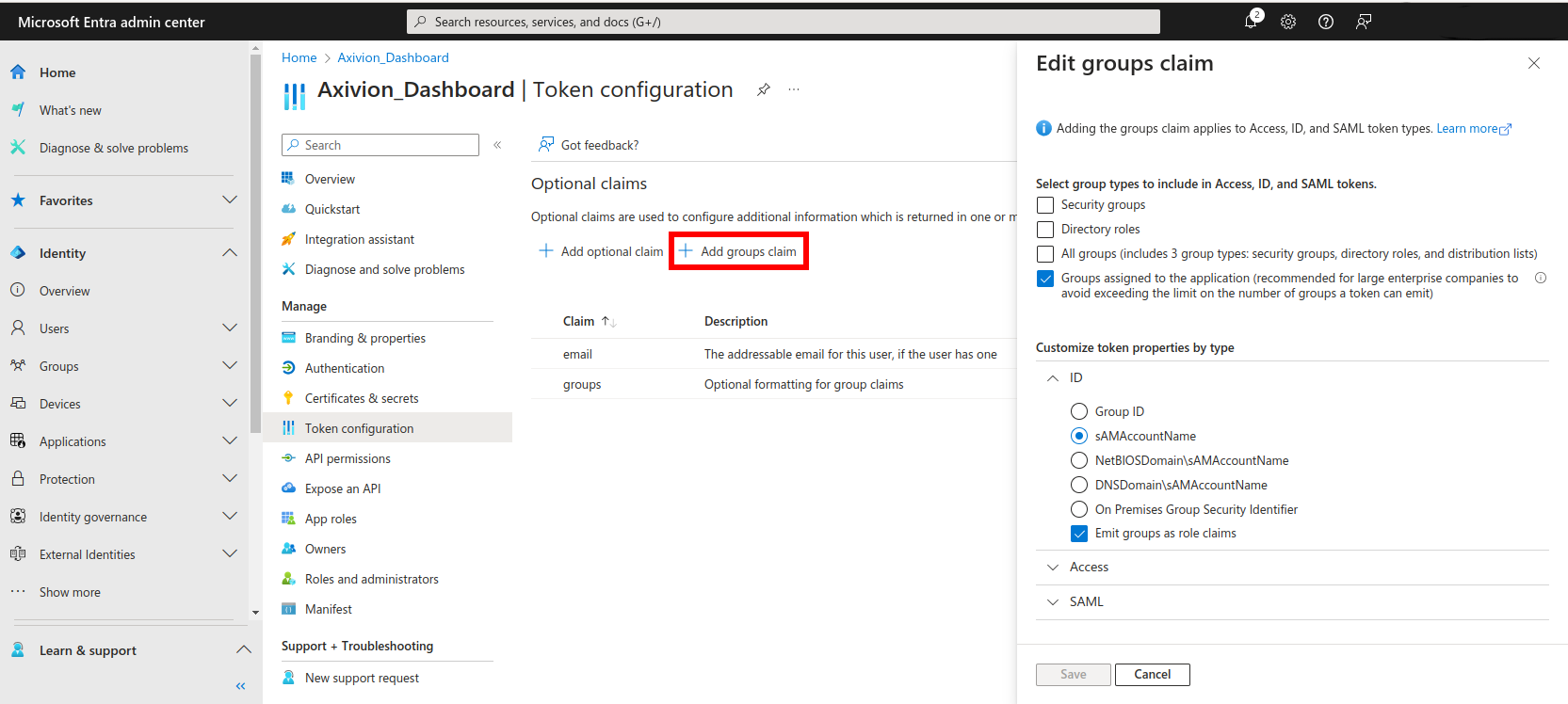
Configuring Entra to send group names instead of IDs
By default, the roles checkbox is not checked and, depending on your Microsoft Entra configuration,
groups are sent as UIDs via the groups claim, which can be difficult to reason about.
We encourange the use of roles, as many Entra groups can be mapped to a single role, and roles are sent as plain strings.
To create roles, navigate to the App roles tab and link them to groups and users
via Enterprise Applications > Axivion Application > Users and groups.
If the roles indirection is unwanted, one non-obvious way is to specify the cloud_displayname property in the manifest tab.
This will replace group UIDs with names and the Groups Claim Name must remain set to groups.
Also see Microsoft’s documentation regarding groups claim.
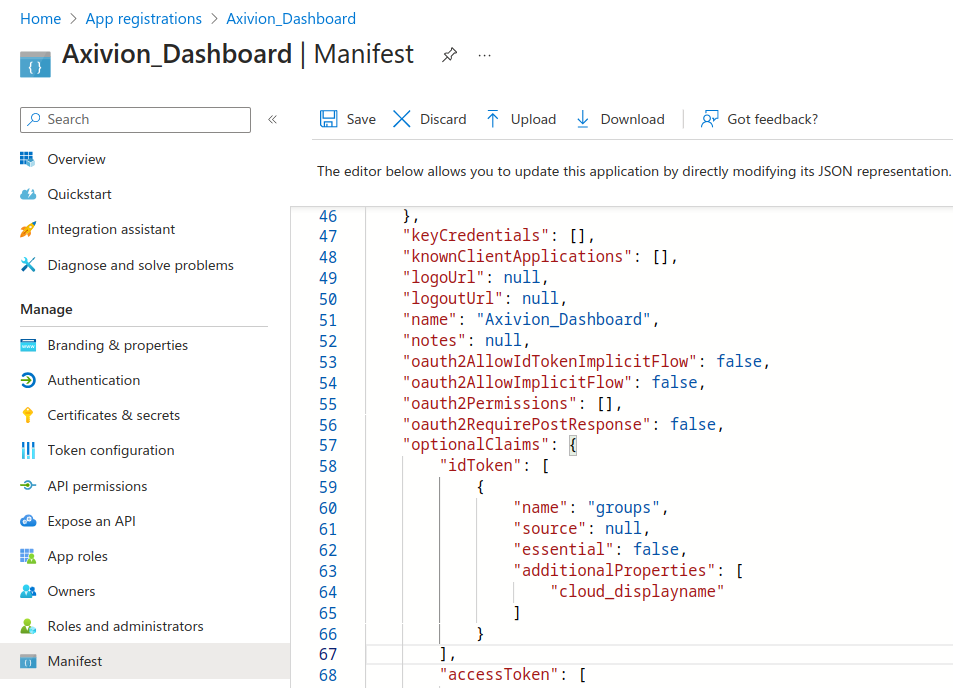
Configuring plain names for Entra groups
As of now, you will need to inspect the log files as documented in the
permissions section in order to find out, what actually arrives
at the Dashboard when your users get an InsufficientPermissionException after
logging in.
To create API tokens, OIDC (OpenID Connect) must be configured in Microsoft Entra mode. This involves switching the compatibility mode from Default to Microsoft Entra.
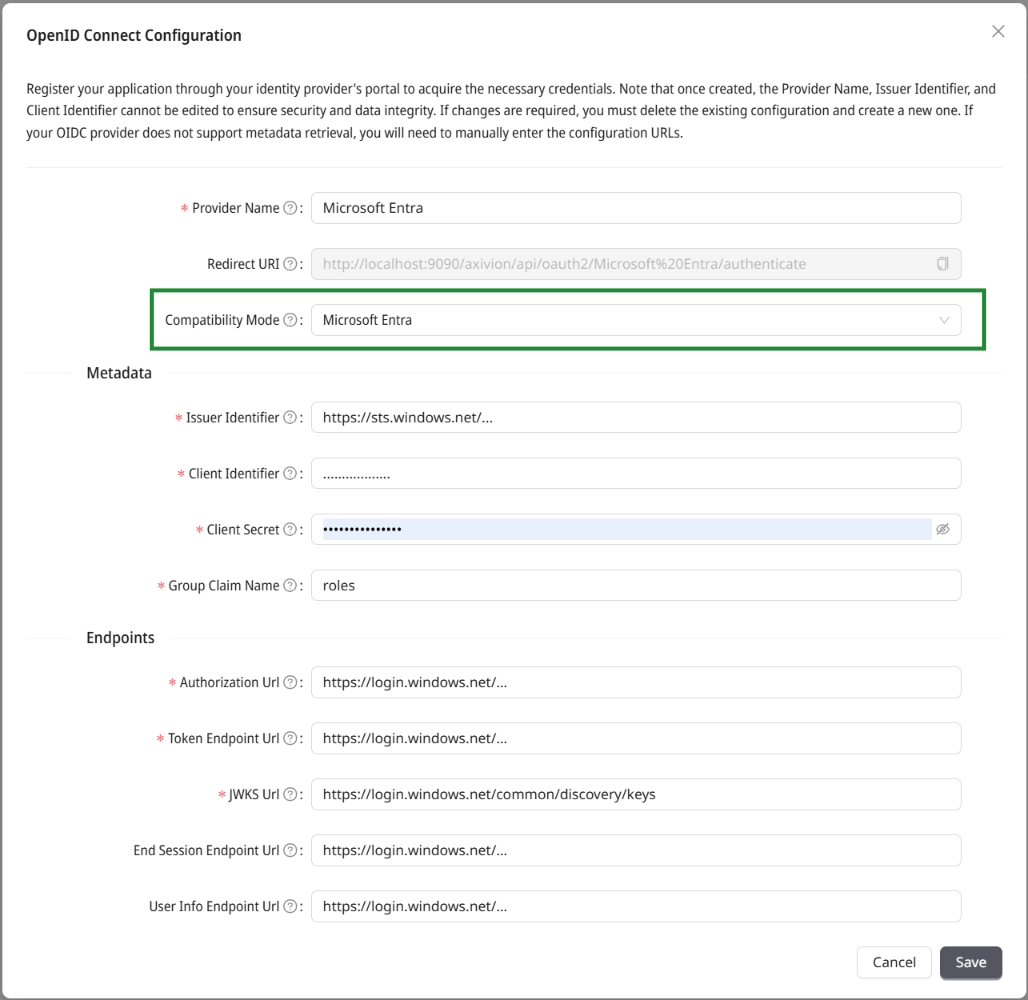
Let the Axivion Dashboard know that you are using Microsoft Entra
Okta specific hints
Activate refresh token grant, so the dashboard server can maintain an ongoing session.
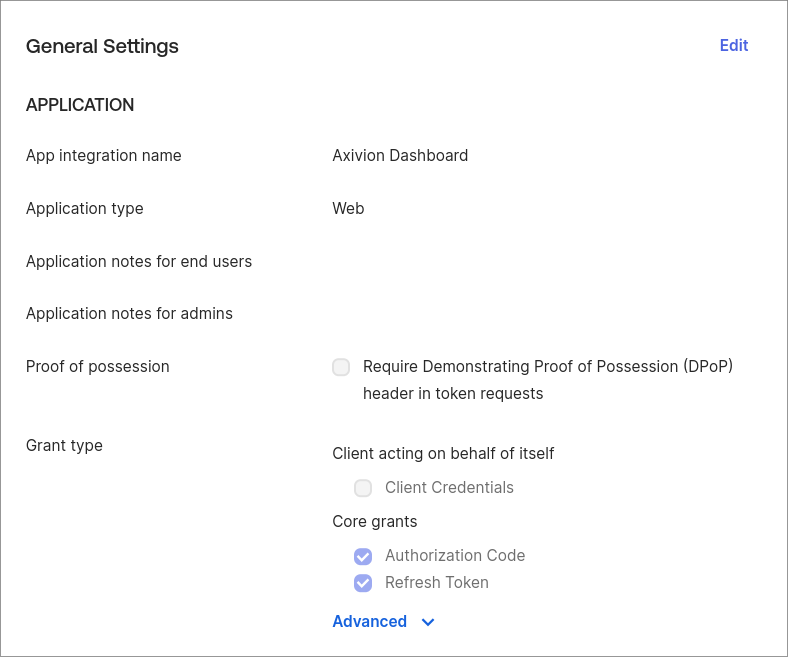
Enable refresh tokens
The option to rotate the refresh token can be safely enabled as the Axivion Dashboard Server will always use the last provided refresh token.
Under Sign-in, configure the OpenID Connect ID Token setting to always send the groups claim. The groups claim is mandatory for permission management inside the Axivion Dashboard Server.
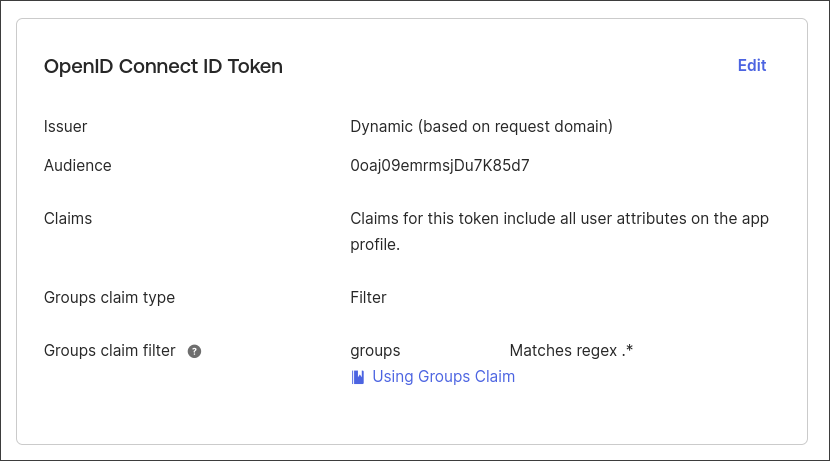
Setup sharing groups with the Axivion Dashboard
Note
On logout, the Axivion Dashboard Server won’t redirect to Okta and try to end the session there. This is currently a known limitation.
PingID specific hints
Using PingID as OpenID Connect Provider requires the configuration of additional scopes and claims.
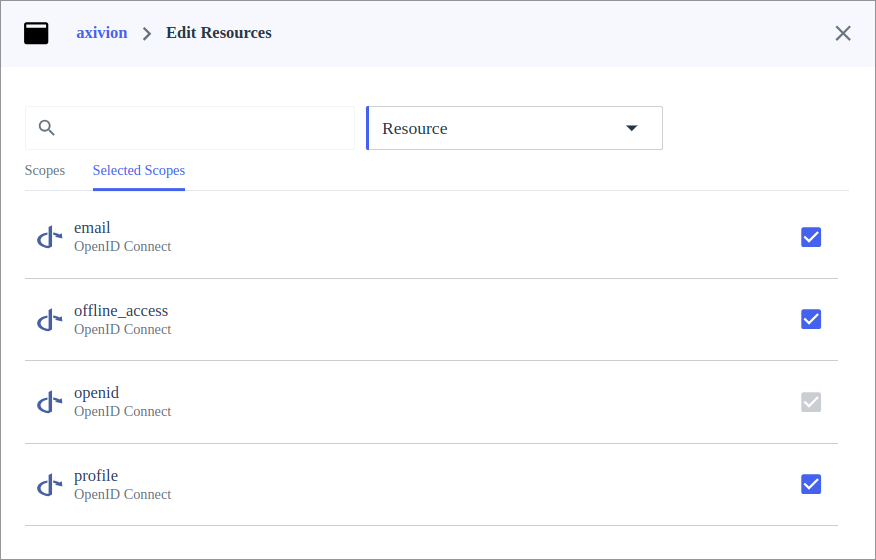
Configuring Scopes
The profile scope provides different name claims which are used to choose a display name in the Axivion Dashboard Server. The email scope provides the email claim which is used for the display name when no other name claims are present. In the future it will be used for email notifications. See limitations. The offline_access scope is used to allow the Axivion Dashboard Server to prolong an ongoing session without users having to authenticate every couple of minutes.
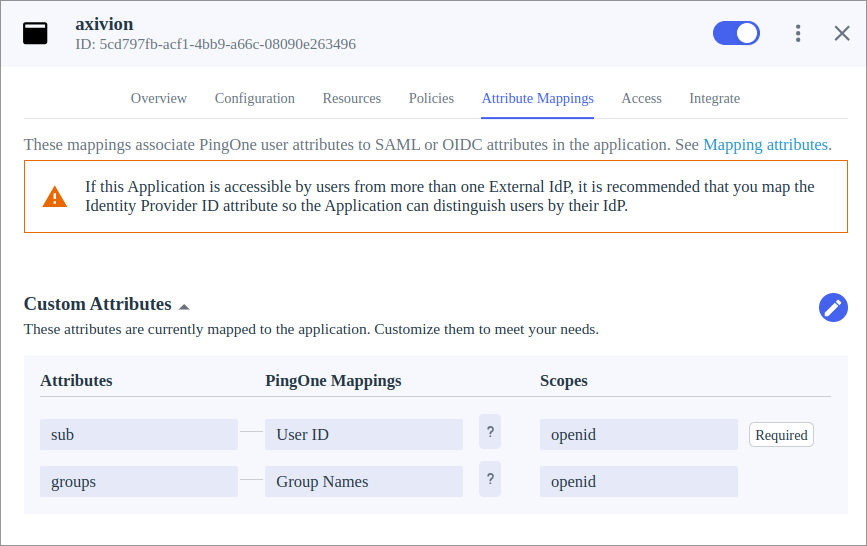
Configuring Claims
The groups claim is mandatory for permission management inside the Axivion Dashboard Server.
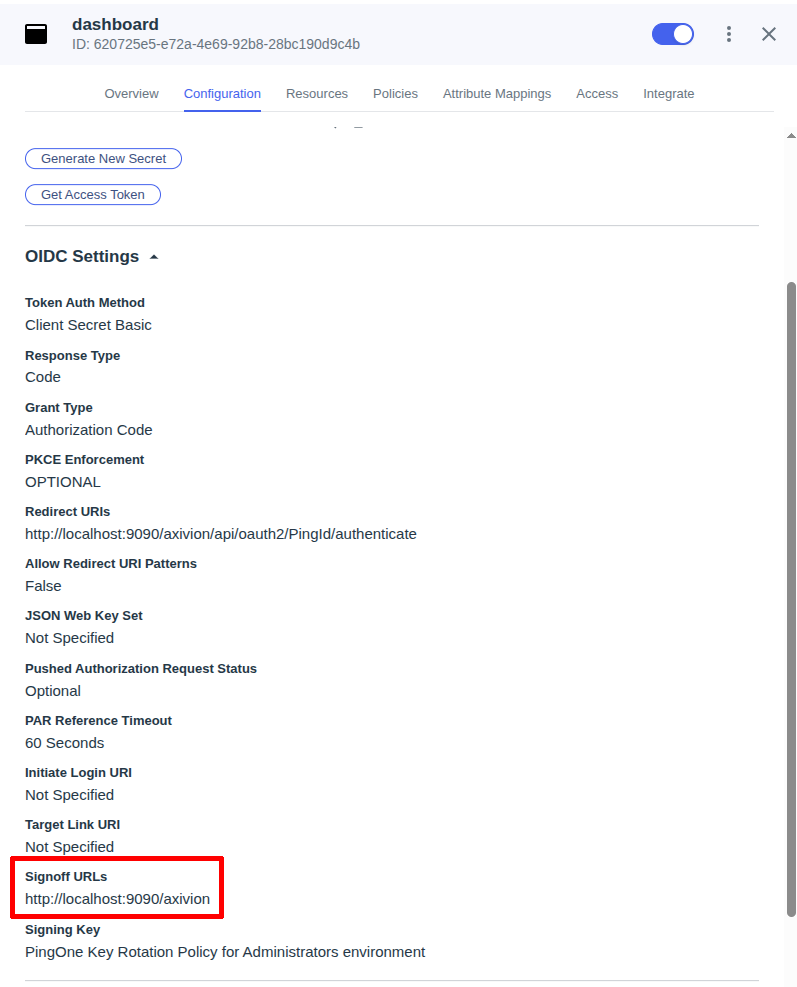
Configuring Logout Redirect URI
On logout the Axivion Dashboard Server will redirect to PingID to end the session.
After the session end, PingID will redirect back to the Axivion Dashboard Server.
For this, PingID needs the Signoff URL to match the Axivion Dashboard Server base path.
goauthentik specific hints
Choose profile+offline_access compatibility.
Keycloak specific hints
Choose profile+offline_access compatibility.
In Keycloak go to Client Scopes, choose to edit the profile scope and
add a predefined mapper groups.
Limitations
As mentioned above, the OIDC integration currently has some limitations.
- VCS user mapping
OIDC users currently cannot be mapped to VCS Users. This means that, when logged in as OIDC user, there will be no
ME-filter in the issue list and other users with theView Issue Ownerspermission will not be able to see issue ownership by dashboard user (only by VCS user).- E-mail Notifications
OIDC users currently cannot be notified via e-mail about newly added or removed issues, mostly because accessing their e-mail address in a non-authenticated context requires the so-called
offline_accessconsent, which we do not request so far.- Custom Named Filters and API Tokens in Dashboard API Python Wrapper
Managing custom named filters and API tokens of OIDC users in the Dashboard API Python wrapper is currently not possible.
- User Management
OIDC users currently do not appear in user management, i.e. admins are unable to view the time of last login or other properties of individual OIDC users. Many OIDC user properties e.g. e-mail address, group memberships etc. are required to be provided by the OpenID Provider and no addition / override can be defined in the Dashboard. Some of these limitations may never be removed completely.
- Keep me logged in
This checkbox on the log-in page (aka
remember me) currently has no effect for OIDC logins, which means users may need to re-enter their password with the OpenID provider when they close and reopen their browser (depending on how their browser treats session cookies).