
3.1. Source Code Analysis Setup Guide for C and C++
This guide provides an overview of the setup process for Axivion static code analysis for C and C++ projects. It assumes that you already have a working Axivion Suite installation and have configured an instance of the Axivion Dashboard Server.
3.1.1. Overview
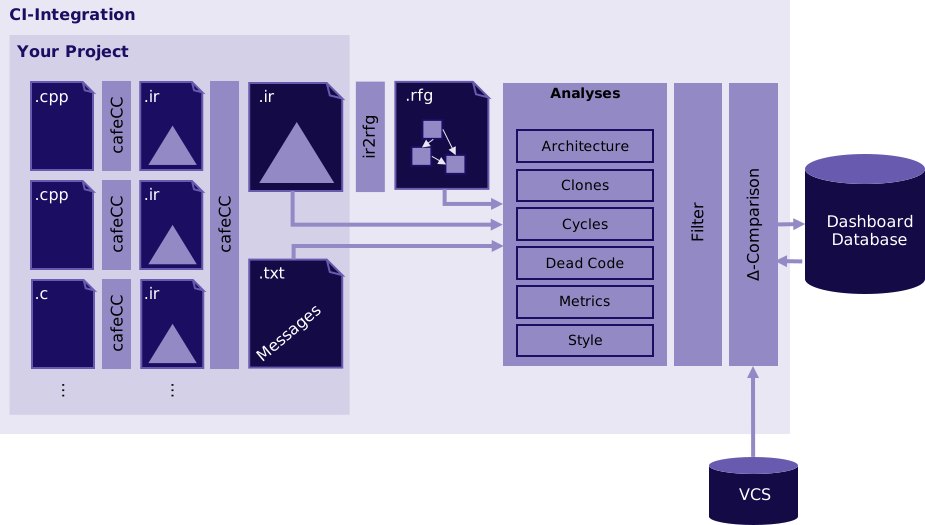
Diagram illustrating the C and C++ analysis CI workflow with Axivion
Unlike conventional static code analysis tools/linters, the Axivion Suite not only performs analyses at the source code level, it also extracts a model of the code and its dependencies. This abstraction is called “Resource Flow Graph” (RFG). A detailed description of the contents of an RFG for the C and C++ programming languages is available in Language Representation for C and Language Representation for C++, respectively.
The build integration of the Axivion Suite for C and C++ works by replacing the original
compiler in the project’s build system with the Axivion compiler wrapper cafeCC.
cafeCC behaves like the original compiler but gathers analysis data and
produces IR unit files instead of generating object files. These IR unit files are then
linked into an IR system file that describes the whole system and is
used as the basis for all analyses.
For cafeCC to correctly emulate the original compiler, it must be configured with
a compiler profile that matches the original compiler’s default settings (language version,
dialect, predefined macros, system include paths, and type sizes). The project wizard in
axivion_config guides you through the initial setup including the compiler profile.
3.1.2. Prerequisites
Before setting up Axivion analysis for C and C++, ensure your system meets the following requirements, in addition to installing the Axivion Suite and setting up the Axivion Dashboard Server:
3.1.2.1. Project Requirements
Command-Line Build
The project must be buildable from the command line. This is required because the original compiler toolchain needs to be substituted with
cafeCCtoolchain during the analysis build.Compiler Substitution
The build system must support replacing the compiler executable with
cafeCC. This is straightforward for Makefile-based projects (if you can override compiler/linker variables) via MakeIntegration.Other build systems are supported via the following build actions:
AxivionCompiler: Use Axivion C/C++ compiler and linker directly on source files without build system
AxivionLinker: Use Axivion C/C++ linker directly, with no build system
Command: Use arbitrary custom command for analysis compilation
CompileCommandsIntegration: Use compile_commands.json database for analysis compilation
CMakeIntegration: Use CMake for analysis compilation
GHSIntegration: Use Green Hills Software project file (.gpj) for analysis compilation
IARIntegration: Use IAR Embedded Workbench project file (.ewp/.eww) for analysis compilation
KeilIntegration: Use KEIL μVision project file (.uvprojx) for analysis compilation
MesonIntegration: Use Meson for analysis compilation
MSBuildIntegration: Use MSBuild for analysis compilation
QMakeIntegration: Use qmake for analysis compilation
RenesasIntegration: Use Renesas CS+ project file (.rcpe) for analysis compilation
Supported C Language Versions
K&R C
ANSI-C 89
ISO-C 90 to ISO-C 18
ISO-C 23 (partially)
Supported C++ Language Versions
ISO-C++ 98 to ISO-C++ 17
ISO-C++ 20 and 23 (partially)
GNU, Microsoft, and Clang language extensions are also supported when enabled via the compiler profile configuration.
3.1.3. Initial Setup
Before the Wizard: Verify Your Build
Before configuring Axivion, ensure your project builds successfully from the command line.
If the build fails, resolve all build issues before proceeding with the project setup.
Use the Project Wizard
The Project Wizard in axivion_config guides you through
the basic configuration setup for C and C++ projects. It creates the necessary configuration
files and handles the standard project settings (project name, directory, VCS integration,
and dashboard connection).
The wizard will store the configuration files in the directory specified during setup. It is recommended to commit these files to your version control system, as this keeps the configuration organized and makes it easy to track changes.
To start the wizard, launch axivion_config without setting the
BAUHAUS_CONFIG environment variable:
:: Windows
axivion_config
# Linux/macOS
axivion_config
The wizard will walk you through selecting the build system, compiler toolchain, and VCS for your project.
After the Wizard: Verify Your Build
Once the wizard has generated the configuration files, ensure your project builds successfully using the generated analysis script before proceeding:
:: Windows
axivion\start_analysis.bat > build.log 2>&1
# Linux/macOS
./axivion/start_analysis.sh > build.log 2>&1
Monitor the output and check build.log for any errors or warnings. First, eliminate the
catastrophic errors from cafeCC (are the compiler include paths correctly
set up?). Then, try to remove all error messages. Typical sources for error
messages are missing defines for compiler specifica. If in doubt how to proceed,
contact axivion.support@qt.io. When all compiler errors are resolved, code analysis
can be run successfully.
Optional: Exclude generated or third-party code from the analysis
Any paths that you want to exclude from all analyses, should be added to the Analysis-GlobalOptions/global_excludes property. For example, you may want to exclude generated code or third-party libraries. For more information on exclude options, see Exclude files from the Analysis.
3.1.4. Where To Go From Here
Once you have a working analysis build configuration, you can start customizing your analysis by enabling analysis rules:
For architecture verification, follow the instructions in the architecture guide.
For clone detection, follow the instructions in the clones guide.
For cycle detection, follow the instructions in the cycles guide.
For dead code detection, follow the instructions in the dead code guide.
For style checks and coding standard rules, refer to the C and C++ rule groups in the analysis reference, including MISRA-C 2012, CERT C, and CERT C++ rules.
For cross-language analysis (e.g., C/C++ combined with other languages), see Cross-Language Analysis Setup Guide.
3.1.5. References
For more detailed information, refer to these resources:
Compiler Profile Configuration: Using cafeCC without compiler configuration
Analysis Configuration Reference: Analysis Configuration Reference