
5.9.5. Working with Selections and the Marking
There are two facilities for working with multiple graph elements at the same time: selections and the marking.
A selection is a subset of elements of one view and therefore specific to a view. The elements of a selection are highlighted blue.
The marking is a graph global subset of elements. The members of the marking are highlighted red.
Note
There is only one marking whereas there are as many selections as views (a selection for a view can be empty of course).
Figures Example of selections of nodes and edges in multiple views. and Example of a marking of nodes and edges in multiple views. show the difference between selections and the marking.
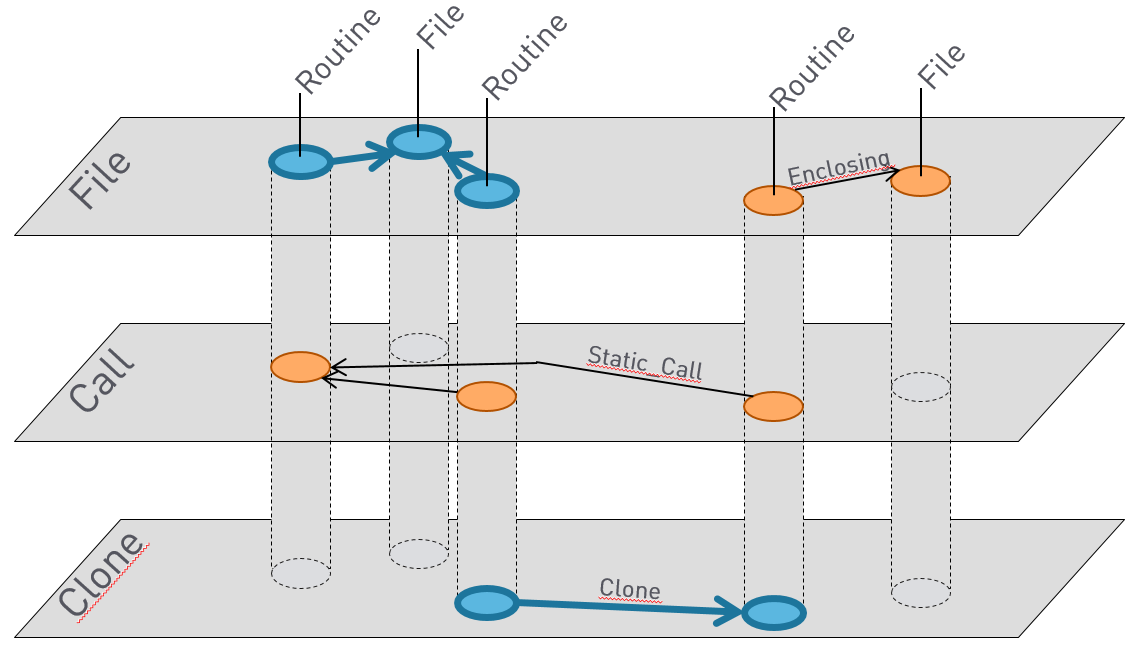
Example of selections of nodes and edges in multiple views.
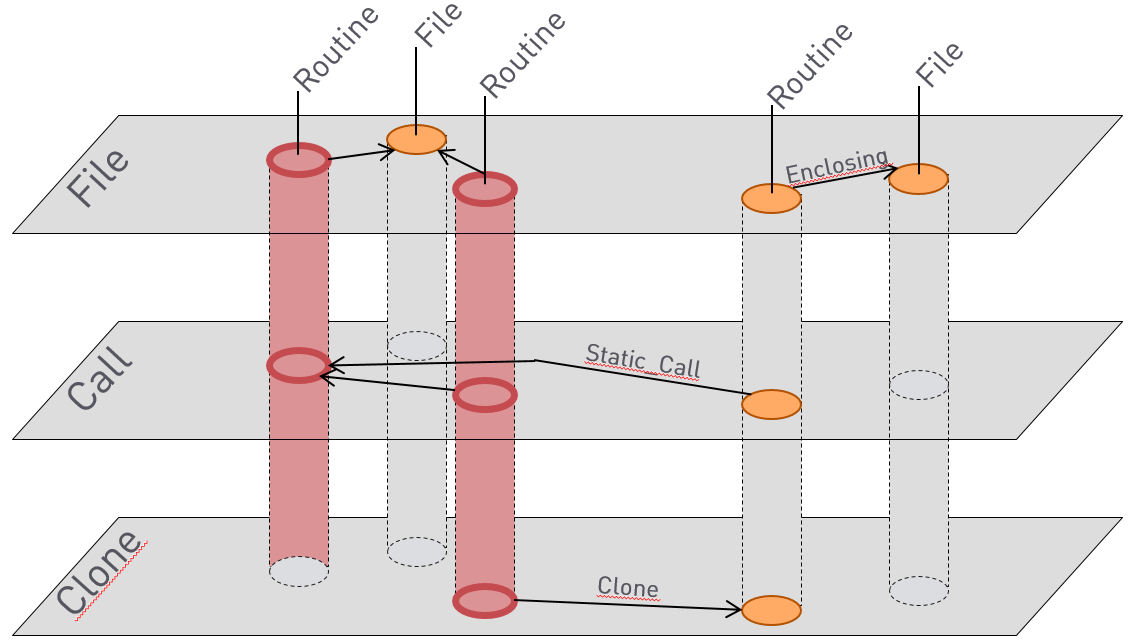
Example of a marking of nodes and edges in multiple views.
The 
View Box shows the count of selected elements per view. The
marked elements are also counted per view.
See Figure View Box showing the marking and selections..
A selection is used for manipulation and query operations. The marking is used for transferring results between views and for cross-view-querying.
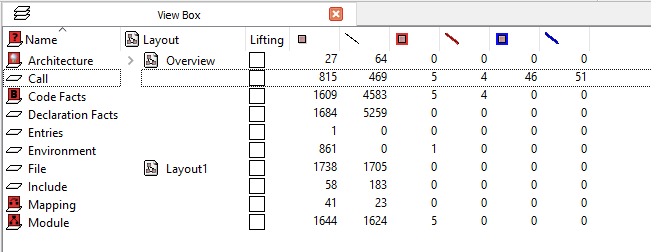
View Box showing the marking and selections.
5.9.5.1. Selecting Elements
The manual way of selecting elements is the 
Select Tool.
While this tool is active, clicking on an element clears the selection and selects the
clicked element. Holding down Ctrl keeps the existing selection and toggles the
selection state of the clicked element, i. e., selects it if it was unselected, and
deselects it if it was selected. Holding down Shift while clicking on a node also
selects all its direct and indirect children (“deep selection”).
Dragging a box around several elements clears the selection and selects the enclosed elements in one go. Shift has the same meaning as for clicks and causes deep selection. Holding down Ctrl keeps the selection and toggles the selection state of all the enclosed objects as follows: If all of them were already selected, they are deselected. If none or just some of them were already selected, they are all selected.
Graph Structure Based Selection
The following selection operations are accessible from the context menu over a view in
the View Box, over a graphical window or over a tree window.
If at least one node is already selected, the 
Select submenu
allows the additional selection of

Attached edges. Selects all edges whose source or target nodes are already in the selection.
Incoming edges. Selects all edges whose target nodes are already in the selection.
Outgoing edges. Selects all edges whose source nodes are already in the selection.
Connecting edges. Selects all edges whose source and target nodes are already in the selection.
Ancestors. Selects the parents of selected nodes, the parents of the parents, etc.
Children. Selects the immediate children of selected nodes.
Backward closure. Selects the source nodes of all incoming edges of the selected nodes and repeats this until no more nodes are added to the selection. This selects all nodes from which a selected node can be reached by a directed edge path. For instance, in aCallview, this represents all routines from which the selected routines can be directly or indirectly (transitively) called.
Forward closure. Selects the target nodes of all outgoing edges of the selected nodes and repeats this until no more nodes are added to the selection. This selects all nodes that can be reached from a selected node by a directed edge path. For instance, in aCallview, this represents all routines that the selected routines can directly or indirectly (transitively) call.
Two-way closure. Selects the source nodes of all incoming edges and all target nodes of all outgoing edges of the selected nodes and repeats this until no more nodes are added to the selection. This selects all nodes that can be reached from a selected node by an edge path ignoring edge direction, i. e., all nodes that are directly or indirectly connected with a selected node.
If at least one edge is already selected, the Select submenu
allows the additional selection of

Attached nodes. Selects all source and target nodes of the selected edges.
Source nodes. Select all source nodes of the selected edges.
Target nodes. Select all target nodes of the selected edges.
General Selection Operations
The following general selection operations are available from the
Select submenu:

Select allelements in a view.
Deselect allelements.
Deselect nodes.
Deselect edges.
Select top-level nodes.
Invert selection. The universe for this operation is the view.
Clip selection to visibleelements. ’Visible’ elements are elements that can potentially be made visible by zoom and scroll operations in the current graph window.
Select by query.... Opens a dialog in which a property-based selection condition can be set up, see Section Query-based operations.
Deselect by query.... As above, but for deselecting objects.
5.9.5.2. Marking Elements
The marking is operated analogously to the selection. The 
Mark
Tool
is used for manual marking.
Operation

Mark → 
Clip
marking to view
only keeps those elements in the marking that are in the current view.
The operation
Select → 
Select
marking
and
Mark → 
Mark selection
allow to select the marking and mark the selection.
5.9.5.3. Query-based operations
The query mechanism allows to Select by query,
Deselect by query,

Mark by query, 
Unmark
by query
, 
Hide by query, and

Unhide by query.
The facility is explained using selection as an example:
The select by query facility allows to specify which types of elements shall be selected
and which predicates based on attribute values must hold for newly selected elements in
addition. The dialog is opened by
Select → Select by
query... from the context menu of the View Box or the context
menu of a graph window.
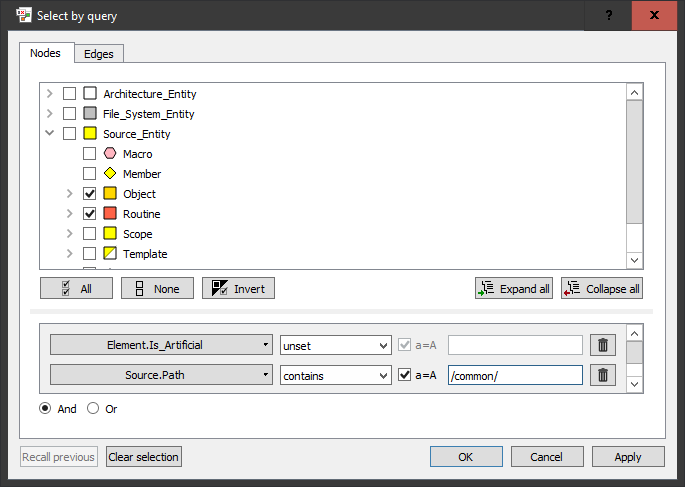
Select by query dialog.
The Nodes and Edges tabs allow you to specify the conditions
for nodes and edges. Both tabs are active at the same time, so you can select nodes and
edges using a single operation. By default, the tabs are set up in a way that nothing
gets selected, so if you just want to select nodes, you need not worry about the
Edges tab.
In the type tree, the types of elements to be selected are checked. If a parent type is checked, the children are checked as well but this behavior can be overridden by unchecking individual child types afterwards.
There are buttons to check all types, uncheck all types, and invert the check pattern, as well as to expand and collapse the type hierarchy tree.
Below the type tree, additional predicates for attribute values can be added. Choosing
an attribute name activates a predicate row. Depending on the type of attribute,
different comparison operations are available. The value to compare against can be
entered as the last item in the predicate row. For string attribute comparisons, it is
also possible to select whether the comparison should be case insensitive (
a=A). The special operators set and unset on
the operator menu test whether the given attribute is present/absent from the element.
As soon as a predicate gets activated, a new empty predicate row shows up at the bottom. Predicate rows that are no longer needed can be removed using the trash can icon to the right.
The most recently used query is remembered and can be recalled using the
Recall previous button, e.g., to repeat the query or to refine it.
The Select by query and Mark by query dialogs also show an
additional button labeled Clear selection (or Clear marking
respectively) that can be used to clear the selection/marking before applying the query.
Pseudo-attributes for structural matching
If the Query window was opened from the context menu of a view entry in
the View Box or from the context menu of a window showing a view, then a
new entry Pseudo attributes with a few extra attributes appears in the
attributes menu of the Nodes tab. The following attributes can be used in
attribute queries for nodes:
Number of incoming edges
Number of outgoing edges
Number of attached edges
These are pseudo node attributes that are not stored in the graph but computed based on the graph structure. They are computed for the given context view.
Caution
The computed edge counts always include all edges present in the view, including edges
that are currently hidden and edges of types that are currently hidden. They also
include hierarchical edges (e.g., of type Part_Of and Enclosing) that
are not shown as edges in hierarchical diagrams.