Using the assistant
Type a request, watch the assistant work, and review its changes on the canvas. You can stop it at any time, and you can undo what it did.
Chat with the assistant
- Open the assistant panel and type your request in the box at the bottom, which says Type Here.
- Press
Enterto send it. PressShift+Enterfor a new line. - The assistant shows Thinking… while it works. For every tool it uses, the chat shows a line, such as Get pages or Apply changes, with the state started, done, or failed.
- When it is finished, its answer appears in the chat. Answers can contain lists and tables.
To stop an answer, click Stop, which replaces the send button while the assistant works.
Select the object you are talking about before you ask. When you say "this" or "the selected object", the assistant looks at your selection.
Check and undo
Changes appear on the canvas immediately. To review them, look at the canvas and the Layers panel. To undo
them, press Ctrl + Z. Everything the assistant changes in one step is one step in the undo history.
Model and effort
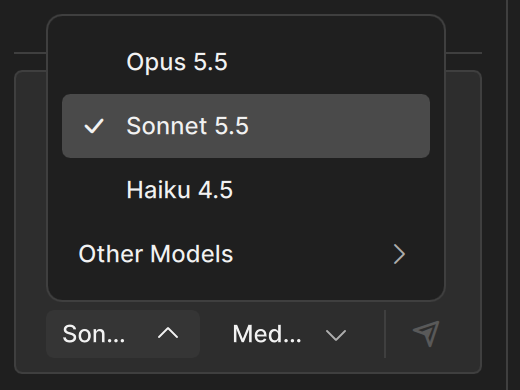
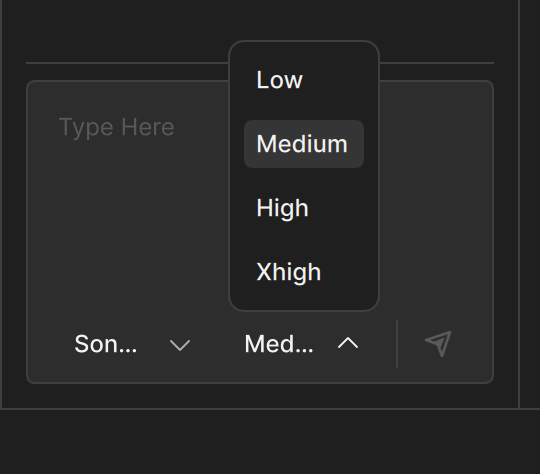
Under the text box, two menus control how the service answers:
- Model chooses the model. The list comes from the service, so it can change as the service changes.
- Effort chooses how much effort the model puts into an answer. More effort can give better results and takes longer and uses more of your allowance.
Clate remembers your choices. When you switch to a model that uses more of your allowance, the panel shows the note Model Changed: the next reply may take longer and use more of your allowance.
If the menus show shortened names, make the panel wider by dragging its edge.
Start over
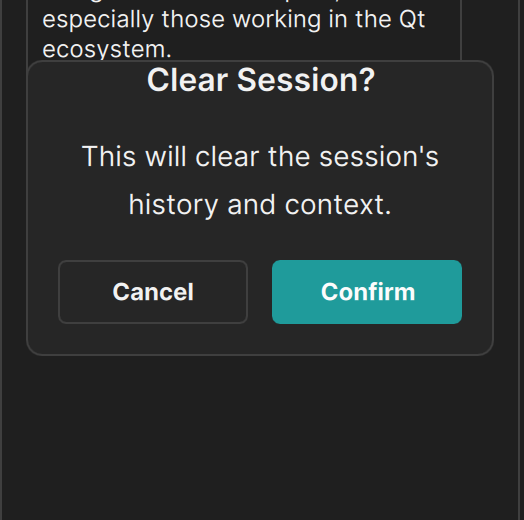
Click the trash button next to the agent name, and confirm Clear Session?, to clear the conversation and start a new one. Use this when you switch to a different task.
Clate keeps your conversation. When you open the panel again, you see the earlier conversation with the notice Earlier conversation restored — new messages below. The conversation belongs to the service and not to a project, so it can contain earlier messages about another project.
Switch the project
When you open another project, the conversation stays. Clate tells the assistant that the project changed, and a running answer stops.