Troubleshooting the assistant
Messages from the assistant appear in the chat. Find yours below to see what it means and what to do.
Setup and sign-in
| Message or problem | What to do |
|---|---|
| The assistant panel does not open, or the button is dimmed | Open a project first. The assistant needs an open project. |
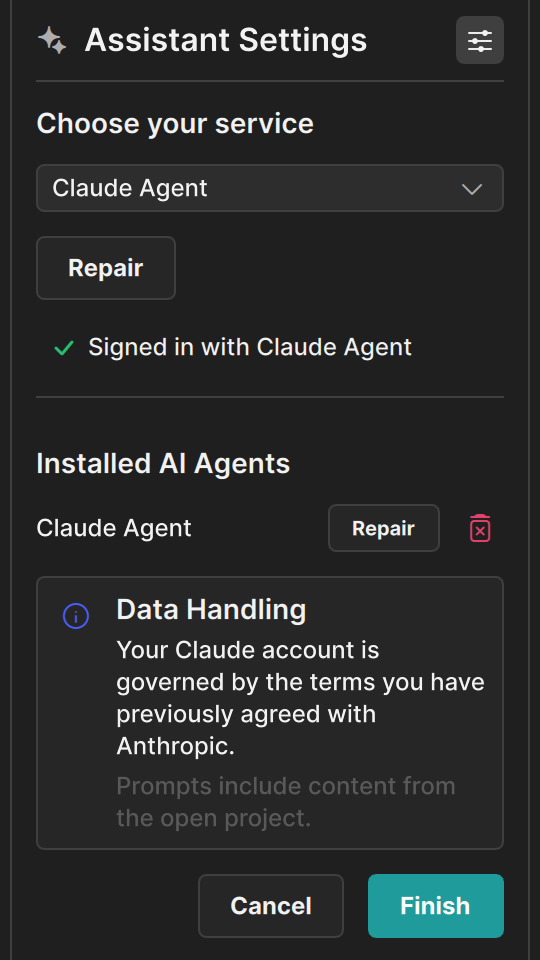
| Choose an AI agent in the settings of the panel. | Open Assistant Settings and set up Claude Agent. See Set up the assistant. |
| Install ... in Assistant settings before asking a question. | Open Assistant Settings, choose Claude Agent, and click Install. |
| The installation fails: Check your connection and Node.js, then try Install again. | Check your internet connection and click Install again. If it keeps failing, click Repair. |
| Another application instance is installing this agent. | Wait until the other instance has finished and try again. |
| Open Assistant settings and follow the sign-in steps there, then ask again. | You are not signed in. Open Assistant Settings, sign in as described in the setup, click Finish, and ask again. |
| The terminal does not open: Could not open a terminal window. | Copy the command with Copy command and run it in your own terminal. On macOS, allow Clate to control Terminal in System Settings › Privacy & Security › Automation. |
While you chat
| Message or problem | What to do |
|---|---|
| The agent did not answer while the connection was being set up. | Try again. If it happens repeatedly, check your internet connection, and use Repair in the settings. |
| The agent stopped before it answered. | Ask again. The message can show the last output of the service. Use Repair if it keeps happening. |
| This agent does not support the HTTP transport the design tools need. | Use Repair in the settings. |
| The answer stopped because the open project changed. | You opened another project while the assistant was working. Ask again. |
| You stopped this question. | You clicked Stop. Ask again when you are ready. |
| The agent took too many steps, so it stopped early. or The answer got too long, so the agent stopped early. | Break your request into smaller parts. |
| The agent declined to answer this. | The service did not want to answer. Rephrase your request. |
| The assistant says it cannot see your project | Check that the MCP server is on. See below. |
| The assistant changed more than you wanted | Press Ctrl + Z to undo, then ask again with a more precise request. |
The MCP server
The assistant needs the MCP server to reach your project. On the Welcome page, open the Clate menu, choose Settings and check that Enable MCP Server has a check mark.
If a message says that the MCP server could not start because no usable port was found, another program is using the ports that Clate needs. Close that program, then clear and select Enable MCP Server again. See The MCP server.
Conversations
| Message or problem | What to do |
|---|---|
| The earlier conversation could not be restored, so this one starts over. | Nothing is wrong. The conversation started again. |
| The conversation stayed as it was, because the agent opened no new one. | Clearing the session failed. Try again. |