
Qt Quick 3D - XR 高度なタッチ操作
曲面ディスプレイでのタッチ操作と、3D モデルのタッチ操作を実演します。
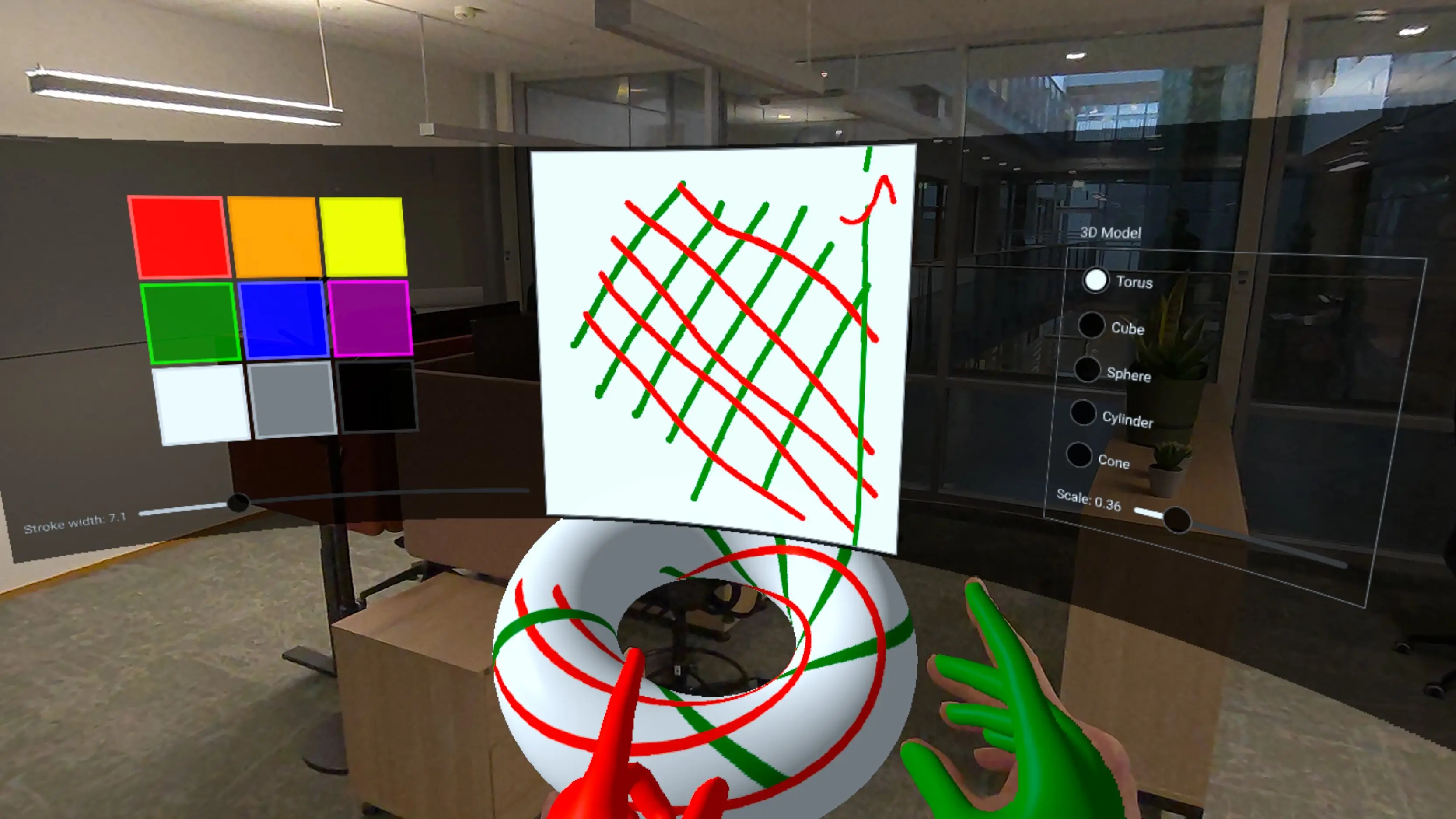
このサンプルは、「XR Simple Touch Example」を基に、Qt Quick 3D XRにおけるより高度なタッチ操作技術を紹介します:
- 曲面状の3Dサーフェス上にレンダリングされた2D UI要素とのタッチ操作。
- UV座標を使用した3Dモデルへの直接タッチ操作。
- ピンチジェスチャーを使用した3Dオブジェクトの掴み込みと操作。
- 没入型ディスプレイ向けのプロシージャルな曲面メッシュの作成。
- C++ を使用した、ペイント可能なカスタムテクスチャの作成。
ソースアイテムを備えた曲面ディスプレイ
この例の主な特徴の一つは、曲面上に2Dユーザーインターフェースを表示することです。曲面を生成するカスタムプロシージャルメッシュコンポーネント「CurvedMesh 」を作成します:
// Copyright (C) 2025 The Qt Company Ltd.
// SPDX-License-Identifier: LicenseRef-Qt-Commercial OR BSD-3-Clause

import QtQuick
import QtQuick3D
import QtQuick3D.Helpers

ProceduralMesh {
        property real partitions: 50
        property real segments: 1
        property real radius: 50.0
        property real height: 50.0
        property real width: 80
        property var meshArrays: generateMesh(partitions , width, height, radius)
        positions: meshArrays.verts
        normals: meshArrays.normals
        uv0s: meshArrays.uvs
        indexes: meshArrays.indices

        function generateMesh(partitions : real, width: real, height: real, radius: real) : var {
            let verts = []
            let normals = []
            let uvs = []
            let indices = []

            // width = angleSpan * radius
            const angleSpan = width / radius

            for (let i = 0; i <= partitions ; ++i) {
                for (let j = 0; j <= 1; ++j) {
                    const u = i / partitions ;
                    const v = j;

                    const x = u - 0.5 // centered
                    const angle = x * angleSpan

                    const posZ = radius - radius * Math.cos(angle)
                    const posY = height * v
                    const posX = radius * Math.sin(angle)

                    verts.push(Qt.vector3d(posX, posY, posZ));

                    let normal = Qt.vector3d(0 - posX, 0, radius - posZ).normalized();
                    normals.push(normal);

                    uvs.push(Qt.vector2d(u, v));
                }
            }

            for (let i = 0; i < partitions ; ++i) {
                let a = (segments + 1) * i;
                let b = (segments + 1) * (i + 1);
                let c = (segments + 1) * (i + 1) + 1;
                let d = (segments + 1) * i + 1;

                // Generate two triangles for each quad in the mesh
                // Adjust order to be counter-clockwise
                indices.push(a, b, d);
                indices.push(b, c, d);
            }
            return { verts: verts, normals: normals, uvs: uvs, indices: indices }
        }
    }
CurvedMesh はProceduralMesh を継承しており、曲面用の頂点、法線、およびUV座標を生成します。曲率はradius プロパティによって制御され、これにより表面の湾曲の度合いが決まります。メッシュはpartitions セグメントに分割され、滑らかな曲線が生成されます。
次に、この曲面ジオメトリを、sourceItem を使用して2DコンテンツをレンダリングするPrincipledMaterial を持つModel に適用します:
Model {
    objectName: "curved screen"
    x: 0
    y: -40
    z: -50
    // mesh origin is at bottom of screen; scene origin is at eye height
    geometry: CurvedMesh {
        width: height * 32 / 9
        height: 40
        radius: 80
    }
    visible: true
    pickable: true
    materials: PrincipledMaterial {
        baseColorMap: Texture {
            id: screenTexture
            sourceItem: Rectangle {
                id: uiItem
                width: height * 32 / 9
                height: 500

                property real dim: Math.min(width, height)

                color: "#dd000000"

                ColumnLayout {
                    id: leftItem
                    anchors.top: parent.top
                    anchors.bottom: parent.bottom
                    anchors.left: parent.left
                    anchors.right: centralItem.left
                    anchors.margins: 15
                    spacing: 10

                    GridLayout {
                        rows: 3
                        columns: 3
                        columnSpacing: 5
                        rowSpacing: 5

                        Layout.alignment: Qt.AlignHCenter | Qt.AlignVCenter

                        ColorSwatch {
                            color: "red"
                        }
                        ColorSwatch {
                            color: "orange"
                        }
                        ColorSwatch {
                            color: "yellow"
                        }
                        ColorSwatch {
                            color: "green"
                        }
                        ColorSwatch {
                            color: "blue"
                        }
                        ColorSwatch {
                            color: "purple"
                        }
                        ColorSwatch {
                            color: "white"
                        }
                        ColorSwatch {
                            color: "gray"
                        }
                        ColorSwatch {
                            color: "black"
                        }
                    }
                    RowLayout {
                        Label {
                            text: "Stroke width: " + penWidthSlider.value.toFixed(1)
                        }
                        Slider {
                            id: penWidthSlider
                            Layout.fillWidth: true
                            from: 1
                            to: 30
                            value: 10
                            onValueChanged: painterItem.setPenWidth(value)
                        }
                    }
                }

                Rectangle {
                    id: centralItem
                    width: uiItem.dim - 10
                    height: uiItem.dim - 10

                    anchors.centerIn: parent
                    color: "gray"

                    TextureItem {
                        id: painterItem
                        anchors.fill: parent
                        anchors.margins: 2
                        MultiPointTouchArea {
                            anchors.fill: parent
                            onPressed: (list) => {
                                           for (const pt of list) {
                                               painterItem.setPoint(pt.x, pt.y, pt.pointId, pt.pressed)
                                           }
                                       }
                            onUpdated: (list) => {
                                           for (const pt of list) {
                                               painterItem.setPoint(pt.x, pt.y, pt.pointId, pt.pressed)
                                           }
                                       }
                            onReleased: (list) => {
                                            for (const pt of list) {
                                                painterItem.setPoint(pt.x, pt.y, pt.pointId, pt.pressed)
                                            }
                                        }
                        }
                        Component.onCompleted: {
                            // Let initial colors be the same as the hand colors
                            setColor("green", 1)
                            setColor("red", 2)
                        }
                    }
                }

                Item {
                    id: rightItem
                    anchors.left: centralItem.right
                    anchors.top: parent.top
                    anchors.bottom: parent.bottom
                    anchors.right: parent.right

                    GroupBox {
                        anchors.centerIn: parent
                        title: "3D Model"
                        ColumnLayout {
                            ColumnLayout {
                                id: radioButtons
                                RadioButton {
                                    text: "Torus"
                                    checked: true
                                }
                                RadioButton {
                                    text: "Cube"
                                }
                                RadioButton {
                                    text: "Sphere"
                                }
                                RadioButton {
                                    text: "Cylinder"
                                }
                                RadioButton {
                                    text: "Cone"
                                }
                            }
                            RowLayout {
                                Label {
                                    text: "Scale: " + scaleSlider.value.toFixed(2)
                                }
                                Slider {
                                    id: scaleSlider
                                    Layout.fillWidth: true
                                    from: 0.01
                                    to: 2
                                    value: 0.25
                                }
                            }
                        }
                        ButtonGroup {
                            buttons: radioButtons.children
                            onCheckedButtonChanged: {
                                selectableModel.meshName = checkedButton.text
                            }
                        }
                    }
                }
            }
        }
        emissiveMap: screenTexture
        emissiveFactor: Qt.vector3d(0.8, 0.8, 0.8)
    }
    opacity: 0.99 // enable alpha blending
}
sourceItem プロパティには、カラースウォッチ、スライダー、描画キャンバスなどを含む複雑なUIを備えた標準的なQt Quick のRectangle が含まれています。この2Dコンテンツは、曲面状の3Dサーフェスに自動的に投影されます。曲面上のタッチイベントは2D座標にマッピングされ、適切なQt Quick 要素に送信されます。
注: emissiveMap およびemissiveFactor を使用することで 、画面が自発光しているように見え、さまざまな照明条件下での視認性が向上します。わずかな透明度(不透明度:0.99)により、アルファブレンディングが可能になります。
カスタムペイント可能なテクスチャ
UI の描画キャンバスでは、QQuickPaintedItem を継承したカスタム C++ クラス `TextureItem` を使用しています。これにより、3D マテリアルで使用可能なペイント可能なテクスチャが提供されます。
class TextureItem : public QQuickPaintedItem {
    Q_OBJECT
    Q_PROPERTY(const QQuick3DTextureData* textureData READ textureData NOTIFY textureDataChanged FINAL)
    QML_ELEMENT

public:
    TextureItem(QQuickItem *parent = nullptr);

    void paint(QPainter *painter) override;
    const QQuick3DTextureData *textureData() const;

    Q_INVOKABLE void setPoint(float x, float y, int id, bool pressed);
    Q_INVOKABLE void setUv(float u, float v, int id, bool pressed);
    Q_INVOKABLE void clear(const QColor &color);
    Q_INVOKABLE void setColor(const QColor &newColor, int id = 0);
    Q_INVOKABLE void setPenWidth(qreal newPenWidth);
    Q_INVOKABLE void resetPoint(int id);

public slots:
    void updateImage();

signals:
    void textureDataChanged();
    void colorChanged();
    void penWidthChanged();

private:

    struct TouchPointState {
        QColor color = "red";
        qreal penWidth = 10; // unused
        double alpha = 0.5;  // smoothing factor (0..1)
        bool initialized = false;
        QPointF prevFiltered;
        QPointF prevRaw;
        qint64 prevTime = 0; // timestamp in milliseconds

        void reset() {
            initialized = false;
            prevTime = 0;
        }

        QPointF filter(const QPointF &unfiltered, qint64 timestamp) {
            prevRaw = unfiltered;
            if (!initialized) {
                prevFiltered = unfiltered;
                prevTime = timestamp;
                initialized = true;
            } else {
                // Adjust alpha based on time delta
                qint64 dt = timestamp - prevTime;
                double adaptiveAlpha = qMin(1.0, alpha * (dt / 16.0)); // 16ms = ~60fps baseline

                prevFiltered.setX(adaptiveAlpha * unfiltered.x() + (1 - adaptiveAlpha) * prevFiltered.x());
                prevFiltered.setY(adaptiveAlpha * unfiltered.y() + (1 - adaptiveAlpha) * prevFiltered.y());
                prevTime = timestamp;
            }
            return prevFiltered;
        }
    };
TextureItem は、QPainter を使用して描画可能な内部のQImage を保持しています。画像データは、マテリアルテクスチャで使用可能なQQuick3DTextureData として公開されます。これにより、リアルタイムで更新される動的な、ユーザーが変更可能なテクスチャを作成することが可能になります。
主要なメソッドは `setUv()` で、これは UV 座標空間でのタッチ入力を処理します:
void TextureItem::setUv(float u, float v, int id, bool pressed)
{
    auto &s = state[id];

    bool inRange = u >= 0 && u <= 1 && v >=0 && v <= 1;
    if (!pressed || !inRange) {
        s.reset();
        return;
    }
このメソッドは、いくつかの高度な機能を実装しています:
- ジッターを低減するための適応型フィルタリングによる時間的平滑化。
- UV座標のラップ(テクスチャ境界を越えて描画する場合)の検出と処理。
- マルチタッチ対応のためのタッチポイントごとの状態追跡。
3D モデルでのタッチ処理
このサンプルでは、機能強化されたXrGadget コンポーネントを通じて、3Dモデルとの直接的なタッチ操作を実演しています。手が3Dモデルに触れると、タッチ位置はUV座標に変換され、モデルに転送されます:
const touchState = view.touchpointState(root.touchId)
const gadget = touchState.model as XrGadget
if (gadget) {
    gadget.handleTouch(touchState.uvPosition, root.touchId, touchState.pressed)
}
XrGadget コンポーネントは、handleTouch 関数を通じてこれらのタッチイベントを受け取ります:
onTouched: (uvPosition, touchID, pressed) => {
    if (!isGrabbing)
        painterItem.setUv(uvPosition.x, uvPosition.y, touchID, pressed);
}ユーザーがモデルをグラブしていない場合、タッチイベントはTextureItem に転送され、そこでモデルのテクスチャ上に描画が行われます。これにより、ユーザーは3Dオブジェクトの表面に直接ペイントすることができます。
3Dオブジェクトのグラブと操作
この例では、ピンチジェスチャーを使用した「掴んで移動」機能も実装されています:
XrInputAction {
    id: grabAction
    controller: XrInputAction.RightHand
    actionId: [ XrInputAction.IndexFingerPinch ]

    onPressedChanged: {
        if (pressed)
            grabController.startGrab()
    }
}
ユーザーが右手でピンチジェスチャーを行うと、システムは手と選択されたオブジェクト間のオフセットと回転を捕捉します:
XrController {
    id: grabController
    controller: XrController.RightHand
    property vector3d grabOffset
    property quaternion grabRotation

    function startGrab() {
        const scenePos = selectableModel.scenePosition
        const sceneRot = selectableModel.sceneRotation
        grabOffset = scenePos.minus(scenePosition)
        grabRotation = rotation.inverted().times(sceneRot)
    }

    onRotationChanged: {
        if (isGrabbing) {
            let newPos = scenePosition.plus(grabOffset)
            let newRot = sceneRotation.times(grabRotation)

            selectableModel.setPosition(newPos)
            selectableModel.setRotation(newRot)
        }
    }
}
手が動くにつれて、オブジェクトは元のオフセットと相対的な回転を維持したまま追従します。これにより、空間内で3Dオブジェクトを配置するための自然で直感的な方法が実現されます。
色の選択とマルチタッチ
曲面ディスプレイ上のカラーパレットは、マルチタッチ操作を実演しています。各手は、カラー見本をタップすることで、独立して色を選択できます:
component ColorSwatch: Rectangle {
    implicitWidth: 100
    implicitHeight: 100

    function perceivedBrightness() {
        return 0.2 * color.r + 0.7 * color.g + 0.1 * color.b
    }

    function contrastColor() {
        if (perceivedBrightness() > 0.6)
            return Qt.darker(color, 1.1)

        const h = color.hslHue
        const s = color.hslSaturation
        const l = color.hslLightness + 0.2

        return Qt.hsla(h, s, l, 1.0)
    }

    border.color: contrastColor()
    border.width: csth.pressed ? 8 : 4
    property real penWidth: 5

    TapHandler {
        id: csth
        dragThreshold: 1000
        onTapped: (pt) => {
                      painterItem.setColor(parent.color, pt.id)
                      colorChange(parent.color, pt.id)
                  }
        onLongPressed: {
            painterItem.clear(parent.color)
        }
    }
}
TapHandler は、異なるタッチポイント(pt.id で識別)からのタップに応答し、各手が独自の色を持つことを可能にします。色が選択されると、colorChange シグナルを通じて、そのタッチIDに対応する手の色と描画色の両方が更新されます:
y: xrView.referenceSpace === XrView.ReferenceSpaceLocalFloor ? 130 : 0
onColorChange: (col, id) => {
    if (id === 1)
        rightHand.color = col
    else
        leftHand.color = col
}
これは、異なるタッチポイントが独立した状態や動作を持つことができる、マルチユーザーまたはマルチハンドのインターフェースを構築する方法を示しています。
UI コントロールとモデルのカスタマイズ
この例には、ユーザーが以下の操作を行える完全なコントロールパネルが含まれています:
- さまざまな幾何学的プリミティブ(トーラス、立方体、球体、円柱、円錐)を選択する。
- 3Dモデルのスケールを調整する。
- 描画用のペン幅を変更する。
- カラー見本を長押しして、描画キャンバスをクリアする。
これらのコントロールは、XR環境において2D UIのパラダイムと3Dインタラクションを組み合わせた、機能豊富な空間インターフェースを構築する方法を示しています。
© 2026 The Qt Company Ltd. Documentation contributions included herein are the copyrights of their respective owners. The documentation provided herein is licensed under the terms of the GNU Free Documentation License version 1.3 as published by the Free Software Foundation. Qt and respective logos are trademarks of The Qt Company Ltd. in Finland and/or other countries worldwide. All other trademarks are property of their respective owners.
