The Welcome to Clate! example project
Welcome to Clate! is an example project that ships with Clate. It shows what you can design: vector shapes, gradients, depth, and polished controls. Open it, click around, and learn from how it is built.
Open the example
- Click the home tab at the top left to open the Welcome page.
- Click the project card Welcome to Clate!.
The example opens in its own tab. To see a whole page, open the zoom menu and choose Zoom to Fit.
Make a copy before you experiment. Right-click the Welcome to Clate! card on the Welcome page and choose Duplicate. Work in the copy and keep the original as a reference. See Projects and saving.
What is in it
The example has two pages, listed in the Pages panel:
| Page | What it shows |
|---|---|
| Welcome | A welcome screen with a top bar, a hero panel with the title Made with Clate., four cards (Components, Gauges, Gradients, and Charts) and a row of labels. |
| Components | A tall page of building blocks. It has five sections: 01 Controls, 02 Components, 03 Gauges, 04 Gradients, and 05 Charts. |
Everything in the example is built from plain shapes, text, and one logo image. You can build the same things yourself with the drawing tools.
How to explore it
- Select pieces. Click a layer on the canvas, double-click to go deeper, or select objects in the Layers panel. Names such as Top Bar, Top Bar Shadow, Slider Track, and Gauge Arc tell you what each part is. See Selecting objects.
- Read the settings. The property editor shows the position, size, fill, stroke, and corner radius of whatever you select. See The property editor.
- Look at the structure. Open the Layers panel to see how frames group the parts of a control. See Pages and layers.
- Preview it. Select a layer and click Preview to see it running. See Preview.
Things to look for
The example uses a handful of techniques again and again. Each one below shows a snippet, where to find it in the project and where to learn more.
Depth from shadow shapes
Clate has no blur effect. Panels, buttons, and knobs have a darker copy behind them, moved a few pixels down and to the right. Look for layers whose name ends in Shadow.
Where: Top Bar and Top Bar Shadow on the Welcome page. Learn more: Tutorial: Build a control panel.
Controls from a few shapes
A slider is a track, a fill, a knob, and a knob shadow. A pill button is a rectangle with a corner radius of half its height.
Where: section 01 Controls on the Components page. Learn more: Fill and stroke.
Gradients
The four triangles that make up the Clate logo mark use a linear gradient from orange to a pale cream.

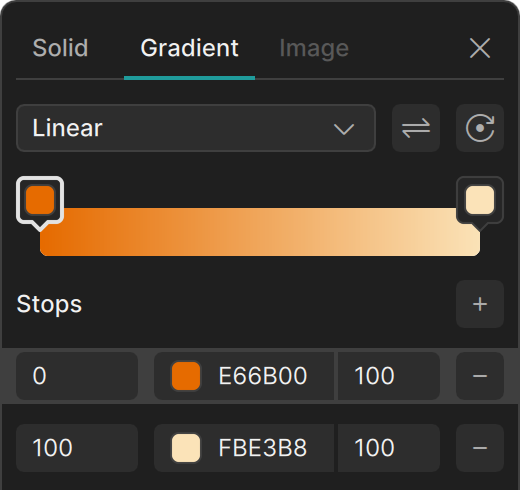
Where: the logo on the Welcome page, in the layer Clate Logo. Learn more: Fill and stroke.
Gauges and rings
Turn on Arc for an ellipse and set Start, End, and Ratio: the ellipse becomes a ring or a gauge.
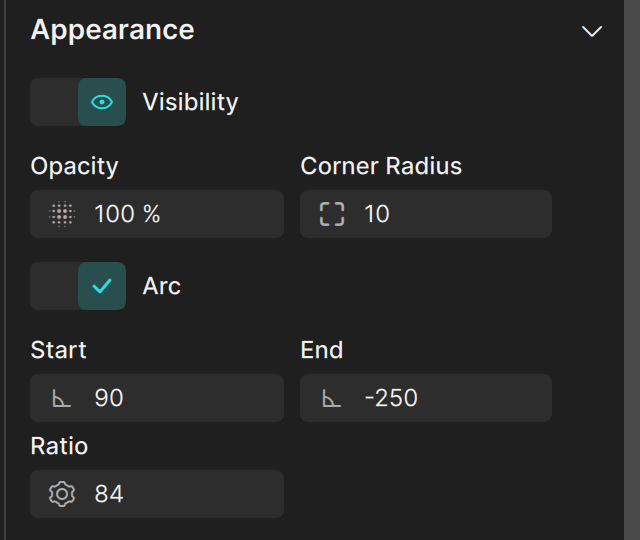
Where: the Components page, for example section 03 Gauges. Look for layers named Gauge Arc. Learn more: The property editor.
Rotated tick marks
A dial is made of small rounded rectangles that are placed on a circle and rotated in steps.
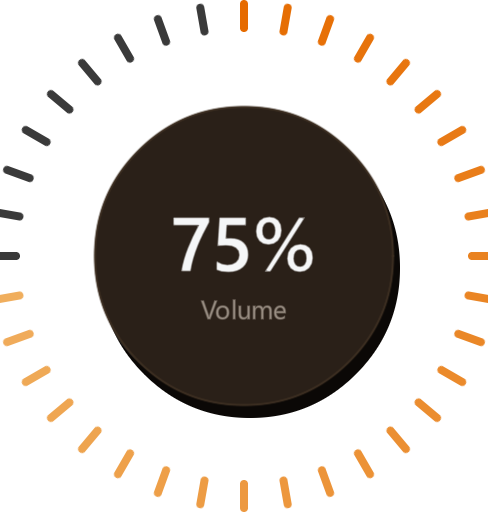
Where: the layer Dial on the Components page, with its layers Tick 1 to Tick 36. Learn more: Moving, resizing, and rotating.
A consistent palette
The example uses a small set of warm dark colors, one orange accent, and a few corner radii.
Where: on both pages. Learn more: Tutorial: Build a control panel.
A consistent text style
The example uses small uppercase labels with extra letter spacing, regular body text, and one larger bold size for headlines.
Where: on both pages. Learn more: Text and typography.
Names that describe roles
Layers are named Card Gauges, Slider Fill, or Tick 12 instead of a type and a number.
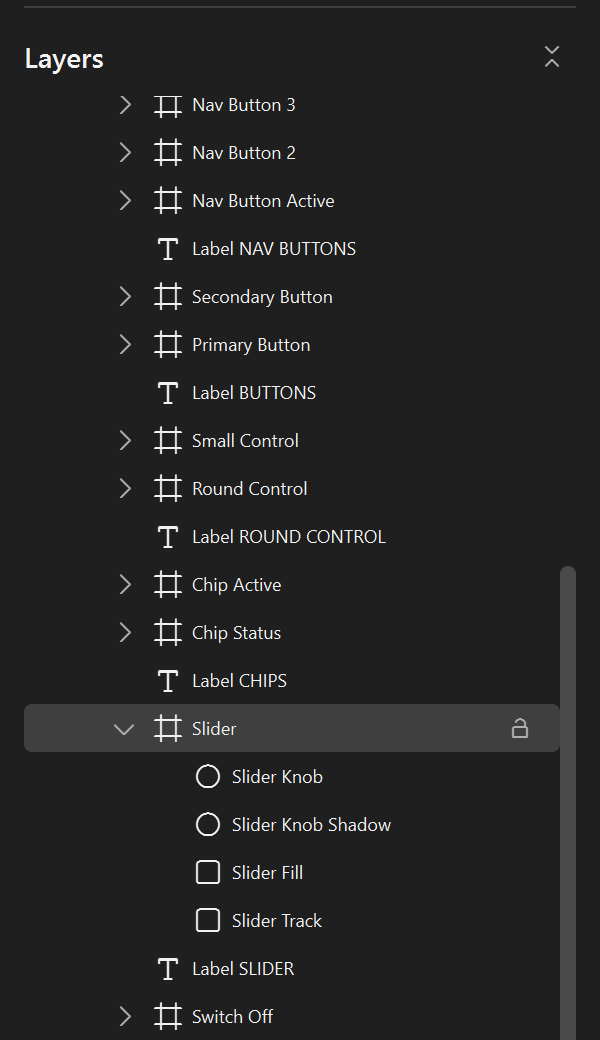
Where: the Layers panel. Learn more: Pages and layers.
Try it yourself
- Duplicate the project (see the tip at the top of this page) and open the copy.
- Select a card on the Welcome page and change its fill color. See Fill and stroke.
- Select a control and its shadow together and move them with the arrow keys. See Moving, resizing, and rotating.
- Click Preview to see your change as QML, or ask the AI Assistant to describe the structure of a page.
- Press
Ctrl+Zto undo your changes, and keep experimenting.