Fill and stroke
The fill colors the inside of a shape, and the stroke draws its outline. Both can be a plain color, and the fill can also be a gradient.
Fill
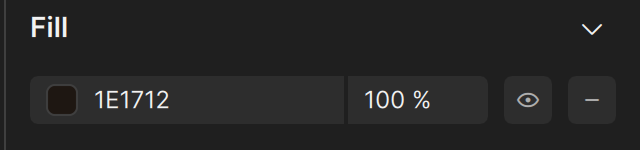
Select a shape. The Fill section shows:
- A color swatch with the color value, for example
2A2018. - The opacity of the fill, in percent.
- An eye button to show or hide the fill.
- A minus button to remove the fill.
Click the color swatch to open the color picker.
The color picker
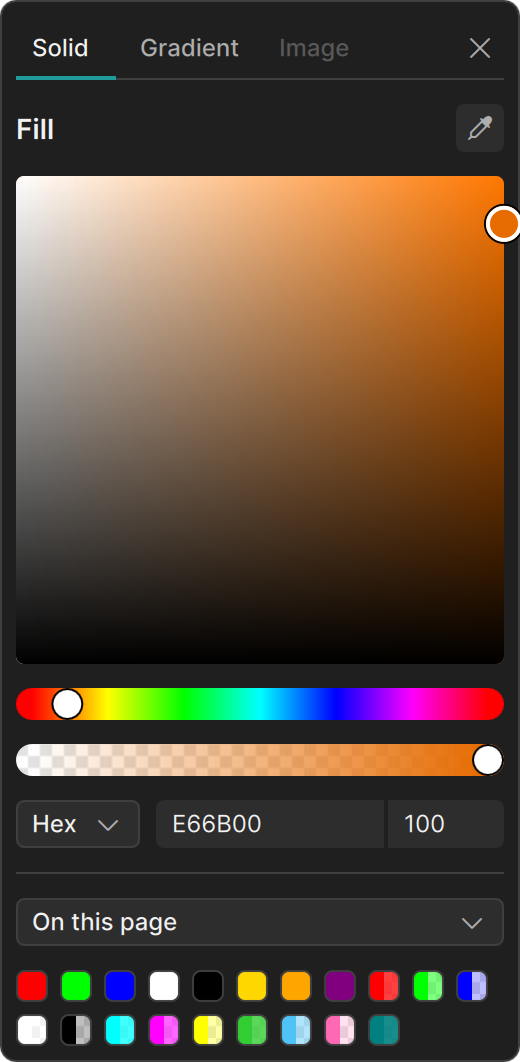
The color picker opens as a popup next to the property editor. It has the tabs Solid and Gradient. The Image tab is not available yet.
On the Solid tab you can:
- Click or drag in the large color field to pick a shade, and use the hue slider and the opacity slider below it.
- Type an exact color in the Hex field, and the opacity next to it.
- Click the eyedropper button at the top to pick a color from the screen.
- Click one of the swatches under On this page to reuse a color that already appears on the page.
Press Esc, or click the close button, to close the picker.
Gradients
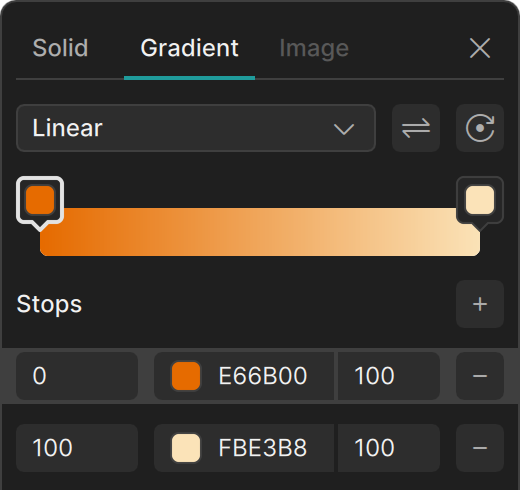
On the Gradient tab you build a gradient:
- Choose the type from the dropdown: Linear, Radial, or Conical.
- The gradient bar shows the colors, with one round handle for each color stop. Select a stop to work on it.
- The Stops list shows every stop with its position (0 to 100), its color and its opacity. Click + to add a stop, and the minus button next to a stop to remove it.
A shape with a gradient shows its type in the Fill section, for example Linear Gradient.
Gradients are a good way to give flat shapes a metallic or glossy look. The triangles at the top of the Welcome to Clate! project use a linear gradient with two stops.
Stroke
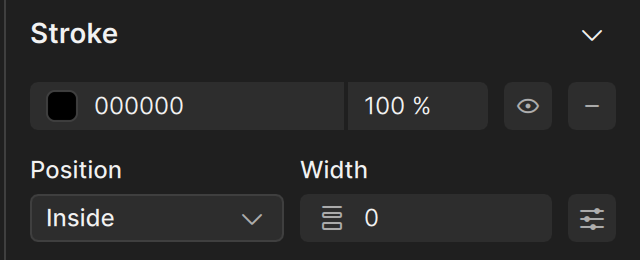
The Stroke section has the same color controls as Fill, plus:
- Position sets where Clate draws the line relative to the edge of the shape, for example Inside.
- Width sets the thickness of the line, in pixels.
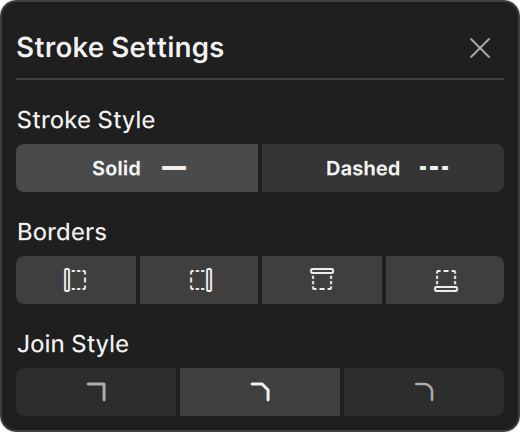
- A settings button at the end of the row opens Stroke Settings, with more options for the line: the Stroke Style (Solid or Dashed), the Dash and Gap lengths for a dashed line, which sides of the shape have a border (Borders), and the Join Style of the corners.
The default outline
Every new shape starts with a thin black outline, 1 px wide. To remove it, set Width to 0 in the Stroke section. To change its color, click the color swatch.
Text color
For a text object, the Fill section sets the color of the text. See Text and typography.