The property editor
The property editor on the right shows the settings of whatever you selected. It changes with the type of the selected object, so you always see the controls that fit.
What the property editor shows
The title at the top of the property editor names what you selected, with an icon for its type:
| You selected | Title |
|---|---|
| Nothing | Page. The property editor says Select an object to edit its properties. |
| A frame | Frame |
| A rectangle | Rectangle |
| An ellipse | Ellipse |
| A polygon | Polygon |
| A text | Text |
| An image | Image |
| Several objects | Item, with the settings the objects have in common if they are not all the same type. If they are, the type they share. |
The settings are grouped into sections. Click a section title to collapse or expand it. Changes apply immediately, and each change is a step in the undo history.
Position
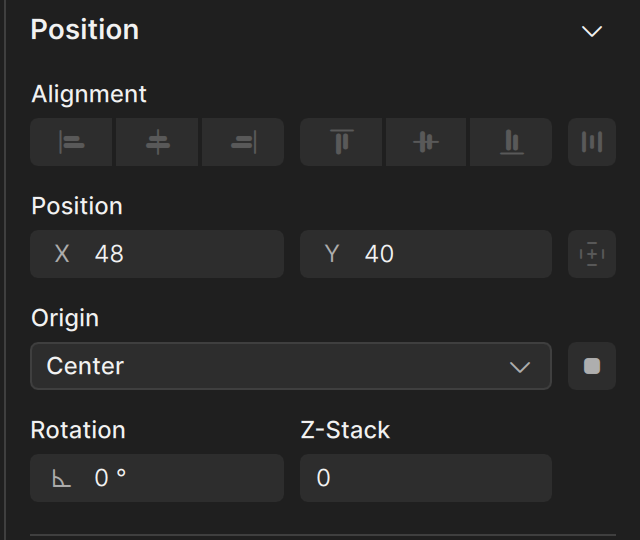
The Position section places and orients the object.
- Alignment has seven buttons for lining up several objects. They are dimmed when only one object is selected. See Aligning and distributing.
- Position holds the X and Y values. Clate measures them from the top-left corner of the frame or page the object is in.
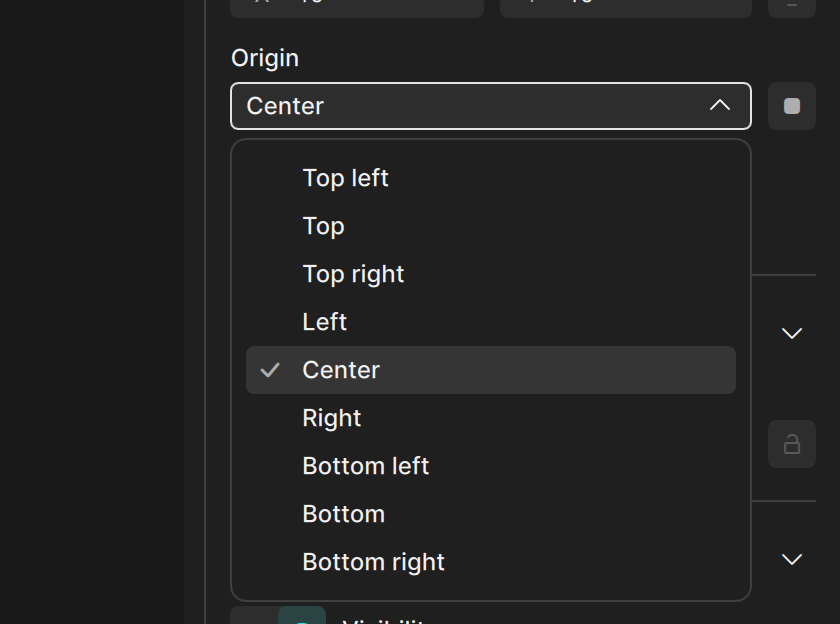
- Origin sets the point that the object rotates around. The default is Center.
- Rotation rotates the object, in degrees.
- Z-Stack is a number that decides the stacking of objects. For everyday work, change the order with the Layers panel instead. See Pages and layers.
Layout
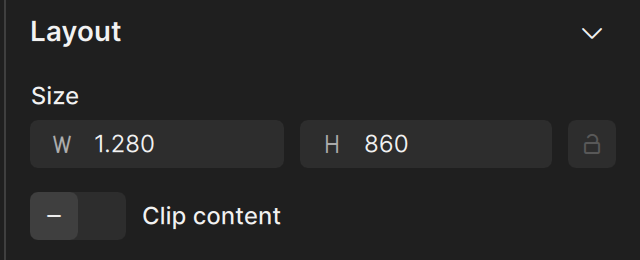
The Layout section sets the Size of the object with a width (W) and a height (H).
A frame has one more setting here: Clip content. When it is on, anything that extends beyond the frame is cut off at the frame's edges.
Appearance
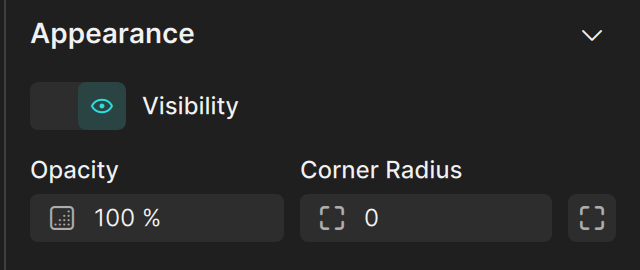
The Appearance section has:
- Opacity in percent. 100 % is fully opaque.
- Corner Radius for rounded corners. Rectangles and frames also let you set each corner separately with the button next to the field. Text and images have no corner radius, so the field is dimmed.
Some shapes add settings to this section:
| Object | Extra settings |
|---|---|
| Ellipse | Arc turns the ellipse into an arc or a ring segment. Start and End set where it begins and ends, and Ratio sets how thick the ring is. |
| Polygon | Vertices sets the number of corners. A value of 3 gives a triangle. |
| Star | Count sets the number of points, and Ratio sets how deep the points are cut in. |
Fill and Stroke
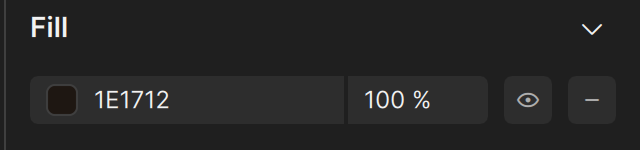
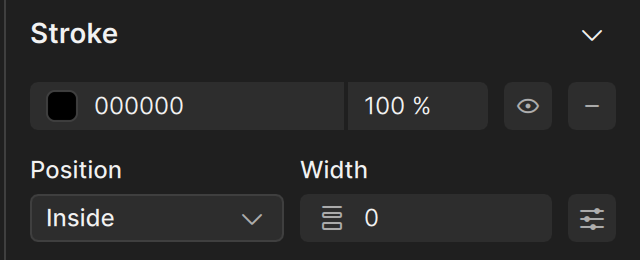
Shapes have a Fill and a Stroke section for their fill and stroke colors. Text uses the Fill section for the text color. See Fill and stroke.
Text and images
- A text object has a Typography section. See Text and typography.
- An image object has an Image section with the picture it shows. See Importing and using assets.
Several objects at once
When you select several objects, the title is Item and the property editor shows the sections they have in common: Position, Layout, and Appearance. The fields show the values of the first selected object. Changing a value applies it to all selected objects. Use this to set the same size or opacity for a group of objects. The Fill and Stroke sections are not available for several objects yet, so set colors and gradients on each object on its own.