A tour of the workspace
When you open a project, Clate shows a workspace with a canvas in the middle, the Hierarchy panel on the left and the property editor on the right.
The parts of the window
| Part | Where | What it is for |
|---|---|---|
| Tabs | Top | The home tab opens the Welcome page. Each open project has its own tab. |
| Toolbar | Below the tabs | The Clate button, which opens the main menu, undo and redo, the zoom field, the AI Assistant button, and Preview. |
| Hierarchy panel | Left | The tabs Hierarchy, Assets, and Components. |
| Tool palette | Floating on the canvas | The tools for drawing and moving. |
| Canvas | Center | The surface where you design. |
| Property editor | Right | The settings of the selected object. |
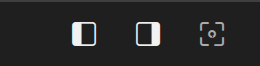
| Panel buttons | Bottom right | Show or hide the left and right panels, and switch to full screen. |
The main menu
Clate has no menu bar. Click the Clate button at the left of the toolbar to open the main menu. It has the project commands (Back to Projects, New Project, Import Project, Save Local Copy, Duplicate, Export to QML...), the submenus File, Edit, View, and Help & Support, About Clate and Quit Clate. See Menus and commands.
The toolbar
- The Clate button opens the main menu.
- Undo and Redo step through your changes. You can undo every change to your design.
- The zoom field shows the current zoom and opens the zoom menu. See Navigating the canvas.
- The AI Assistant button (a sparkle icon) shows or hides the assistant panel. See The AI Assistant.
- Preview shows the selected layer running in its own window. See Preview.


The Hierarchy panel
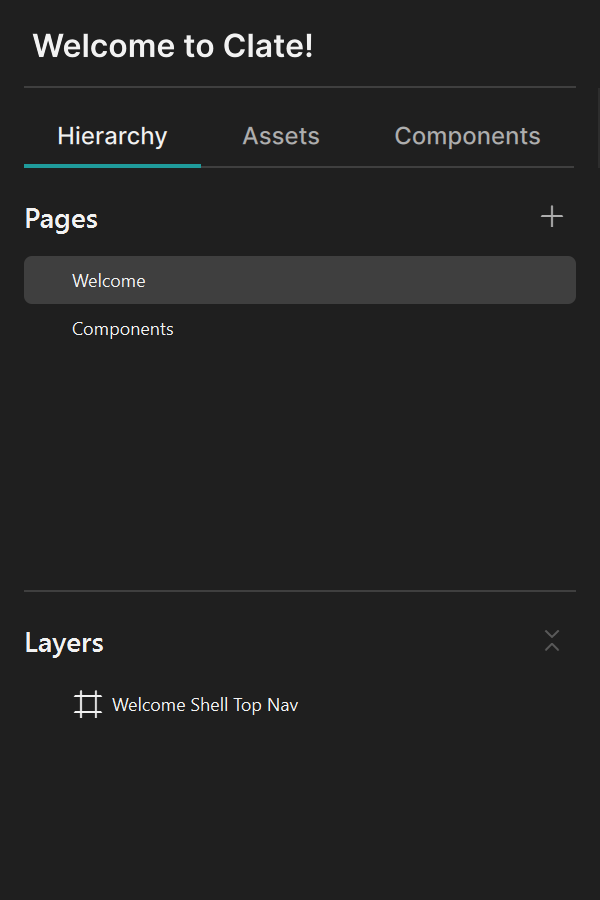
The Hierarchy panel is the sidebar on the left. The title at the top is the name of the project.
- Hierarchy lists the Pages of the project and the Layers of the active page. See Pages and layers.
- Assets lists the images of the project. See Assets.
- Components is for reusable components. Component support is not available yet. See Known limitations.
The tool palette
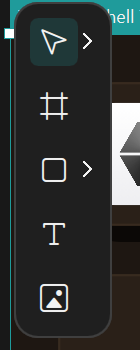
The tool palette floats at the top-left of the canvas. It has the Move and Hand tools, the Frame tool, the shape tools (Rectangle, Ellipse, Polygon, and Star), the Text tool and the Image tool. See Drawing tools.
The property editor
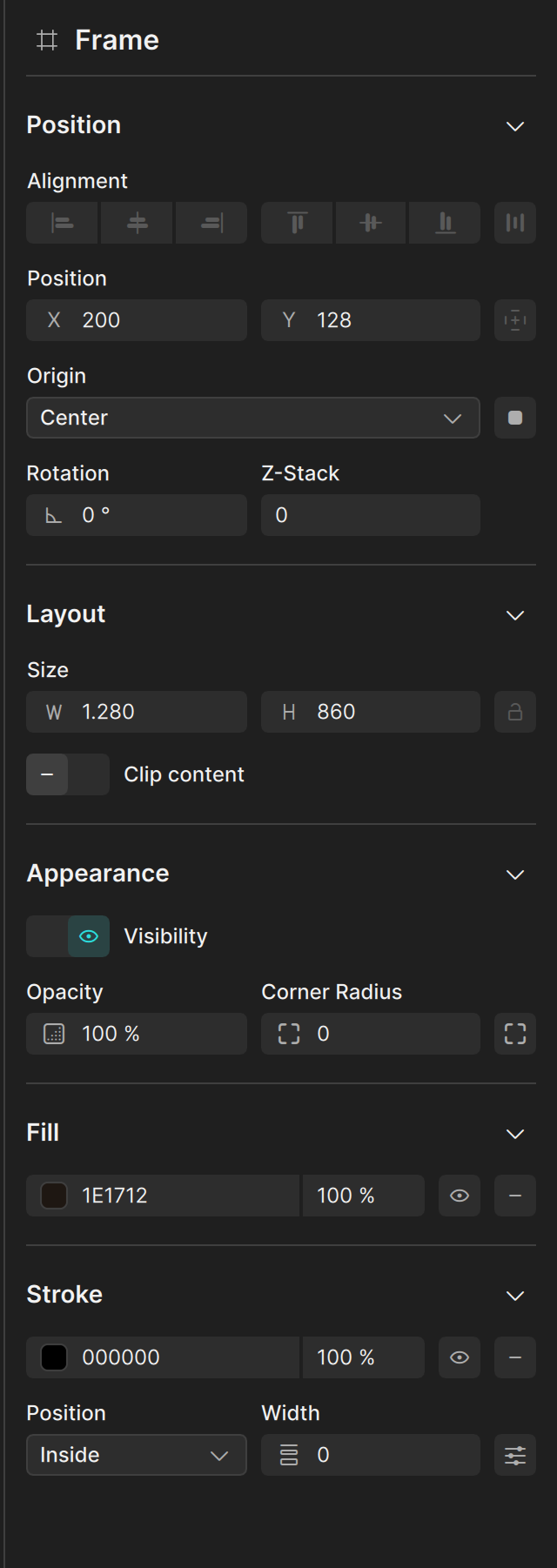
The property editor shows the settings of the selected object. With nothing selected it says Select an object to edit its properties. See The property editor.
Show and hide panels
The three buttons at the bottom right show or hide the left and right panels, and switch to full screen,
which hides both side panels. Press Ctrl + Shift + F11 to enter and leave full screen.