Moving, resizing, and rotating
Drag objects to move them, drag the handles to resize or rotate them, and use the arrow keys for small steps.
Move
- Drag a selected object, or start a drag directly on an object, to move it.
- Press the arrow keys to nudge the selection by 1 px. Hold
Shiftto nudge by 10 px.
Move into another frame
When you release an object over a frame, the object becomes part of that frame and keeps its place on the canvas. You can see the new structure in the Layers panel. You cannot drop an object into itself or into one of its own children.
Resize
An object has eight handles: four corners and four edges. Drag a handle to resize.
| Key while dragging | Effect |
|---|---|
Shift | Keeps the proportions of the object. |
Alt | Resizes from the center. |
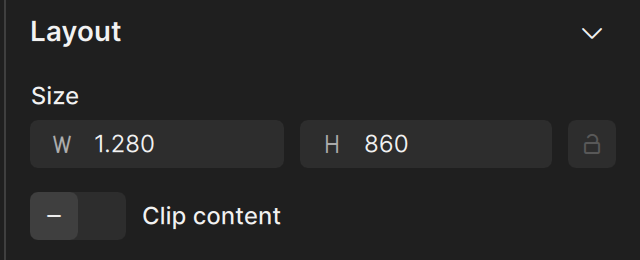
You can also type exact values in the Layout section of the property editor.
Rotate
Move the pointer just outside a corner handle, then drag to rotate. The object rotates around its origin, which you can change in the Origin setting in the Position section of the property editor. You can also type the angle in the Rotation field.
| Key while dragging | Effect |
|---|---|
Shift | Rotates in steps of 5 degrees. |
Alt | Rotates in steps of 45 degrees. |
Size badge
While an object is selected, a badge below it shows its size, for example 432 × 140. For a selection of several objects it shows the size of the whole selection. Frames do not show the badge; their size is in the Layout section of the property editor.
Snapping
While you move or resize, objects snap to nearby lines: the edges and center lines of the objects next to them, and the edges of the frame they are in. Snap lines and distances appear while you drag.
- Hold
Ctrlwhile you drag to turn snapping off, or on if it is off. - Hold
Altand point at another object to see the distances between objects, or from the selection to the edges of its parent.
To see where every object starts and ends, press A to show or hide object bounds.
Swap fill and stroke
Press Shift + X to swap the fill color and the stroke color of the selected objects.
Undo
Each move, resize, and rotation is one step in the undo history. Press Ctrl + Z to undo.