Drawing tools
Add frames, shapes, text, and images to the canvas with the tool palette. Click to place an object at a default size, or drag to draw it at the size you want.
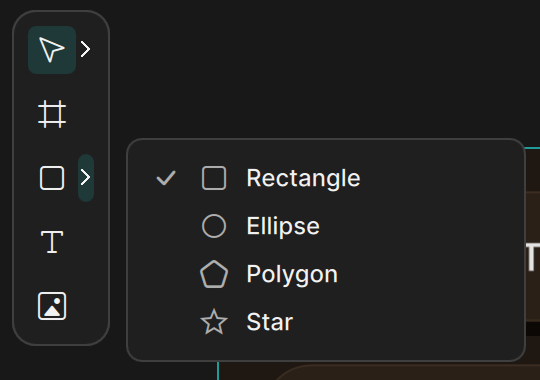
The tool palette
The tool palette floats at the top-left of the canvas. It has five buttons:
| Button | Tool | Shortcut |
|---|---|---|
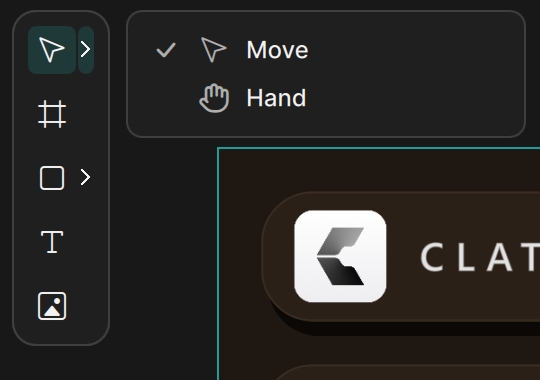
| 1 | Move and Hand (open the flyout with the small arrow) | None |
| 2 | Frame | F |
| 3 | Rectangle, Ellipse, Polygon, and Star (flyout) | R for Rectangle |
| 4 | Text | T |
| 5 | Image | None |
Buttons with a small arrow open a flyout. The entry you picked last stays on the button, so you can draw the same shape again with one click. Move is the normal tool for selecting and moving objects. Hand pans the canvas. See Selecting objects.
See Keyboard shortcuts for all shortcuts.
Draw an object
- Pick a tool in the palette, or press its shortcut. A dashed preview of the object follows the pointer.
- Do one of the following:
- Click on the canvas. Clate places the object at its default size, centered on the click point.
- Drag from one corner to the opposite corner. Clate draws the object from where you pressed to where you release. You can drag in any direction.
- Release the mouse button. The new object is selected, and the tool switches back to Move.
Press Esc before you release to cancel without creating anything.
Snapping does not apply while you draw. To line objects up afterwards, see Moving, resizing, and rotating.
Where the new object goes
- If the pointer is over a frame, the new object becomes part of that frame. Clate uses the frame that is at the top-left corner of the area you draw.
- Otherwise Clate adds the object to the active page.
You can see the result in the Layers panel in the Hierarchy panel on the left.
What each tool creates
| Tool | Default size | What you get |
|---|---|---|
| Frame | 650 × 450 | A container for other objects. It clips what extends beyond its edges. |
| Rectangle | 100 × 100 | A rectangle with slightly rounded corners (corner radius 10). |
| Ellipse | 100 × 100 | An ellipse. |
| Polygon | 100 × 100 | A regular polygon. |
| Star | 100 × 100 | A star. |
| Text | 60 × 15 | A text object with the text "Text", centered. |
| Image | 100 × 100 | An empty image. Choose the picture afterwards, see below. |
Every shape starts with a default fill and a thin black outline (1 px). To remove the outline, set the stroke width to 0 in the Stroke section of the property editor.
Adjust the new object
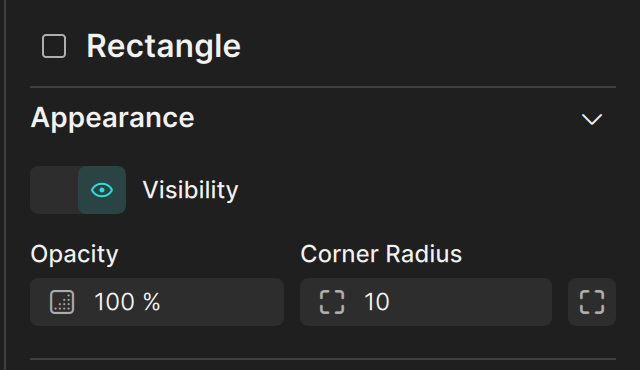
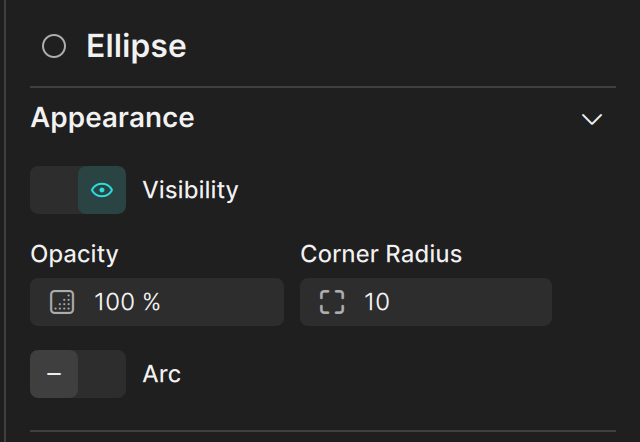
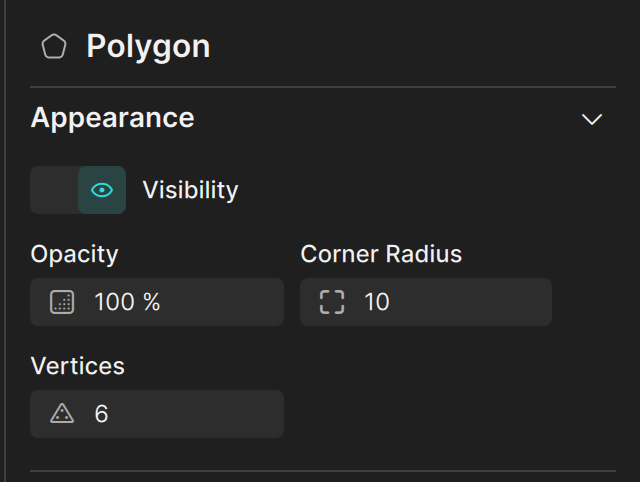
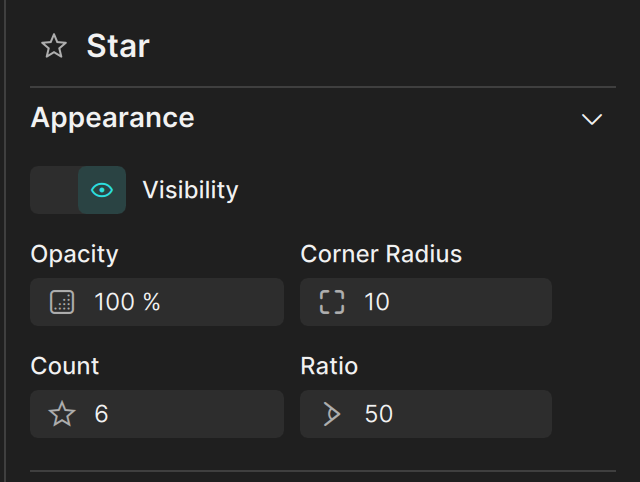
The new object is already selected, so you can change it right away in the property editor on the right. The property editor title shows the type of the selected object, for example Rectangle or Ellipse:
- Position and Layout set where the object is and how big it is.
- Appearance sets visibility, opacity, and the corner radius.
- Fill and Stroke set the colors of shapes.
Text
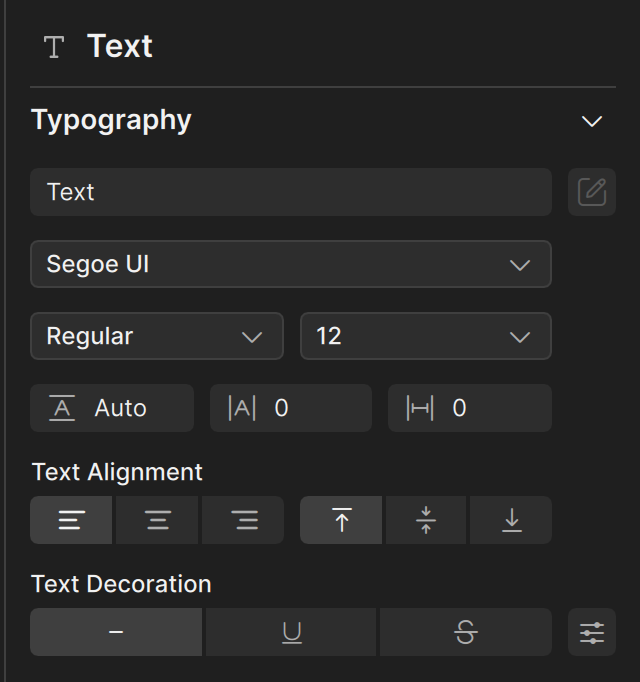
A new text object contains the word "Text". You change the content, font, size, and alignment in the Typography section of the property editor. Type the new text in the text field at the top of that section.
Images
The Image tool creates an empty image. To show a picture, drag an image from the Assets tab onto the canvas, or choose an image in the Image section of the property editor. See Importing and using assets.
Dragging an image from the Assets tab (or an image file from your computer) onto the canvas creates a ready-to-use image object at the size of the picture.
Undo
Creating an object is one step in the undo history. Press Ctrl + Z to remove the object you just drew.